TABLE OF CONTENTS
Overview
The June 26, 2026 release introduces two new configuration options on Space Types that give administrators greater control over how space type changes propagate to individual spaces — and how space-level edits interact with assigned space types. These enhancements address long-standing requests for more predictable, safer management of space type data across portfolios.
What's New
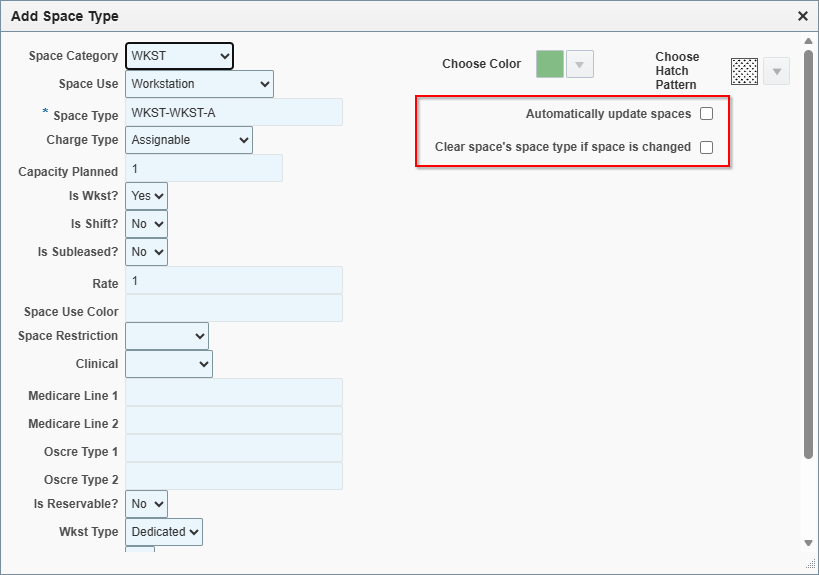
1. "Automatically Update Spaces" Setting
A new checkbox has been added to the Space Type administration table: Automatically Update Spaces.
How it works:
- Checked: When you make a change to the space type definition (e.g., updating Space Category, Charge Type, or other attributes), all spaces currently assigned that space type will be updated to reflect the new values. This was prior functionality.
- Unchecked (Default): Changes to a space type definition will only apply to future spaces that are assigned that space type. Existing spaces will retain their current values. All existing Space Types will be unchecked and work this way.
- Toggling from Unchecked → Checked: When you enable this setting on an existing space type, all spaces currently assigned that type will immediately be updated to match the current space type definition.
Why this matters: Previously, all space type changes automatically updated every associated space across the portfolio, which could cause unintended impacts. This setting now gives you explicit control over whether changes propagate or only affect new assignments going forward.
2. "Clear Space's Space Type if Space is Changed" Setting
A second new checkbox has been added: Clear Space's Space Type if Space is Changed.
How it works:
- Checked: If a user edits any of the following fields on an individual space, the space's assigned Space Type will be automatically cleared:
- Space Category
- Space Use
- Charge Type
- Subleased Status
- Workstation Type
- Is Reservable
- Is Wkst
- Unchecked (Default): Editing any space-level data will not clear the space type assignment. The space type will remain associated with the space even if its attribute values diverge from the type definition. All existing Space Types will be unchecked and work this way.
Why this matters: This gives Space Managers the control to either protect downstream reporting by ensuring that if a space's attributes no longer align with its assigned space type, the space type is removed; or allow space types to work independent of the other space fields.
3. Search Screen Support
Both new settings are available not only in the Space Type edit form but also in the Space Type search screen, allowing administrators to filter and locate space types by their "Automatically Update Spaces" and "Clear Space's Space Type" configuration.
Important Behavior Notes
- Removing a Space Type from a space: When a Space Type is manually removed from a space (regardless of either new setting), no other space field values will be changed. The space retains its current attribute values. This is consistent with existing behavior.
- Default behavior is changed: Both new settings default to unchecked, so existing will be changed to the new behavior. An administrator explicitly enables them to restore the prior behavior.
Who Should Use This
- Space Administrators who manage space type definitions and want granular control over how changes cascade.
- Organizations using Space Types in downstream reporting (e.g., utilization, allocation, and measurement data) who need to prevent unintended data changes.
Configuration
Both settings are available in Navigation > Admin > Space Type Table. They appear as two new columns in the space type configuration grid. No migration action is required — existing space types will default to "unchecked" for both settings.
Was this article helpful?
That’s Great!
Thank you for your feedback
Sorry! We couldn't be helpful
Thank you for your feedback
Feedback sent
We appreciate your effort and will try to fix the article