Table of Contents
Once the expiration date is met or if the bid was closed early, the responses are ready for next steps. This section describes steps to award, reconcile non-certified vendors, re-open, and cancel closed bids.
Award Bid
Bid responses that were submitted before the expiration date can be compared and the bid awarded.
| Step | Action |
|---|---|
| 1. |
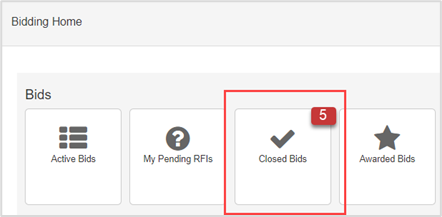
Click Closed Bids.
|
| 2. |
Click to open the bid.
|
| 3. |
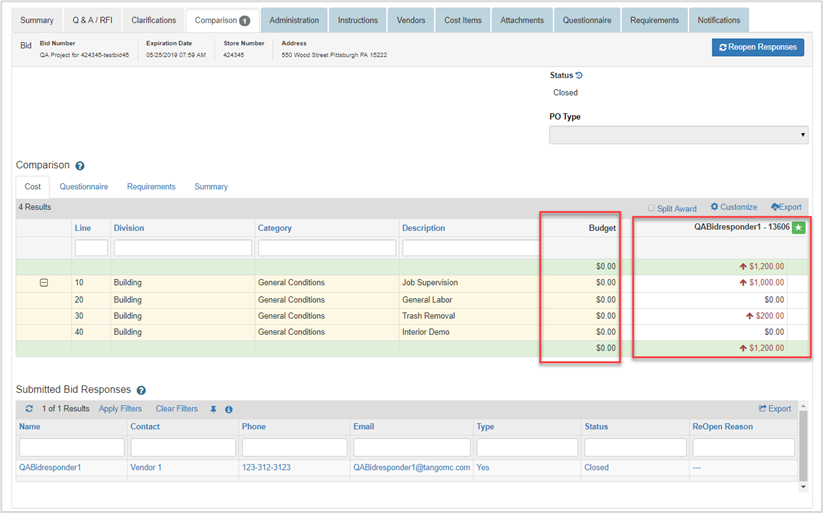
Click the Comparison tab.
|
| 4. |
Review the following on the Cost tab:
|
| 5. |
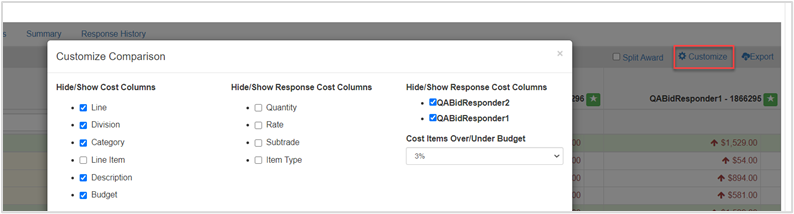
Click Customize, then choose a Cost Items/Over/Under Budget percent in the drop-down.
|
| 6. |
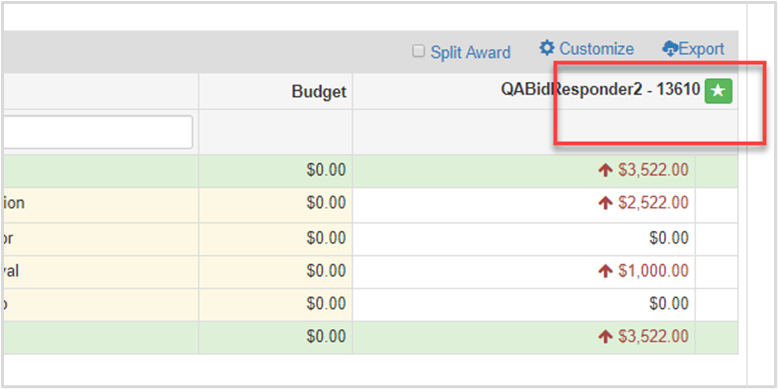
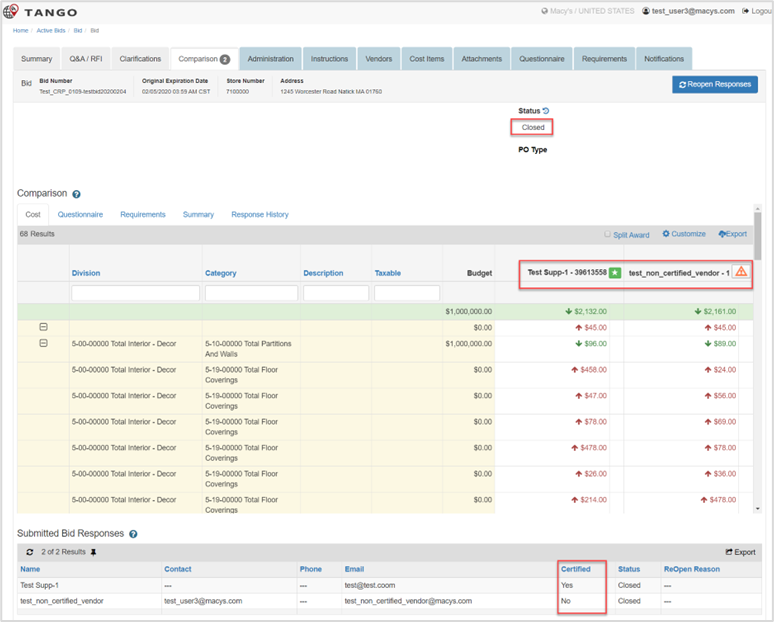
Review the Cost Line Item information, and click green star to award bid, as applicable, else repeat steps until the winning bidder is chosen.
|
| 7. |
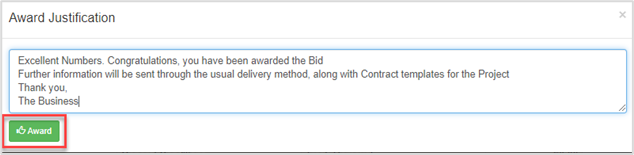
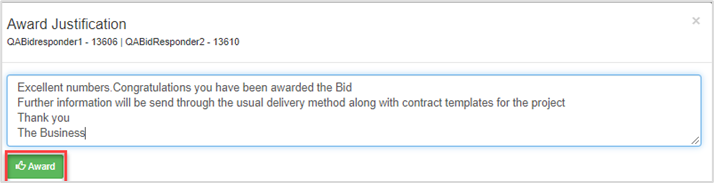
Enter award justification in the text box, then click Award.
|


Alternate Bid Responses
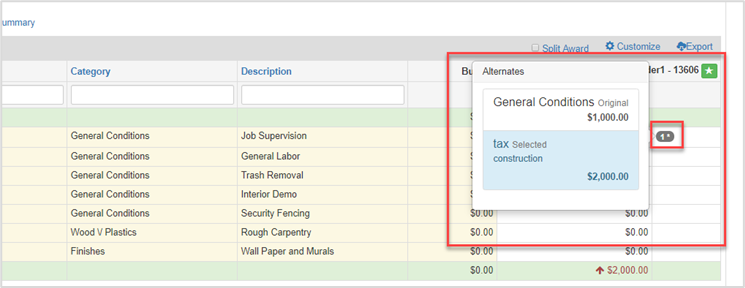
If a Cost Item is responded to with alternative cost items included, the system displays a badge count.
| Step | Action |
|---|---|
| 1. |
Click the badge count. The alternative cost items pop-up display.
|
| 2. |
Choose the cost item or the alternative cost item. Note: If alternative is chosen, an asterisk displays with the badge count. |
| 3. | TBD |
Split Award
| Step | Action |
|---|---|
| 1. |
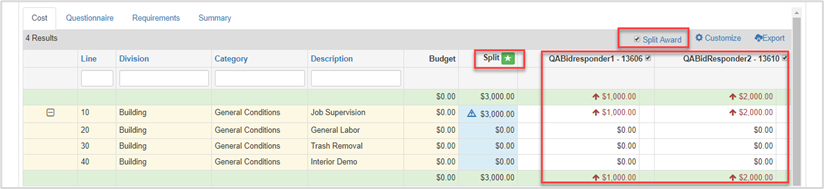
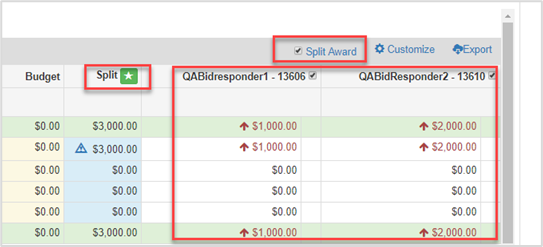
Click Split Award.
|
| 2. | Check the box next to each awarded vendor bid. |
| 3. |
Click Split.
|
| 4. |
Enter text in the Award Justification window, then click Award. The system will generate a Purchase Order for each vendor selected.
|
Reconcile Non-Certified Vendor
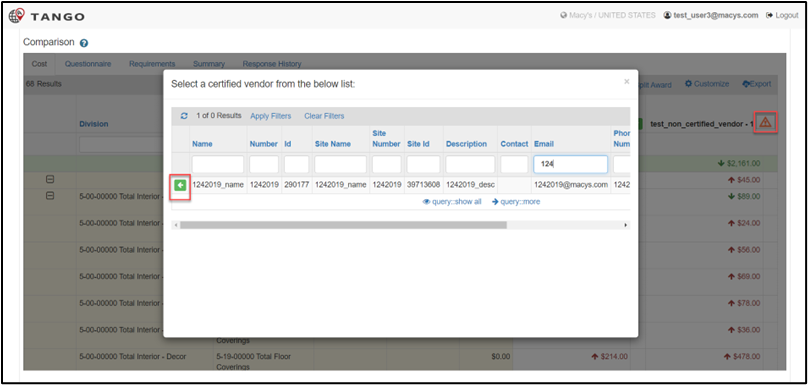
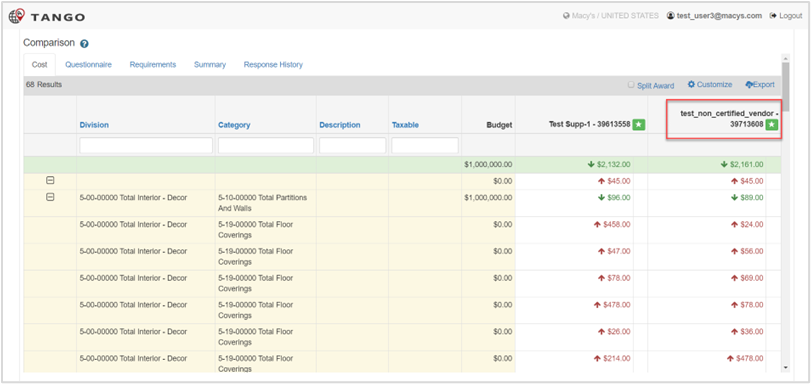
A certified vendor has the award (star) icon and a non certified vendor has a warning (triangle) icon. The vendor status can be viewed in the Certified column on the Submitted Bid Responses pane.
| Step | Action |
|---|---|
| 1. |
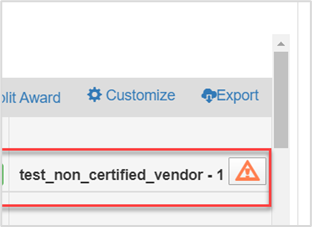
Click the Warning icon on the non-certified vendor.
|
| 2. |
Select a certified vendor. The list displays only the vendors not set up as certified in Edge.
|
| 3. | Clicking the select icon/button shows a warning message that include the changes going to occur. |
| 4. | The bid manger can continue the process by clicking the “YES” button or select a different vendor by clicking the “Cancel” button. Note: Name and Email are not overwriten if they are different.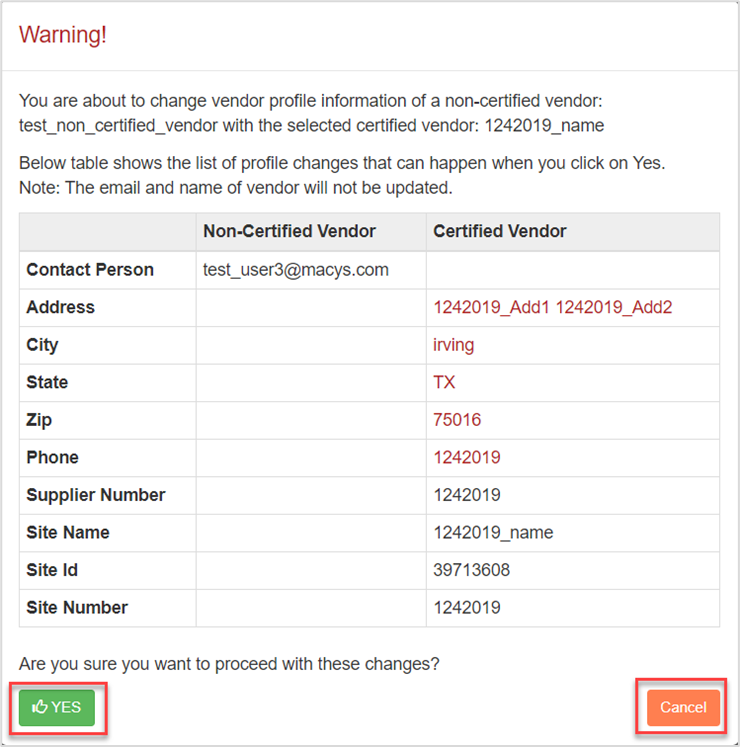
|
| 5. |
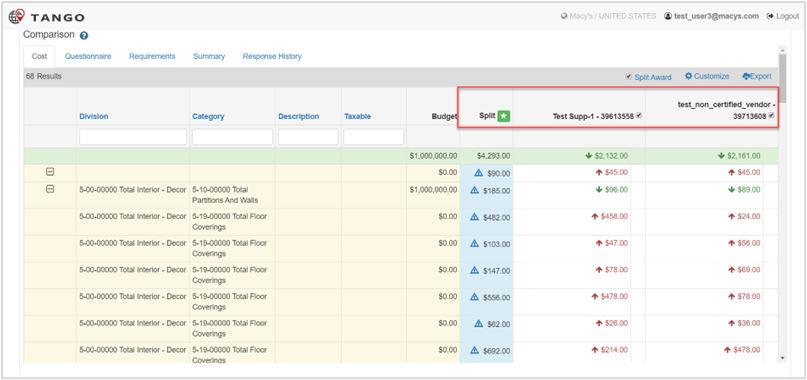
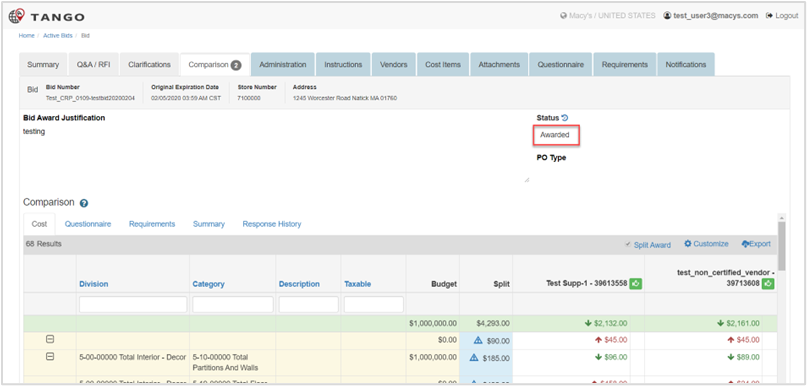
Now the non certified Vendor is reconcilied with a certified Vendor, so the Bid Manager can Award the Bid to that Vendor or do a Split award (if that option is enabled).
|
Re-Open Bid
After the Bid is Closed and before it is Awarded, the Bid can be re-opened..
| Step | Action |
|---|---|
| 1. |
Navigate to the Bid Manager portal and click the closed bid.
|
| 2. |
Click the Comparison tab, then click Reopen Responses.
|
| 3. |
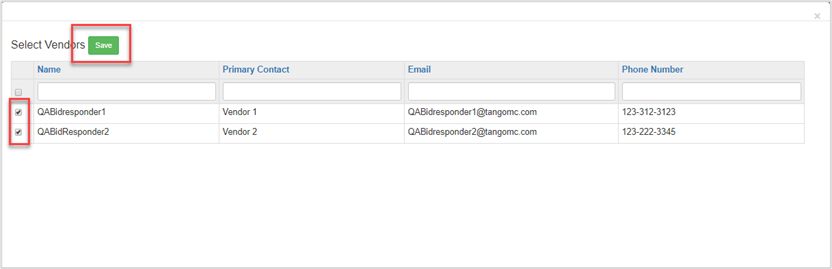
Check the box(es) next to the vendors to include in the re-opened bid, then click Save.
|
| 4. |
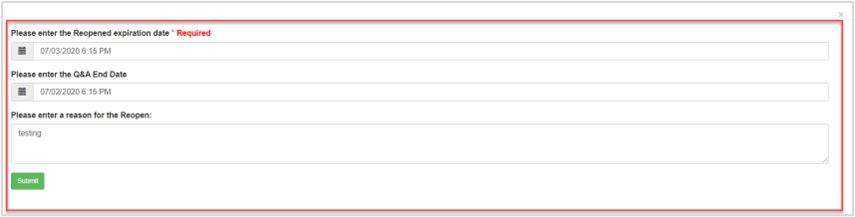
Complete the fields:
Click Save.
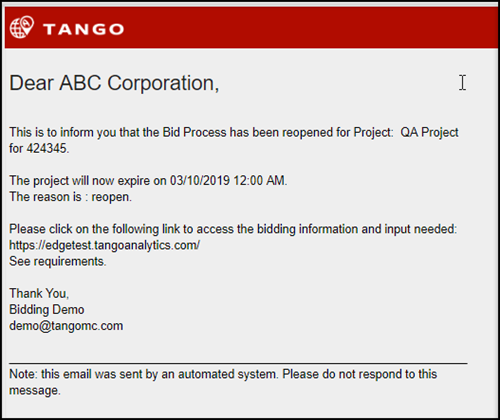
An auto-generated email is sent to the vendor(s).
|


Cancel Bid
The Bid Manager can cancel a Closed Bid.
| Step | Action |
|---|---|
| 1. |
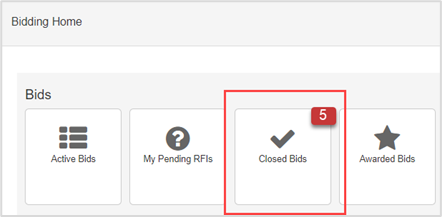
Navigate to the Bid Manager Portal and click Closed Bids.
|
| 2. |
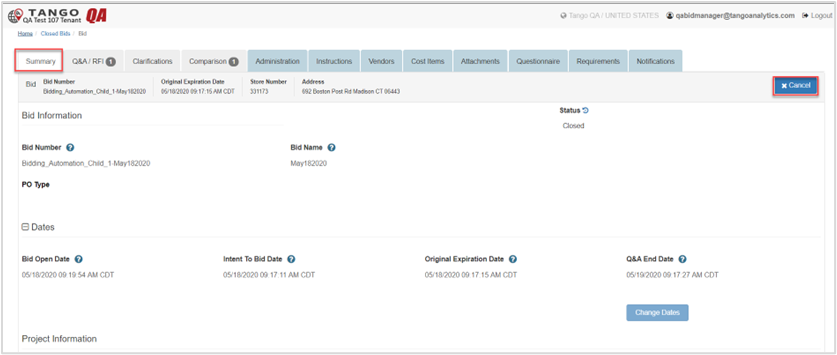
Choose the bid row, then navigate to the Summary tab.
|
| 3. |
Click Cancel.
|
| 4. |
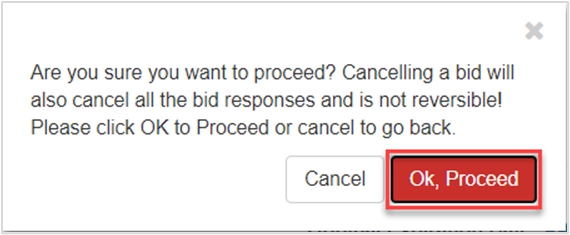
Click Ok, Proceed on the Are you sure you want to proceed? pop-up.
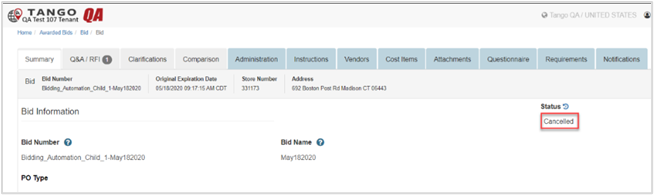
The bid status is set to Cancelled and read-only and an auto-generated email is sent to the vendor(s).
|

Was this article helpful?
That’s Great!
Thank you for your feedback
Sorry! We couldn't be helpful
Thank you for your feedback
Feedback sent
We appreciate your effort and will try to fix the article