Table of Contents
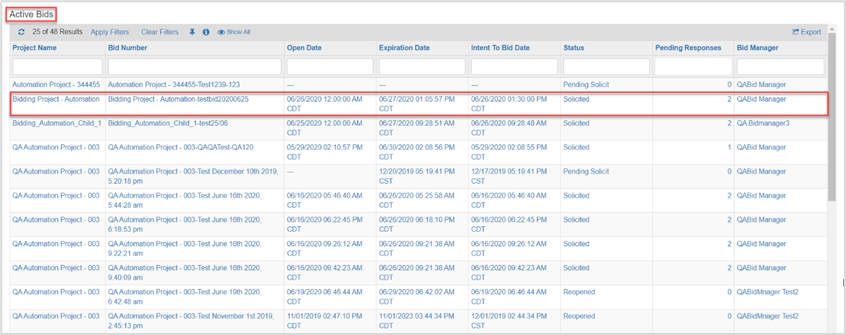
Once the bid is solicited to vendors for the bid response, the bid is considered active and will display in the Active Bid report with record status of solicited.
The Bid Manager can respond to a vendor’s questions, send out a Clarification to all the Vendors responding, Change the Dates and Project Roles, or Close the Bid early.
Summary Tab
This section describes the steps to perform optional tasks in the Summary tab.
Note: Vendors receive an email notification when anything is changed in the Summary tab.
| Step | Action |
|---|---|
| 1. |
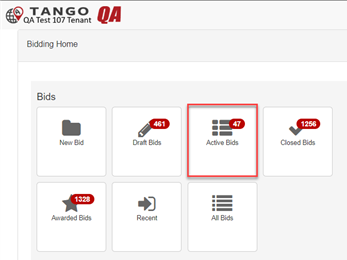
Click Active Bids.
|
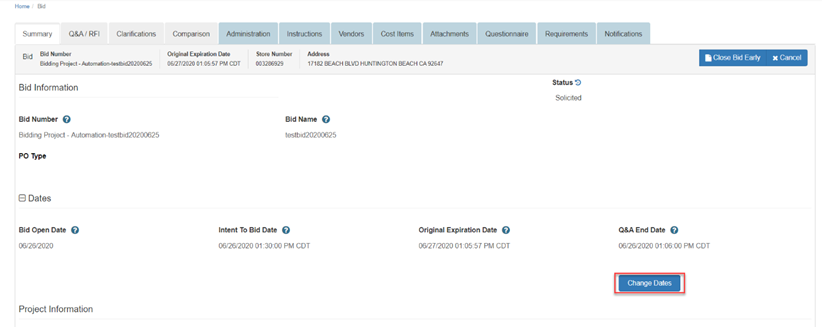
| 2. | Locate then open the bid. |
| 3. |
Click Change Dates in the Summary tab.
|
| 4. |
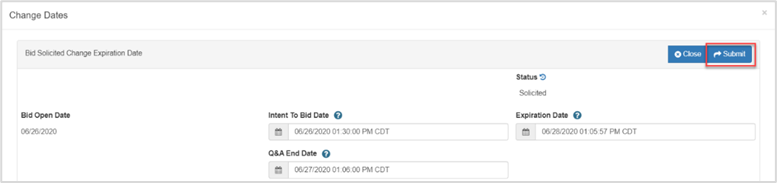
Change the following dates, as applicable:
|
| 5. |
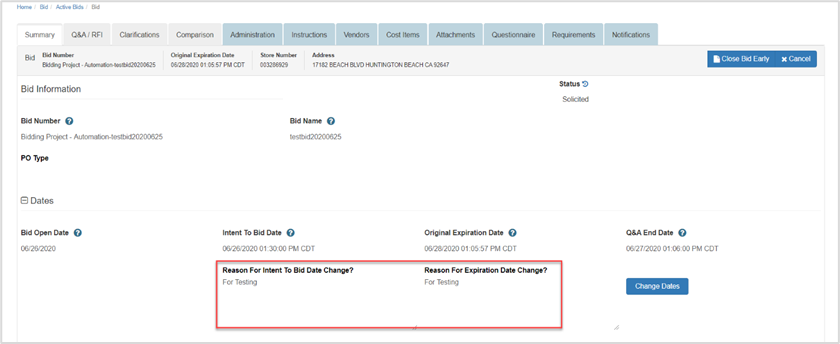
Type a reason in the reason field, then click Submit. The date(s) and reason display on the Summary tab.
|
| 6. |
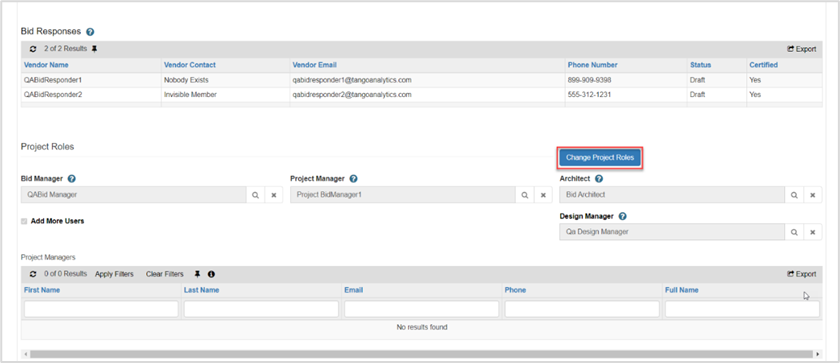
Click Change Project Roles.
|
| 7. |
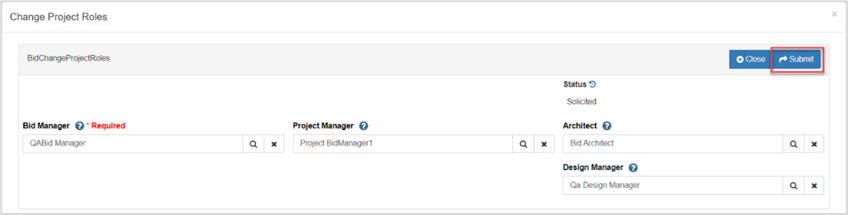
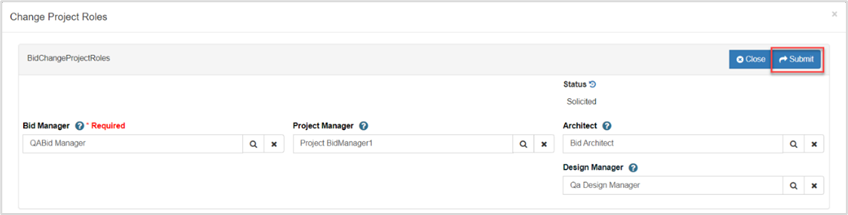
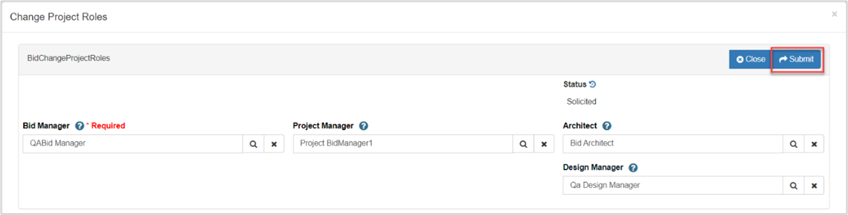
Click the magnifying glass on a role, choose a new role, then click Submit.
|
| 8. |
Click Close Bid Early. The bidding status is set to Closed.
|
| 9. |
Click Cancel, as applicable.
|
| 10. |
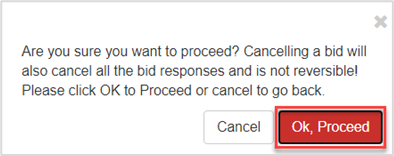
Click Ok, Proceed on the pop-up.
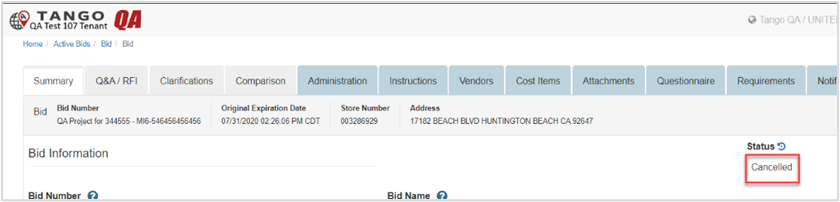
The bid status is set to Cancelled.
|
Q&A/RFI Tab
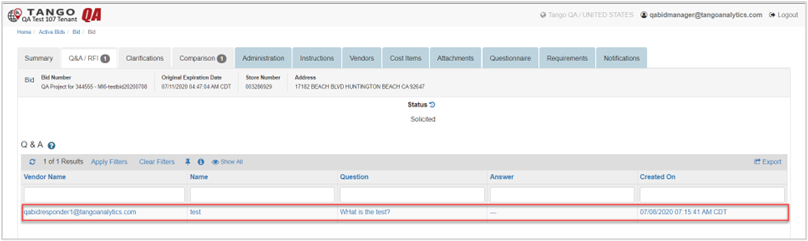
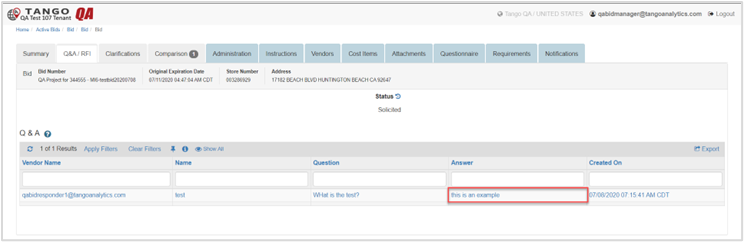
Questions to the Bid Managers from the Bid Responders can be viewed and answered on this tab.
This section describes the steps to respond to questions.
Answer a Vendor Question
| Step | Action |
|---|---|
| 1. |
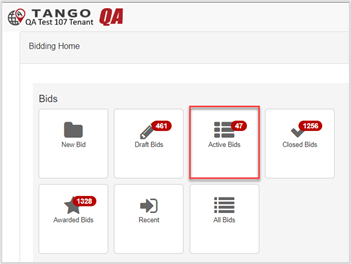
Click Active Bids.
|
| 2. |
Locate, then select a solicited bid.
|
| 3. |
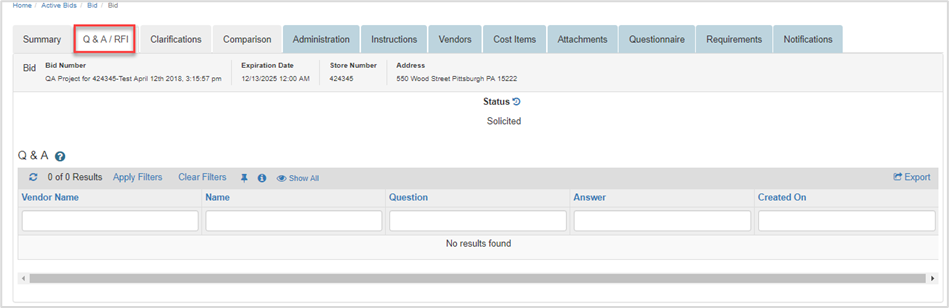
Click the Q&A/RFI tab. Note: The badge on the tab indicates the number of questions available to answer.
|
| 4. |
Select, then open the vendor question.
|
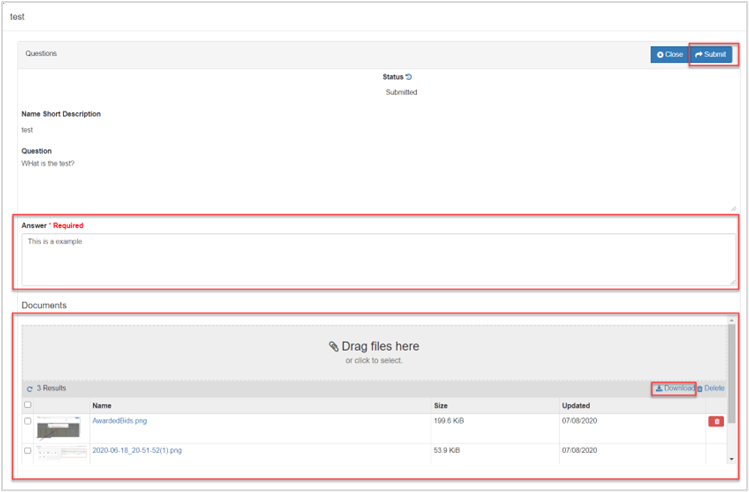
| 5. |
Complete the page as follows:
|

Clarifications Tab
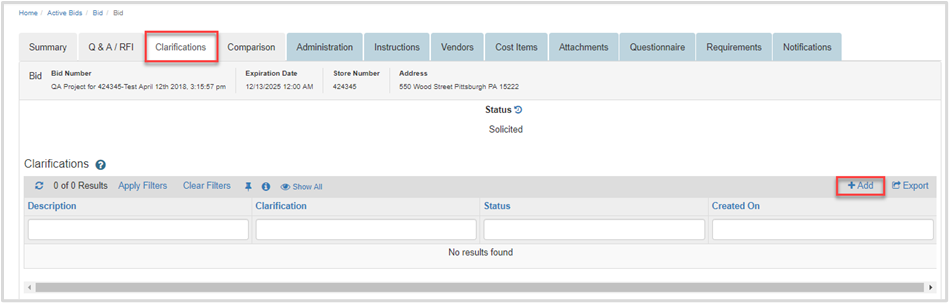
The Bid Manager can view existing or add new Clarifications from this tab.
| Step | Action |
|---|---|
| 1. |
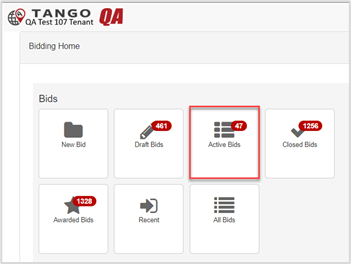
Click Active Bids.
|
| 2. |
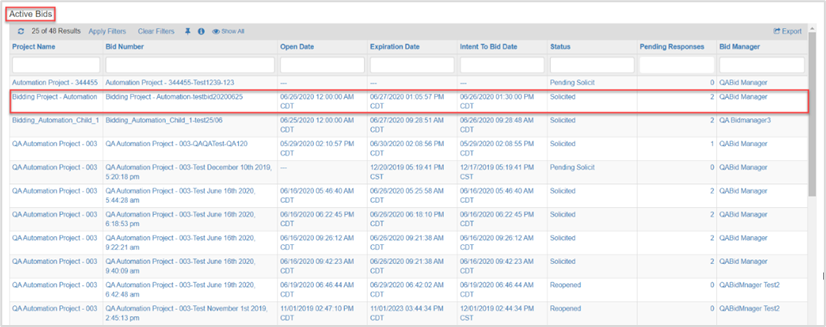
Locate, then select the solicited bid.
|
| 3. |
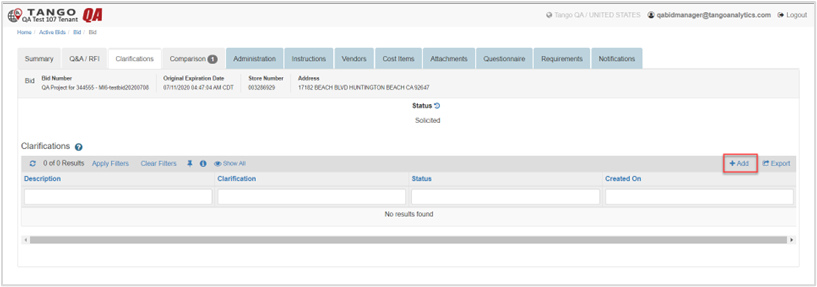
Click the Clarifications tab.
|
| 4. |
Click + Add.
|
| 5. |
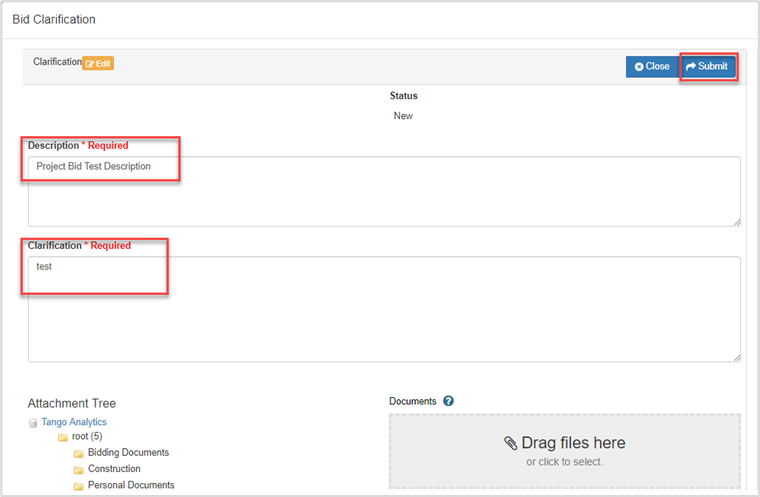
Complete the clarifications page as follows:
|

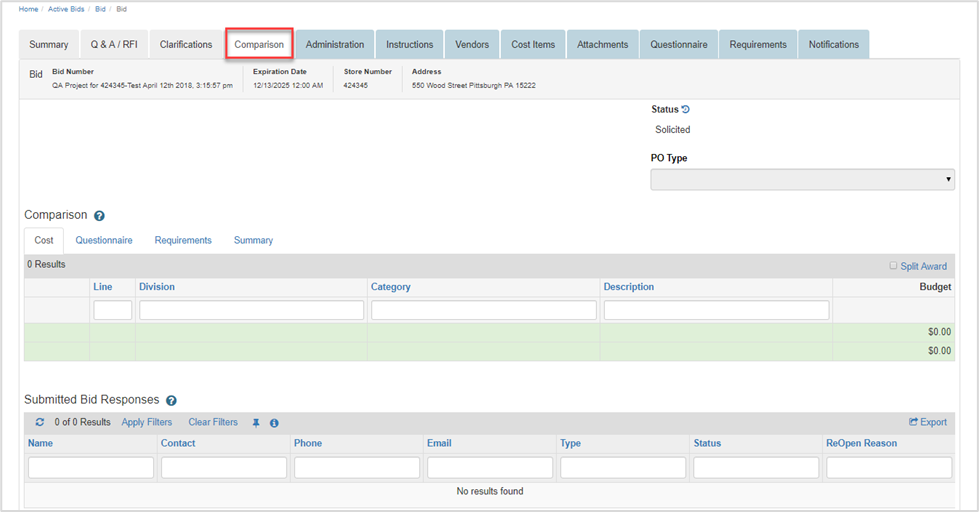
Comparison Tab
In the Comparison tab, the Bid Manager can compare Bid Responses and Awarded Bids after the Bid is closed.
See the Closed Bid section for more details
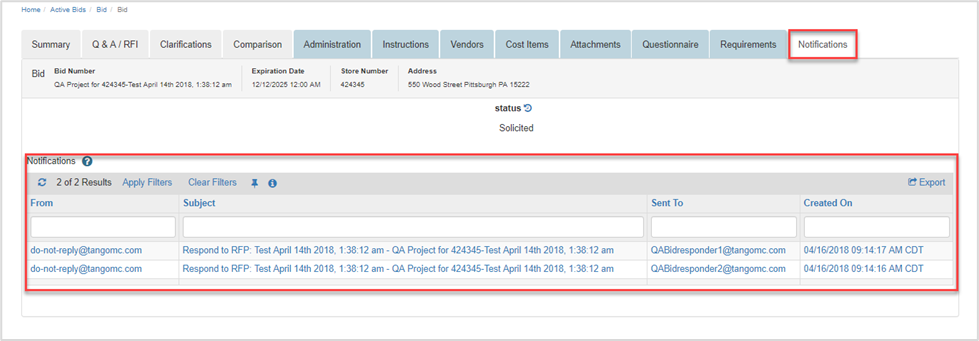
Notification Tab
After the bid reaches the solicited status, the Notifications tab displays. The Bid Manager can see all the notifications related to the Bid in this tab.
Other Tabs
The remaining tabs are Administration; Instructions; Vendors; Cost Items; Attachments; Questionnaire and Requirements tabs which display the information entered on the Draft Bid.
Was this article helpful?
That’s Great!
Thank you for your feedback
Sorry! We couldn't be helpful
Thank you for your feedback
Feedback sent
We appreciate your effort and will try to fix the article