Table of Contents
- Vendor Registration
- Getting Around
- Bid Selection Notification
- Bid Response Information
- General Tab
- Attachments Tab
- Q&A Tab
- Clarifications Tab
- Cost Items Tab
- Questionnaire Tab
- Requirements Tab
- Submit Bid Information
- Bid Status
- Awarded Bids
- Reopened Bids
- Closed Bids
- Lost Bids
- Introduction
- Vendor Registration
- Getting Around
- Bid Selection Notification
- Bid Response Information
- Bid Status
Vendor Registration
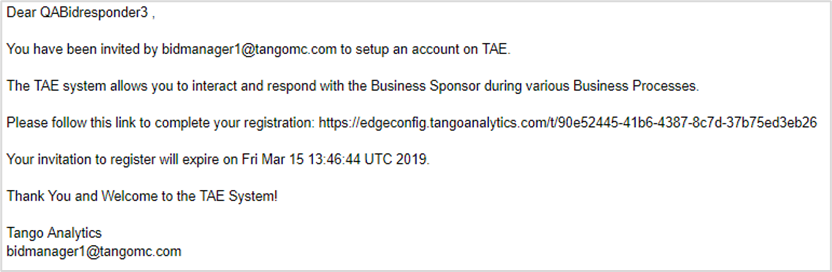
This section describes steps to register and gain access to the Tango Edge system. When a vendor is identified as a candidate to bid on a project, the requestor sends an invitation via email.
| Step | Action |
|---|---|
| 1. |
Open the email and click the registration link.
|
| 2. |
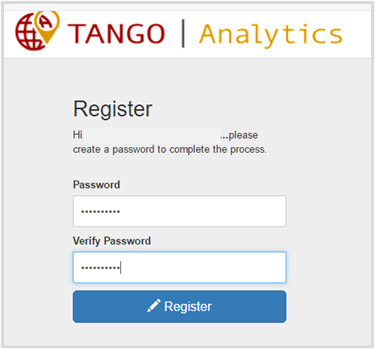
Create a password and re-enter password. Note: User name is your email. |
| 3. |
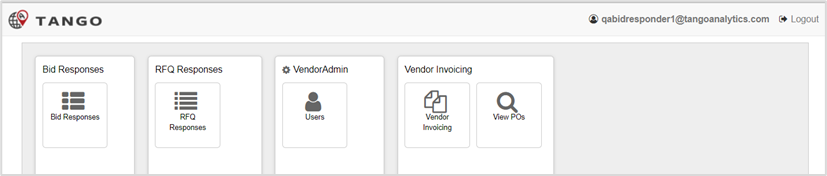
Click Register. The Bidding homepage displays.
|
Getting Around
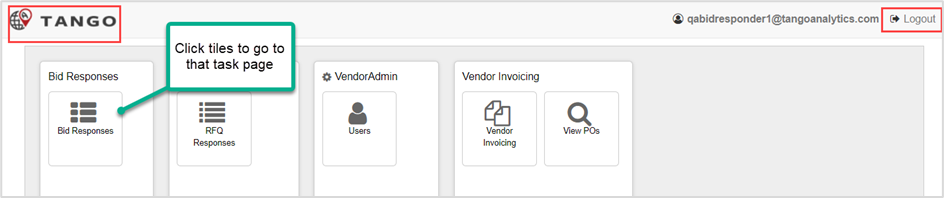
After a successful login, the Bidding homepage displays. Users can click available tasks, known as tiles, as appropriate for their roles and responsibilities. Use the Tango icon in the upper left to return to the homepage from any tile. Log out completely (recommended) after each session with the Logout icon in the upper right corner.
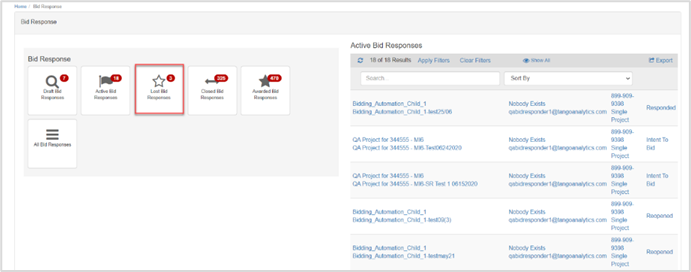
When the Bid Response tile is clicked the bidding page displays. The left pane includes tasks that can be initiated or acted on, and the right pane provides a quick view of the Active bids that can be sorted and accessed by project.
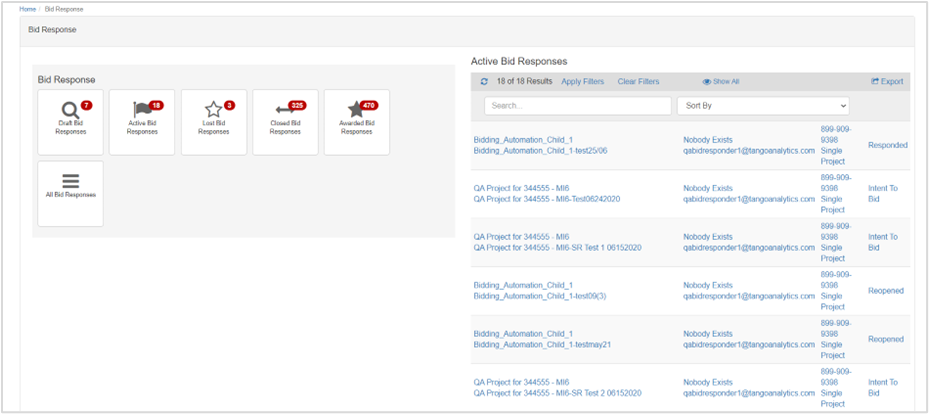
The table below describes each task in more detail.
| Task | Description |
|---|---|
| Draft Bid Responses | Bids that are waiting on Intent to Bid response. |
| Active Bid Responses | Bids that are opened and Intended to Bid or have been Re-Opened. |
| Lost Bid Responses | Bids that have been lost or statuses as Lost. |
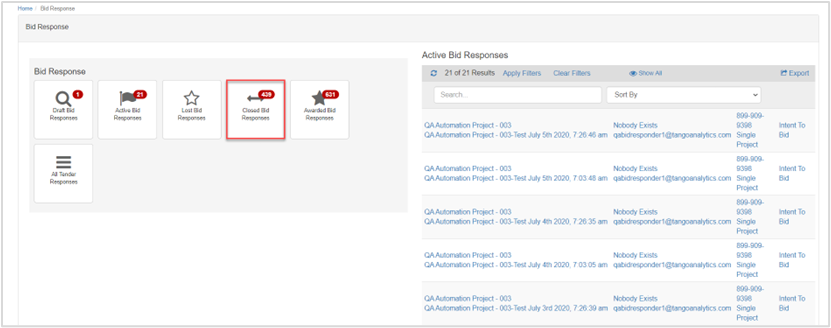
| Closed Bid Responses | Bids that have been Closed and have not been Awarded. |
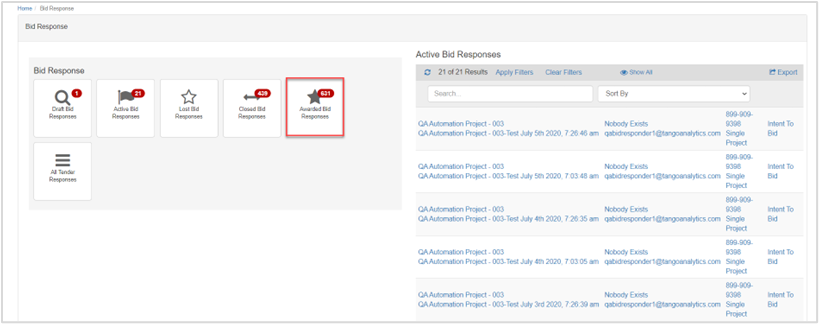
| Awarded Bid Responses | Bids that have been awarded to the vendor will appear under this option. |
| All Bid Responses | Provides a list of all bid responses in the system and status. |
Bid Selection Notification
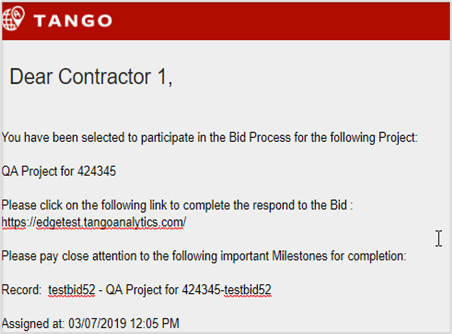
Once the vendor is selected to bid on the project, they will receive an email with the details of the bid, including the when the bid opens and when it closes for response. This section describes the steps to respond to the bid.
| Step | Action | ||||||||
|---|---|---|---|---|---|---|---|---|---|
| 1. |
Open the email and click the link.
|
||||||||
| 2. |
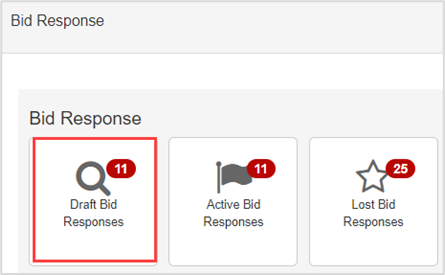
Click Draft Bid Response.
|
||||||||
| 3. |
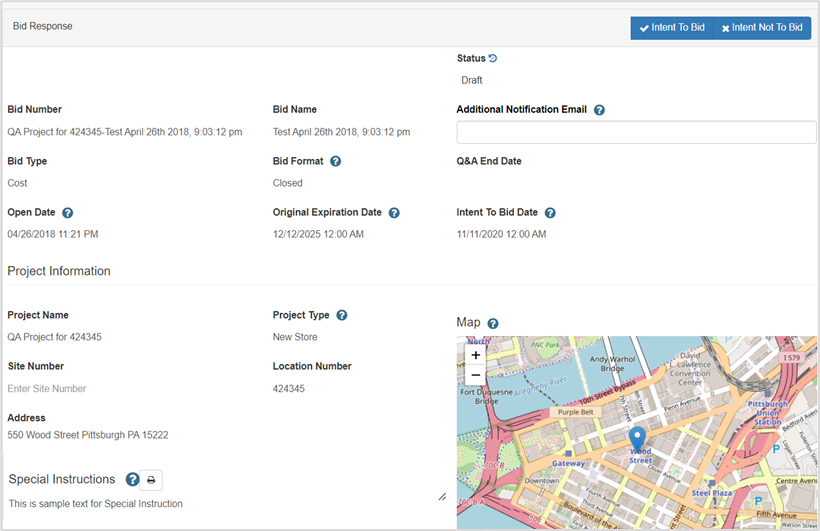
Click to open the bid project row.
The Bid Response page displays.
|
||||||||
| 4. |
Review the project, including special instructions, as applicable.
|


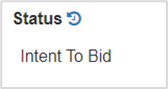
Bid Response Information
Once the vendor clicks Intent To Bid, the General tab and all other project tabs display. The following sections describe step-by-step procedures to view or complete each tab.
Note: Use the Next icon to navigate forward. Click the labeled tabs (Attachments, Q&A, etc.) at the top of each page to navigate back.
General Tab
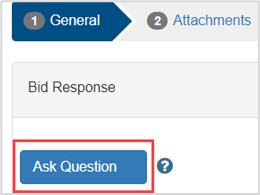
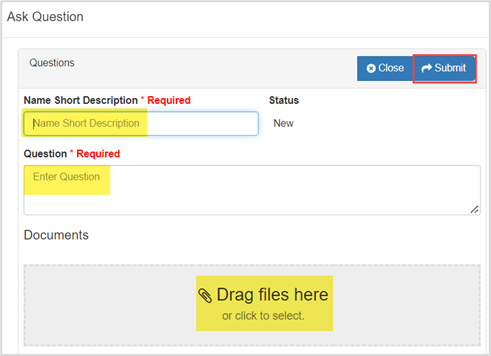
This tab is a read-only version of the Bid Response page except for the Ask Question button, which routes project questions to the identified roles on the project. 
Project Roles pane – A list of all stakeholders on the project. 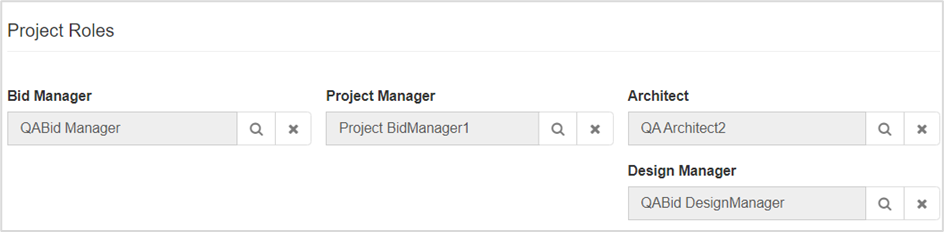
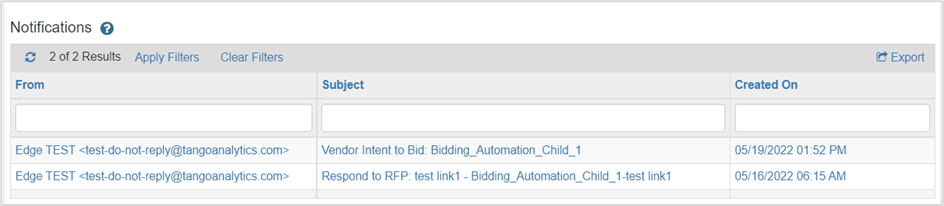
Notifications pane – A listing of all system-generated emails.
Ask a Question
Note: This procedure can be performed from all tabs except the Q&A tab.
| Step | Action |
|---|---|
| 1. |
Click Ask a Question.
|
| 2. |
Complete the form as follows:
The question is routed to the requestor(s) for a response. |
| 3. |
Click Next. The Attachments tab displays. |
Attachments Tab
To download an attachment, select the check box next to the attachment name, and select Download.

Q&A Tab
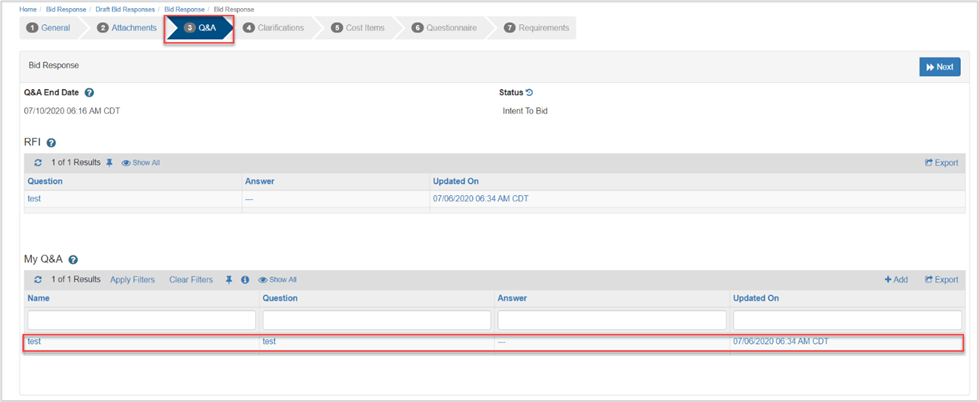
Questions asked by responding vendors will appear in this tab. Responders can ask questions until the Q&A End Date is passed. If this field is blank, responders can ask questions until bidding is closed. 
Note: The Request For Information (RFI) pane is where all responder questions and responses display, with names masked. The My Q&A pane is where logged in vendors can view their own questions and answers.
Clarifications Tab
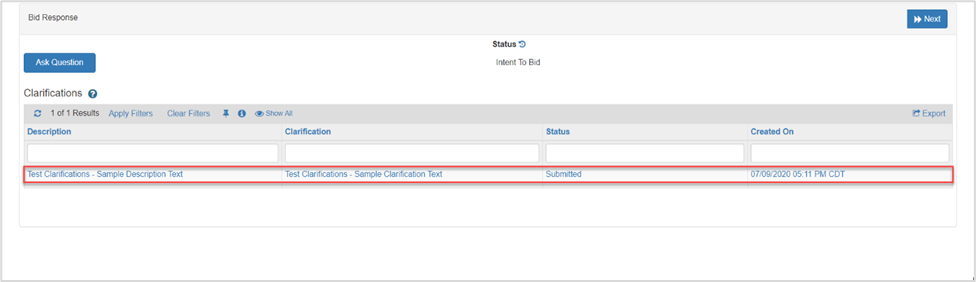
The Clarifications tab displays notifications, guidelines, and follow ups added by the Bid Manager and Project Manager after the bid was solicited.
Cost Items Tab
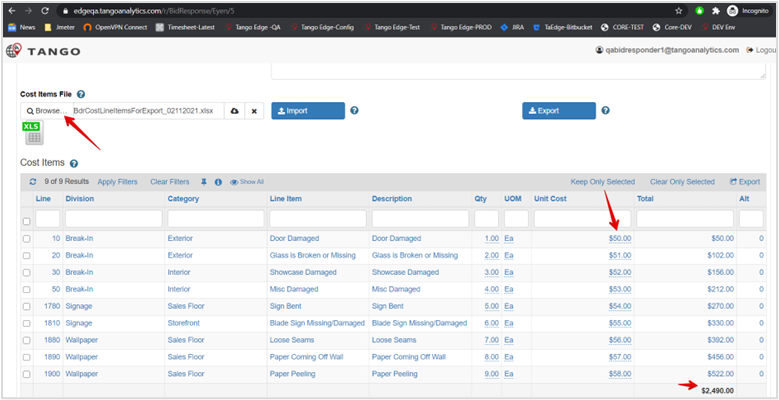
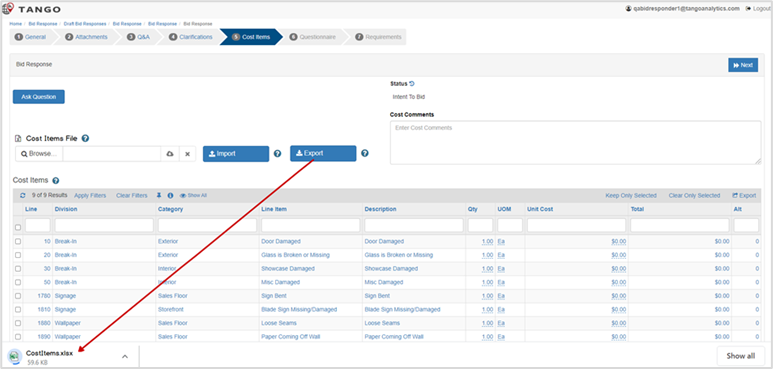
The Cost Item screen provides the fields for the vendor to enter information on the budget for the bid. This section describes the steps to search, import, and export cost times.
| Step | Action |
|---|---|
| 1. |
Type cost item data in the search fields in a column, then press Enter. The search results display.
|
| 2. |
Click Import and upload cost items in .xlsx format. Note: Ensure the data complies with the import feature.
|
| 3. |
Click Export to download a copy of existing cost items in .xlsx format.
|
| 4. |
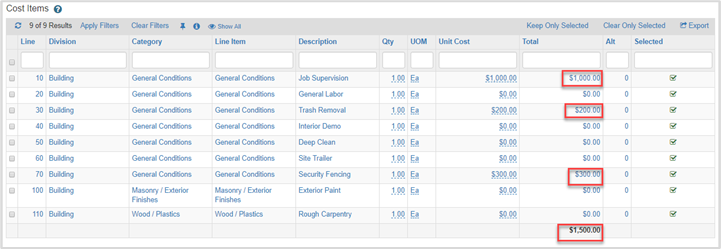
Select a cost item row and perform the following, as applicable:
|

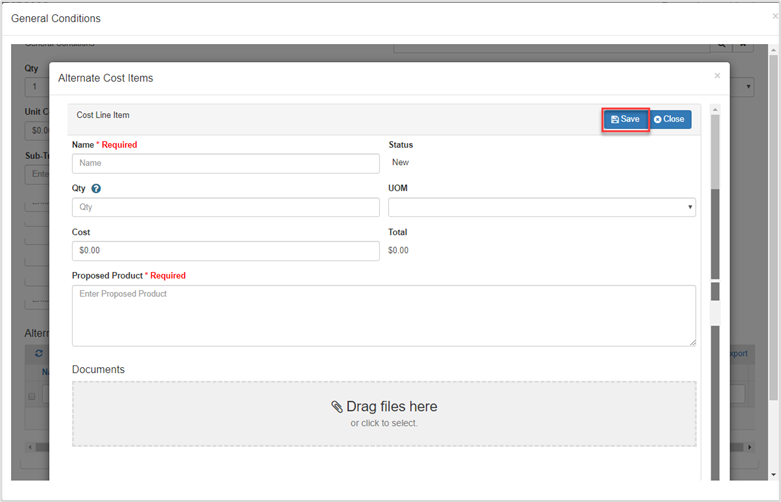
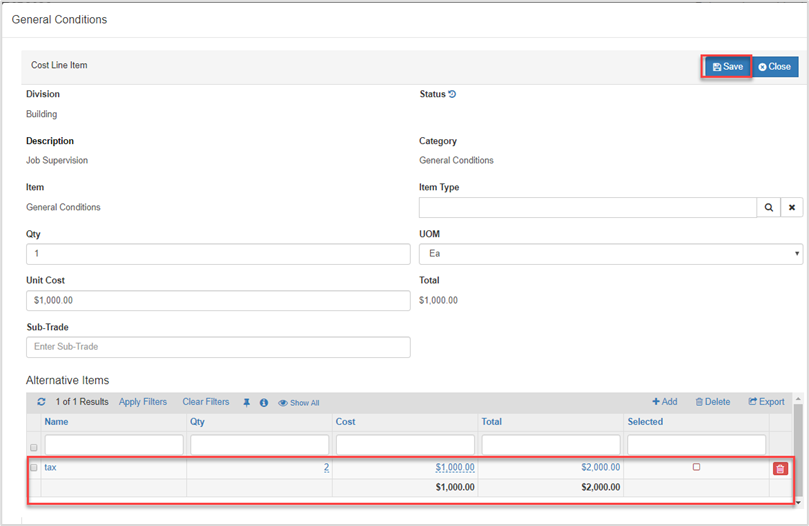
Alternate Cost Items
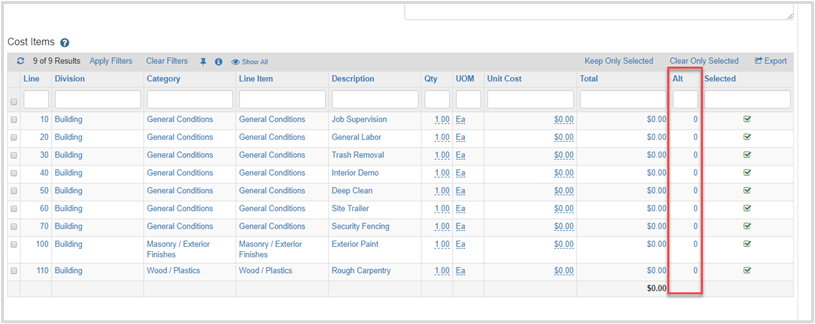
If the vendor wants to provide other options for a Cost Item, they can use the alternate cost items feature.
| Step | Action |
|---|---|
| 1. |
Click the value in the Alt column in the desired row.
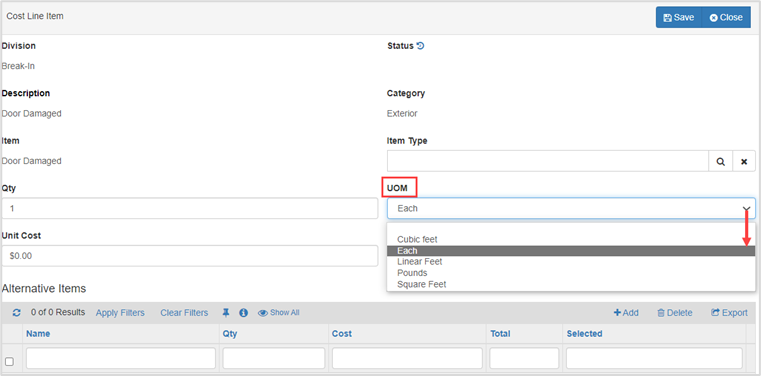
The Cost Item record displays. |
| 2. |
Choose a Unit of Measure (UOM) in the UOM drop-down.
|
| 3. |
Scroll to the Alternate Cost Items pane, then click +Add.
|
| 4. |
Complete the following fields:
|
| 5. |
Click Save on the Cost Line Item page. The Alternative Item line displays.
|

Questionnaire Tab
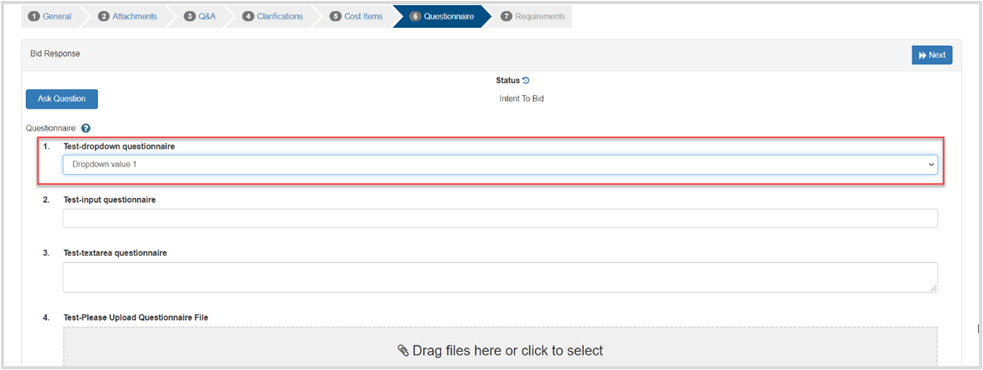
This tab includes uniquely configured questions the vendor will answer during the response process.
TIP: It is recommended that each question be answered completely and accurately.
Requirements Tab
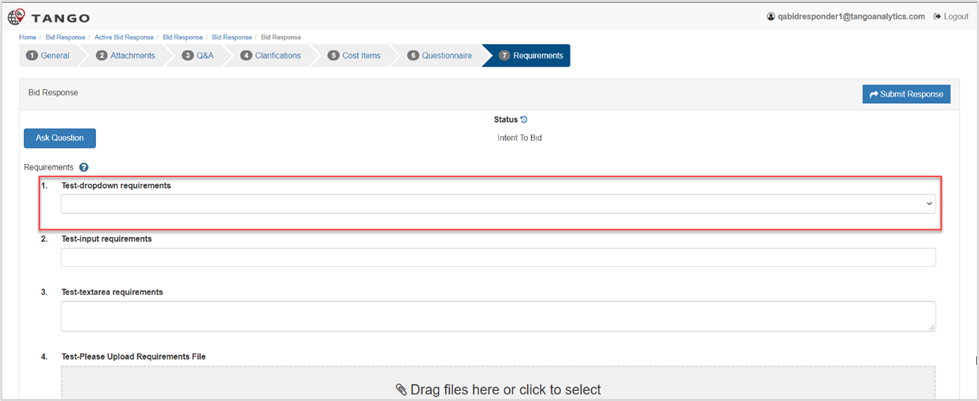
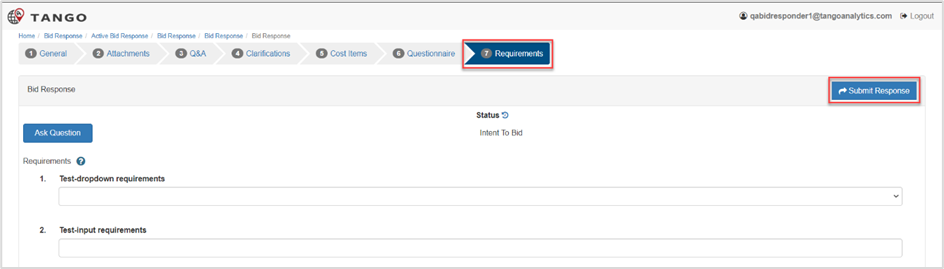
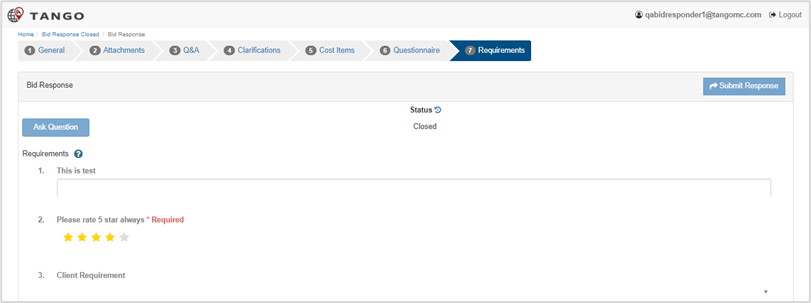
Each requirement is specific to the bid and vendors should answer each question or document request completely and accurately and click Submit Response.
Submit Bid Information
Once all tabs have been completed, click the Submit Response icon in the upper right corner.
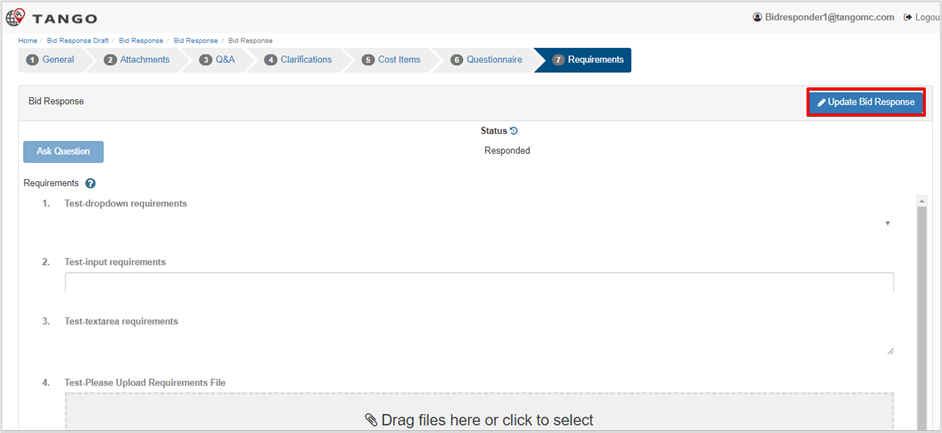
The status is set to Responded.
Note: Vendors may update answers, change, add, or delete documents until the bidding closes.
Bid Status
This section describes the bid responses a vendor may receive during the bidding process.
Awarded Bids
| Step | Action |
|---|---|
| 1. |
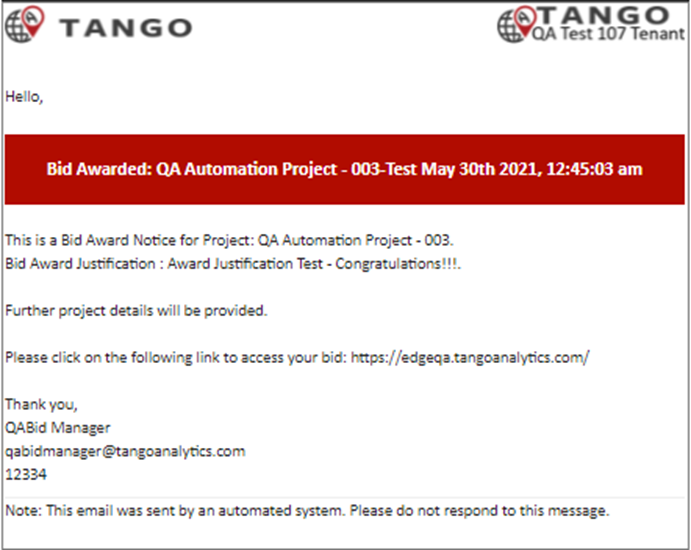
Open the email and click the link.
|
| 2. |
Click Awarded Bid Responses.
|
| 3. |
Click the row to open bid.
|

Reopened Bids
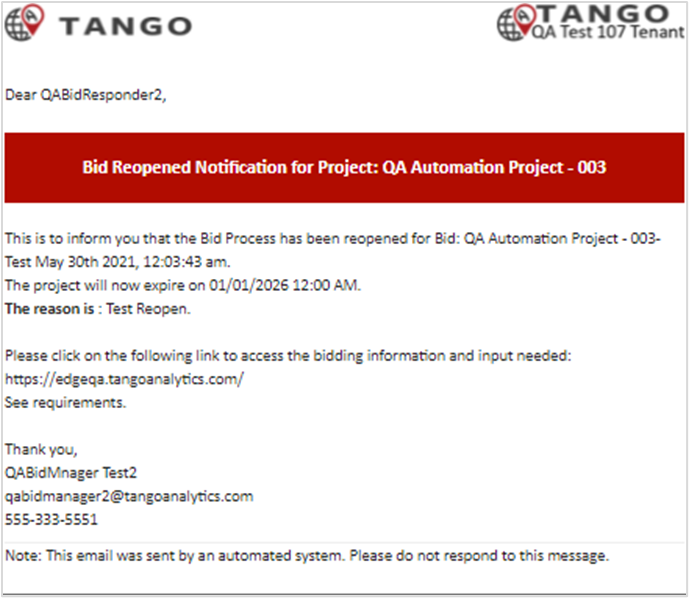
Bids can be re-opened by a Bid Manager after it is closed. Reasons a bid may re-open include:
Responders did not provide necessary answers to award a bid
Project was put on hold
Awardee cannot complete the work
| Step | Action |
|---|---|
| 1. |
Open the email and click the link.
|
| 2. |
Perform the Bid Response Information Procedure. Note: Users will click the bid row with status Re-opened. |
Closed Bids
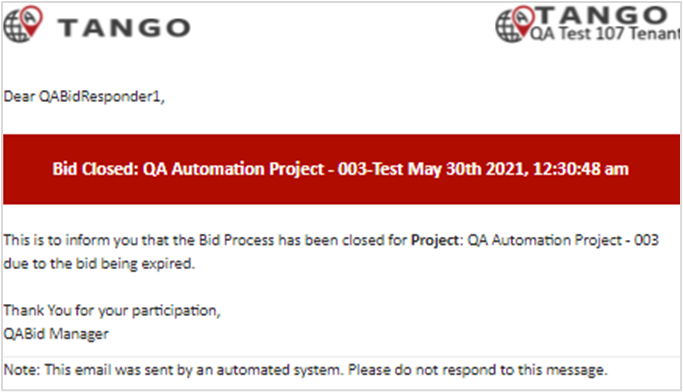
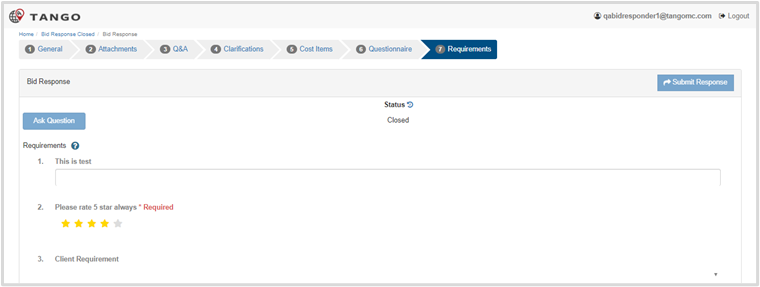
Bids that have been updated with a Closed status will appear under this queue if the bid is closed due to an expiration or the Bid Manager closed it.
| Step | Action |
|---|---|
| 1. |
Open the email and click the link.
|
| 2. |
Click Closed Bid Response.
|
| 3. |
Choose the closed bid and view in read-only format.
|
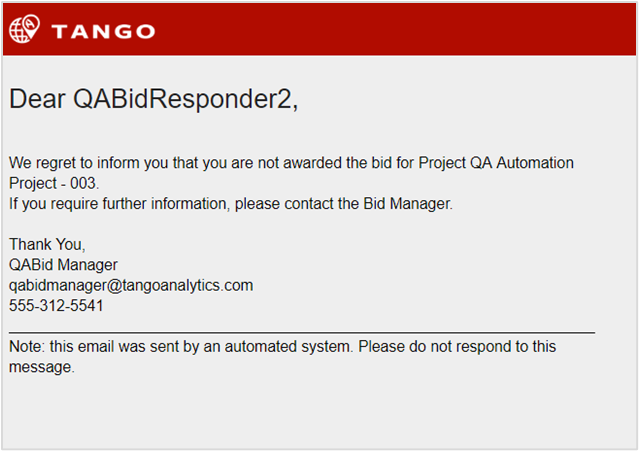
Lost Bids
| Step | Action |
|---|---|
| 1. |
Open the email and click the link.
|
| 2. |
Click Lost Bid Responses.
|
| 3. |
Click the row, then view the bid in read-only format.
|
Was this article helpful?
That’s Great!
Thank you for your feedback
Sorry! We couldn't be helpful
Thank you for your feedback
Feedback sent
We appreciate your effort and will try to fix the article