Table of Contents
This is a user guide for the Tango Maintenance application. This guide is intended to direct Facility Manager users through the Scheduled Maintenance functionality of the application.
Maintenance Overview
Tango Maintenance combines the robust and secure capabilities of the Tango “Core” platform with the extended functionality of the Tango “Edge” platform. Through the Maintenance module in Edge, Tango empowers your external partners to contribute to the information you use daily without having to acquire licenses or set up complex security. The Maintenance module within Edge provides a structured environment that:
Provide distinct roles and responsibilities.
Facilitates the “fix or replace” decision and helps ensure you only pay for your responsibilities.
Fix the most urgent problems first.
Enables workflow to bring structure and visibility to your maintenance activities.
Gives insight into effectiveness and compliance with Service Level Agreements (SLA)
Organizes expenses by Type for Locations and individual assets.
To achieve the efficiency of single input throughout the application requires tight integration of these two platforms – with Tango Core housing the foundational elements and Maintenance hosting the more outwardly visible parts in Edge. This document will step users through:
An overview to give a vision of the scope of the process.
The Tango Core elements to set an understanding of the entities being affected.
With this foundation, the steps / actions of the roles are explained to illustrate the Maintenance support process.
Roles and Activities
The Tango Maintenance application is a role base system with specific functional processing occurring within each role.
Key Elements
The Scheduled Maintenance process includes these roles:
Facility Manager (FM) – The person responsible for setting up the Scheduled Maintenance Plans and monitoring Service Providers performing the work on the Scheduled Maintenance Work Orders.
Work Order Vendor – One of the two roles considered as a “Service Provider” for Scheduled Maintenance. External users directly responsible for providing service and completing the work orders. (Work Order Vendors can also set up/manage and assign Vendor Technician users).
Maintenance Lead – One of the two roles considered as a “Service Provider” for Scheduled Maintenance. This is a required role for clients who want to use the Internal Maintenance functionality.
For anyone familiar with the vendor roles above, the Maintenance Lead role can be equated with the Work Order Vendor role. Maintenance Leads are dispatched “Internal Maintenance” SM Work Orders and have full access to complete the Work Orders, or optionally assign Work Orders to Technicians.Maintenance Technician – This is an optional role, for clients who operate with a team of internal maintenance resources. Maintenance Technicians can be directly assigned to Work Orders automatically or Maintenance Leads can manage the workload and assignment of the Technicians manually with an assignment utility record.
Step-By-Step
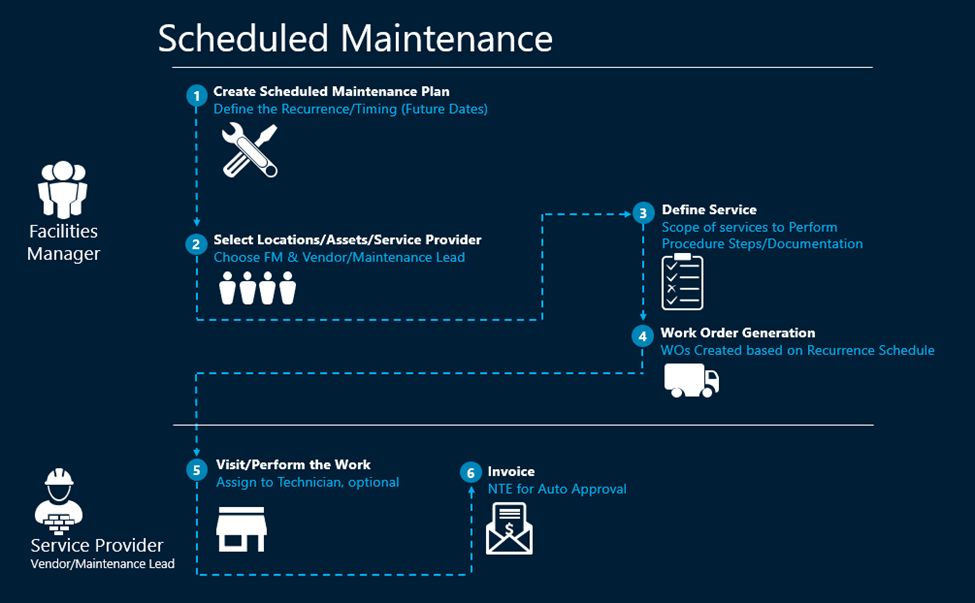
The following chapters will demonstrate the details and specifics of each step, but as an introduction the process is as follows:
The Facility Manager defines the Scheduled Maintenance Plan
Define the Problem Code (Matrix) and the Recurrence (Future Dates)
Select the Locations/Assets. Select the Vendor for external work orders, or select Internal Maintenance and chose the Maintenance Lead
Define the Scope, Procedures, and any Work Order documents.
Submit the Plan and the system will generate the Work Orders based on the recurrence dates.
Service Provider (Vendor or Maintenance Lead) will be notified that there is upcoming Scheduled Maintenance work.
Service Provider received the Work Order and Performs the work
-
Service Provider can then create the Invoice and Submit to the FM to be paid.
Invoice auto approval can be configured ro happen if the invoice is under the NTE or, the FM will manually approve.
Scheduled Maintenance
Description
Scheduled Maintenance (aka preventative maintenance and may be referenced as “SM” in the application) is the process used by the Facility Manager to set up and manage maintenance plans against locations and assets where work is scheduled on a standard recurrence pattern for the same kind of work to be performed by the same vendor.
Facility Manager (FM) Home Page
When a Facility Manager logs in, the first screen they see the FM Home Page (if the FM has additional Roles, they may see a full menu instead). There are different actions that the FM can take information to quickly find what they need to do. These functions are conveniently arranged in “Tiles” on their home screen.
The Scheduled Maintenance tiles are all collected in the same grouping between the My Actions and Queries Tiles. Certain Queries tiles also provide data for “demand” Work Orders and Scheduled Maintenance Work Orders/Invoices together.
The Tiles are organized in a logical order based on how often users are likely going to access the data.
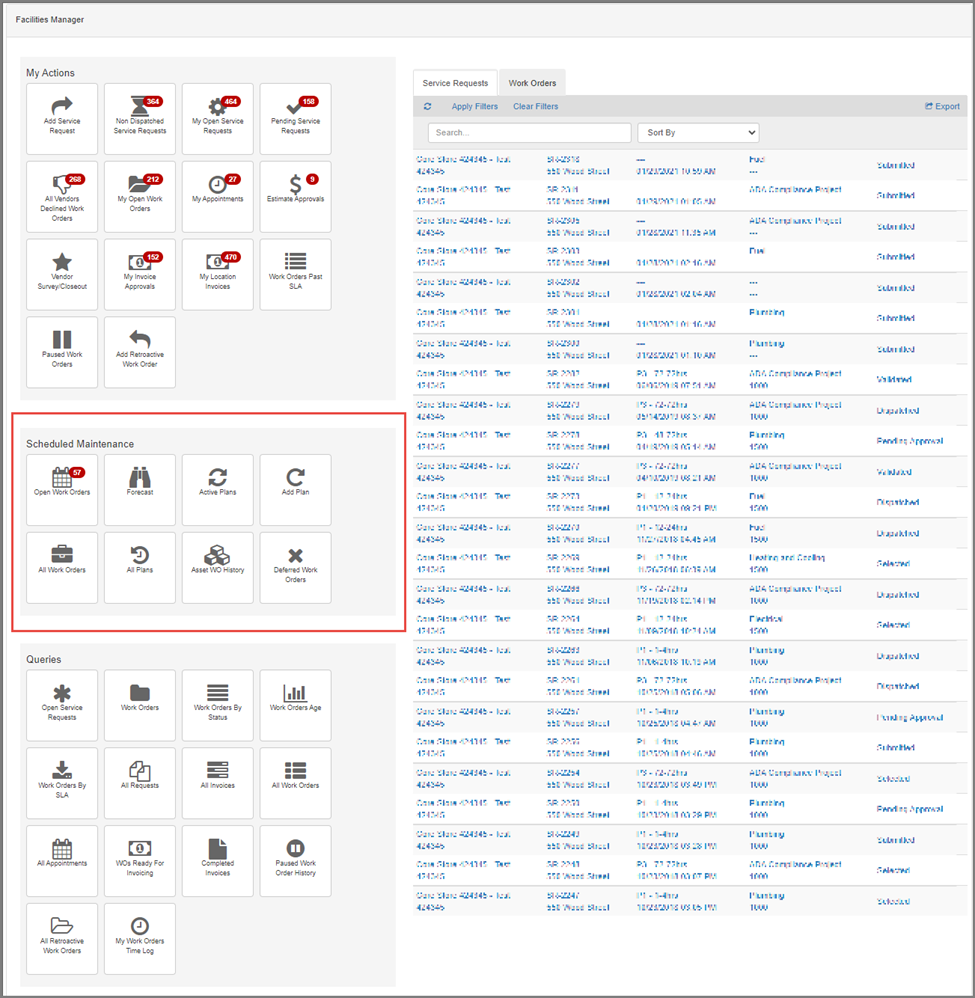
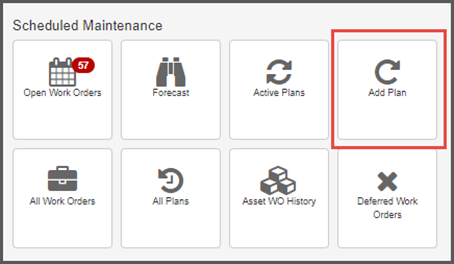
Scheduled Maintenance Tiles
| Tile | Description |
|---|---|
 |
Open Work Orders Displays all “Submitted” (active/open) Scheduled Maintenance Work Orders for all Locations that are associated to the logged in Facility Manager. Displays badge count. |
 |
Forecast Displays all Scheduled Maintenance recurrence details for the upcoming 365 days. This includes the definition for the upcoming work orders before they are generated as well as the Locations and Asset involved. |
 |
Active Plans Displays all active (not Cancelled or Completed) Scheduled Maintenance Plan records. This allows the FM to revisit their SM Plans, Revise them, etc. |
 |
Add Plan
The Scheduled Maintenance record will generate SM Work Orders based on a recurrence pattern for each Location added. |
 |
All Work Orders Displays all Scheduled Maintenance Work Orders with no Status Filters. The report is filtered by Work Order Type only. |
 |
All Plans Displays All Scheduled Maintenance Plan records (not the Work Orders) with no filters. |
 |
Asset WO History Displays all Scheduled Maintenance Work Orders associated to Assets, including the Asset Type and Asset Name. |
 |
Deferred Work Orders Displays all Scheduled Maintenance Work Orders that have been set to Deferred. The report is filtered by Work Order Status and Work Order Type. |
Setting Up the Scheduled Maintenance Plan
From the Facility Manager home page, click ‘Add Plan’ in the Scheduled Maintenance Tiles to open a new Scheduled Maintenance Plan record.
General
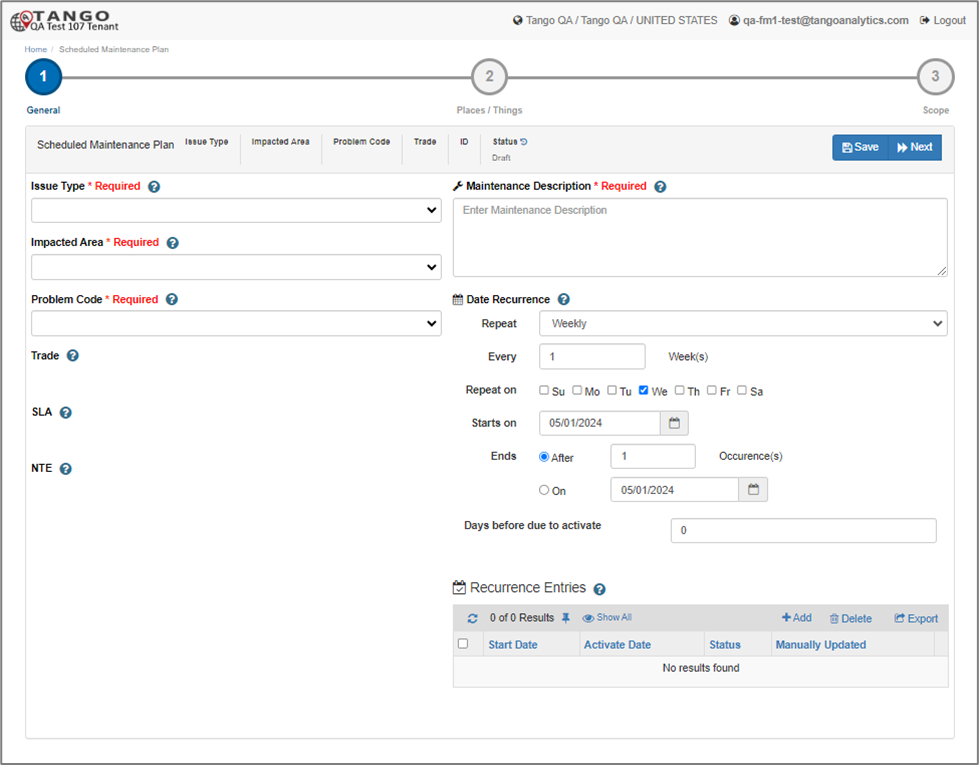
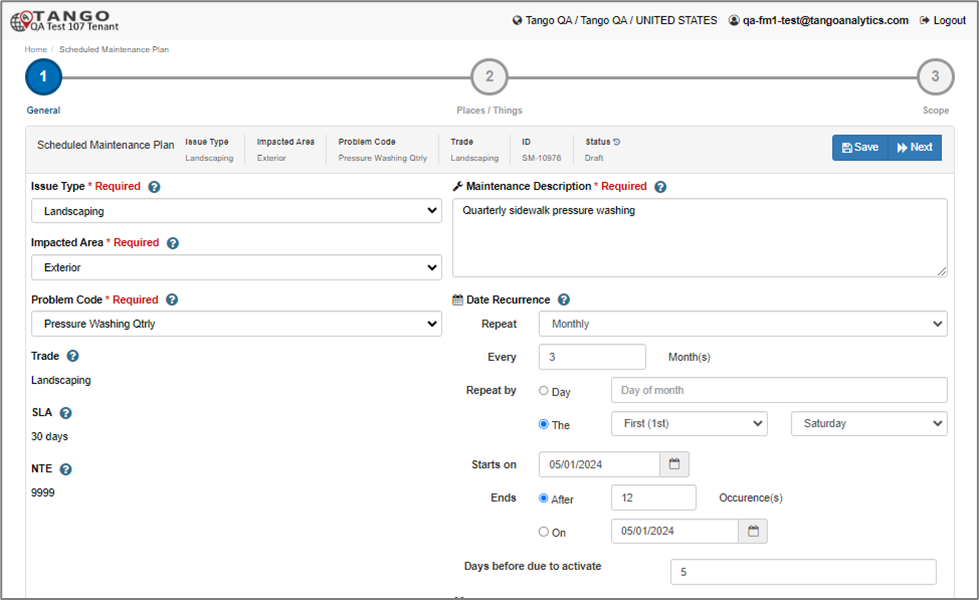
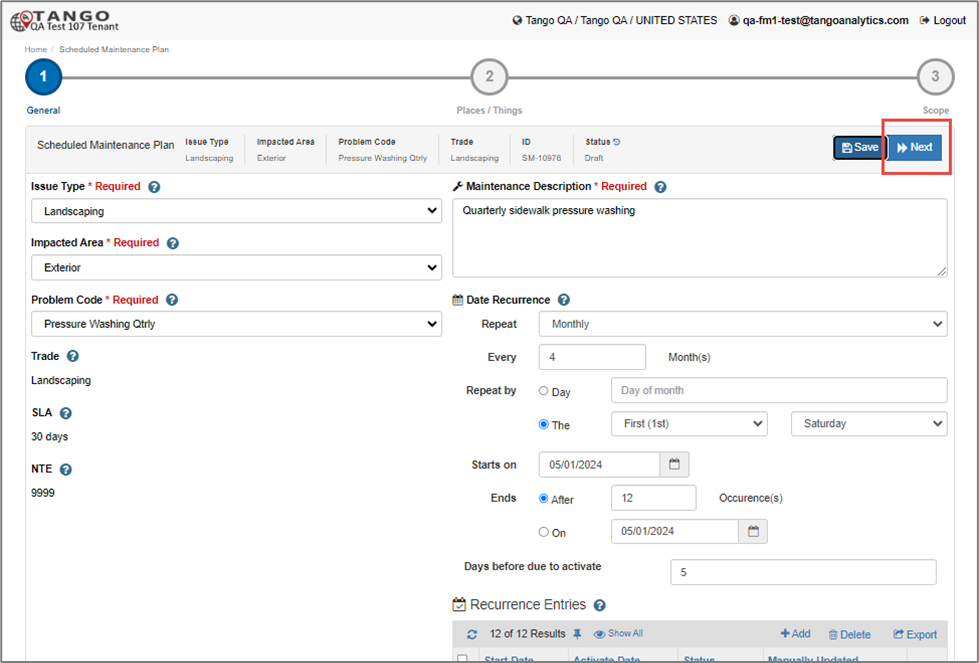
The first tab is the General tab. The Facility Manager can select the Matrix values defining the work to be done (Issue Type, Impacted Area, and Problem Code) and the Maintenance Description.
Recurrence Setup
The Facility Manager will also need to set up the future dates for the Maintenance to take place (Recurrence Entries). As a shortcut, the Date Recurrence section will auto generate the Recurrence Entries based on the fields configured. Recurrence Entries can also be Added (or updated) manually.
If you have ever set up a meeting in your email client, the recurrence options shown here should be familiar. Primarily choose if the recurrence will repeat Daily, Weekly, Monthly or Yearly. (for example, a Quarterly maintenance would be set up as “Monthly; Every 3 Months”). Other fields available will help specify the exact day of the week, number of recurrences or end date, etc.
Days before due to activate is another important field. This field is used to calculate the date for creating the actual Work Orders in the system. If left as 0, the SM Work Orders will be generated on the actual Start Date of the recurrence. Days before due to activate gives the FM an option to generate the SM WOs in advance so the service provider can plan. Notifications are not directly tied to the generation of the Work Orders, there are separate fields for that on Tab 3: Scope.
After defining the Recurrence rules, click on Save. Recurrence Entries are created and populate the report section.
Recurrence entries consist of Start Date, Activate Date and Status, and a checkbox to identify if the dates have been manually created or updated (more on that below).
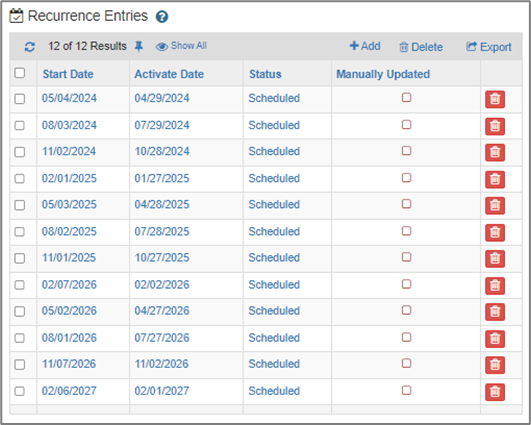 |
Start Date: The Date the Work is Scheduled Activate Date: The Date the Work Order will be generated and sent to the Service Provider |
|---|
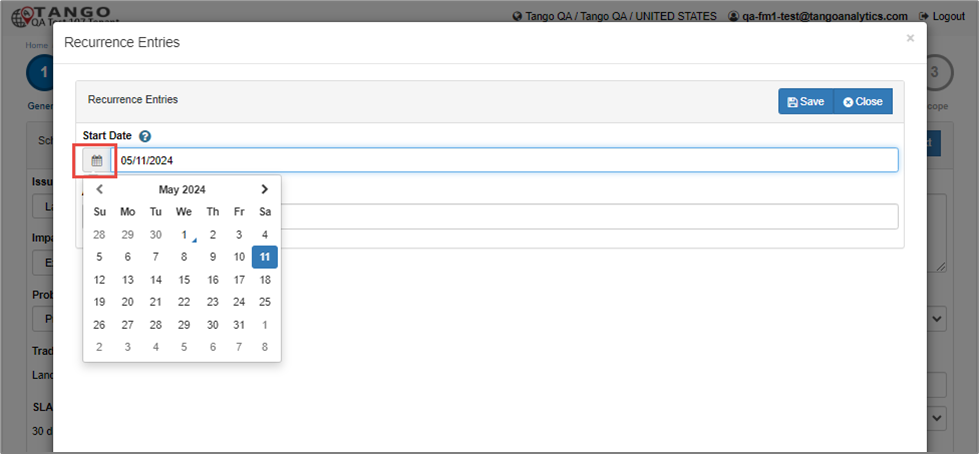
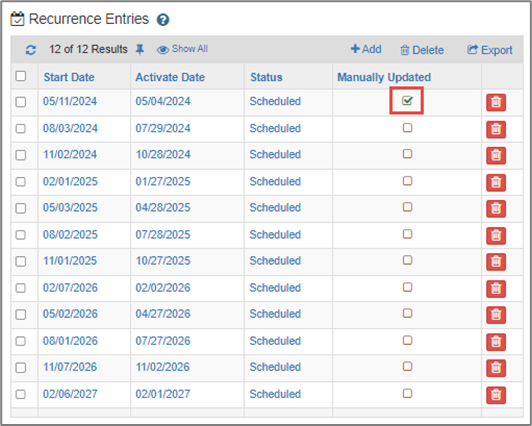
As mentioned above, at this point the Facility Manager can manually adjust the dates generated by the Recurrence options. They can open the Recurrence Entry to adjust the Start Date/Activate Date individually, or they can delete or add totally separate Dates.
Any changes will update the Manually Updated checkbox.
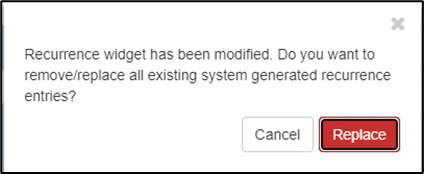
If the user makes changes to the Recurrence after initially generating the Recurrence Entries, there is a confirmation message, and any non-Manually Updated Recurrence Entries will be replaced.
Click on the Next button to navigate to ‘Place/Things’ tab.
Places / Things
Description
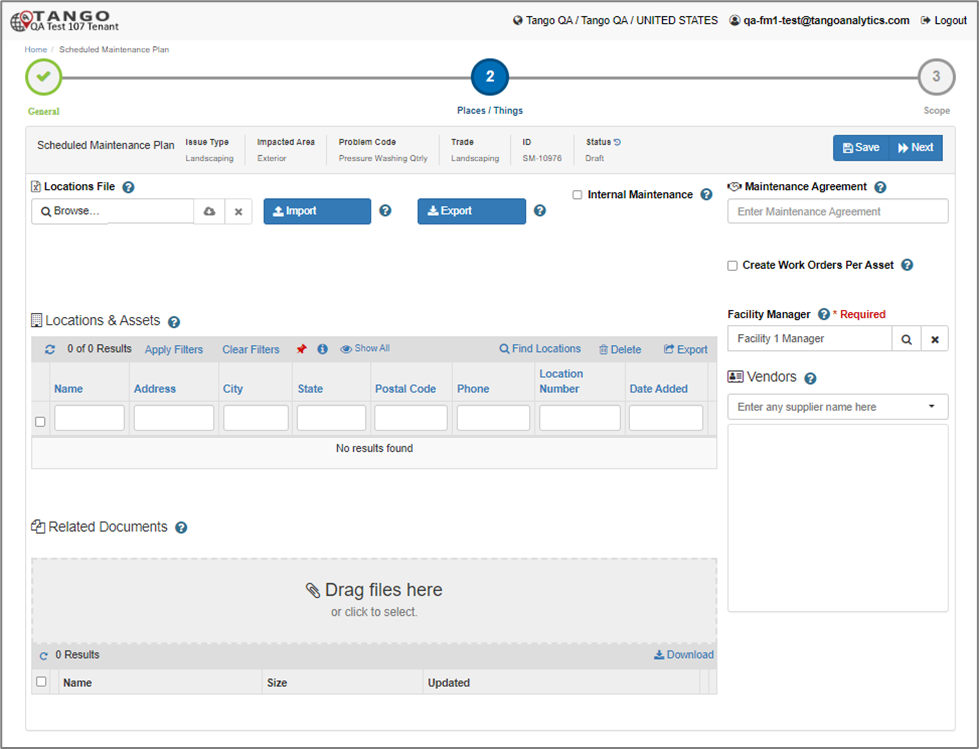
This tab defines where this Scheduled Maintenance will take place including any Assets impacted by the work.
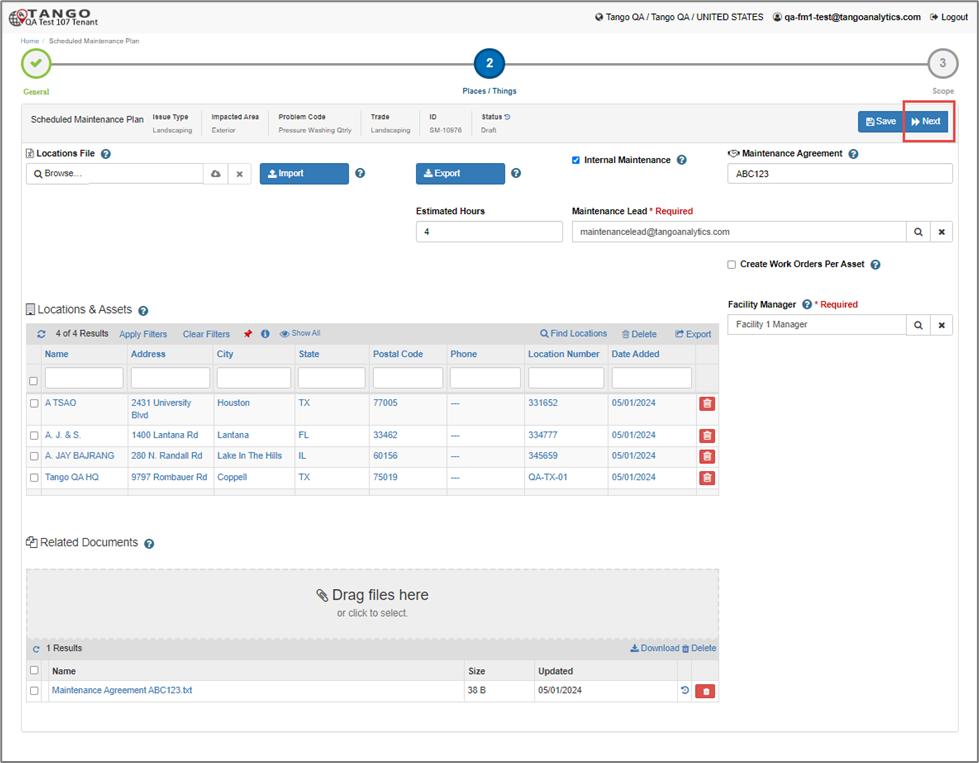
The FM will fill out the Locations & Assets section, select the Facility Manager and Service Provider (Vendor or Maintenance Lead), add related documents, and provide a Maintenance Agreement identifier if available.
Step by Step Process
Locations & Assets
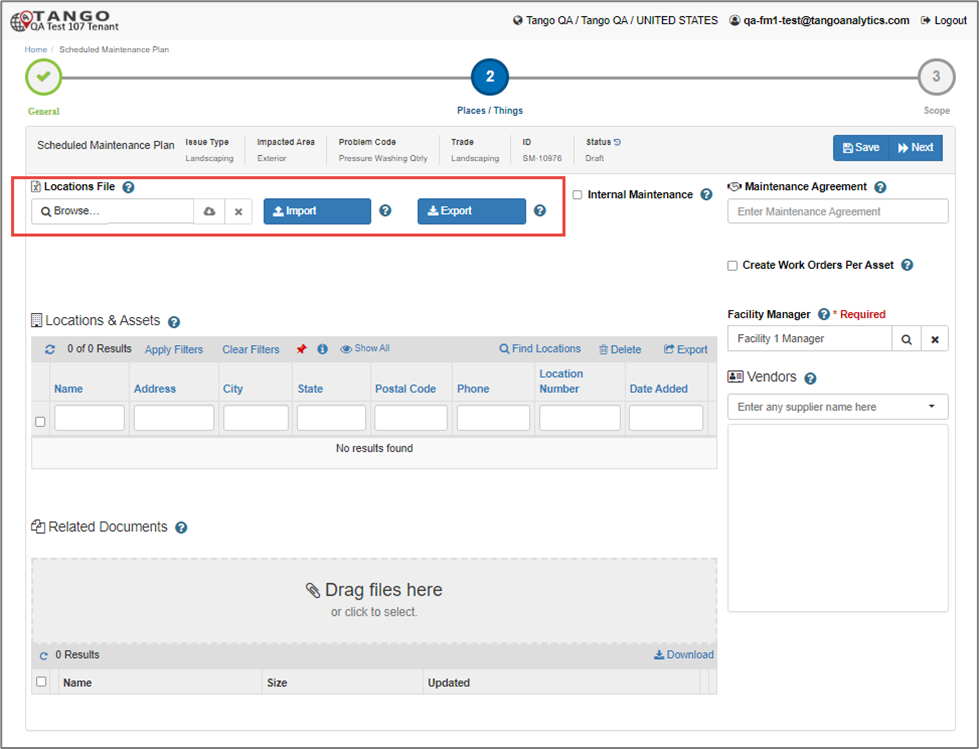
It is common that a single Scheduled Maintenance plan be set up against many Locations and Assets. To help facilitate setting up that kind of SM, Tango Maintenance offers ‘Location File’ functionality where the Facility Manager can upload an Excel file with Location/Asset data and click on Import button. The system will import the Locations data from the excel sheet and the Locations will be added to the ‘Locations’ report section visible under ‘Location File.’
As a tip to help get started the FM can manually add a few Locations/Assets and then click Export to get a file in the correct format.
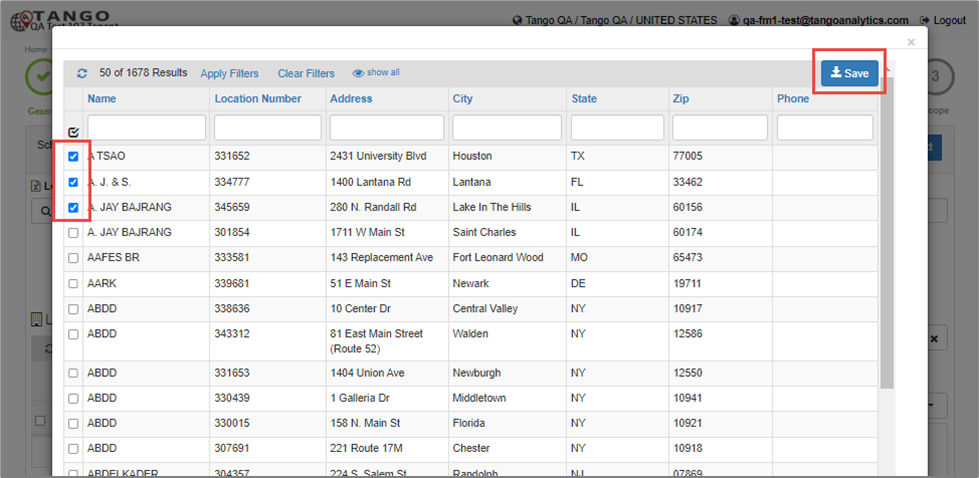
In the Location & Assets section click on Find Locations. Select the Locations to add and click Save to add the Locations to the Scheduled Maintenance Plan.
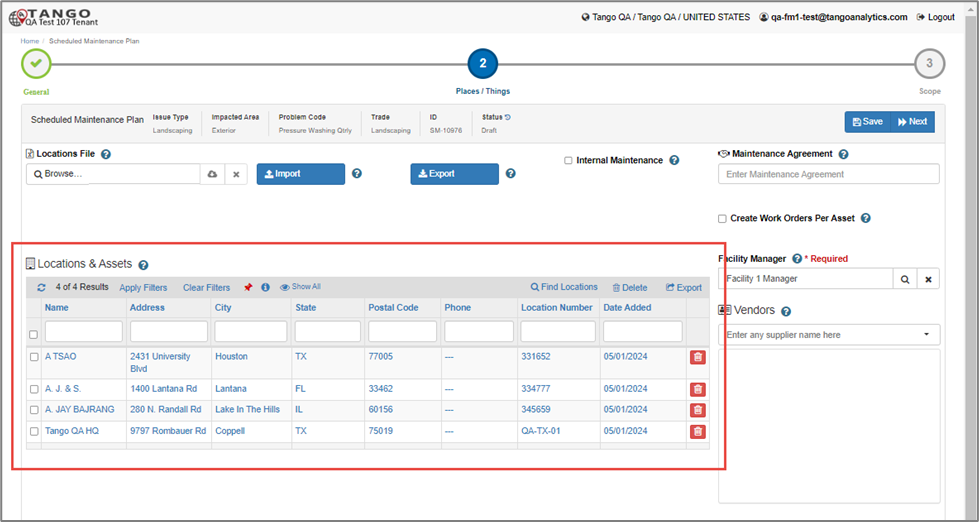
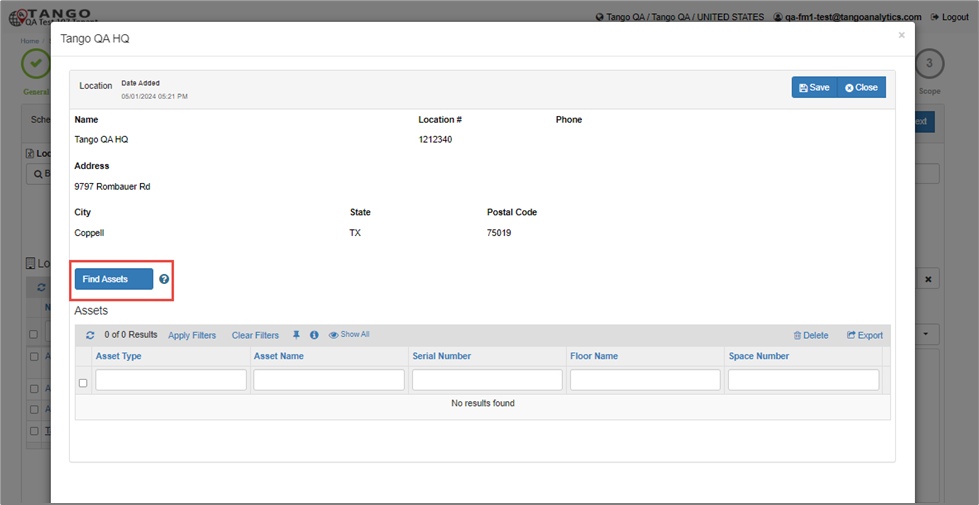
To add Assets, click on the Location record in the section to view the popup.
Click the ‘Find Assets’ button to view the available Assets for the Location.
In the ‘Find Assets’ popup, filter and select one or more Assets and click the ‘Save’ button.
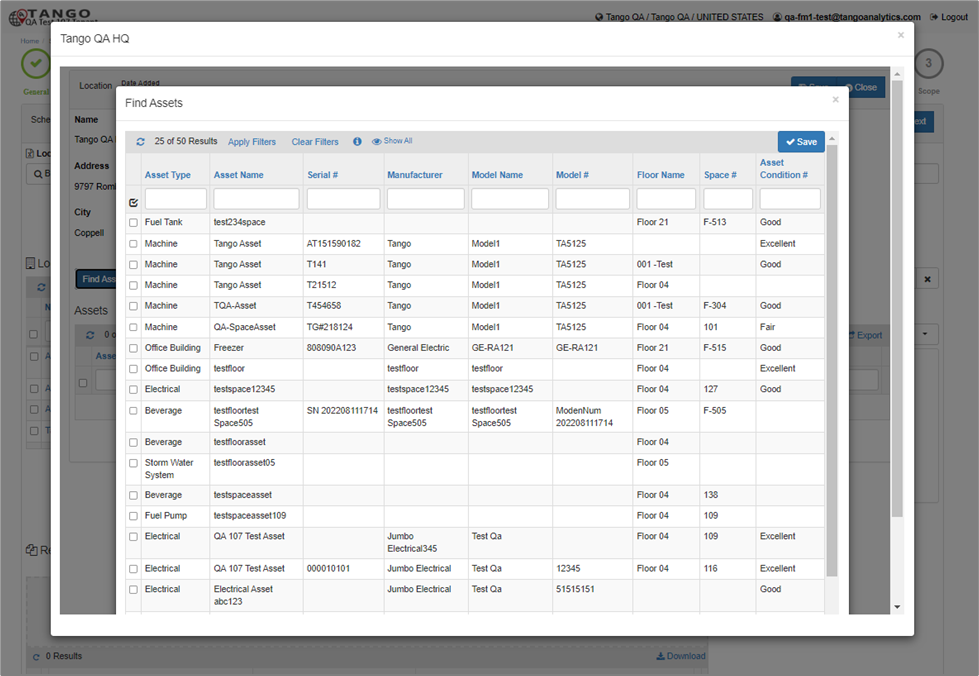
After clicking the ‘Save’ button, the selected Assets will be shown in the ‘Assets’ section.
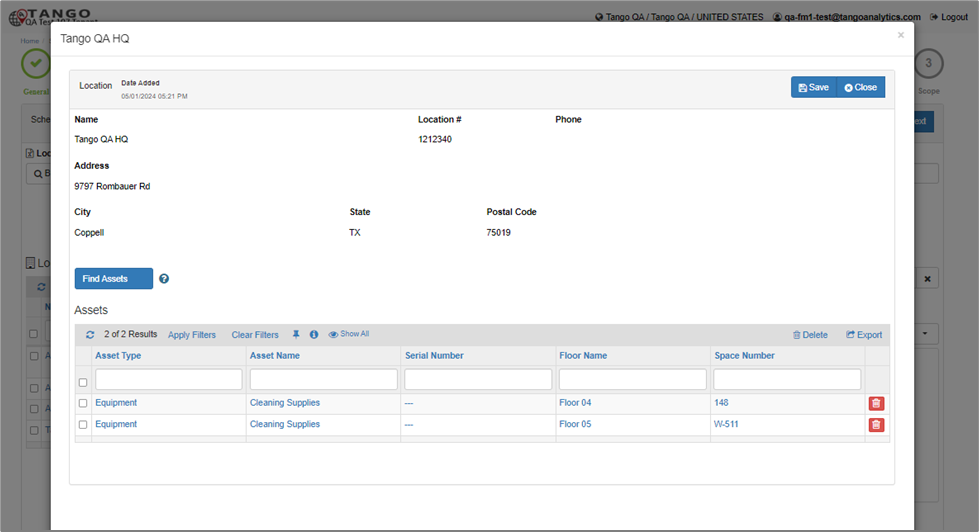
Note: Any Documents attached to the Asset Details selected on the SM Plan will be mapped into the Work Order Documents
At this point the FM can decide to complete the Location & Asset details manually in the section or they can use the file Export/Import process.
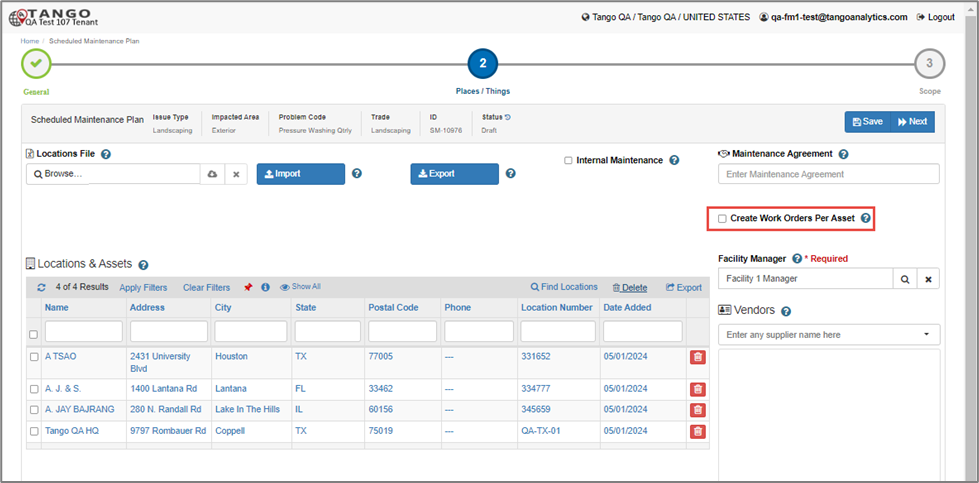
By default, Scheduled Maintenance Work Orders are generated as 1 Work Order per Location on the Recurrence “Activate” date. Each SM WO will include multiple Assets, based on the Assets added to the Location in this step.
Optionally, the Facility Manager can decide to generate 1 SM Work Order per Asset using the Create Work Orders Per Asset checkbox
Facility Manager
By Default, the Facility Manager will be set to the user who is creating the Scheduled Maintenance Plan. This is the FM who will be assigned to each Scheduled Maintenance Work Order generated by the SM Plan. Use the lookup to choose a different Facilities Manager and have the SM Work Orders assigned to them instead.
Service Provider
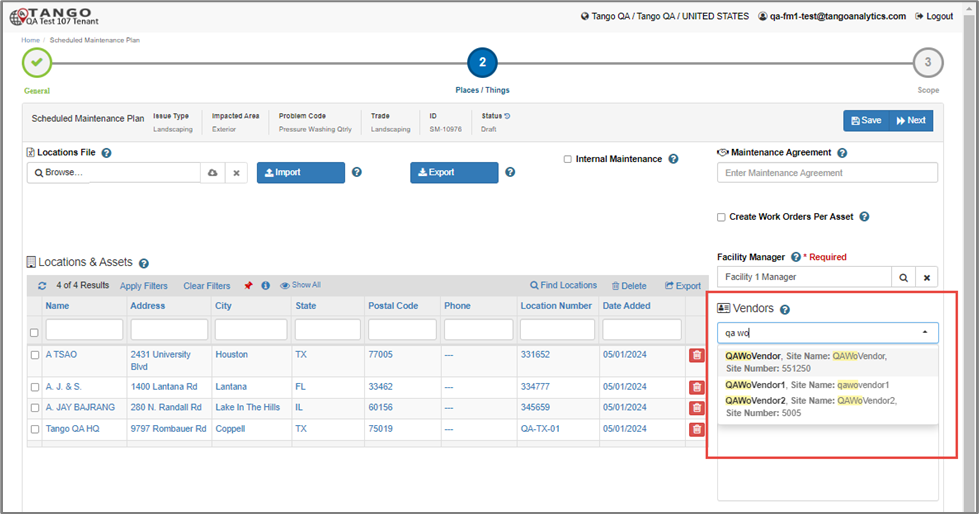
The next step is to choose the Vendor or Maintenance Lead (Service Provider). By default, the Vendor section will be available to select from the external Supplier Site list. Type into the dropdown field to filter the results and choose a Vendor.
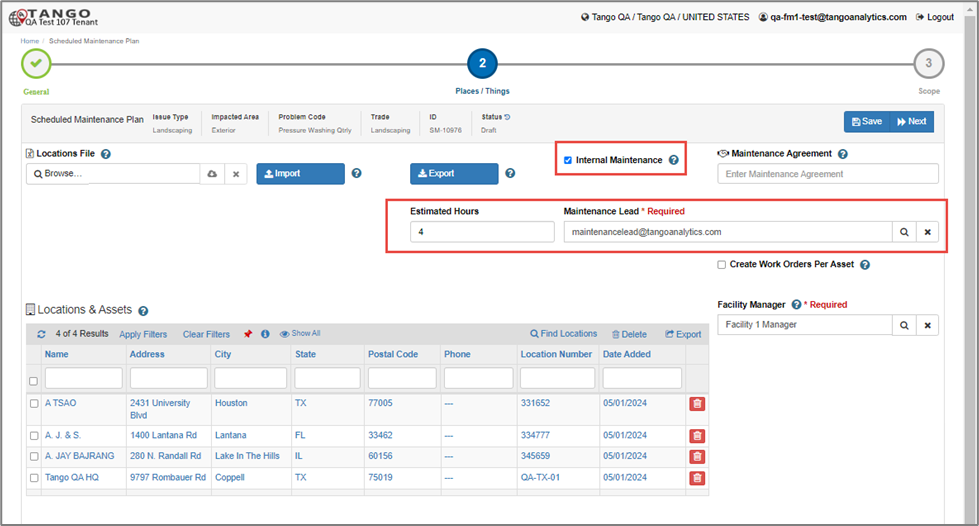
Scheduled Maintenance can be assigned to the Internal Maintenance team instead by checking the Internal Maintenance checkbox.
When checked, the Vendor section goes away and the FM will be required to select a Maintenance Lead. Optionally for Internal Scheduled Maintenance Work Orders, an Estimated Hours can be entered/tracked.
Note: If there is exactly 1 Maintenance Lead associated with the Trade selected on the Scheduled Maintenance Plan, the system will automatically select that user in the lookup.
The FM can also provide a Maintenance Agreement identifier (this field will display on the SM Work Orders for External Vendors), as well as Related Documents.
The Related Documents in this section do not map to the SM Work Orders. Documents for this section could be maintenance agreement contracts or things of that nature.
Click the Next button to navigate to the Scope tab.
Scope
Description
Step three allows the FM to provide the details about the work to be performed.
Step by Step Process
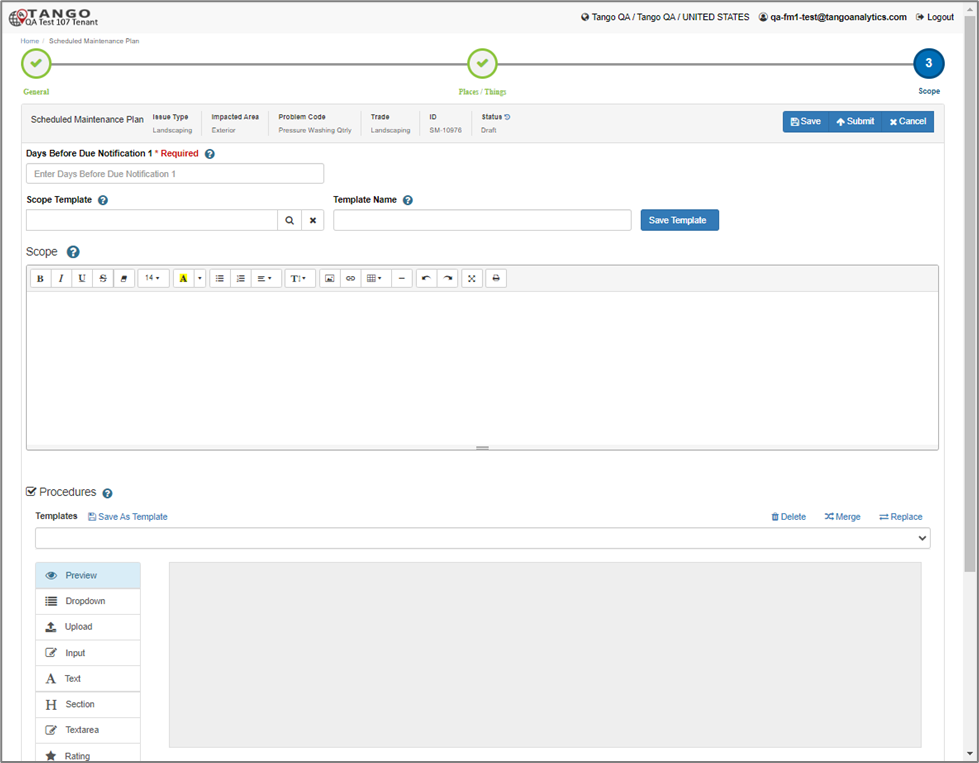
Enter the days before due notification 1 and Days before due notification 2.
The days before notification 1 must be greater than days before notification 2. These values should both be lower than the Days before due to activate value set on the General Tab Recurrence.
Scope
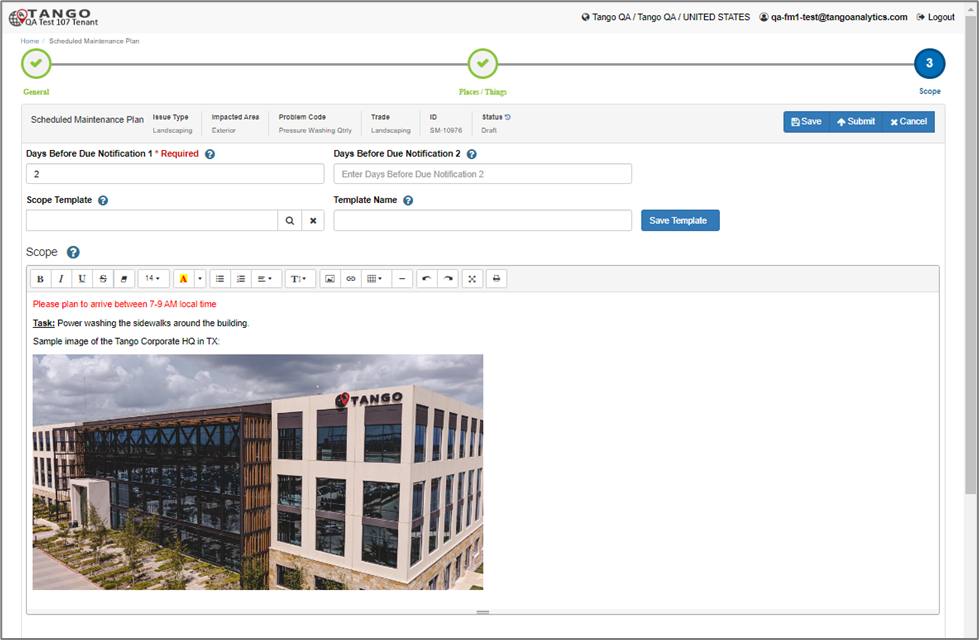
The Scope section supports rich text content like Microsoft word (or similar word processor options) with proper formatting, embedded images, etc. You can paste from a file (or email, etc.) into this section and it should retain most formatting.
Content in the Scope field on the plan is mapped into each SM Work Order and is read only for the Service Provider.
The FM can also apply a Scope template using this section or create a new Template to reuse the current Scope content for future Scheduled Maintenance Plans.
Procedures
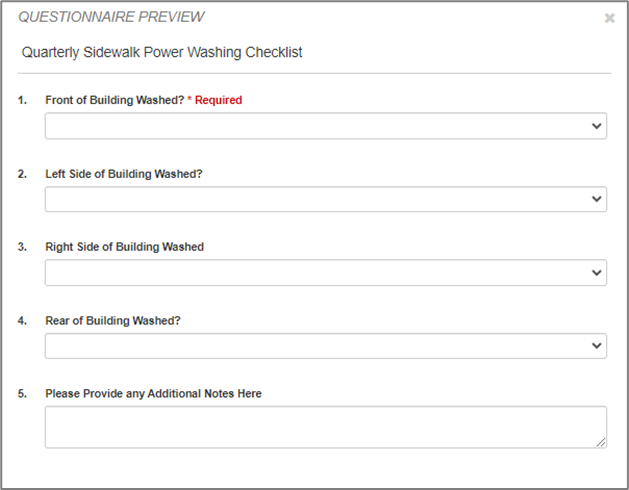
The Procedures section allows the FM to define a “Questionnaire” that will be present on the SM Work Order. This can include required input from the Vendor as they fill out the Work Order, File upload (which could be pictures), Drop Down selections, etc.
Just like with the Scope section, the Procedures can also use Templates. In this case the FM has the option to Merge or Replace template Questionnaires into the current Procedures or save the current Procedures questionnaire as a new Template to reuse later.
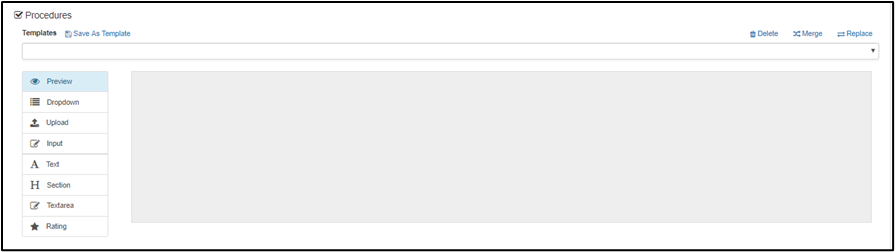
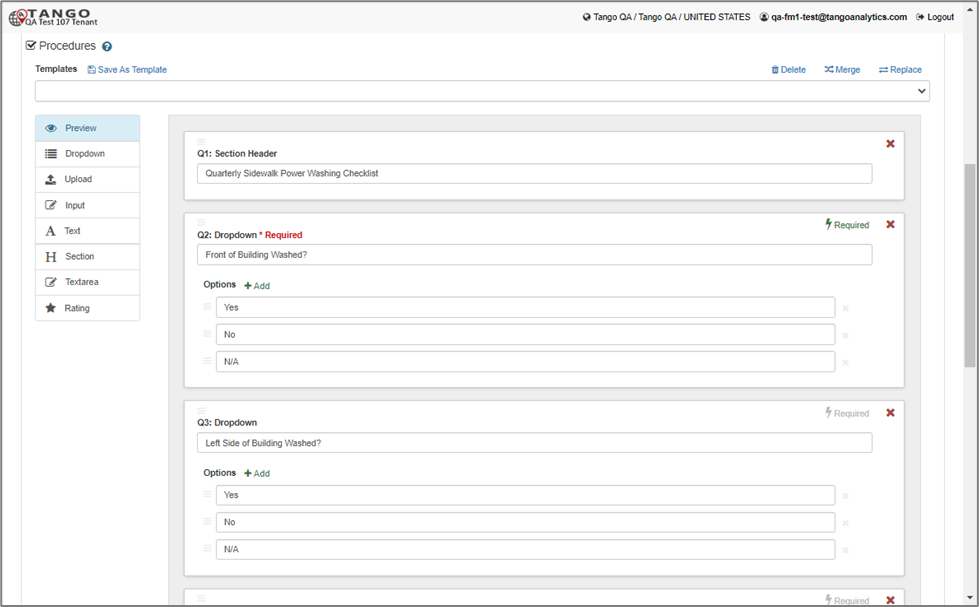
Click Preview to see what the Procedures will look like on the Work Order
To create a new Questionnaire Template, Click Save As Template and provide a name then click Save.

Work Order Documents
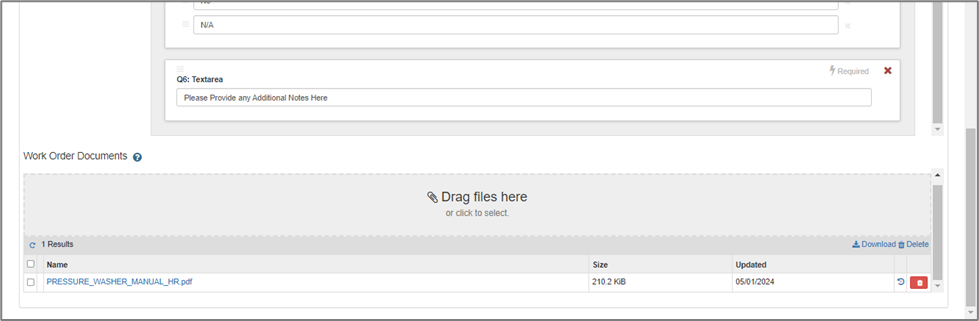
Lastly, the Facility Manager can upload files to the Work Order Documents section, which will map into the “Work Order Documents” section on the Scheduled Maintenance Work Orders generated from this Plan.
Once satisfied with the content on the Scope Tab, click Submit to update the Scheduled Maintenance record to Scheduled Status. This will also make the record read only.
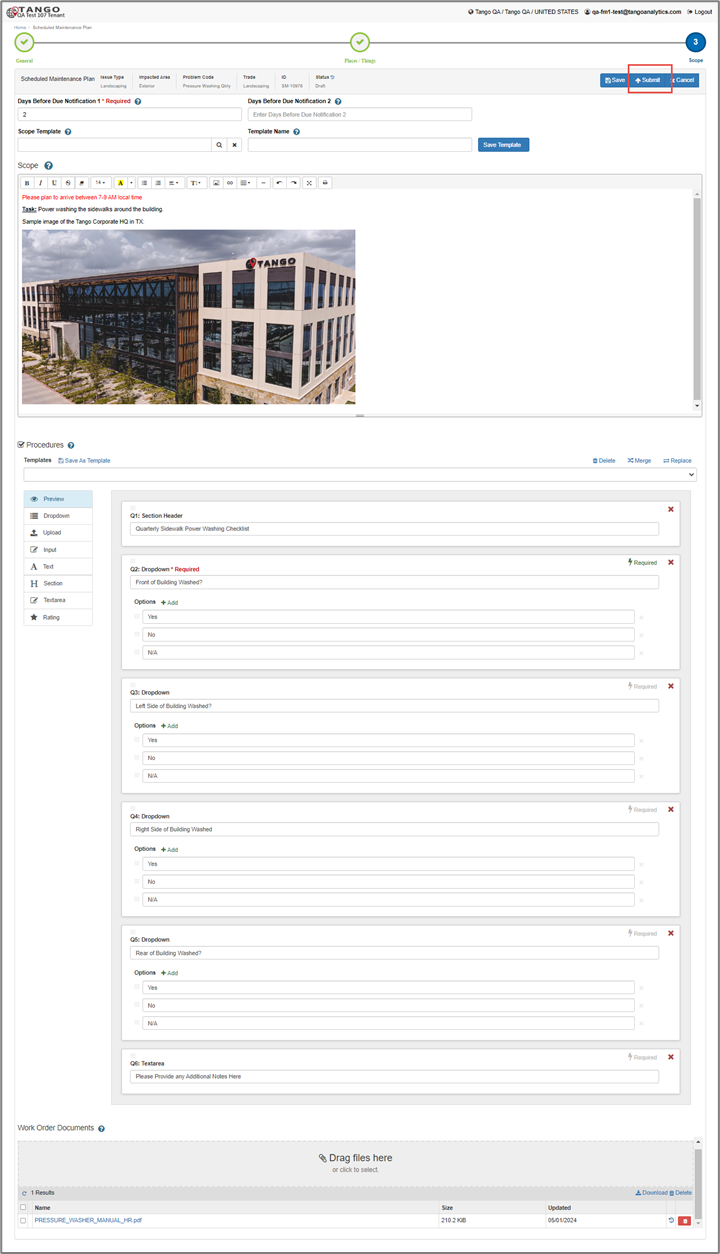
At this point the process that generates Scheduled Maintenance Work Orders will now evaluate this Scheduled Maintenance Plan and create Work Orders based on the recurrence dates.
The Facility Manager can Revise a Scheduled SM record (more detail on that below).
Once the Scheduled Maintenance record has created all Work Orders per the recurrence, the Status will update to Generated. Once the SM is Generated the FM can open it to click Complete, which also drops the SM from the Active Scheduled Maintenance Tile Report, or they can Revise it to add new Recurrence Dates.
Scheduled Maintenance Work Orders
In the General tab of the Scheduled Maintenance record the FM can see the SM Work Orders that have been created under a now visible ‘Work Orders’ section:
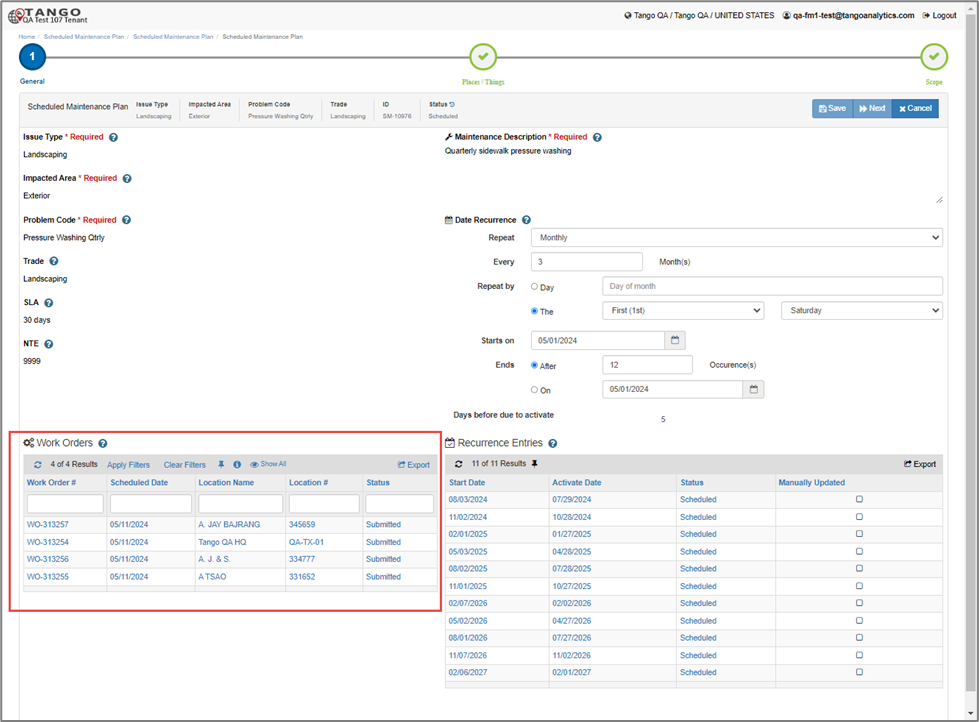
As Work Orders are generated, the Recurrence Entry for the same date will drop off the Recurrence Entries report on the right.
In the example above, the Recurrence Entry for 5/11/2024 generated 4 SM Work Orders (1 per Location).
Note: Opening Work Orders from this section will display the record in a popup within the parent screen. For a full view of the Work Order in the full browser you can open it from the various Work Order Tile reports.
Visit/Repair Tab
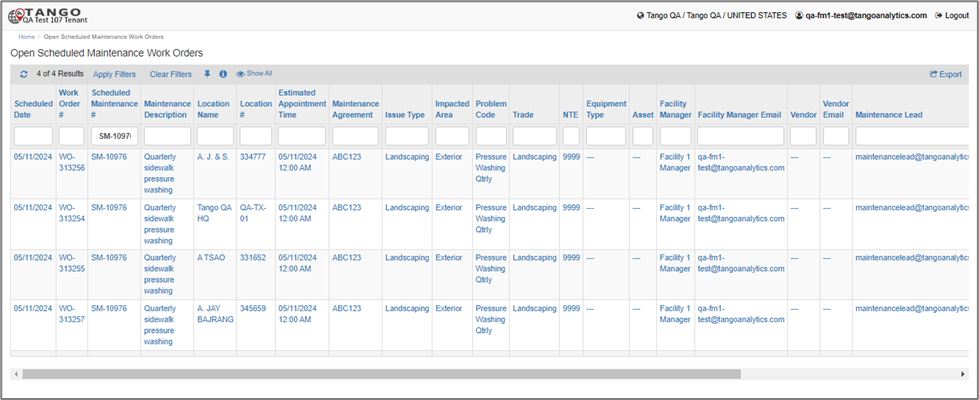
The Facility Manager can open the SM Work Orders from the Scheduled Maintenance record as shown above, or from various Tile reports on the Home Page.
Open Work Orders Tile in the Scheduled Maintenance Tile grouping (shown below) is an example to view all the generated SM Work Orders for all Scheduled Maintenance plans that have not been Completed or Cancelled/Deferred.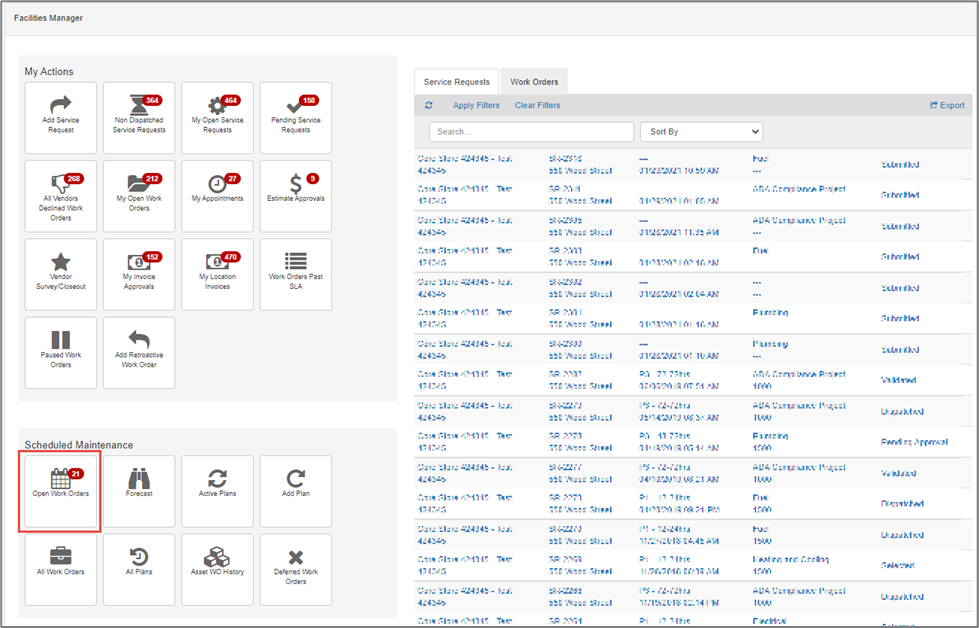
Facility Manager Override
The Facility Manager can “Override” the Scheduled Maintenance Work Order process and complete portions of the SM Work Order process usually done by the Service Provider (Vendor/Maintenance Lead) by using the “Facility Manager Override” Button.
This is a similar concept to “Demand Maintenance” Work Orders.
Note: The steps below after clicking Facility Manager Override are the same steps that the Service Providers would complete.
Open the desired record and click the Facility Manager Override button on the Visit/Repair tab on the SM Work Order.
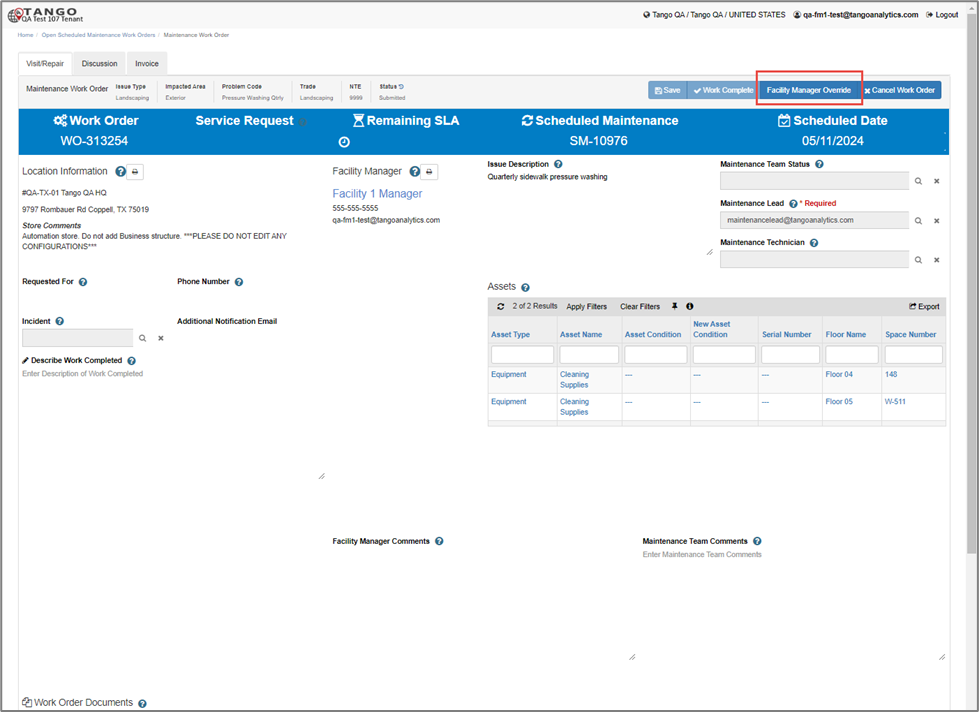 Note: This example is of an Internal Maintenance Work Order, but the “External Vendor” version of the Scheduled Maintenance Work Order is similar.
Prior to using Facility Manager Override, the Work Order is almost entirely read only for the Facility Manager.
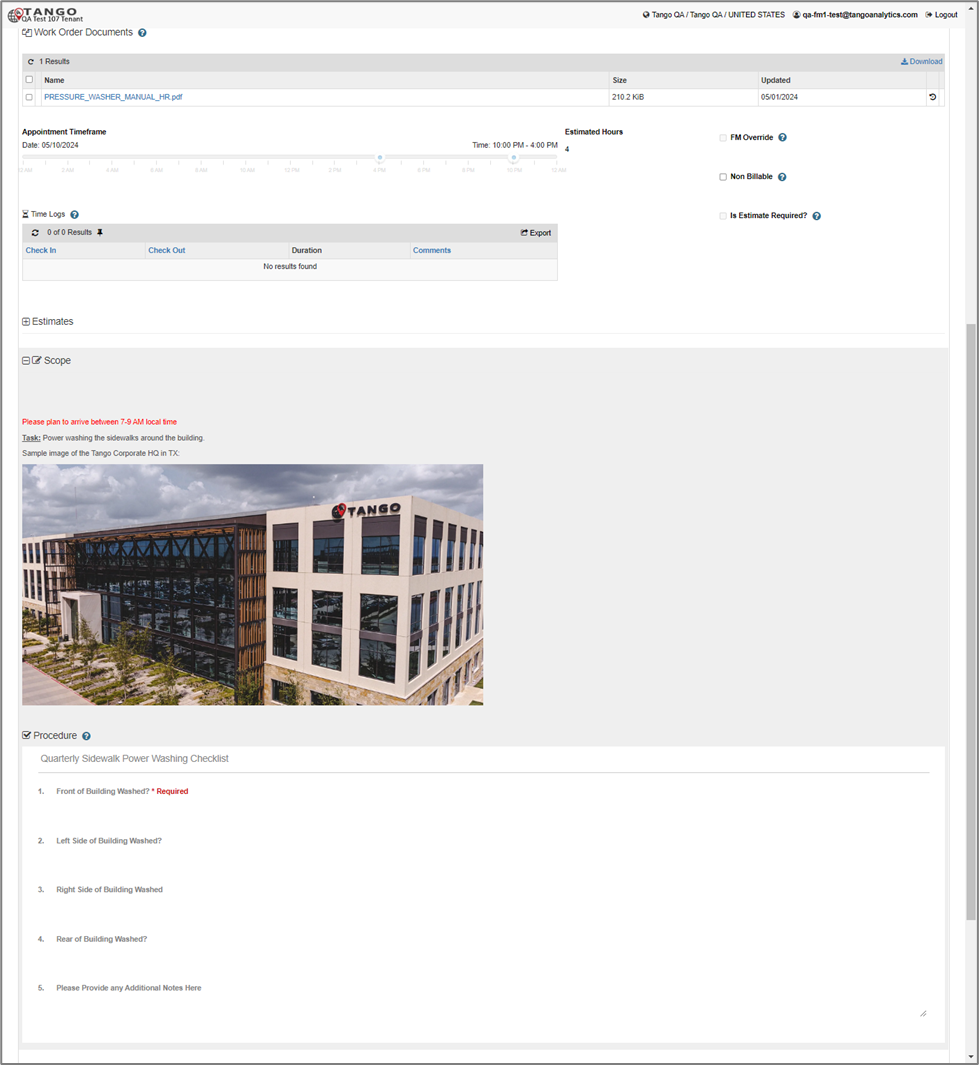
After clicking the button, the Work Order becomes fully editable, and FM can do the same actions as a Vendor/Maintenance Lead.
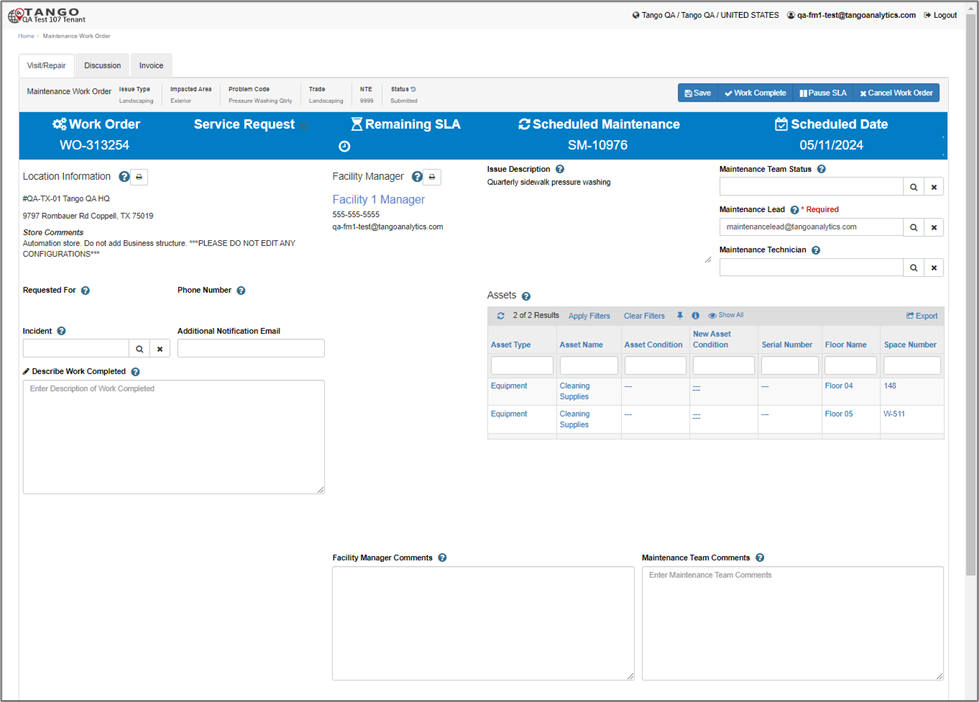
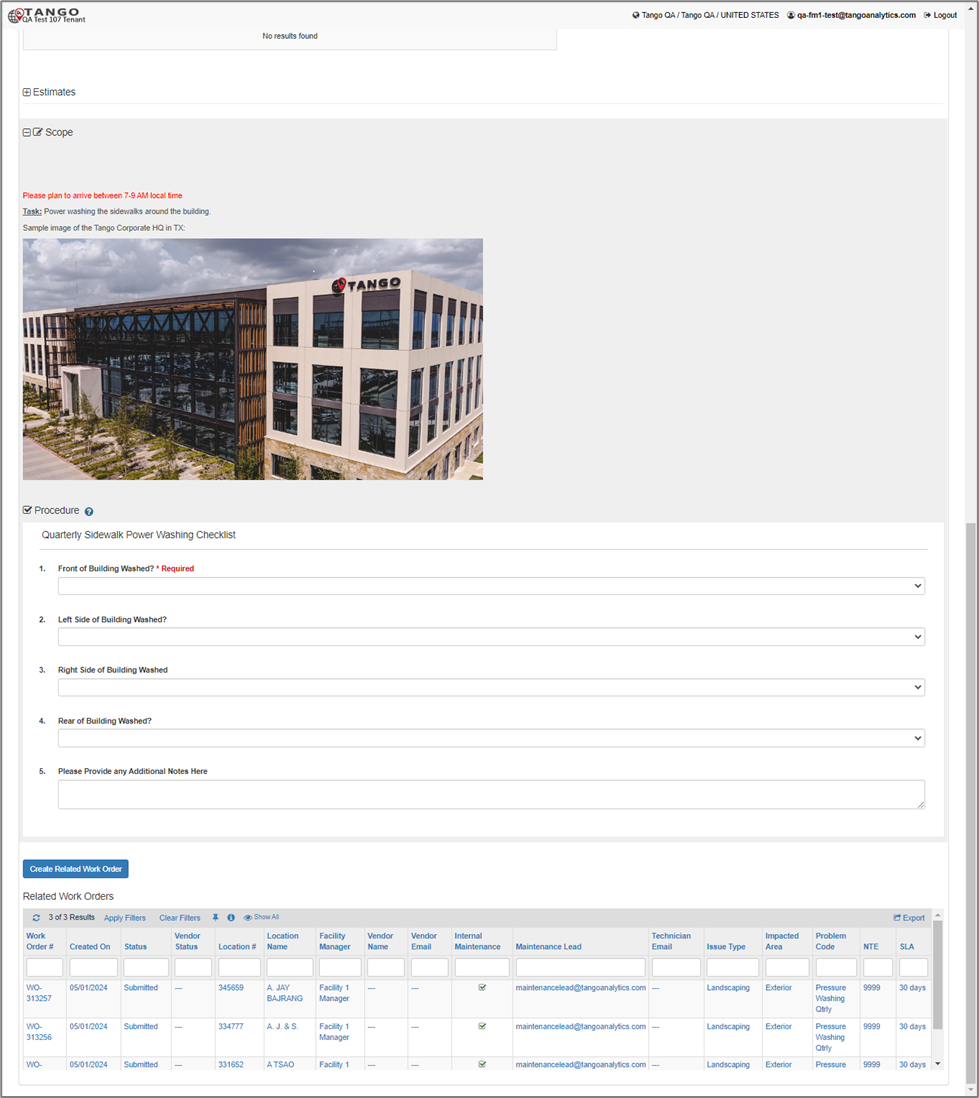
Work Complete
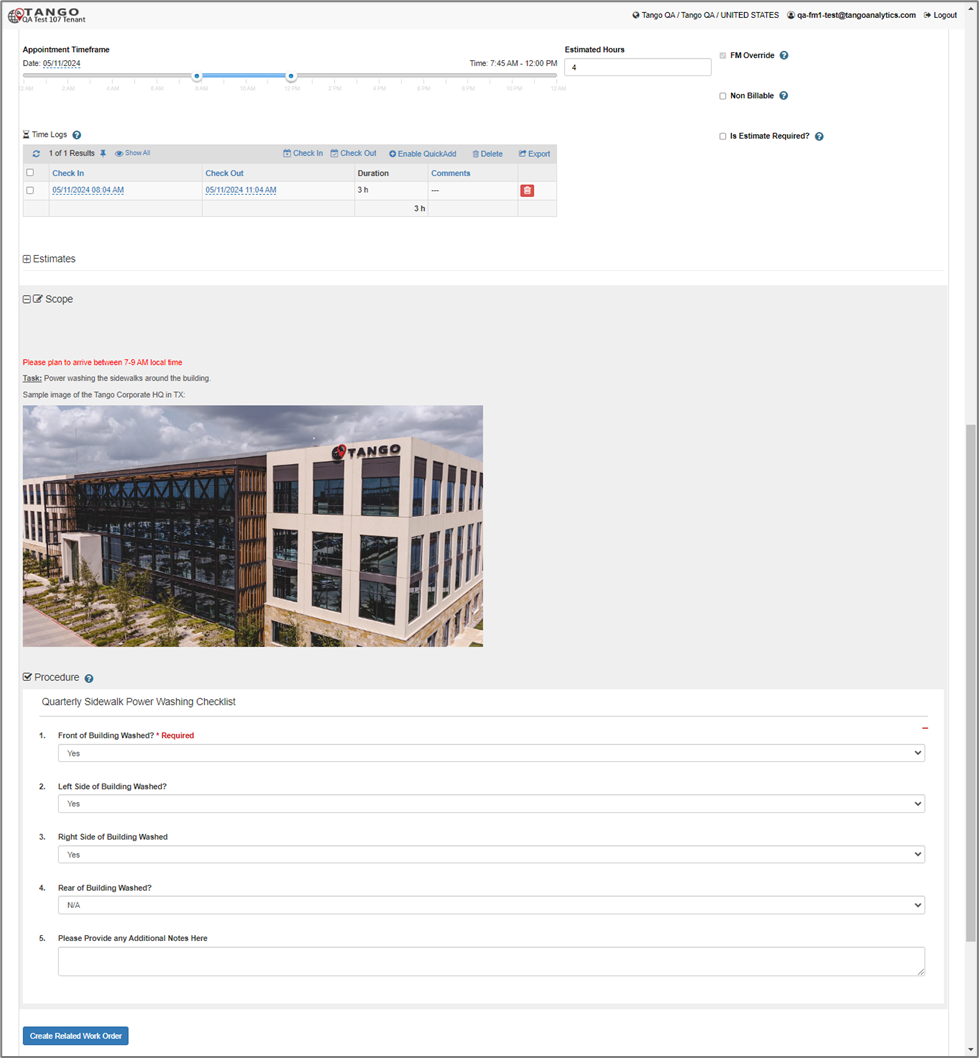
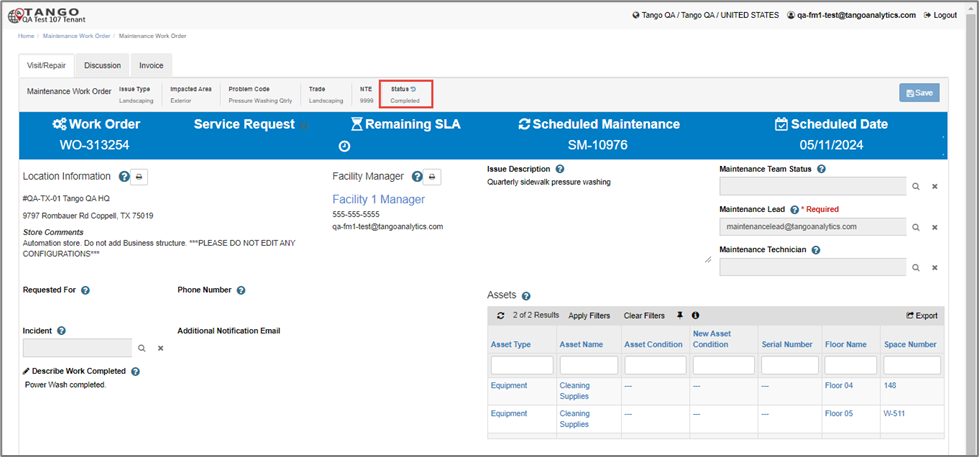
In the Visit/Repair tab, after filling in the appropriate details and populating any required fields, click the “Work Complete” button to update the Status to Completed and make the record read only.
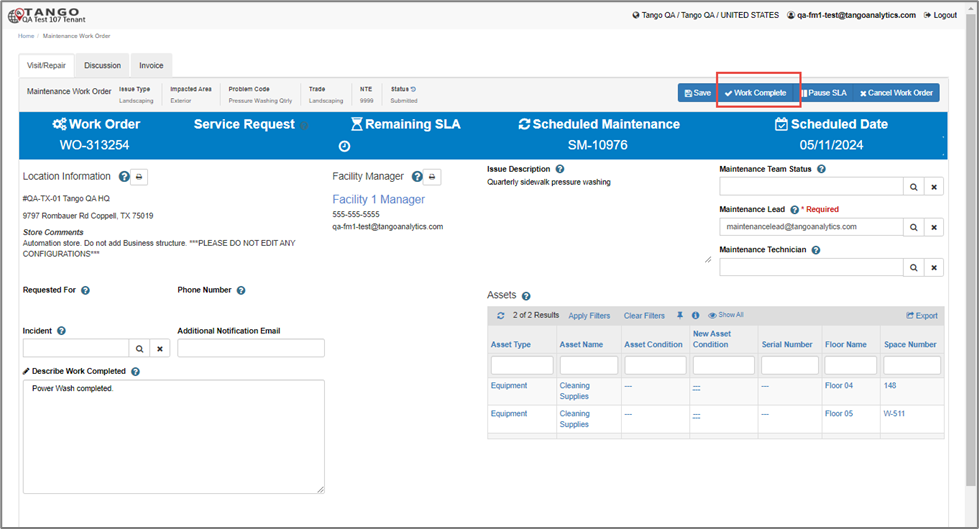
Note: Describe Work Complete field is required before clicking Work Complete.
An Estimate will be required if “Is Estimate Required?” is checked.
Other required fields can be configured in the Procedures/Questionnaire.
Discussion Tab
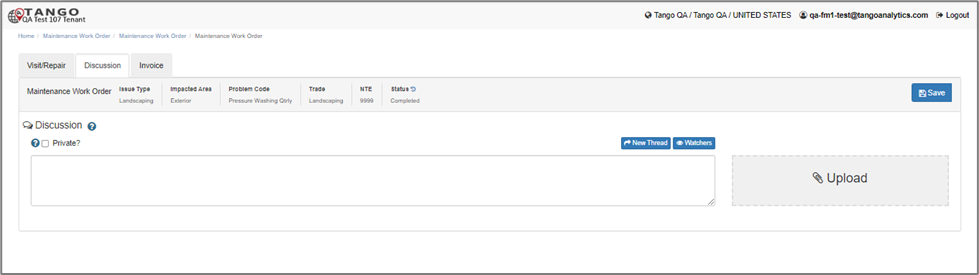
In the Discussion tab, the FM (or the Service Provider) can create new discussion threads and even include other Watchers. This tab is editable to the FM even without Facility Manager Override and functions the same as the Discussion functionality on Demand Maintenance Work Orders.
Invoice Tab
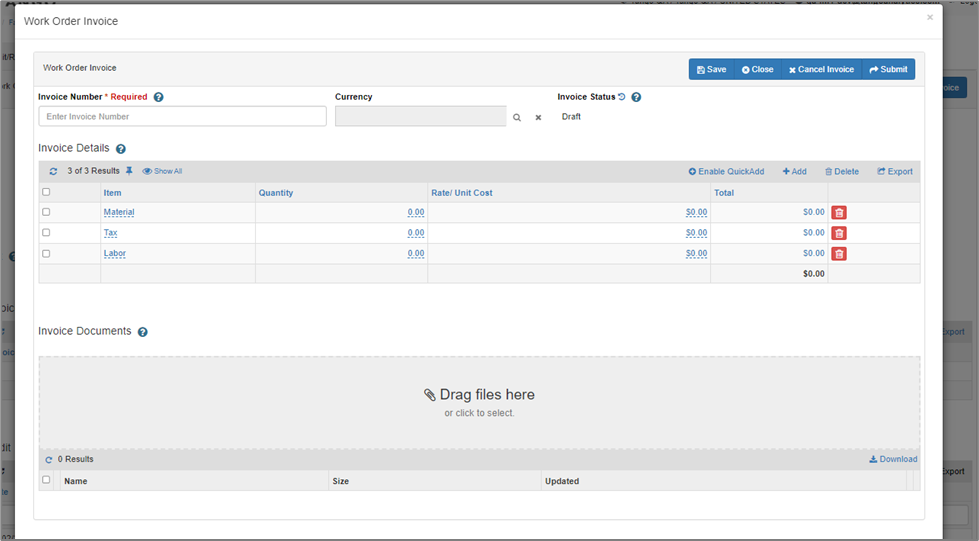
The FM can also Submit the invoice from the Invoice tab. This will kick off the normal Invoice Submission process as if a Vendor/Maintenance Lead did it. If the FM has not already clicked Facility Manager Override on the Visit/Repair tab, the action is also available on the Invoice tab.
Note: If the Work Order was marked as Non Billable, the Invoice section will be Read Only
By default, there might be a Draft Invoice with defaulted line items (this is configured per client). If not, the FM can Add a new Draft Invoice, enter the Invoice Item details and then Submit the Invoice.
If the Work Order is not yet Completed, the FM can click the Allow Invoice button to make the Invoice section editable.
SM Work Order Invoice Tab Assets Section
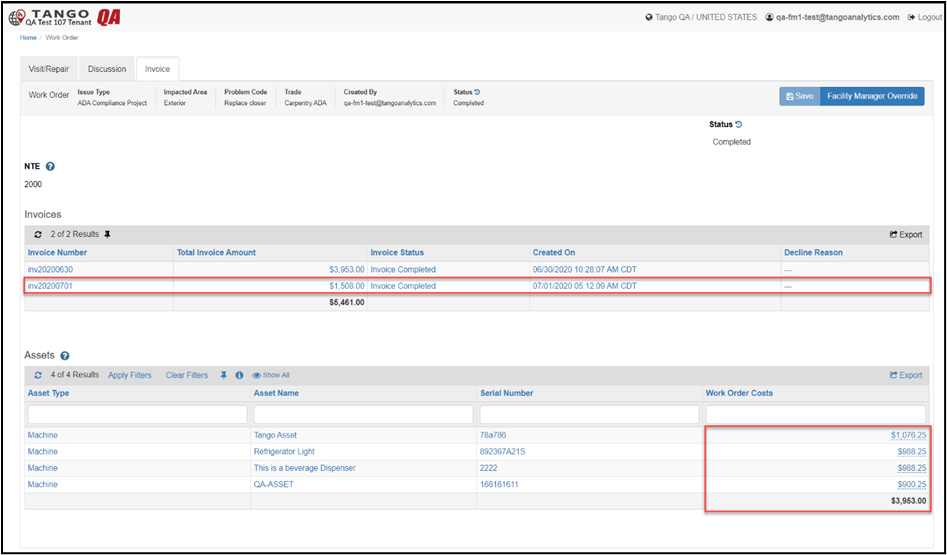
Once an Invoice is Submitted, if there were Assets on the SM Work Order, then the Assets section will also display. This is where the FM can track the cost per Asset. By default when an Invoice is approved the total amount will be distributed evenly across all Assets.
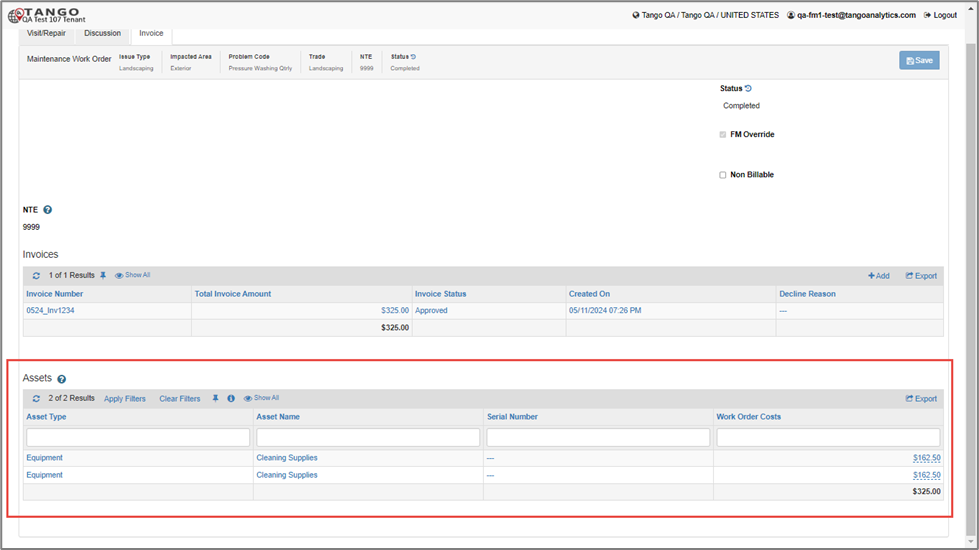
If the FM manually changes the Work Order Cost value of one or more assets in the ‘Assets’ section, the system will no longer automatically calculate the Work Order Costs of the Assets if additional invoice(s) are approved. Instead, the FM will have to manually edit the Asset Work Order Costs to adjust for the new invoice(s).
SM Work Order Invoice Approval
Note: This process is the same as if an Invoice was Submitted by a Vendor/Maintenance Lead on the SM Work Order.
Based on client configuration and if the Invoice meets auto approval conditions, then it will automatically move to Approved Status. If not, then the FM needs to approve it (if the Invoice is in Submitted Status).
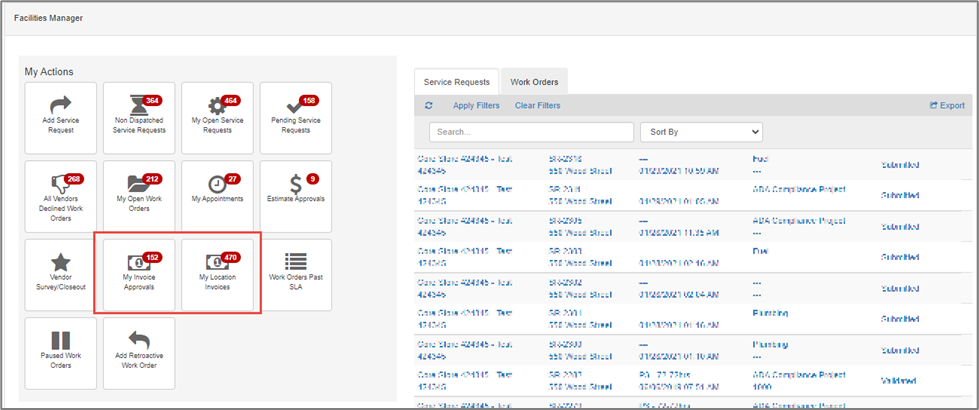
An Invoice that is not auto approved is shown in My Invoice Approvals or My Location Invoices Tiles. Select the corresponding SM WO in one of those Tile reports.
If Auto Approval is not disabled at the client level, Invoices might require manual approval for various reasons, which will be displayed on the Invoice in the Auto Submission Failure Reason:
Work Order Total Invoice Amount is greater than the NTE/Approved Estimate amount
Auto Approval logic finds 0 or more than 1 active Facilities Project for the Location
The Problem Code/Matrix configuration Account Code is not found in the Budget for the Project
Revising a Scheduled Maintenance Plan and Schedule
Description
Scheduled Maintenance details and schedules can be adjusted, frequencies on service change, new locations need to be added to the plan or locations removed, or scope of work may need to be adjusted. As a result, Tango Maintenance has Revise functionality that allows the FM to make those changes.
Step by Step Process
Navigate to the “Active Plans” Tile and find a record to Revise that is in the “Submitted” or “Generated” status.
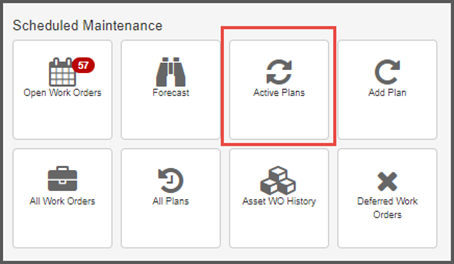
When the Scheduled Maintenance Plan opens, it will likely default to the Scope tab where the FM can click the “Revise” button.
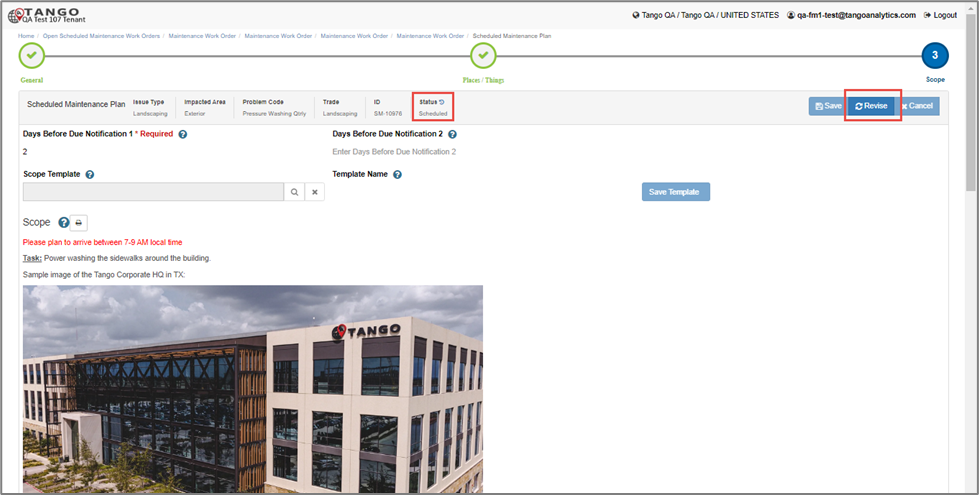
After clicking the Revise button, the FM will be directed back to the Scope screen and the record is now in an Editable state.
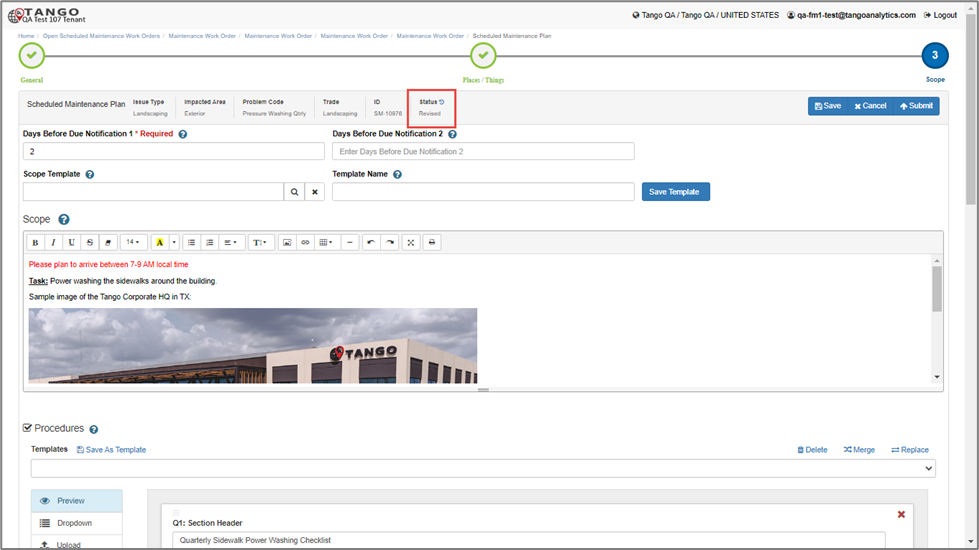 Note: The Scheduled Maintenance Record is updated to Revised Status which will stop the generation of new Work Orders until the Status becomes Scheduled again.
The FM is then able to update the Scope and Procedures, or navigate back to the other Tabs to add/remove Locations & Assets on the Place/Things tab, or Adjust the recurrence entries in the General tab.
In the General tab, the Date Recurrence and Recurrence Entries can be adjusted by saving the new Date Recurrence options, adding ad hoc services outside of the consistent frequencies (monthly/quarterly, annually) by using the “Add” button or deleting existing Recurrence Entries to remove dates for service.
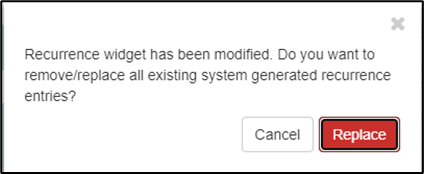
Keep in mind that if the Date Recurrence details are updated, the user will be prompted with a confirmation message on Save, and any non-Manually Updated Recurrence Entries will be replaced.
Once all the changes have been made, the FM will need to return to the Scope Screen and hit the “Submit” button for all the changes to reflect.
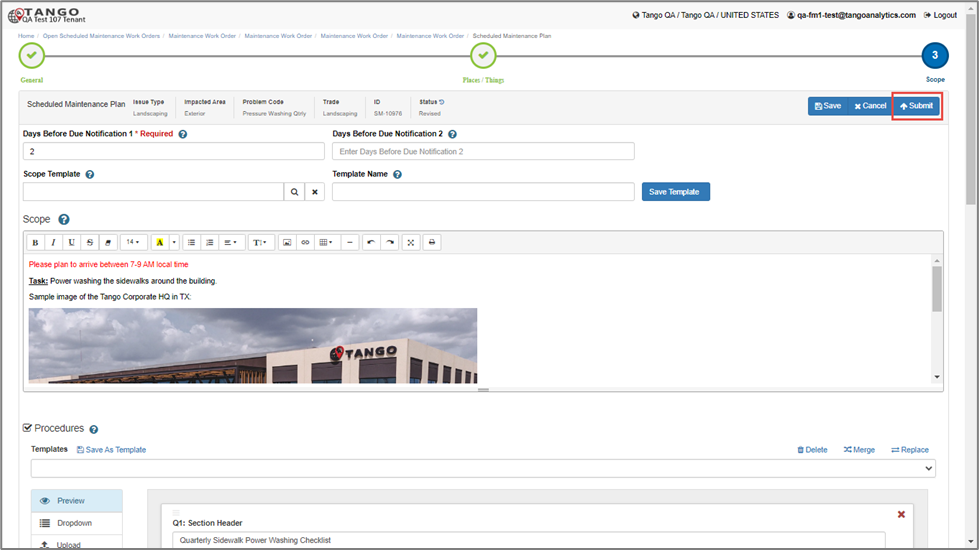
After the revised SM plan has been resubmitted, the status will be updated back to “Scheduled” again in the “Active Scheduled Maintenance” tile report.
Failure to Submit the Revised Scheduled Maintenance will result in new Work Orders not being generated.
Existing Work Orders already generated, even if they are not yet Complete will not be updated as part of the Scheduled Maintenance revision process. If Work Orders were already generated, they may need to be Cancelled or otherwise handled differently via the Discussion Thread functionality.
Scheduled Maintenance Forecast Report
The Facility Manager Home Page Queries tiles include SM Forecast.
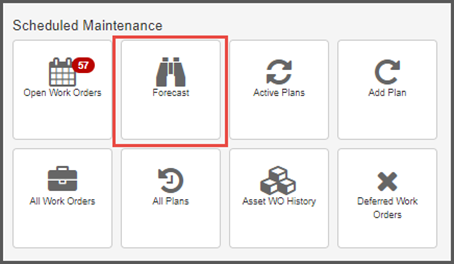
This highly useful report gives the Facility Manager insight to view all upcoming Scheduled Maintenance work for the next 365 days.
This report looks at the upcoming Recurrence data from the Scheduled Maintenance record and not the actual Work Orders (most SM WOs are not generated anywhere near this far out into the future).
This report also includes the Location data and any related Assets for each recurrence (so if there are multiple assets selected on the same location this report would repeat some of the other data, but as described above, the resulting Work Order will be created per Location and include multiple Assets if that is how the Scheduled Maintenance record was set up.
Status Cheat Sheet
| Record | Status | Owner | Description |
|---|---|---|---|
| Scheduled Maintenance Plan | Draft | FM | New SM Plan before being Submitted |
| Scheduled Maintenance Plan | Scheduled | FM | After being Submitted, but before all Recurrences are processed and generate Work Orders |
| Scheduled Maintenance Plan | Generated | FM | After all Recurrences are processed and generate Work Orders |
| Scheduled Maintenance Plan | Revised | FM | After the Facility Manager clicks Revise on a Scheduled or Generated SM Plan |
| Scheduled Maintenance Plan | Completed | FM | After the Facility Manager clicks Complete on a Generated SM Plan |
| Scheduled Maintenance Plan | Cancelled | FM | After the Facility Manager clicks Cancel on a Draft or Revised SM Plan |
| Scheduled Maintenance Work Order | Submitted | Service Provider (Vendor; Maintenance Lead) |
Status of the SM Work Order when it is generated |
| Scheduled Maintenance Work Order | Completed | FM | Status of the SM Work Order when the Work is Completed. This is the final Status for the Work Order |
| Invoice | Submitted | Vendor |
Vendor submits the Draft Invoice (and it is not auto approved). FM reviews the Invoice and links it to the correct project/budget line item |
| Invoice | Approved | FM |
FM adds the resolution code, and the Invoice is sent to the Tango Core Project. Invoice Auto Approval can also happen if the Invoice amount is under the NTE or Approved Estimate amount, the Location has a single Facilities Project and a single matching Budget Item (based on the Problem Code/Matrix configuration) |
Was this article helpful?
That’s Great!
Thank you for your feedback
Sorry! We couldn't be helpful
Thank you for your feedback
Feedback sent
We appreciate your effort and will try to fix the article