Table of Contents
Internal Maintenance functionality within Tango Maintenance allows internal/corporate team members to be assigned Work Orders instead of external Vendors.
This means clients no longer need to have Suppliers in Tango Core (with external Vendor users in Tango Edge) to Dispatch Work Orders and gives those clients the flexibility to handle any level of their maintenance workload internally.
Internal Maintenance functionality introduces two new Roles:
Maintenance Lead (ML)
Maintenance Technician (MT)
The Maintenance Lead is a required role for clients who want to use the Internal Maintenance functionality. For anyone familiar with the legacy Tango maintenance functionality, the Maintenance Lead role can be equated with the External Work Order Vendor role. Maintenance Leads are dispatched “Internal Maintenance” Work Orders and have full access to complete the Work Orders, or optionally assign Work Orders to Technicians.
The Maintenance Technician is an optional role, for clients who operate with a team of internal maintenance resources. Maintenance Technicians can be directly assigned to Work Orders automatically or Maintenance Leads can manage the workload and assignment of the Technicians manually with a new Utility record.
Both the Maintenance Lead and Maintenance Technician Roles also have access to create new Service Requests which can be dispatched to External Vendors or assigned internally.
Required Setup
This section describes the required setup and is also covered in the Tango Maintenance - Internal Maintenance - Setup Zendesk article/user guide documentation.
Tango Core Setup
This section provides the description of the Tango Core setup required for the Internal Maintenance team functionality.
Core Users
Internal Maintenance users (Maintenance Leads and Maintenance Technicians) are Corporate users set up in Tango Core per each client (like how Facility Managers are also set up as Core users).
If you use the Core/Edge user integration, Edge roles can be set up in Core as “MaintenanceLead” and “MaintenanceTechnician.”
Supplier Preferences
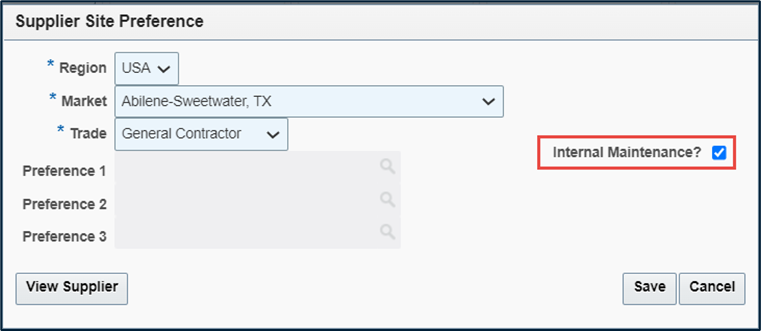
Supplier Preferences now have a checkbox to specify Internal Maintenance. If preferences are set up as “Internal Maintenance” then new Service Requests can automatically be assigned to a Maintenance Lead instead of to an External Vendor. This is a required data setup if Work Orders will be “Auto Dispatched” to the Internal Maintenance team.
Trades
If you plan to assign Scheduled Maintenance Work Orders directly to the internal Maintenance Technicians, the SUPPLIERSITES_TRADES Lookup in Core may need to be updated to include any Trades used specifically for Scheduled Maintenance.
This lookup list should already include all the Trades used for Demand Maintenance (these are the values available in the Trade dropdown field in the Supplier Preferences shown above)
Tango Edge Setup
This section provides the description of the Tango Edge setup required for the Internal Maintenance team functionality.
Edge Users
The Internal Maintenance users that were added to Core also need to exist in Edge. This can be done manually or through the Core/Edge integration mentioned above.
Role names in Edge are: “MaintenanceLead” and “MaintenanceTechnician.”
Locations
Maintenance Leads and Maintenance Technicians in Edge should be associated with Locations in Edge. This can be done from the Location records directly using the “Facility Requesters” section
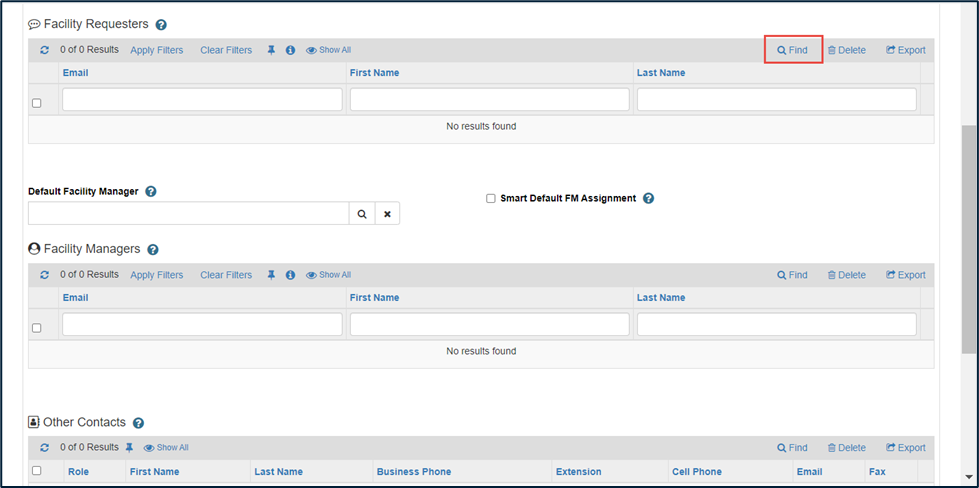
Note: Location assignment can also be managed from the Trade Data setup described below.
Edge Trade Data
Trade management is legacy functionality. Facility Managers (FMs) can be assigned to Trades and Locations to facilitate Smart Facility Manager Assignment logic on Service Requests based on the Trade/Location combination.
This same approach was taken to manage the internal maintenance team assignments based on the Trade / Location combination on the Service Request. The Maintenance Leads are assigned to Service Requests, which are then Dispatched and a Work Order is created, to which the Maintenance Lead is also assigned. While Maintenance Technicians are (optionally) assigned only to Work Orders.
Note: Trades and the related “user” Trade records (FM Trade, ML Trade and MT Trade) need to be created in each specific Country context in Edge.
The Maintenance Lead role has access to manage Trade data for the Maintenance Leads and Technicians.
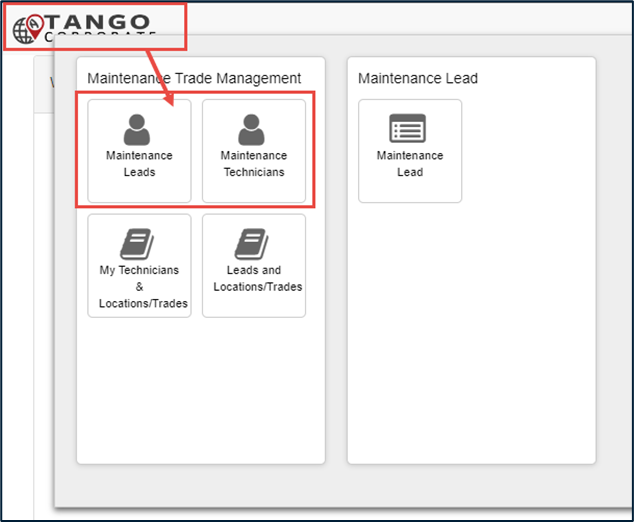
The Maintenance Lead can access the Maintenance Trade Management menu by clicking on the logo to bring up the full menu, as illustrated below:
New Menu Items to manage Maintenance Lead and Maintenance Technician Trade data have been added for the existing Facilities Admin role, as illustrated below: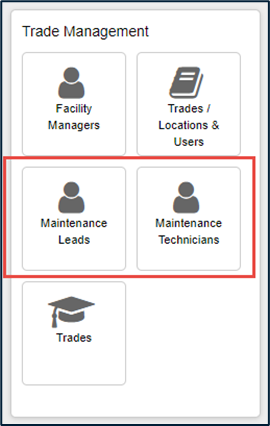
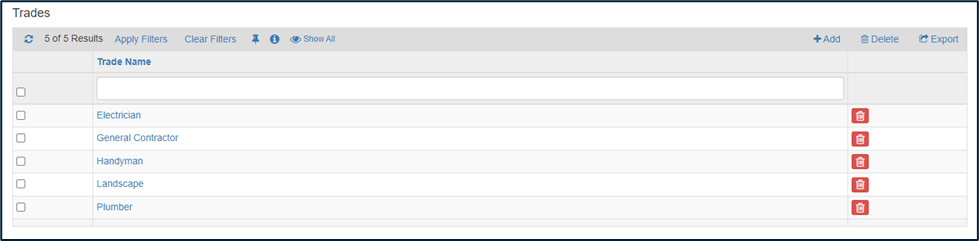
Trades Records
Only the Facilities Admin has access to create Trades records (as well as the Tango Dev Admins & Support/Services Super Users).
-
Trade records are required for each Trade (Level 4 of the Problem Code Matrix) that will be supported for Internal Maintenance functionality.
Note: This is the same Trade record used for the legacy Facility Manager Assignment logic, so this data might already exist.
-
Trade Name is a lookup to the Trade values in Core for the Client
Note: Only 1 record can exist per Trade Name
Maintenance Lead Trade
Maintenance Lead Trade data is required to be able to select a Maintenance Lead instead of an External Vendor on a Service Request.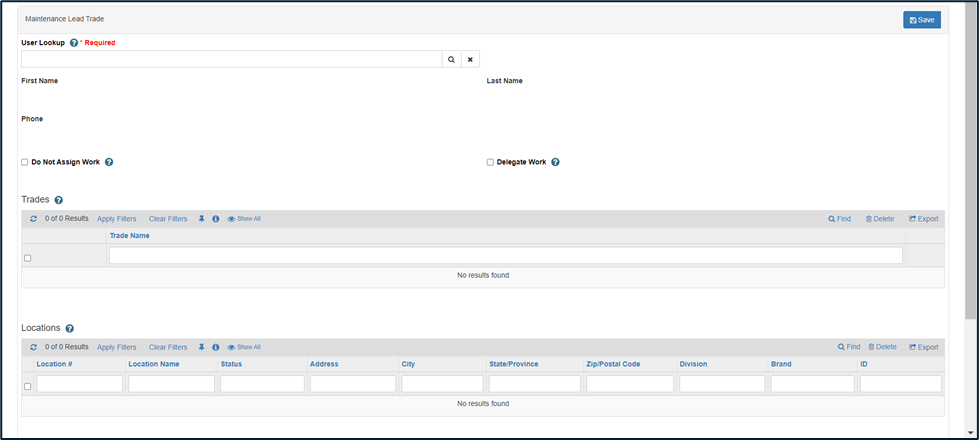
-
User Lookup: Query all Active Users with Maintenance Lead Role. Only 1 Maintenance Lead Trade record can be added per User.
Do Not Assign Work: This User will not be Auto Assigned to Service Requests (hides Delegate Work when checked)
Delegate Work (more details below/see next screenshot)
-
Trades: Associate Trade(s) to this User
Note: Only the Facilities Admin Role has access to create the “Trades” records (see above)
-
Locations: Associate Locations (Buildings/Stores) to this User
Finding or Deleting Locations here will also update the User in the Facility Requesters report (shown above) on the Location record in Edge.
Delegation
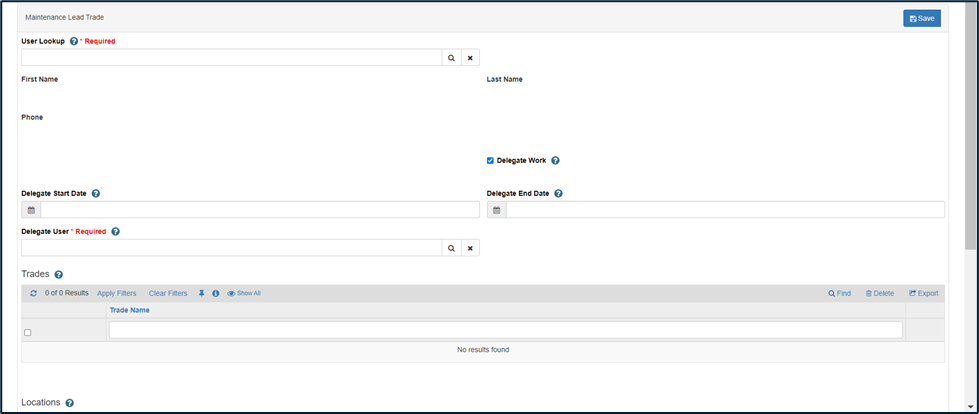
Delegation is the ability to Delegate Work, which allows the Work Order Assignment logic to re-assign the WO to a different Maintenance Lead.
-
Delegate Work allows the Service Request Assignment logic to re-assign the Work Order to a different Maintenance Lead
Checking “Delegate Work” hides “Do Not Assign Work” (they cannot be used together)
-
Optionally set Start and/or End Dates to delegate work within a specified time frame.
Delegate Work checkbox will automatically be unchecked, and related fields hidden when Delegate End Date is passed.
Delegate User lookup allows you to choose from any Active User with Maintenance Lead Role. This user will be assigned to the Service Request while “Delegate Work” checkbox is checked.
Associated Technicians
As mentioned above, Maintenance Technicians can be auto assigned to a Work Order. Based on the Maintenance Lead assigned, logic will check the corresponding Maintenance Lead Trade record for “Associated Technicians” and if a Maintenance Technician Trade record is found that is set to Auto Assign Work and has the same Trade / Location as the Work Order, then that Technician will also be automatically assigned.
The Associated Technicians section on the Maintenance Lead Trade record is used to manage this data relationship.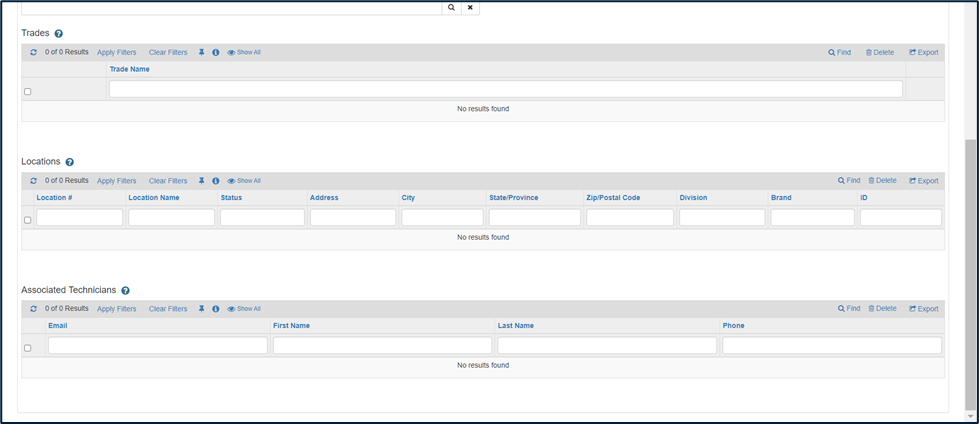
For any data to be available in the Associated Technicians section Find popup, users with the Maintenance Technician Role are required. It is recommended to create Maintenance Technician Trade records for those users prior to finding the users here (which will properly create the association in both directions). Please see below for more information on the Maintenance Technician Trade setup.
Finding or Deleting Associated Technicians in this section will also add or remove the Maintenance Lead on the corresponding Maintenance Technician Trade record if it exists (which is why it is recommended to create the Maintenance Technician Trade records before associating them on the Maintenance Lead Trade).
Maintenance Technician Trade
Maintenance Technician Trade data is optional but is “required” for Technician auto assignment logic. The association between MT Trade and ML Trade also filters the various Technician reports for the Maintenance Lead on the Work Order Assignment Utility and elsewhere.
The Maintenance Technician Trade record is almost identical to the Maintenance Lead Trade record.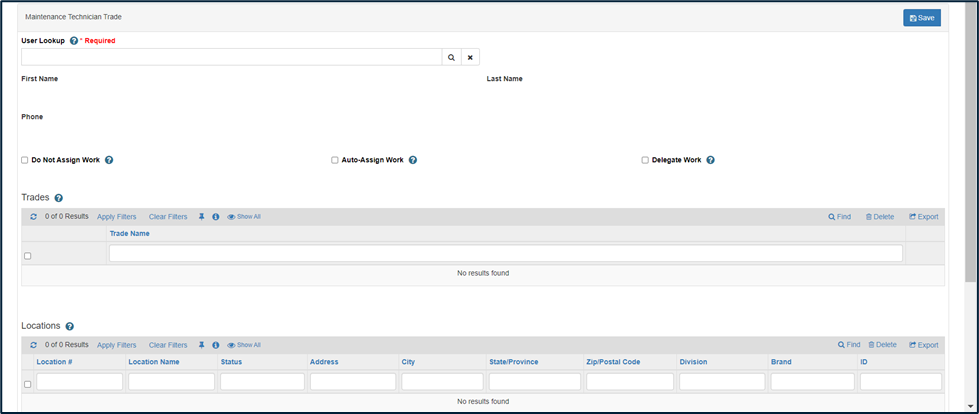
-
User Lookup: Query all Active Users with Maintenance Technician Role. Only 1 Maintenance Technician Trade record can exist per User.
Do Not Assign Work: This User will not be Auto Assigned to Work Orders (hides Auto Assign Work and Delegate Work when checked)
Auto Assign Work: This User will be Auto Assigned to Work Orders (hides Do Not Assign Work when checked). Auto Assignment process is explained more under the Associated Maintenance Leads section below.
Delegate Work (more details below/see next screenshot)
-
Trades: Associate Trade(s) to this User
Note: Only the Facilities Admin Role has access to create the “Trades” records (see above)
-
Locations: Associate Locations (Buildings/Stores) to this User
Finding or Deleting Locations here will also update the User in the Facility Requesters report (shown above) on the Location record in Edge.
Delegation
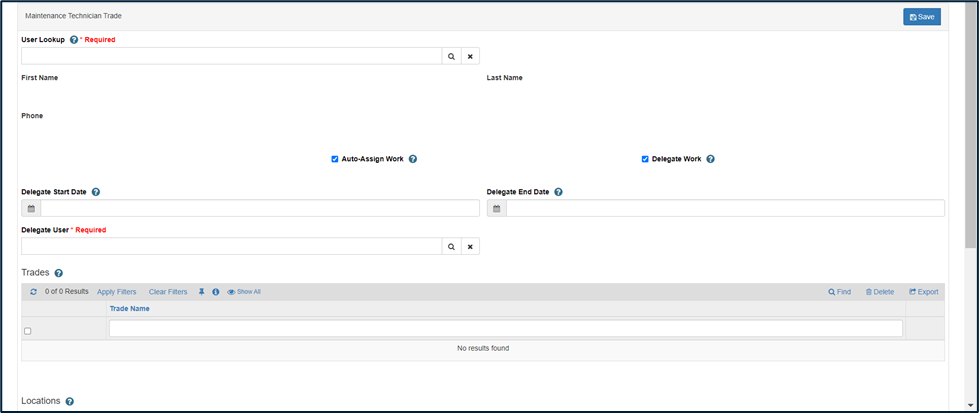
Delegation is the ability to Delegate Work, which allows the Work Order Assignment logic to re-assign the WO to a different Maintenance Technician.
-
Delegate Work allows the Work Order Assignment logic to re-assign the WO to a different Maintenance Technician
Checking “Delegate Work” hides “Do Not Assign Work” (they cannot be used together). Auto-Assign Work should also be checked for Delegate Work to have any impact.
-
Optionally set Start and/or End Dates to delegate work within a specified time frame.
Delegate Work checkbox will automatically be unchecked, and related fields hidden when Delegate End Date is passed.
Delegate User lookup allows you to choose from any Active User with Maintenance Technician Role. This user will be assigned to the Work Order while the “Delegate Work” checkbox is checked.
Associated Maintenance Leads
As mentioned above, Maintenance Technicians can be auto assigned to a Work Order. Based on the Maintenance Lead assigned, logic will check the corresponding Maintenance Lead Trade record for “Associated Technicians” and if a Maintenance Technician Trade record is found that is set to Auto Assign Work and has the same Trade / Location as the Work Order, then that Technician will also be automatically assigned.
The Associated Maintenance Leads section on the Maintenance Technician Trade record is used to manage this data relationship.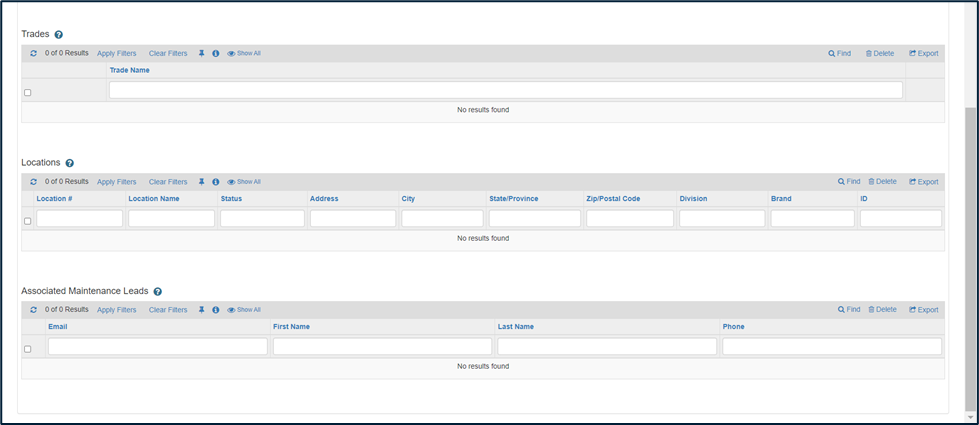
For any data to be available in the Associated Maintenance Leads section Find popup, users with the Maintenance Lead role are required, but also creating Maintenance Lead Trade records are recommended for the association to be created in both directions (see above).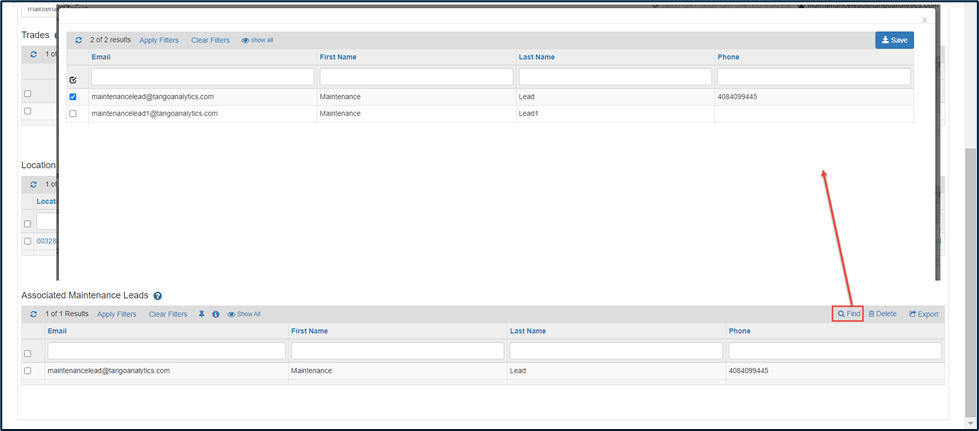
Finding or Deleting Associated Maintenance Leads in this section will also add or remove the Maintenance Technician on the corresponding Maintenance Lead Trade record.
Creating Internal Maintenance Work Orders
When a Service Request is being reviewed and validated, prior to Dispatching into a Work Order, users will now have the option to choose Internal Maintenance instead of selecting an External Vendor/Supplier.
Note: If Supplier Preferences are configured (see above) the Internal Maintenance checkbox may already be selected by default.
On the Select tab of the Service Request, there is a checkbox to change the Request from External Vendor/Supplier “mode” to Internal Maintenance “mode” as illustrated below: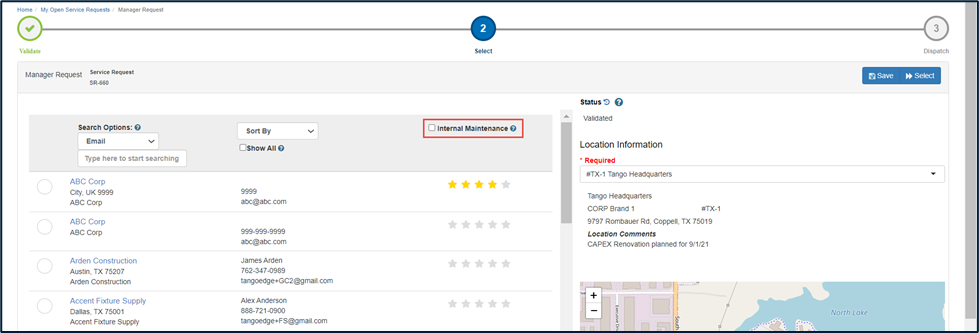
When Internal Maintenance is checked, the supplier/vendor list is hidden, and the user will need to select the Maintenance Lead instead, as illustrated below: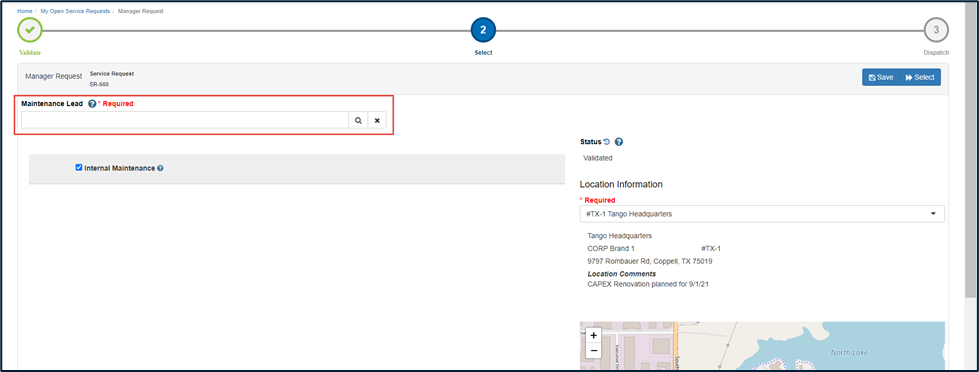
After selecting the Maintenance Lead user, click Select and then Dispatch the Service Request (same process as a non-Internal Maintenance SR).
Now instead of being sent for Vendor Acceptance, the Work Order is created directly into Submitted Status and assigned to the Maintenance Lead.
Note: As per the Maintenance Technician Trade setup (see above), the Maintenance Technician could also be assigned automatically.
The example is an Electrician Trade Service Request, and we have a single Maintenance Technician Trade record set up to be auto assigned this kind of work for that Location, associated to the Maintenance Lead:
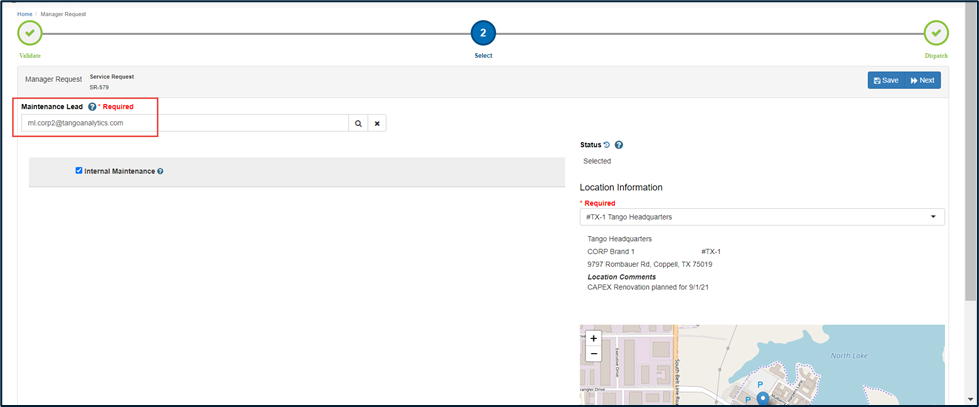
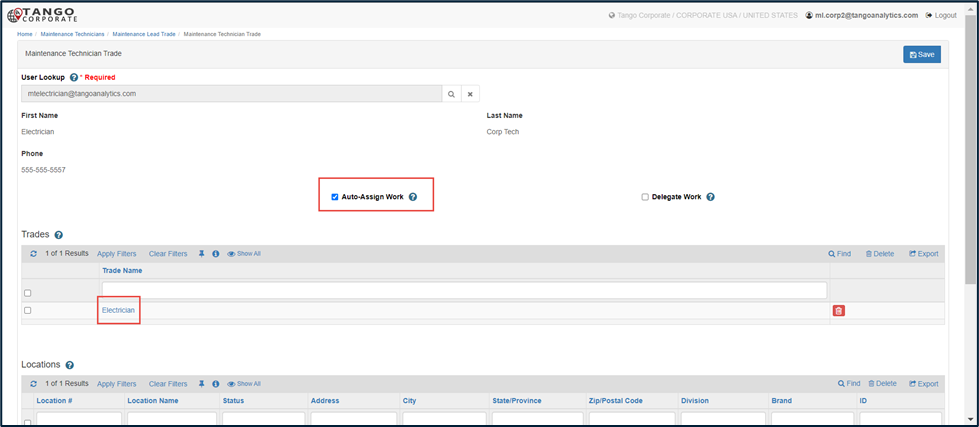
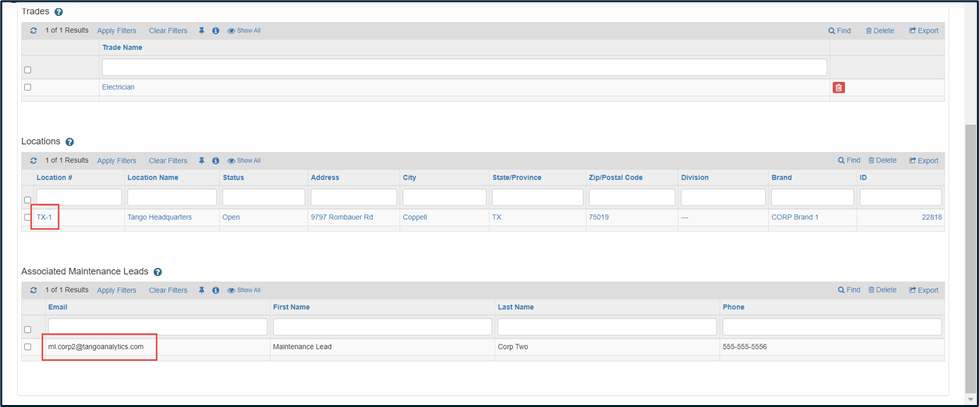
The resulting Work Order is assigned to the selected Maintenance Lead and auto assigned the Maintenance Technician based on the Edge Trade Data set up: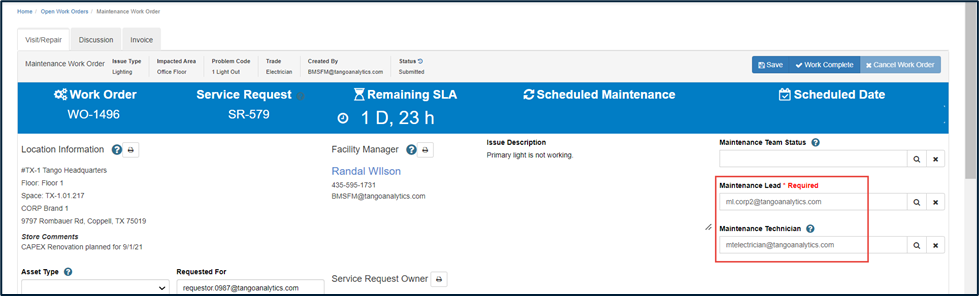
Maintenance Lead User Guide
Maintenance Lead Role has full access to the Work Order process to update the Work Orders and complete the Work Orders themselves. In this way, the Maintenance Lead role is like the External Work Order Vendor Role. A Maintenance Lead can also reassign Work Orders to another Maintenance Lead user.
The Maintenance Lead also has a Utility that allows them to manage workload and assignment of Work Orders to Technicians on their team.
Lastly the Maintenance Lead has full access to create Service Requests, like the Facility Manager. These requests can be dispatched internally to themselves or another Maintenance Lead, or externally to a 3rd party Vendor.
Home Page
Upon logging in, the Maintenance Lead will see the Work Orders home screen shown below.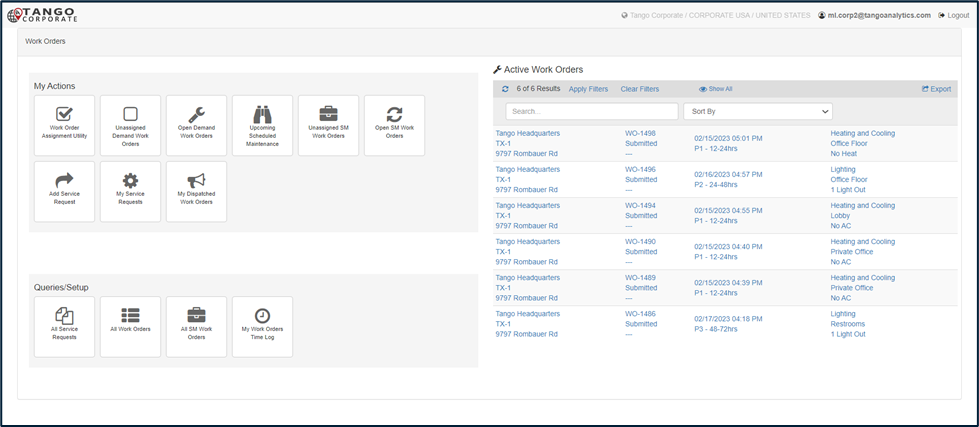
Note: The Maintenance Lead can also click the logo on the top left to view the full menu which includes the Trades data setup (as explained in the Edge Trade Data section of the Required Setup chapter above)
This section to the left of the Work Order Home screen contains what Tango refers to as widgets or Tiles. They are an element of a graphical user interface (GUI) that displays information or provides a specific way for a user to interact with the application. In Tango they initiate the functionality of the Work Order Module.
On the right side of the home page is a report showing the open Work Orders assigned to the Maintenance Lead.
My Actions
The My Actions tiles provide actionable data that the users will rely on for their day-to-day business processes. This data is dynamic and will change as new Requests and Work Orders are created and completed.
| Tile | Description |
|---|---|
 |
Work Order Assignment Utility Opens the Work Order Assignment utility where the Maintenance Lead can view their technician’s current workload and assign/reassign Work Orders to Technicians. See more details in section below. |
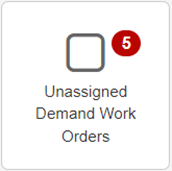 |
Unassigned Demand Work Orders Opens a report showing all open “Demand” Work Orders not assigned to a technician. Badge Count will also display with the total # of WOs in the report. Filtered to only show Work Orders assigned to the Maintenance Lead |
 |
Open Demand Work Orders Opens a report showing all open “Demand” Work Orders assigned to the Maintenance Lead. These may or may not be assigned to a technician. No Badge Count. |
 |
Upcoming Scheduled Maintenance Opens a report showing a Scheduled Maintenance Forecast report of all upcoming Scheduled Maintenance recurrence data for the next 365 days where the SM is assigned to the Maintenance Lead. No Badge Count. |
 |
Unassigned SM Work Orders Opens a report showing all open “Scheduled Maintenance” Work Orders not assigned to a technician. Badge Count will also display with the total # of WOs in the report. Filtered to only show Work Orders assigned to the Maintenance Lead. |
 |
Open SM Work Orders Opens a report showing all open “Scheduled Maintenance” (SM) Work Orders assigned to the Maintenance Lead. These may or may not be assigned to a technician. No Badge Count |
 |
Add Service Request Opens a blank Draft Service Request record allowing the user to create and dispatch a new request |
 |
My Service Requests Opens a report of all Open Service Requests created by the user. No Badge Count. |
 |
My Dispatched Work Orders Opens a report of all “active” Work Orders created by the user. Badge Count shows the total number of WOs in the report. |
Queries/Setup
The Queries Tiles provide reporting and historical data views for the Maintenance Lead. Generally, these reports are not filtered and will return data in all Statuses.
| Tile | Description |
|---|---|
 |
All Service Requests Opens a report of all Service Requests created for the client. There are no status filters or other filters |
 |
All Work Orders Opens a report of all Demand Work Orders created for the client. There are no status filters or other filters |
 |
All SM Work Orders Opens a report of all Scheduled Maintenance Work Orders created for the client. There are no status filters or other filters |
 |
My Work Orders Time Log Opens a report of all Work Orders assigned to the Maintenance Lead, including data from Associated Time Logs (Check In, Check Out, Duration, Comments, Created By) |
Work Order Assignment Utility
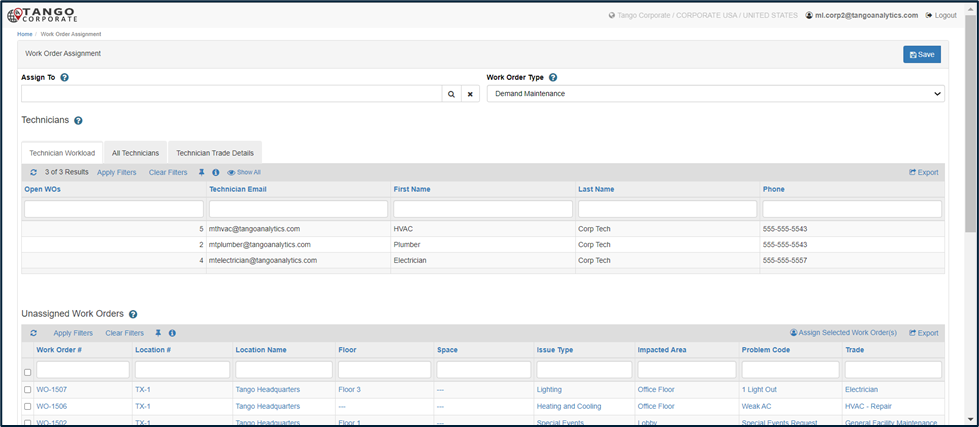
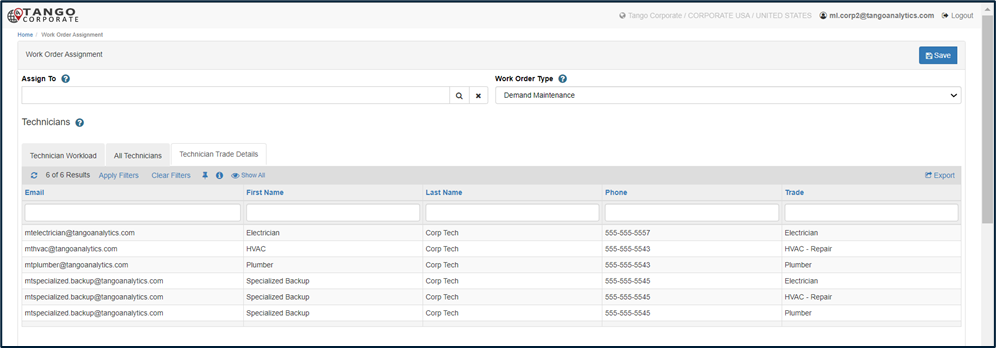
The Maintenance Lead has access to the Work Order Assignment Utility, allowing them to view details about their associated Technicians including current workloads, with the ability to Assign or Reassign Work Orders to Technicians.
| Field/Section | Description |
|---|---|
| Assign To | Lookup to users with Maintenance Technician Role. This list is filtered to only show Technicians associated to the Maintenance Lead. A user must be selected here before the ML can Assign or Reassign Selected Work Order(s) in the sections below. |
| Work Order Type |
Dropdown Options: Demand Maintenance (Default value); Scheduled Maintenance Changing this value will change the sections below to show the corresponding type of Work Orders to be assigned. |
| Technician Workload | Report shows a list of the Maintenance Lead’s associated Technicians with a count of the number of their assigned opened Work Orders |
| Section | Description |
|---|---|
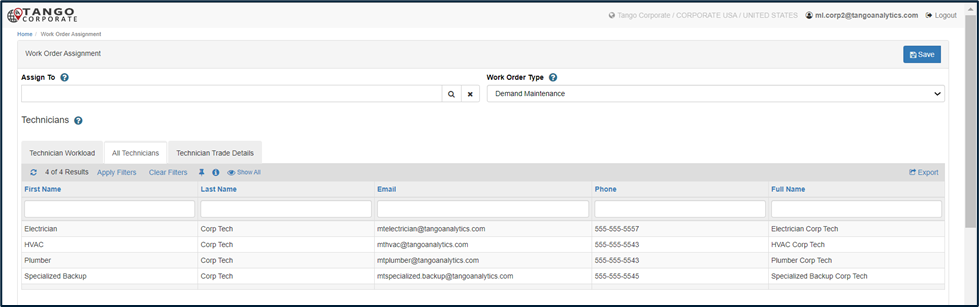
| All Technicians | Report shows a list of the Maintenance Lead’s associated Technicians with their contact information |
| Section | Description |
|---|---|
| Technician Trade Details | Report shows a list of the Maintenance Lead’s associated Technicians with their Trades listed. If the Maintenance Technician Trade record for that Technician has been assigned to multiple Trades, the user’s information will be repeated in this report for each Trade |
| Section | Description |
|---|---|
| Unassigned Work Orders |
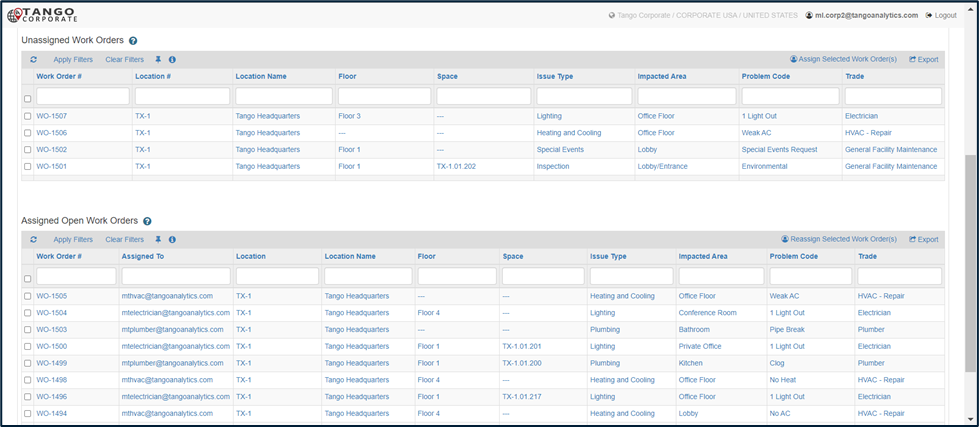
Report shows a list of open Work Orders assigned to the Maintenance Lead, but not yet assigned to a technician. The Lead can check the Work Orders they want to assign and then click the Assign Selected Work Order(s) action to assign the Technician chosen in the “Assign To” Lookup to the selected Work Orders |
| Assigned Open Work Orders |
Report shows a list of open Work Orders assigned to the Maintenance Lead and assigned to a technician. The Lead can check the Work Orders they want to re-assign and then click the Reassign Selected Work Order(s) action to assign the Technician chosen in the “Assign To” Lookup to the selected Work Orders. Note: The Technician data displayed in the report is from the Technician Lookup field only. Additional Technicians associated with the Add More Technicians option are not visible in this report. |
| Section | Description |
|---|---|
| Unassigned SM Work Orders |
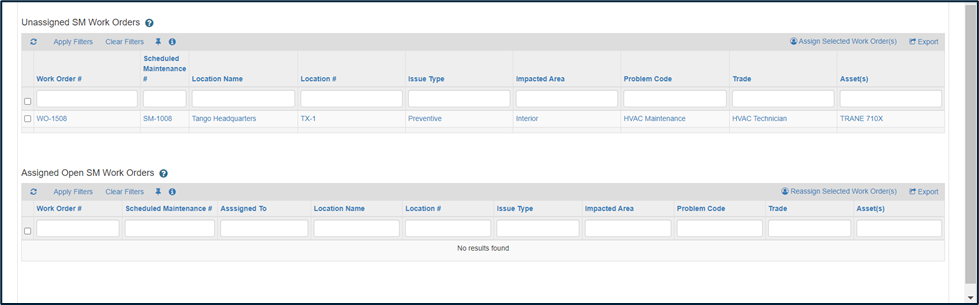
Report shows a list of open Scheduled Maintenance (SM) Work Orders assigned to the Maintenance Lead, but not yet assigned to a Technician. The Lead can check the Work Orders they want to assign and then click the Assign Selected Work Order(s) action to assign the Technician chosen in the “Assign To” Lookup to the selected Work Orders |
| Assigned Open SM Work Orders |
Report shows a list of open Scheduled Maintenance (SM) Work Orders assigned to the Maintenance Lead and assigned to a technician. The Lead can check the Work Orders they want to re-assign and then click the Reassign Selected Work Order(s) action to assign the Technician chosen in the “Assign To” Lookup to the selected Work Orders Note: The Technician data displayed in the report is from the Technician Lookup field only. Additional Technicians associated with the Add More Technicians option are not visible in this report. |
Example of Assigning Work Orders to a Technician with the Utility: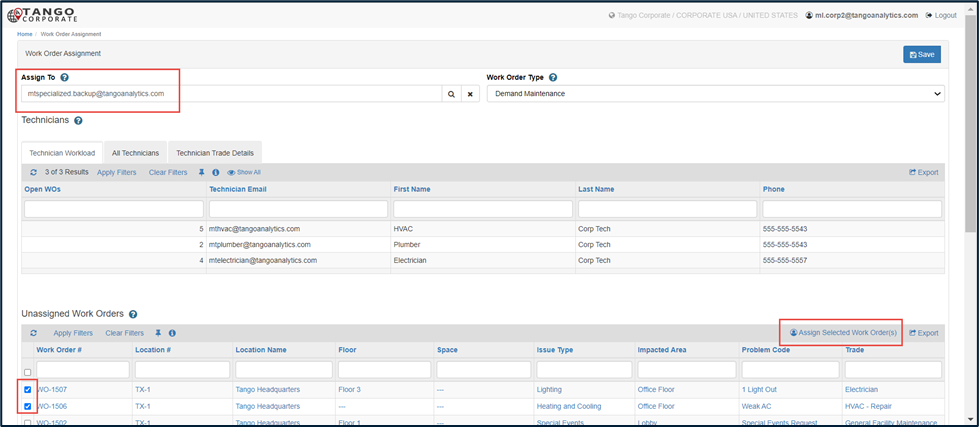
Step 1: Select the Technician user in the Assign To lookup field
Step 2: Check the checkbox for the Work Orders you want to Assign the Technician to (optionally use the filters as needed to narrow down the results)
Step 3: Click the “Assign Selected Work Order(s)” or “Reassign Selected Work Order(s)” action on the Report section (depending on which section you are assigning the Work Orders from)
Note: The system will allow assigning Technicians to Work Orders for Trades they are not associated with (as per the Trade data setup above). Please take care and pay attention to the kind of work being assigned to the Technicians.
Maintenance Work Order Process
The Maintenance Lead has the option of assigning Work Orders to Technicians but can also update the Work Order, Complete the work and Invoice.
The details below are almost identical for a Maintenance Technician user as well.
Visit/Repair Tab
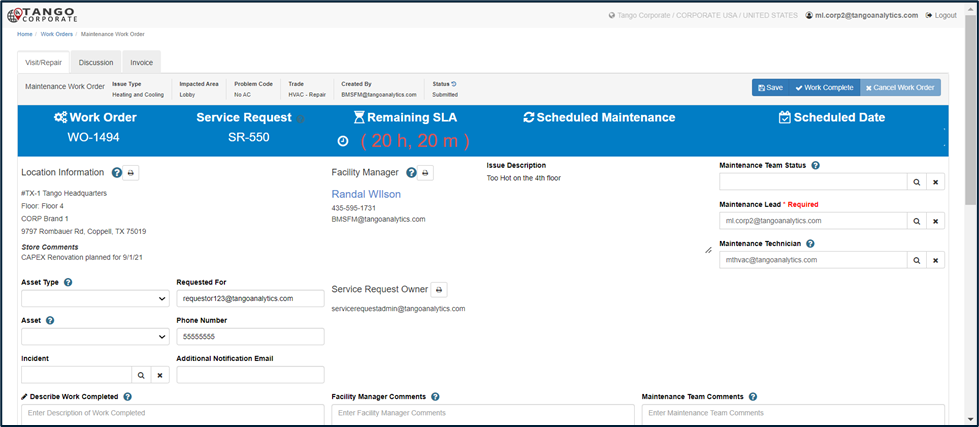
| Field/Section | Description |
|---|---|
|
Quickview Row: Issue Matrix Fields |
Mapped in from what was selected on the Service Request:
|
|
Quickview Row: Created By |
The user who created the Work Order |
|
Quickview Row: Status |
Status of the Work Order:
Clicking the history icon next to Status will pop up the Status Audit History |
| Button: Save | Save changes to the record as data updates are made |
| Button: Work Complete | Moves the Work Order to Completed Status. This indicates that the work is done. |
| Button: Cancel Work Order | Moves the Work Order to Cancelled Status. Only available to the Facility Manager role |
| Blue Header Row: Work Order # | The system generated Work Order # for this record. Formatting is WO-### |
| Blue Header Row: Service Request |
The system generated Service Request # that was Dispatched to create this Work Order record. Formatting is SR-### Note: Scheduled Maintenance Work Orders do not have an associated SR |
| Blue Header Row: Remaining SLA |
Timer showing a countdown of the remaining time left to complete the work within the Service Level Agreement time frame. For a Demand Work Order, this timer begins when the Work Order is Dispatched. For a Scheduled Maintenance Work Order, this timer begins on the Scheduled Date Clicking the clock icon next to Remaining SLA will pop up the Timer Audit History |
| Blue Header Row: Scheduled Maintenance |
The system generated Scheduled Maintenance # that generated this Work Order record. Formatting is SM-### Note: Only Scheduled Maintenance Work Orders have an associated SM |
| Blue Header Row: Scheduled Date |
The Date when the Scheduled Maintenance Work Order is scheduled for (SM Work Orders can be created before the Scheduled Date) Note: Only Scheduled Maintenance Work Orders have Scheduled Date |
| Location Information | Read Only Text area with details about the Work Order Location. This will always include the Location/Building /Store Name, Number and Address details, and can also include a Floor and Space, if the data was part of the Service Request. |
| Facility Manager | Read Only Text with the assigned Facility Manager Name, Phone # and email |
| Issue Description | Read only text area that is mapped in from the Service Request. This is the description entered by the initial requestor |
| Maintenance Team Status | Lookup to client configured list of values that allows the Maintenance Team to track various steps within the Work Order process without updating the actual Work Order record status, or stopping the SLA timer |
| Maintenance Lead | Required lookup to the assigned Maintenance Lead user. A Maintenance Lead can assign a Work Order to a different Maintenance Lead here |
| Maintenance Technician | Optional lookup to the assigned Maintenance Technician user. A Maintenance Lead can only select from their associated Technicians here. The Maintenance Lead can also assign Technicians to Work Orders using the Work Order Assignment Utility as explained above. Assigning a Technician here will notify the user via an email and enable the “Add More Technicians” checkbox on the screen (see below) |
| Asset Type | If the Request/Work Order is for a specific Asset, the Asset Type is populated to filter the list of Asset Details. This will populate from the Service Request but can also be edited or populated on the Work Order |
| Asset | If the Request/Work Order is for a specific Asset, the Asset Name is displayed here. The list of available Assets will be filtered by the Asset Type as well as the Location for the Work Order (Building, Floor and Space as applicable). This will populate from the Service Request but can also be edited or populated on the Work Order |
| Incident | A client defined list of values (Configured from the Facilities Admin user role). This list provides a way to group Request and Work Orders into a reportable category. |
| Requested For | Requested for person, mapped in from Service Request |
| Phone Number | Phone number of the Requested For user, mapped in from Service Request |
| Additional Notification Email | Manually entered email address that will receive service request related Notifications. |
| Request Owner | Read Only Text with the Name, Phone # (if available)and email of the Created By user |
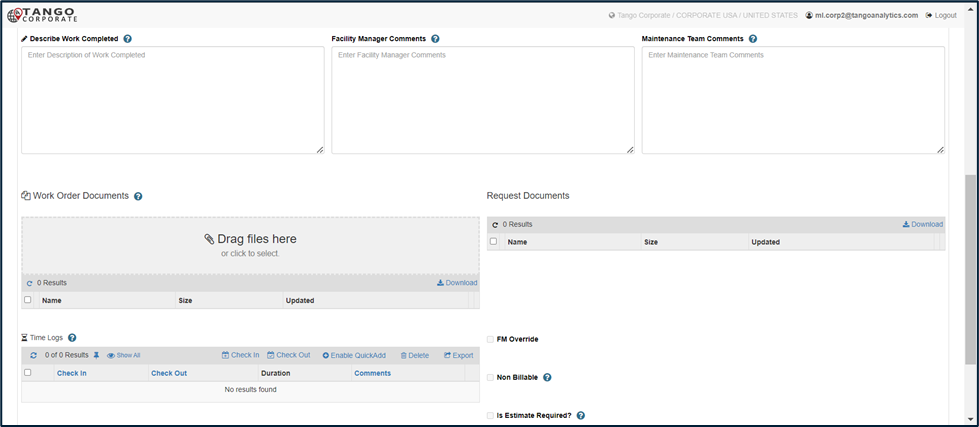
| Field/Section | Description |
|---|---|
| Describe Work Complete | Editable field for the Maintenance Team to provide details about the work done for this Work Order. If left blank, the application will prompt the user to enter a value here before clicking Work Complete. |
| Facility Manager Comments | Comments entered on the Service Request by the Facility Manager |
| Maintenance Team Comments | Editable field for the Maintenance Team to enter comments that will be visible to other Maintenance Team members or the Facility Manager |
| Work Order Documents | Files attached to the Work Order during the Visit/Repair process. The Maintenance Team can upload images and/or files as needed before clicking Work Complete |
| Request Documents | Files initially attached to the Service Request |
Time Logs
The Time Logs section allows the Maintenance Team to optionally track time against the Work Order. This data is available in reports to the Facility Manager and the Maintenance Lead.
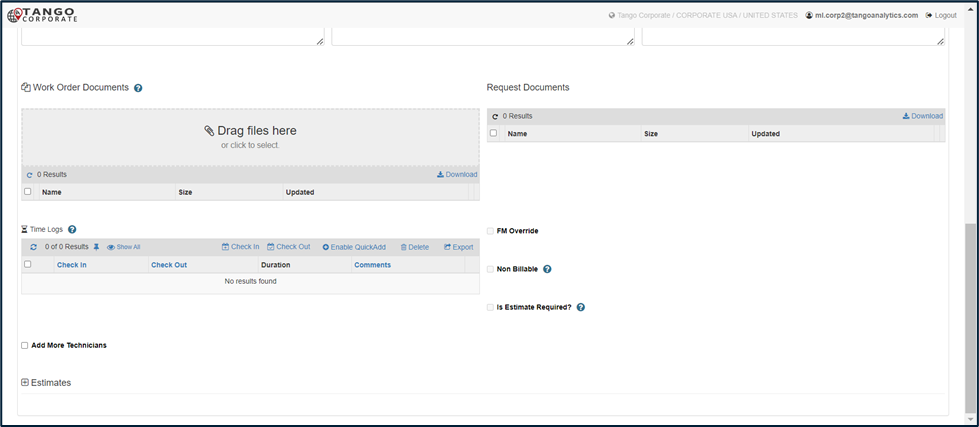
| Field/Section | Description |
|---|---|
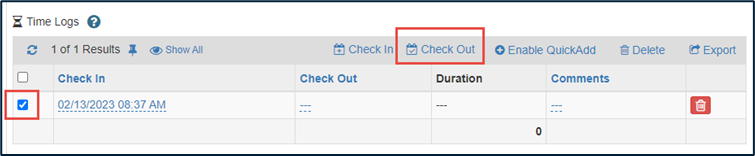
| Button: Check In |
Creates a new Time Log row with the Check In time defaulted to the current time.
|
| Button: Check Out |
Updates selected existing Time Log rows with Check Out time set to the current time. Note: Time Logs must be “selected” by checking the Checkbox on each row
|
| Button: Enable Quick Add |
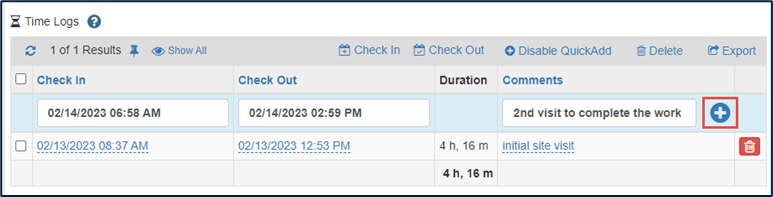
Clicking this will display a row where the user can manually add all fields into the Time Log, then click the + icon to add the row.
After clicking Enable Quick Add, the button changes to “Disable QuickAdd” which will hide the light blue “quick add” row.
|
| Check In |
Start Date and Time of this Time Log check in. Remains editable after using Check In/Check Out/Quick Add |
| Check Out |
End Date and Time of this Time Log check in. Remains editable after using Check In/Check Out/Quick Add |
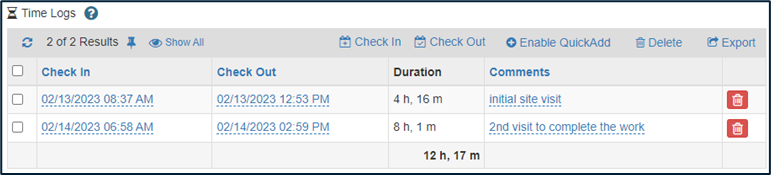
| Duration | Automatically calculated when the Dates are entered. |
| Comments | Comments can also be added per each Time Log entry to capture details about the specific check in |
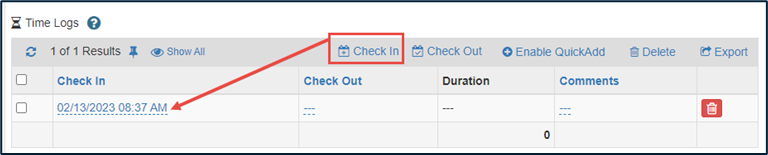


| Field/Section | Description |
|---|---|
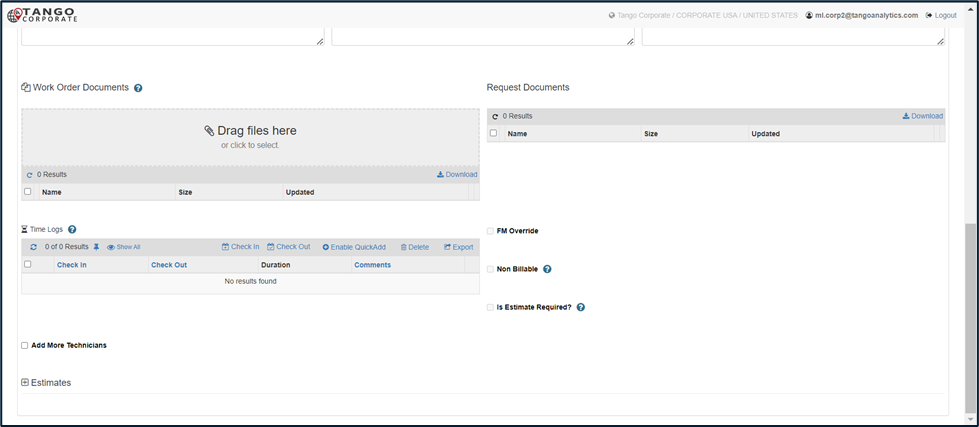
| FM Override | If checked, indicates that a Facility Manager can act on behalf of the Maintenance Team to update and complete the Work Order |
| Non Billable | If checked, the Facility Manager has marked this Work Order as Non Billable and the Invoicing process will be disabled |
| Is Estimate Required | If checked, the Maintenance Team must Submit and Estimate and have it Approved by the Facility Manager. The application will stop the users from clicking Work Complete until there is an Approved Estimate |
| Add More Technicians |
Hidden until a Technician is assigned in the Lookup field near the top of the screen. When checked, the “Maintenance Technicians” Report section will be displayed allowing the Maintenance Lead to associate more Technicians with the Work Order. |
| Estimates | Collapsed by default. See below |
Estimates
In some cases, Estimates might be required before work can be done, or as part of the business process the Maintenance Team may submit estimates if the work needed will exceed the NTE (Not to Exceed) amount for the Work Order’s Problem Code.
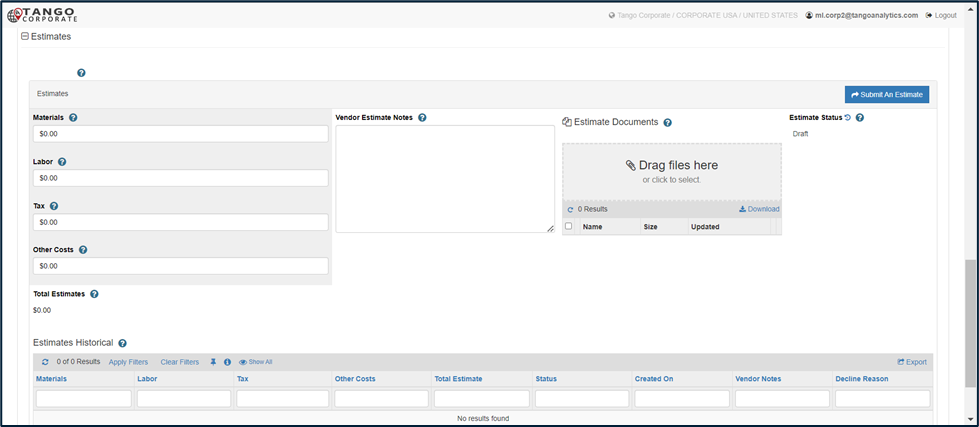
| Field/Section | Description |
|---|---|
| Button: Submit An Estimate |
Submits the Estimate for approval to the Facility Manager (Pending Approval Status). While the Estimate is in Pending Approval Status, the Recall Estimate button is made available, which will remove it from approval and allow the user to modify it and Submit it back if necessary. |
| Materials | Estimated Amount for Materials |
| Labor | Estimated Amount for Labor |
| Tax | Estimated Amount for Tax |
| Other Costs | Estimated Amount for Other Costs |
| Total Estimates | Calculated total of the above amounts |
| Estimate Notes | Free text area to enter details about the Estimate |
| Estimate Documents | File attachment/Document Section to attach Estimate related files |
| Estimate Status |
Status of the Estimate:
Clicking on the history icon next to Status will pop up the Status Audit History |
| Estimates Historical | Every time an Estimate is Submitted a new record will be created in the Estimates Historical report. |
Visit/Repair Tab - Scheduled Maintenace Work Order
If a Maintenance Work Order is generated from Scheduled Maintenance, there are some slight differences on the screen.
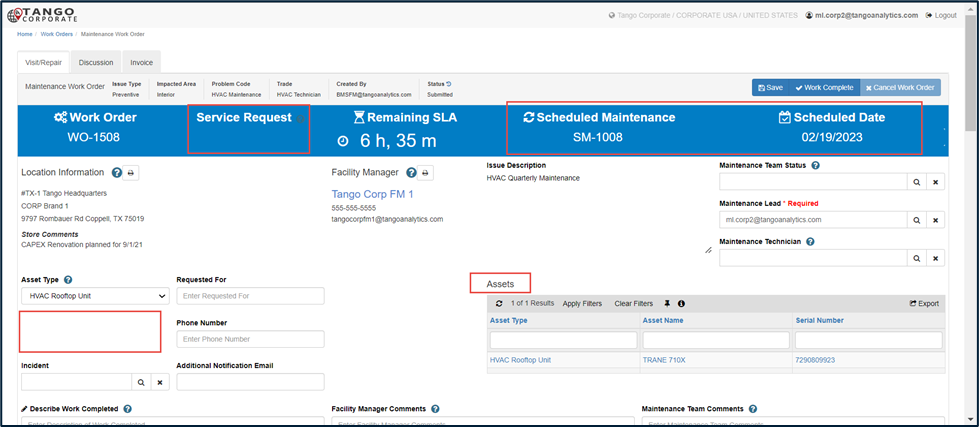
| Field/Section | Description |
|---|---|
| Blue Header Row: Service Request | Scheduled Maintenance Work Orders do not have an associated Service Request, this will be blank |
| Blue Header Row: Scheduled Maintenance |
The system generated Scheduled Maintenance # that generated this Work Order record. Formatting is SM-### Note: Only Scheduled Maintenance Work Orders have an associated SM |
| Blue Header Row: Scheduled Date |
The Date when the Scheduled Maintenance Work Order is scheduled for (SM Work Orders can be created before the Scheduled Date) Note: Only Scheduled Maintenance Work Orders have Scheduled Date |
| Asset | The Asset field is hidden for Scheduled Maintenance Work Orders, replaced with the Assets section (see below) |
| Assets | Assets report section is displayed for Scheduled Maintenance Work Orders because there can be multiple Assets assigned. |
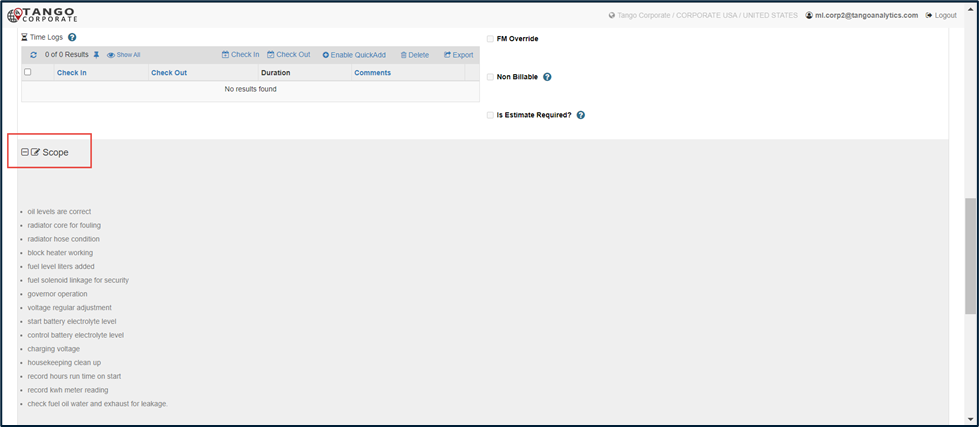
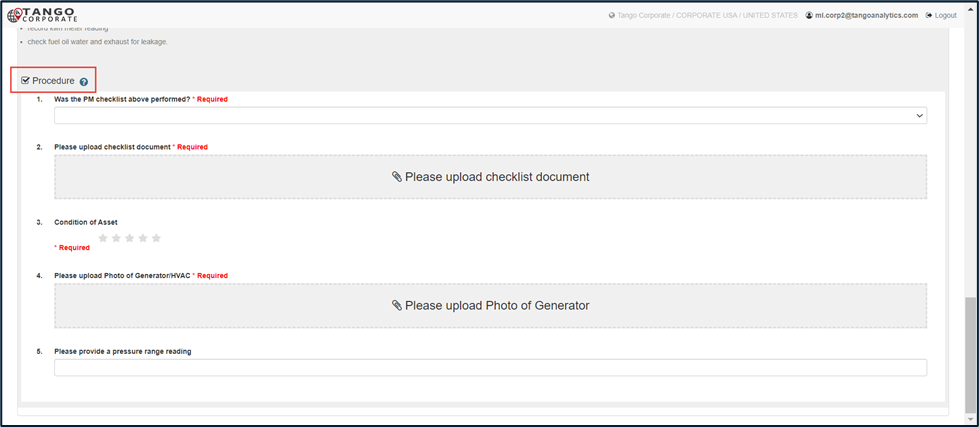
| Field/Section | Description |
|---|---|
| Scope |
A Read Only rich text area that maps in from the associated Scheduled Maintenance record (set up by the Facility Manager). This section can have formatting, embedded pictures, hyperlinks, etc. Note: The FM can opt to leave this blank on the original Scheduled Maintenance record which would make it blank on the Work Order. |
| Procedure |
A “Questionnaire” section that maps in from the associated Scheduled Maintenance record (set up by the Facility Manager). This section can have different types of user feedback fields, dropdowns, file uploads or read only text. Note: The FM can opt to leave this blank on the original Scheduled Maintenance record which would make it blank on the Work Order. |
Discussion Tab
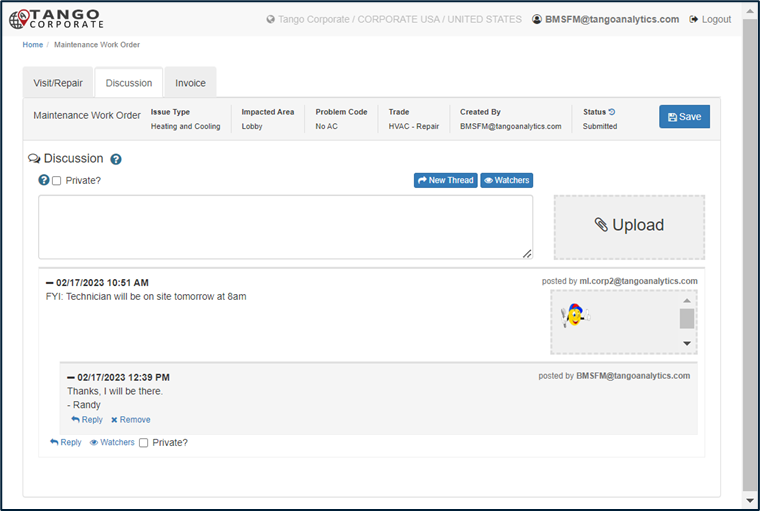
The Discussion Tab contains the Discussion section. From here users can create or reply to Discussion Threads, which send email notifications to users or emails based on the Watchers list.
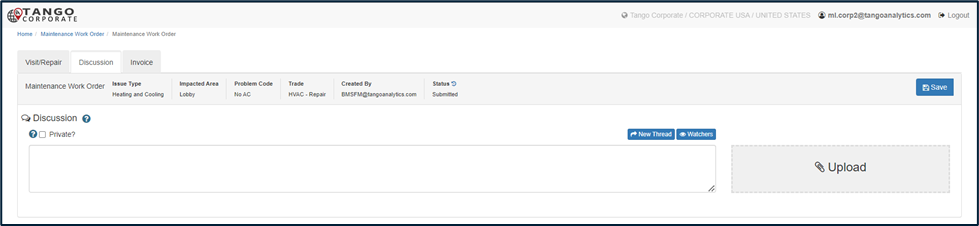
| Field/Section | Description |
|---|---|
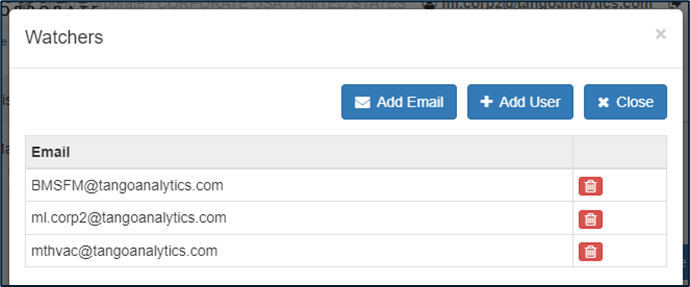
| Button: Watchers |
Watchers determines who is notified when a new Thread is created, or a reply is added to the Thread. Opens a popup: By Default, the following Users will be available in the Watchers list:
Watchers can be removed per Thread using the delete icon. Watchers can be added per Thread in 2 ways:
Close button: Closes the popup window |
| Private? | The discussion thread will only display to users if they are added to the Watchers list for that Thread |
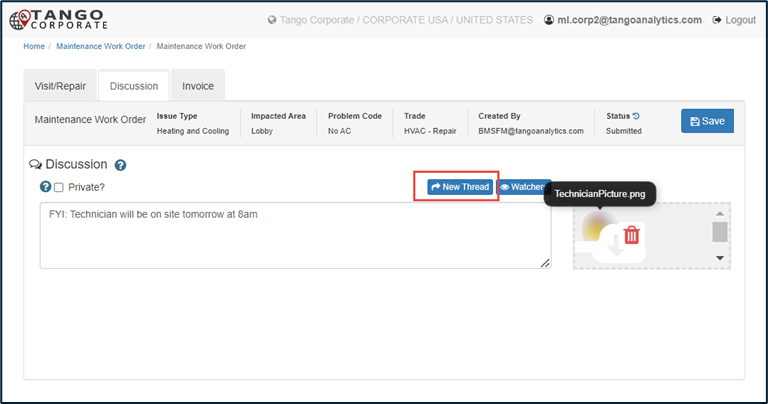
| Button: New Thread |
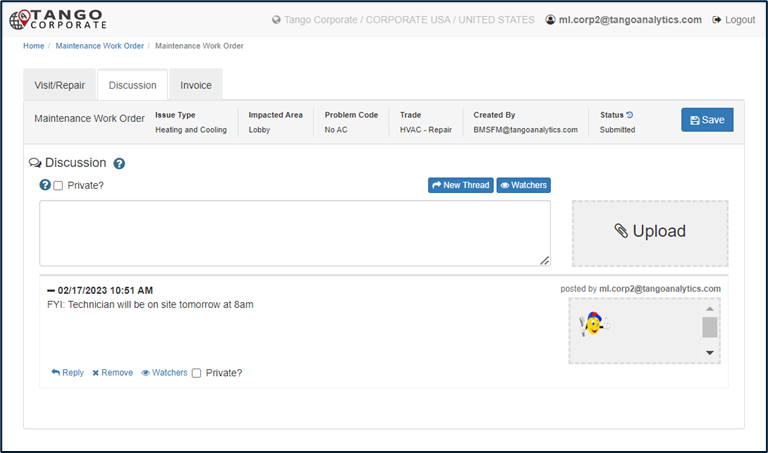
Create the new Discussion Thread with the content from the text area captured. Files added to the Upload section will also be attached to the Thread.
Each Thread can then be managed independently. Users can Reply to keep the thread going (or they can create new separate Threads), update “Watchers” list, and the user who initially created the Thread can Remove it (delete)
|
Invoice Tab
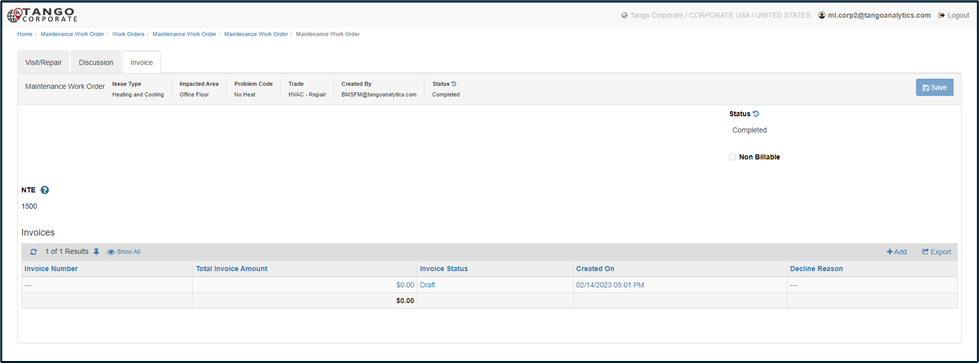
The Invoice tab is where the Maintenance Lead can add Invoice details to submit to the Facility Manager. If a Maintenance Lead opens a Work Order they are not assigned to, the Invoice Section is hidden. Maintenance Technicians are not able to add or submit Invoices.
| Field/Section | Description |
|---|---|
| NTE | Not To Exceed amount for this Problem Code (maps in from the problem code Matrix) |
| Non Billable | Read Only checkbox that can be set by the Facility Manager. When a Work Order is marked as Non Billable, the Invoice process is disabled |
| Invoices |
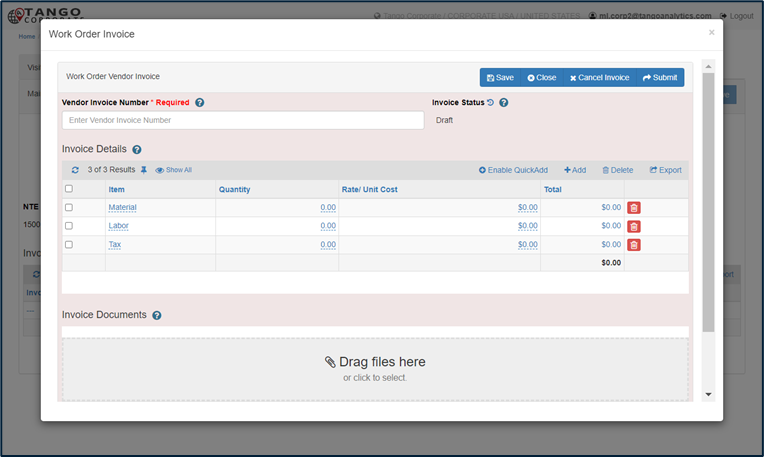
Read Only until the Work Order is in Completed Status. This will also be Read Only for Technicians and hidden entirely for Leads and Technicians who are not assigned to the Work Order. Clients can configure a default/Draft Invoice or not. A new Invoice may need to be created with the “+Add” button, or the existing Draft invoice that was created automatically could be updated.
The Invoice itself can have one or many Items added to the Invoice Details section. Populate the Invoice Number, add items/amounts as needed, attach related files in the Invoice Documents section and then Submit when ready. This will send the Invoice to the Facility Manager for approval. |
Service Request Process
The Maintenance Lead has the same access to the Service Request as the Facility Manager.
Please reference the FM User Guide for more details
Maintenance Technician User Guide
The Maintenance Technician Role is part of the Maintenance Team, working with the Maintenance Lead described above. The Lead is responsible for assigning work to the Technician, and the Technician Role is focused on Work Orders that are assigned to them .
The Technician Role is responsible for the Work Order process, they will provide updates and complete the Work Orders.
Lastly the Maintenance Technician has full access to create Service Requests, like the Facility Manager (and the Maintenance Lead). These requests can be dispatched internally to themselves or another Maintenance Lead, or externally to a 3rd party Vendor.
Home page
Upon logging in, the Maintenance Technician will see the Work Orders home screen shown below.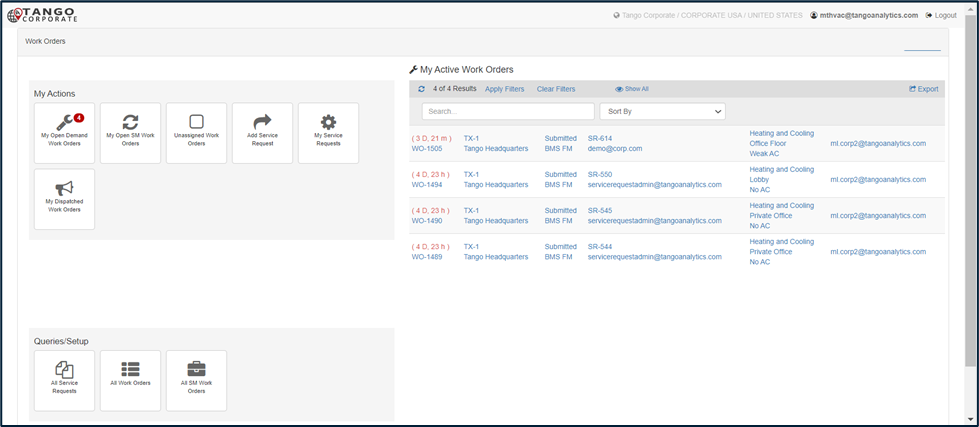
This section to the left of the Work Order Home screen contains what Tango refers to as widgets or Tiles. They are an element of a graphical user interface (GUI) that displays information or provides a specific way for a user to interact with the application. In Tango they initiate the functionality of the Work Order Module.
On the right side of the home page is a report showing the open Work Orders assigned to the Maintenance Technician.
My Actions
The My Actions tiles provide actionable data that the users will rely on for their day-to-day business processes. This data is dynamic and will change as new Requests and Work Orders are created and completed.
| Tile | Description |
|---|---|
 |
My Open Demand Work Orders Opens a report showing all open “Demand” Work Orders assigned to the Maintenance Technician. Badge Count will also display with the total # of WOs in the report. |
 |
My Open SM Work Orders Opens a report showing all open “Scheduled Maintenance” Work Orders assigned to the Maintenance Technician. Badge Count will also display with the total # of WOs in the report. |
 |
Unassigned Work Orders (Hidden By Default) Opens a report showing all open “Demand” Work Orders not assigned to a technician. Filtered to only show Work Orders assigned to the Maintenance Lead(s) associated with the Technician. Some clients support the ability for Technicians to assign themselves to work, but others do not. Which is why this is hidden by default and can be enabled through configuration. |
 |
Add Service Request Opens a blank Draft Service Request record allowing the user to create and Dispatch a new request |
 |
My Service Requests Opens a report of all Open Service Requests created by the user. No Badge Count. |
 |
My Dispatched Work Orders Opens a report of all “active” Work Orders created by the user. Badge Count shows the total number of WOs in the report. |
Queries/Setup
The Queries Tiles provide reporting and historical data views for the Maintenance Technician. Generally, these reports are not filtered and will return data in all Statuses.
| Tile | Description |
|---|---|
 |
All Service Requests Opens a report of all Service Requests created for the client. There are no status filters or other filters |
 |
All Work Orders Opens a report of all Demand Work Orders created for the client. There are no status filters or other filters |
 |
All SM Work Orders Opens a report of all Scheduled Maintenance Work Orders created for the client. There are no status filters or other filters |
Maintenance Work Order Process
This process is largely the same as described above in the Maintenance Lead chapter.
Maintenance Technician changes include:
Maintenance Technician cannot reassign Maintenance Lead
Maintenance Technician cannot make changes to the Additional Maintenance Technicians assigned.
Maintenance Technician does not have the ability to Invoice.
Service Request Process
Maintenance Technician has the same access to the Service Request as the Facility Manager.
Please reference the FM User Guide for more details
Was this article helpful?
That’s Great!
Thank you for your feedback
Sorry! We couldn't be helpful
Thank you for your feedback
Feedback sent
We appreciate your effort and will try to fix the article