Table of Contents
This section outlines the General User Interface elements in the application.
Description – General User
Users can access the General User area from the General User icon on the home page. Note, someone who only has General User access would go directly to the General User page.
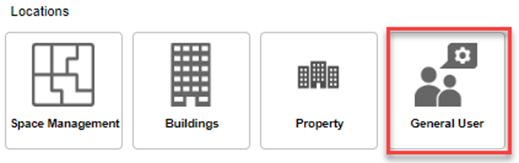
General User Tiles
Below is the General User Home page.
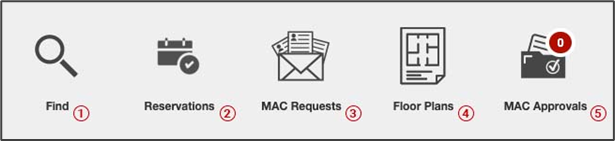
Key Elements – General User Tiles
| Label | Description | |
|---|---|---|
| 1 | Find | Access to the general user search where end users can find people, spaces, and floors. |
| 2 | Reservations | Access to reservations where end users can submit a reservation as well as manage existing ones. |
| 3 | MAC Requests | Access to submit a MAC request as well as manage existing requests. |
| 4 | Floor Plans | Access to a read only view of the drawing viewer floor plans. |
| 5 | MAC Approvals | Access to manage MAC request approvals here end users can approve or deny requests. |
Note: All above items may not be available to everyone as these are role based.
General User - Find
Users can access the General User area from the General User icon on the home page. Note, someone who only has General User access would go directly to the General User page. Click the Find icon to navigate to the search screen.
The Find search field at the top of the page is a universal search that will pull up any records that meet the criteria contained within the search for Spaces, Persons, and Floors.
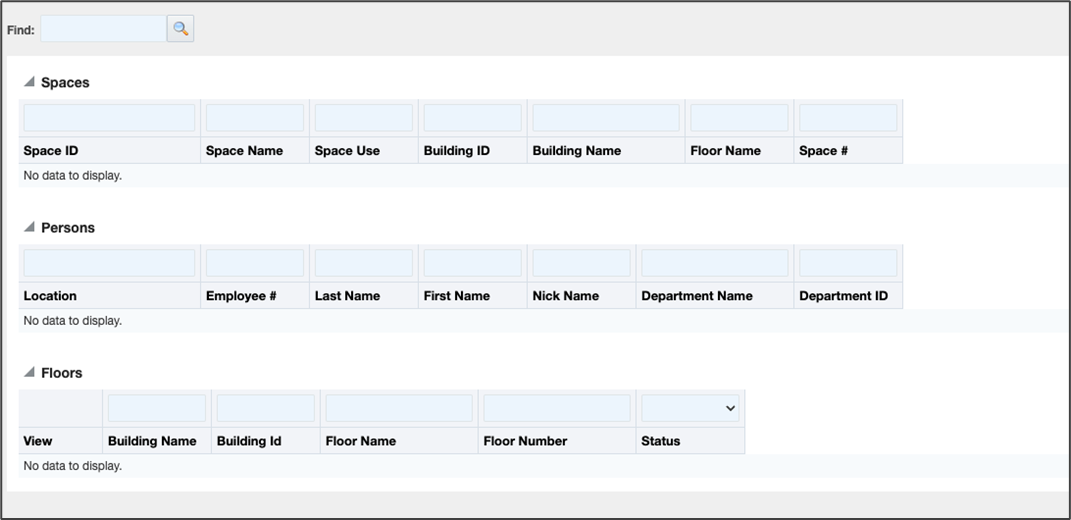
Note: Search can be initiated by clicking the search icon or hitting ENTER (RETURN) on your keyboard.
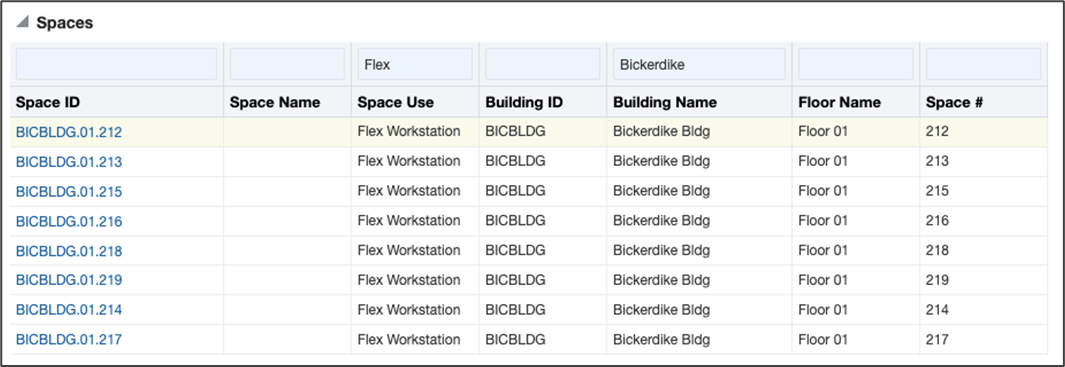
General User > Find > Spaces
Allows the general user to search for specific Spaces within the system as well as open the drawing to locate the space record returned by clicking the blue text in the Space ID column (e.g., BICBLDG.01.212).
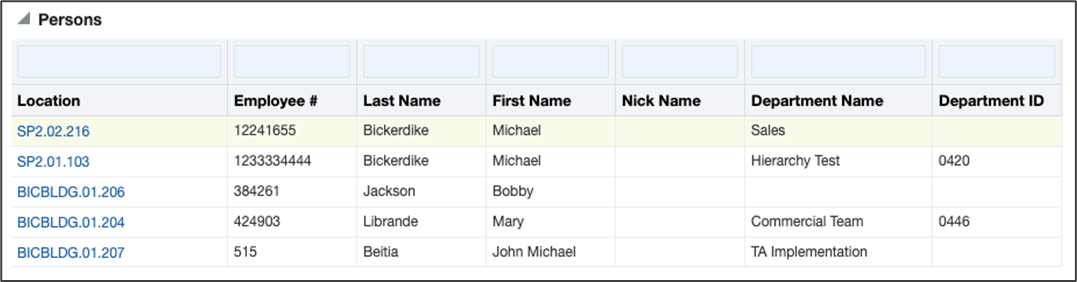
General User > Find > Persons
Allows the general user to search for specific People (HR) within the system as well as open the drawing to locate the person by clicking the blue text in the Location column (e.g., BICBLDG.01.204).
General User > Find > Floors
Allows the general user to search for specific Floors within the system as well as open the drawing by clicking the icon  displayed in the View column.

General User - Reservations
Users can access the General User area from the General User icon on the home page. Note, someone who only has General User access would go directly to the General User page. Click the Reservations icon to navigate to the search screen.
The Reservations page allows a user to create a new reservation as well as manage upcoming and completed reservations. Reservation types could include Workspace, Meeting, Lockers, and Parking
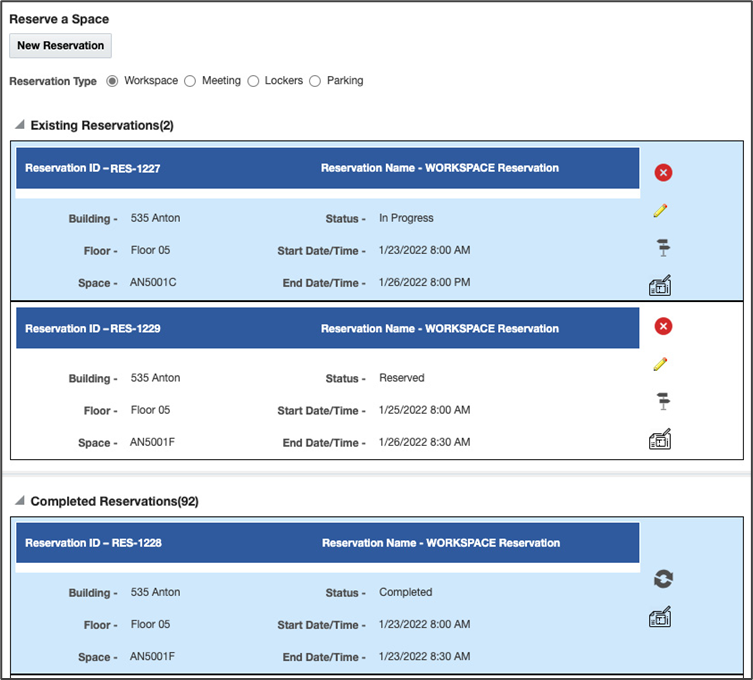
Note: The Reservation Types available to you may be different depending on your environment’s specific functionality.

Key Elements – Reservation Types
| Label | Description |
|---|---|
| Workspace | Workspace reservations allow a user to reserve a non-dedicated seat. E.g., Hoteling |
| Meeting | Meeting reservations allow a user to reserve a meeting room or shared collaboration space. |
| Lockers | Lockers allow a user to reserve a locker to store items in when sitting at their reserved location. |
| Parking | Parking allows a user to reserve a parking space at the building where they will be sitting. |
Note: All above items may not be available to everyone as these are based on environment functionality.
Managing Existing Reservations
Users can log in and see all existing (upcoming) reservations and perform a few limited actions.
Clicking
 will allow the user to cancel the existing reservation. This will mark the reserved space as available for reservations again for this duration.
Clicking
 will allow the user to modify the existing reservation and save the changes.
Clicking
 will allow the user to use the wayfinding feature to find the reserved seat on the floor plan.
Clicking
 will allow the user to see the location of the space shown on the completed reservation record in the floor plan viewer.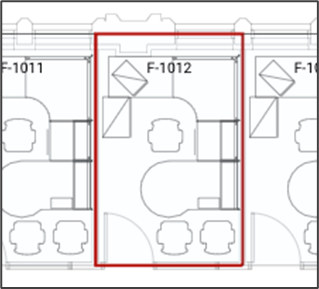
Managing Completed Reservations
Users can login and see all completed reservations and perform a few limited actions.
Clicking  will allow the user to rebook the selected space. This will open the reservation dialog with the information prepopulated. Simply update the date and other information and submit.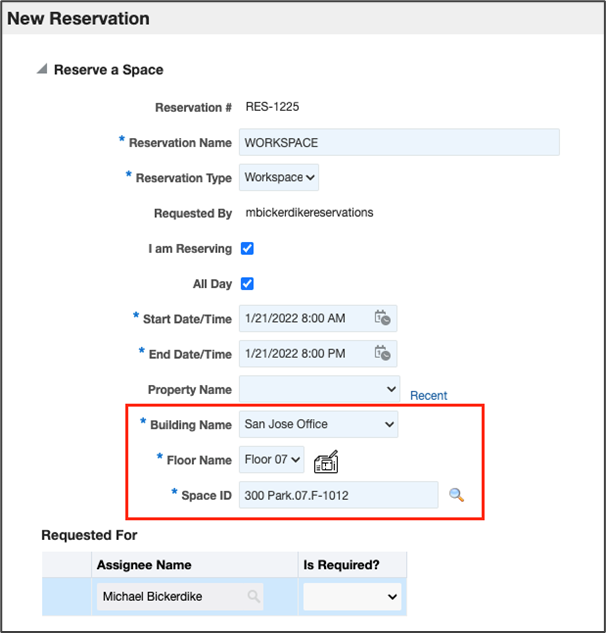
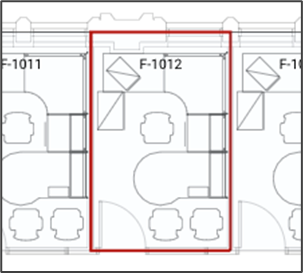
Clicking  will allow the user to see the location of the space shown on the completed reservation record in the floor plan viewer.
Was this article helpful?
That’s Great!
Thank you for your feedback
Sorry! We couldn't be helpful
Thank you for your feedback
Feedback sent
We appreciate your effort and will try to fix the article