Table of Contents
FUNCTIONAL DASHBOARD
Upon login, the landing page for the system is the Functional Dashboard. The user will be able to navigate to the various modules of the TA System. Selecting a module and double clicking will open it. A user will see different modules based on his/her security set-up.
Description – Building Home View (Standard Navigation)
Below is the Building Home page view with standard navigation.
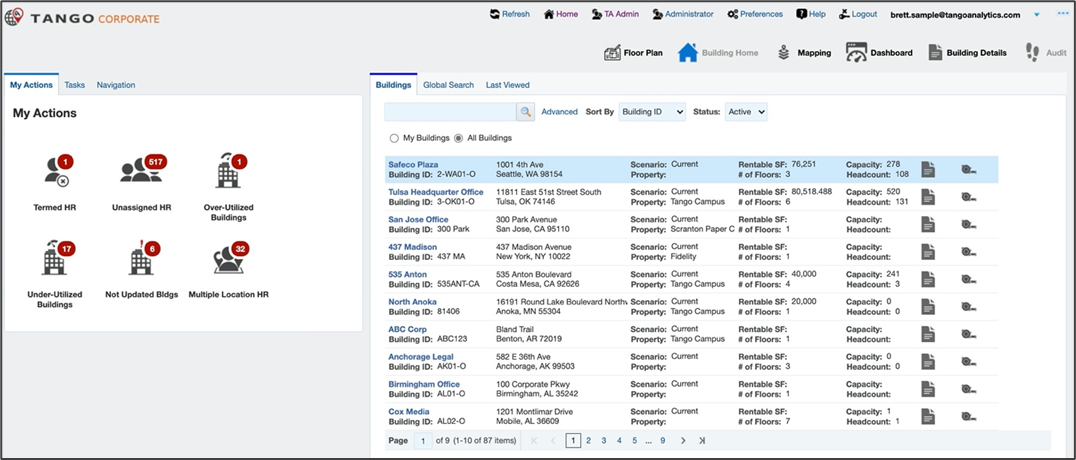
Key Elements – Building Home (Standard Navigation)
This section provides details about the Home Page and standard navigation.
Key Elements – Building Home (Standard Navigation)
The following image and associated table identifies the tabs and provides a label description.

| Label | Description | |
|---|---|---|
| 1 | Refresh | Tango ONLY access, not available to the end user. |
| 2 | Home | Navigate to the Tango Home page. |
| 3 | TA Admin | Tango ONLY access, not available to the end user. |
| 4 | Administrator | Tango ONLY access, not available to the end user. |
| 5 | Preferences | Adjust general preferences. |
| 6 | Help | Downloads the User Guide. |
| 7 | Logout | Logs out the current user. |
| 8 | < username > & Change Arrow |
Displays the username of the current user and gives the ability to change the Country with the arrow.
|
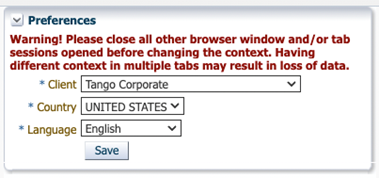
Note: All above items may not be available to everyone as these are role based.
Key Elements – Building Home (Standard Navigation Continued)

| Label | Description | |
|---|---|---|
| 1 | Floor Plan | Access the Tango Space Management floor plan viewer to manage drawings. |
| 2 | Building Home | The current page. |
| 3 | Mapping | Access the Mapping area which allows you to view existing mapped buildings and manage them or create new ones. |
| 4 | Dashboard | Access to the Dashboard page. |
| 5 | Building Details | View the Building Details page of the selected building. |
NOTE: All above items may not be available to everyone as these are role based.
Key Elements – Building Home (Building Search)
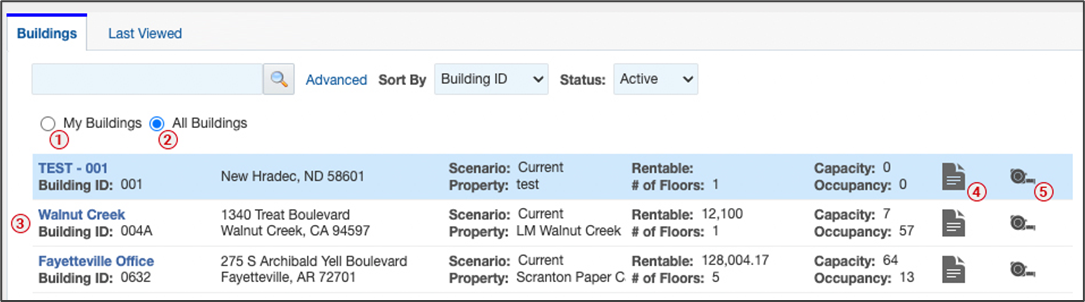
The Buildings tab is first page that the user sees on the Building Home screen and displays Building records.
| Label | Description | |
|---|---|---|
| 1 | My Buildings | [Default] This is the list of Buildings where the current user is a contact. If this list is blank, the user is not a contact and should click All Buildings. |
| 2 | All Buildings | This is the list of ALL Buildings in the system that have an Active status type. |
| 3 | Results | This is the list of results on the page. The total returned records and record pages can be found at the bottom of the form. |
| 4 | Details | This icon will open the Building record of the selected result. |
| 5 | Recalculate | This icon will recalculate the Building record measurements. This is useful if the user does not want to refresh the page, or a major drawing change has occurred and the most up to date data needs to be shown for this record. |
Note: All above items may not be available to everyone as these are role based.
Key Elements – Building Home (Last Viewed)
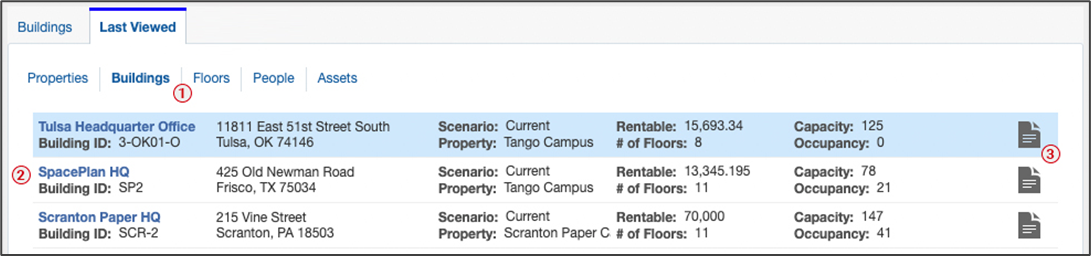
The Last Viewed tab on the Building Home screen will show any recently viewed records.
| Label | Description | |
|---|---|---|
| 1 | Page Headers | This is the list of page headers to view the desired Last Viewed records. |
| 2 | Results | This is the list of results on the page. The total returned records and record pages can be found at the bottom of the form. |
| 3 | Details | This icon will open the appropriate record of the selected result for any of the different pages. |
Note: All above items may not be available to everyone as these are role based.
Description – Building Home View (My Actions)
Below is the Building Home page view for My Actions.
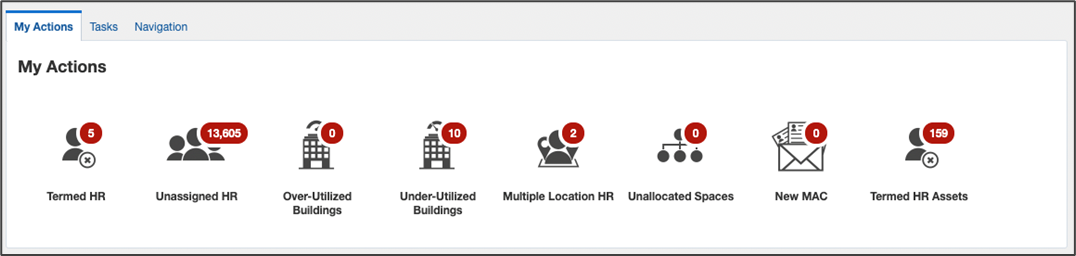
Key Elements – Building Home Tiles (My Actions)
| Label | Description |
|---|---|
| Termed HR | List of inactive HR / People records which still have a location attached to them. Users can remove the location or make the person active if needed. By removing the location or making them active, the person would be removed from this list. |
| Unassigned HR | List of people who are unassigned and do not have a location associated to them. Users can make an assignment here, assigning the person a location will remove them from this list. |
| Over-Utilized Buildings | List of Buildings where space utilization is over 85%. End users can temporarily change the percentage within the widget. |
| Under-Utilized Buildings | List of Buildings where space utilization is under 75%. End users can temporarily change the percentage within the widget. |
| Multiple Location HR | List of HR / People records which have more than one primary location assigned to them. Users can open the persons record from here and adjust the location assignments. Updating the location assignments to have only one primary will remove the person from this list. |
| Unallocated Spaces | List of Space records where there is no department associated. Users can open the space and make changes to the allocation which would remove the person from this list. |
| New MAC | List of MAC Requests where the end user is Assigned To the request. This widget is only applicable to a MAC Coordinator. |
| Termed HR Assets | List of inactive HR / People records which still have an asset attached to them. Users can remove the asset or make the person active if needed. By removing the asset or making them active, the person would be removed from this list. |
Note: All above items may not be available to everyone as these are role based.
Description – Building Home View (Tasks)
Below is the Building Home page view for Tasks.
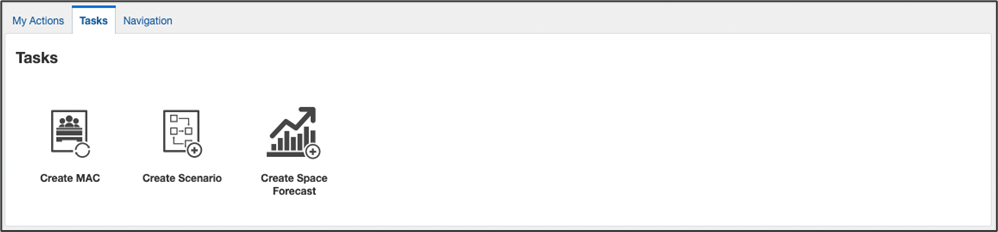
Key Elements – Building Home Tiles (Tasks)
| Label | Description |
|---|---|
| Create MAC |
Allows the user to create a new MAC Request.
|
| Create Scenario | Allows the user to create a new Move Scenario. |
| Create Space Forecast | Allows the user to create a new Space Forecast. |
Note: All above items may not be available to everyone as these are role based.
Description – Building Home View (Navigation)
Below is the Building Home page view for Navigation.
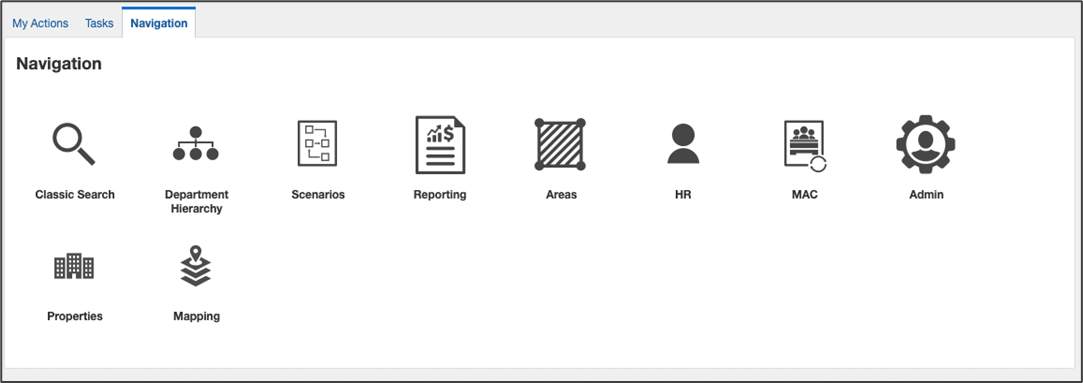
Key Elements – Building Home Tiles (Navigation)
| Label | Description |
|---|---|
| Classic Search | Access linear searches for Properties, Buildings, Floors, Spaces, and People. The classic search allows for exports as well as interaction with the given results and is a form of reporting. |
| Department Hierarchy | Access the Department search to create, view, manage, and update the Department Hierarchy. Note: With a department integration in place, these records will be read only. |
| Scenarios | Access the Scenarios search to create, view, manage, and update scenarios in the system. Scenarios are also used to archive a Building or Floor. |
| Reporting | Access the Standard Space reports and execute in excel format. |
| Areas | Access the Areas search to create, view, manage, and update areas in the system. Areas can be used for assigning people or visualizing a particular area on a floor plan. |
| HR | Search for and view the People directory or human resources. This is also the area where you would create new people. |
| MAC | Access the MAC Admin screen which allows you to view existing move requests and manage them or create new ones. |
| Assets | Access the Assets home screen which allows you to view existing assets and manage them or create new ones. |
| Space Forecast | Access the Space Forecast home screen which allows you to view existing space forecasts and manage them or create new ones. |
| Admin | Access the Admin area to manage space management settings. |
| Properties | Access the Properties home screen which allows you to view existing properties and manage them or create new ones. |
| Mapping | Access the Mapping area which allows you to view existing mapped buildings and manage them or create new ones. |
Note: All above items may not be available to everyone as these are role based.
Was this article helpful?
That’s Great!
Thank you for your feedback
Sorry! We couldn't be helpful
Thank you for your feedback
Feedback sent
We appreciate your effort and will try to fix the article