Table of Contents
This section outlines the high-level process of navigating the Space Management system in Tango and how to utilize various features.
Opening a Floor Plan
This sub-section outlines the high-level process of navigating to a Floor Plan.
| Step | Action |
|---|---|
| 1. |
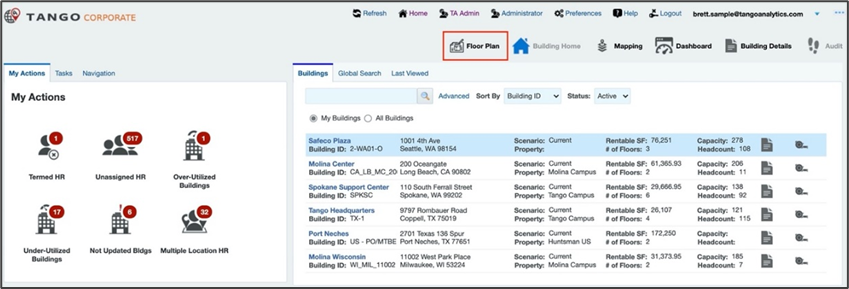
Click on the Floor Plan viewer button on the Building Home screen. The Floor Plan viewer will appear in a new tab.
|
| 2. |
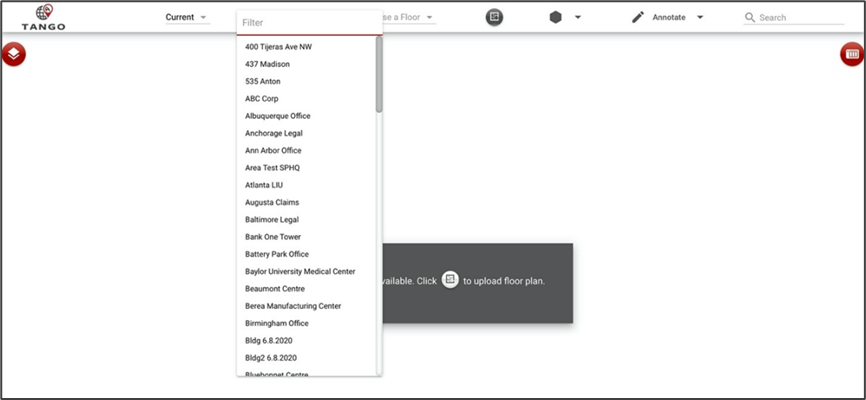
The Floor Plan viewer will load showing the Current scenario or “as-is live data” where you can search for or select the Building and Floor of your choosing.
Note: Only Buildings and Floors with CAD drawings loaded will show up in the list. To load a new CAD drawing, open the Floor Drawing from the Building or Floor record. |
| 3. |
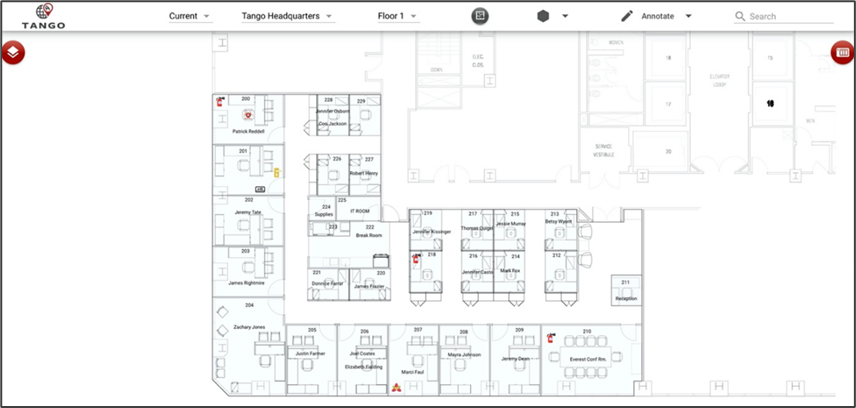
The selected floor plan is displayed.
|
| 4. | Click Close the new tab to return to the Building Home tab. |
Searching for Buildings
This sub-section outlines the high-level process of searching for a Building.
| Step | Action |
|---|---|
| 1. |
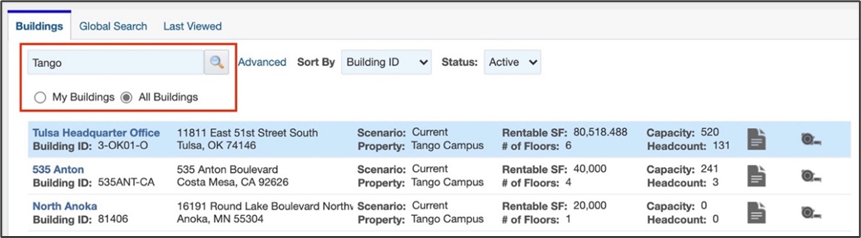
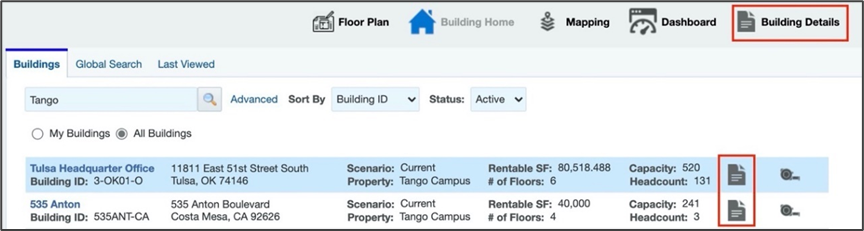
Click on the My Buildings or the All Buildings radial button to sort which buildings you see. Alternatively enter some search text to narrow results.
|
| 2. |
Click on the building you want to view and click the Building Details icon on the top right area of the screen or next to the building record on the right.
|
| 3. |
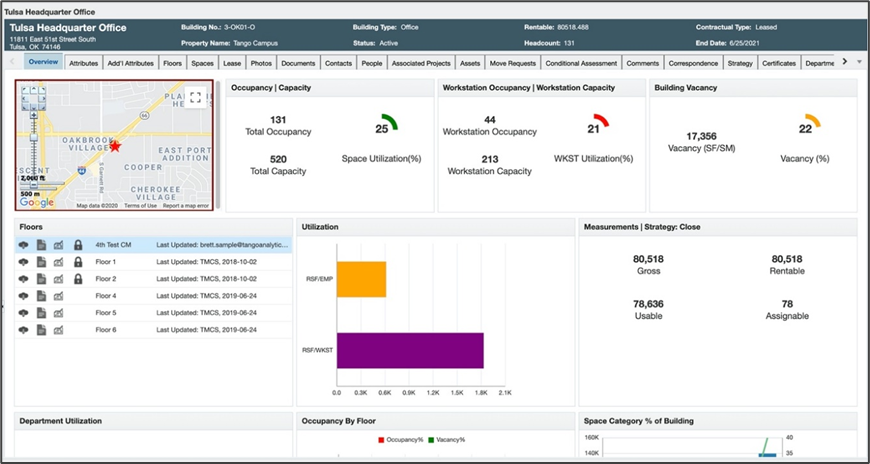
The selected building record is displayed on the screen.
|
| 4. |
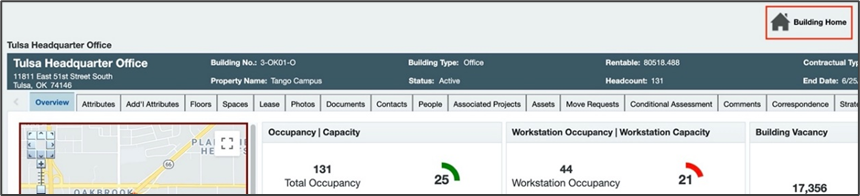
Click on the Building Home icon to return to the home page.
|
Searching for People
This sub-section outlines the high-level process of searching for People records (HR).
| Step | Action |
|---|---|
| 1. |
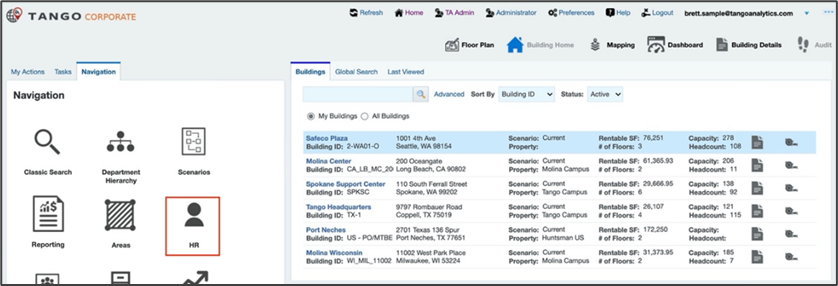
Click on Navigation tab on the Building Home screen and then click the HR icon.
|
| 2. |
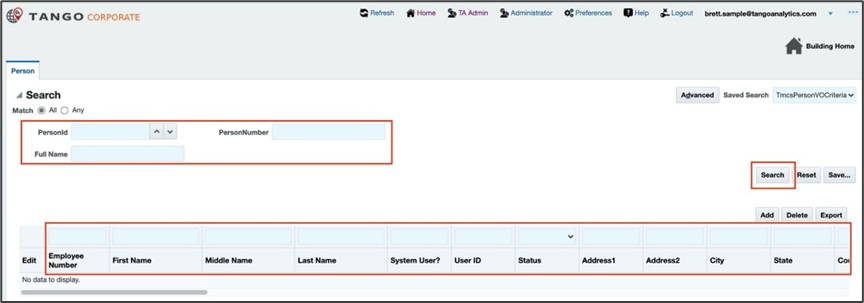
The Person (HR) search will appear which allows you to search for someone in the system. Use the filters at the top or above each of the given columns below and hit the Search button.
|
| 3. |
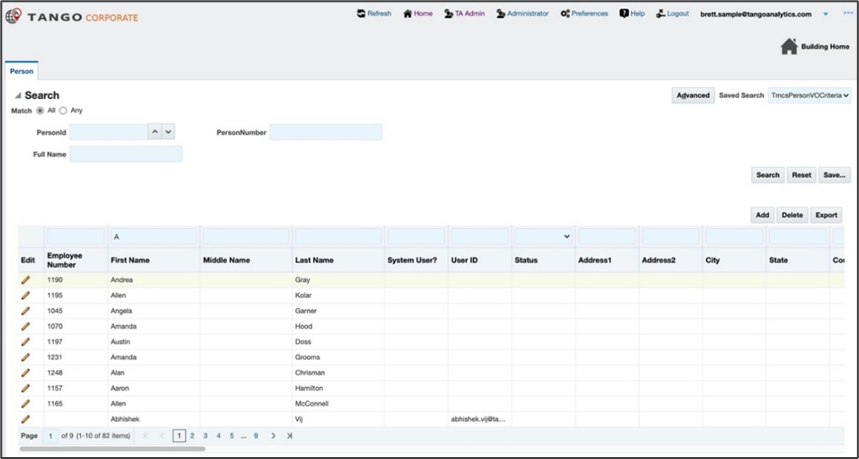
The unfiltered or filtered Person result is displayed on the screen.
|
| 4. |
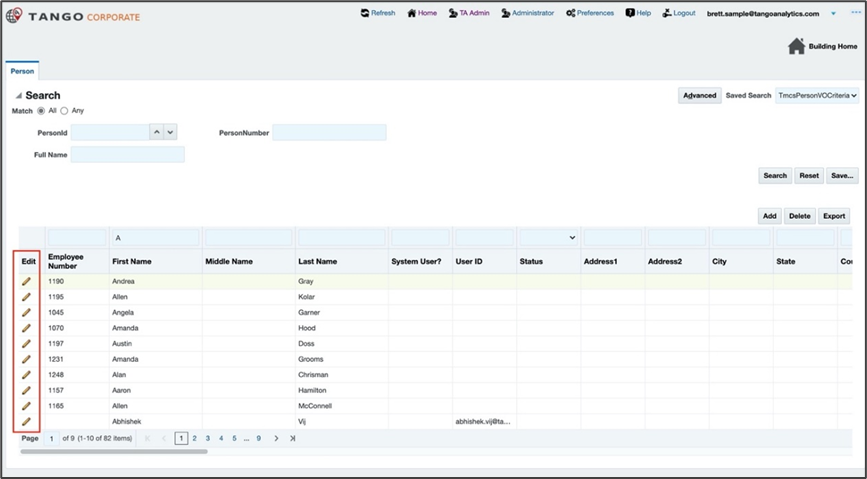
Click on the Edit icon to view the person record.
|
| 5. |
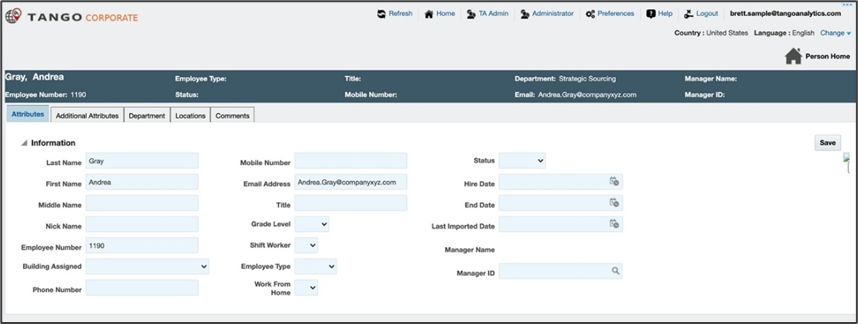
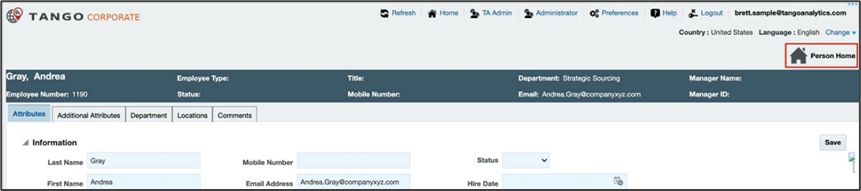
The person’s record is displayed.
|
| 6. |
Click on the Person Home icon to return to the People search.
|
| 7. |
Click on the Building Home icon to return to the home page.
|
Running a Classic Search
This sub-section outlines the high-level process of utilizing the Classic Search to query Property, Building, Floor, Space, and People records.
| Step | Action |
|---|---|
| 1. |
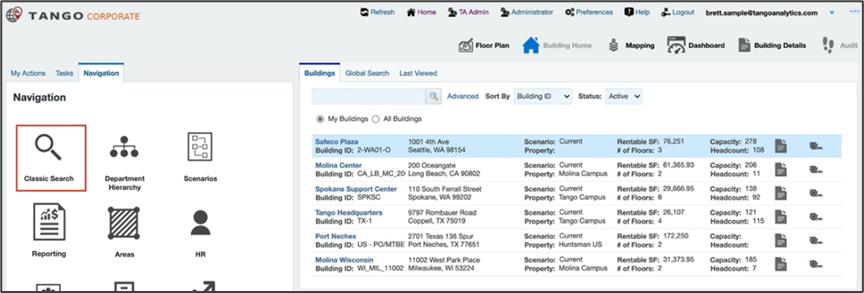
Click on Navigation tab on the Building Home screen and then click the Classic Search icon.
|
| 2. |
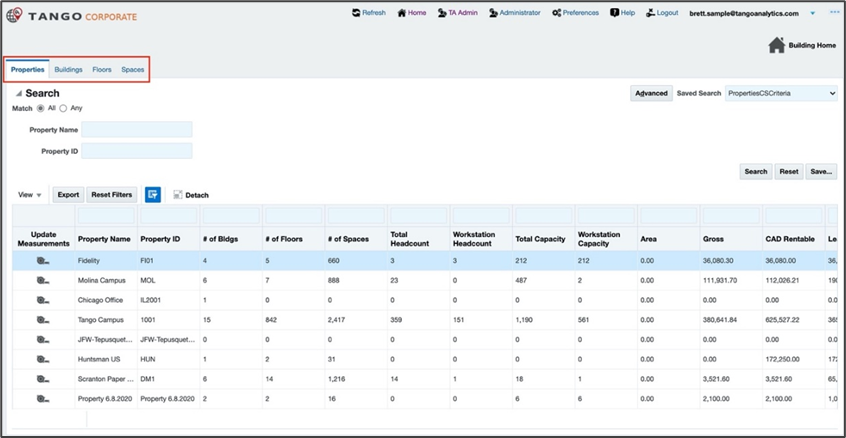
The Classic Search allows for users to search for Properties, Buildings, Floors, and Spaces. Use the filters at the top or above each of the given columns below and hit the Search button.
|
| 3. |
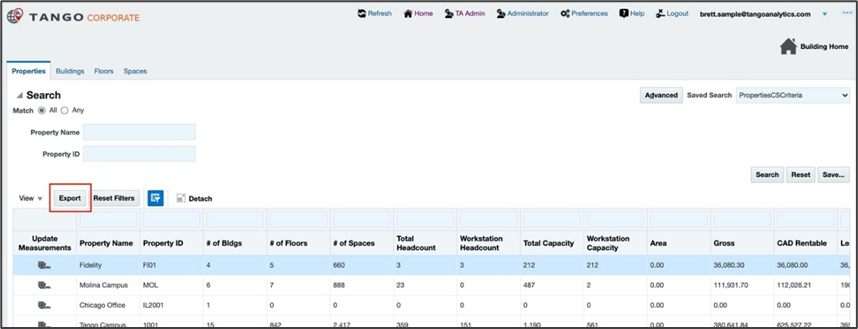
The Export button can be used to save the results into an excel file.
|
| 4. |
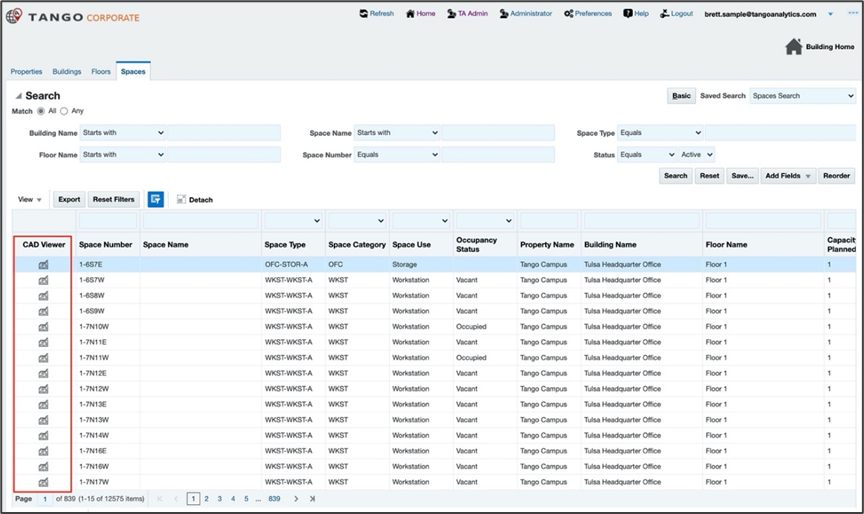
Floor and Space searches allow users to open the floor plan with a CAD Viewer icon.
|
| 5. |
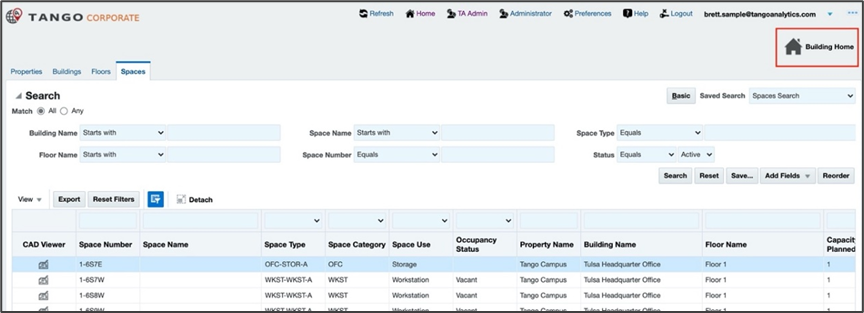
Click the Building Home icon to return to the Building Home page.
|
Viewing MAC Requests
This sub-section outlines the high-level process of viewing MAC (Move, Add, Change) Requests in the system.
| Step | Action |
|---|---|
| 1. |
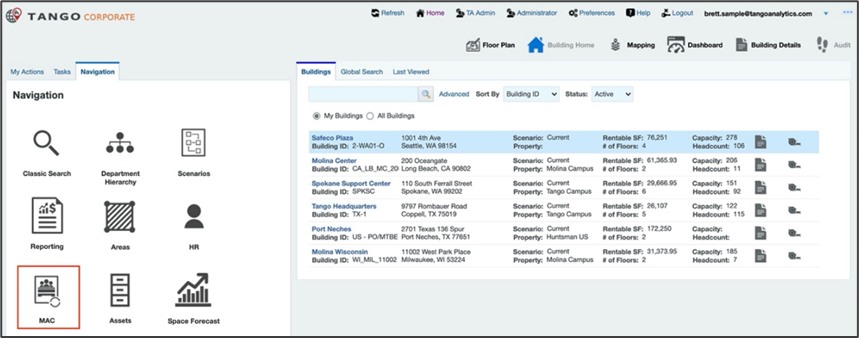
Click on Navigation tab on the Building Home screen and then click the MAC icon.
|
| 2. |
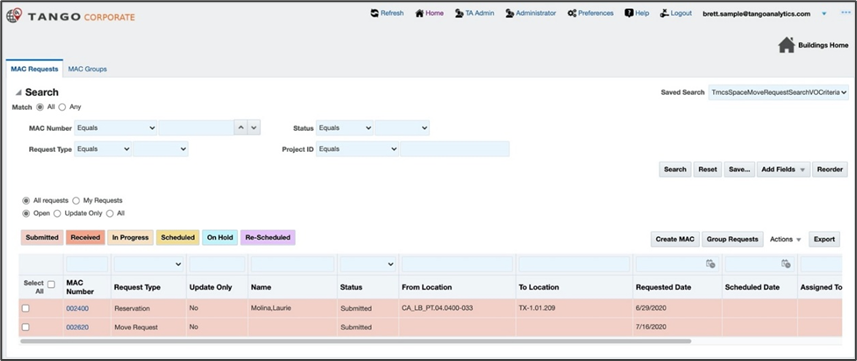
The MAC Search is displayed. There are tabs for MAC Requests and MAC Groups. Utilize the search fields to sort through the requests.
|
| 3. |
The request status buttons can be clicked to quickly sort the list.
|
| 4. |
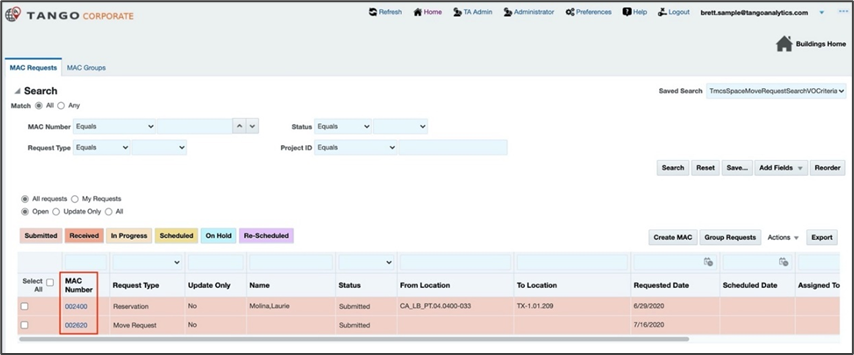
Click the MAC Number on the request to view the Move Request details.
|
| 5. |
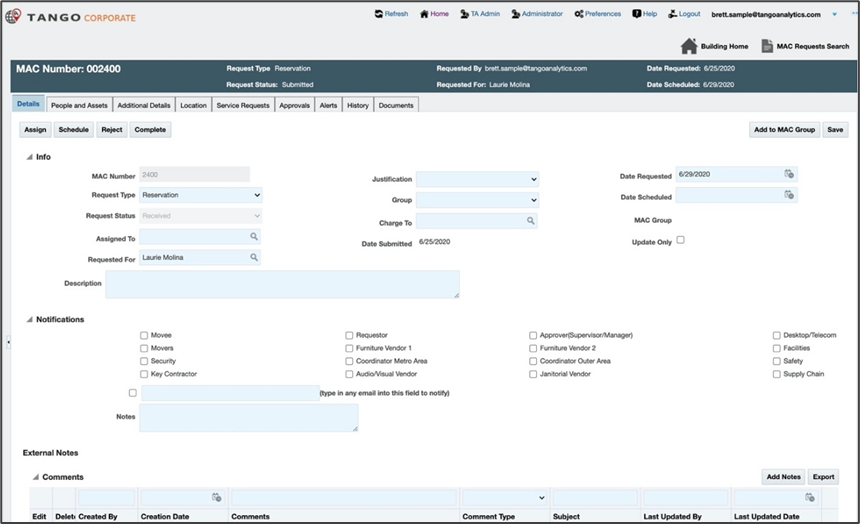
The Move Request details page is shown, this view may vary based on your client specific environment.
|

Running Standard Reports
This sub-section outlines the high-level process of running the standard space reports in the system.
| Step | Action |
|---|---|
| 1. |
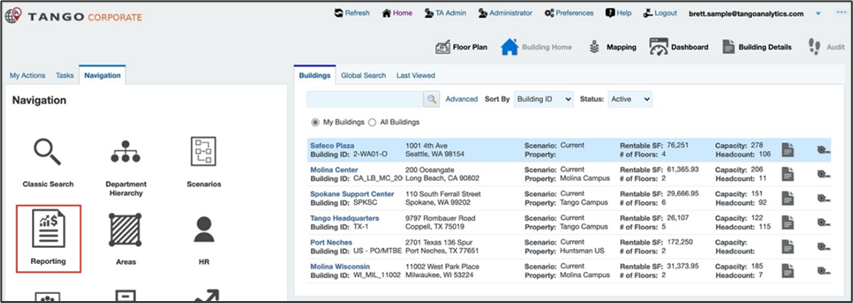
Click on Navigation tab on the Building Home screen and then click the Reporting icon.
|
| 2. |
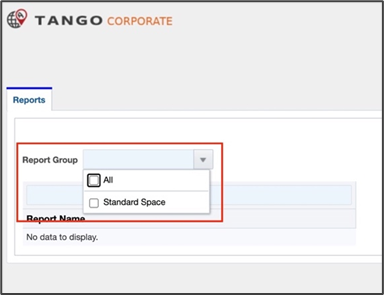
On the reporting page, click Reporting Group and select Standard Space or the desired Reporting Group.
|
| 3. |
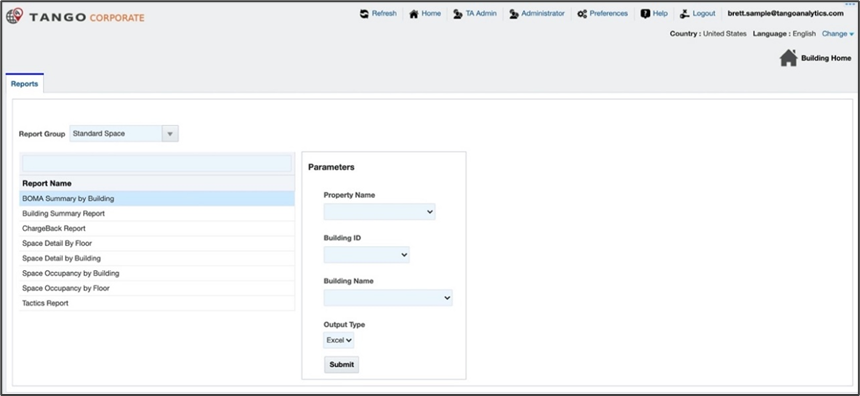
The Standard Space reports are displayed.
|
| 4. |
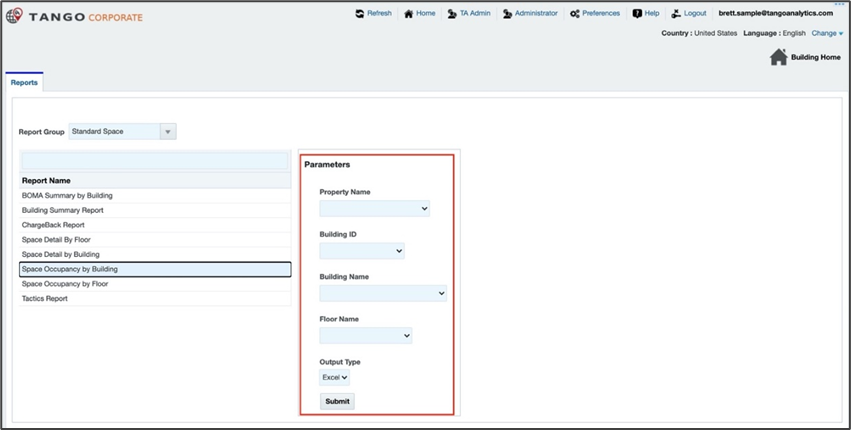
Click on the report that you want to run, and the filters will appear on the right side.
|
| 5. |
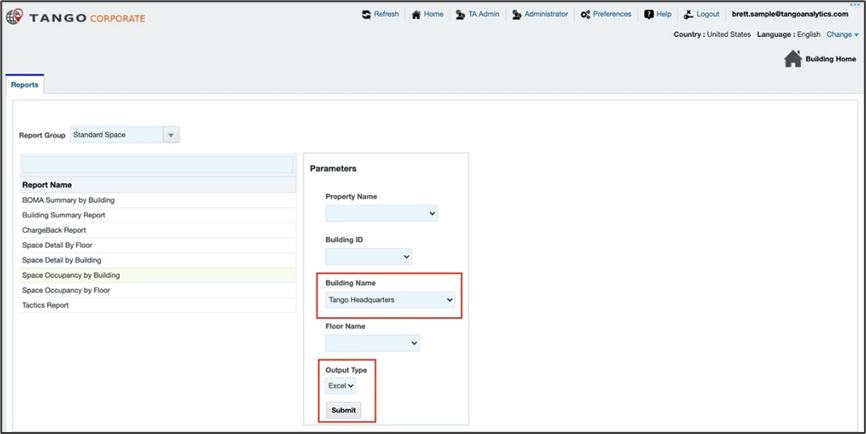
Select the desired parameter or filter such as Building Name and press the Submit button.
|
| 6. |
An excel file will be automatically generated and downloaded. Open this file to see your results.
|

Was this article helpful?
That’s Great!
Thank you for your feedback
Sorry! We couldn't be helpful
Thank you for your feedback
Feedback sent
We appreciate your effort and will try to fix the article