The Document section provides for robust Document Management feature to support all Project documentation requirements. Financial Transaction documentation is stored alongside User added documentation.
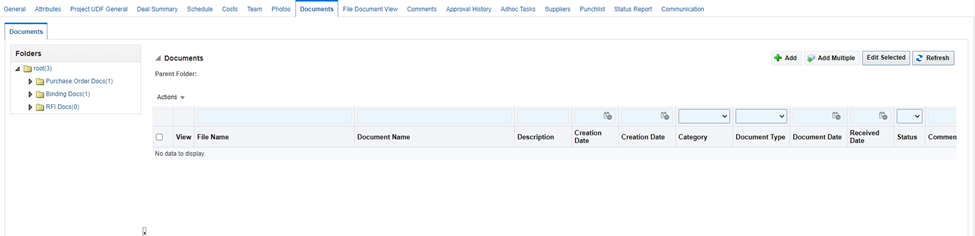
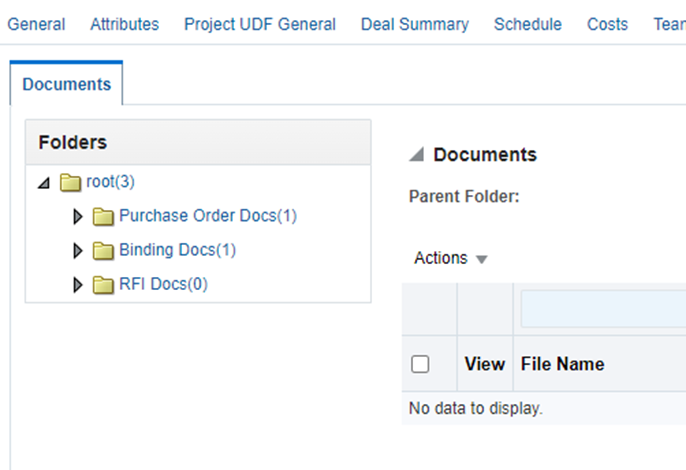
Folder Structure
When a new record is created, TANGO will create a default folder hierarchy in each record based on Client specifications. The folder hierarchy may be different for each record type, i.e., Sites, Buildings, Projects, etc.
Documents of all types may be stored in folders to support project activities, collaboration and archiving.
Selecting the Actions drop down list will display a list of actions available to the User as determined by the assigned User profile.
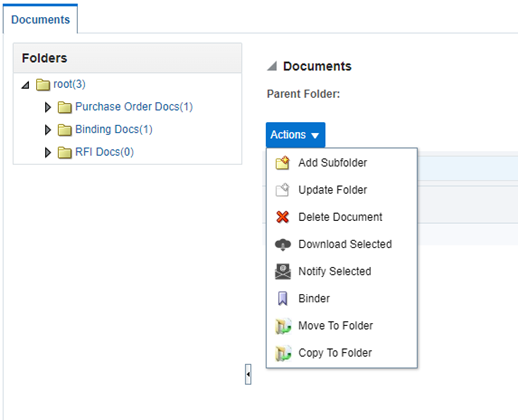
Add Subfolder – Select a parent folder and then the Add Subfolder option. A popup form will be displayed to allow entry of a new folder name.
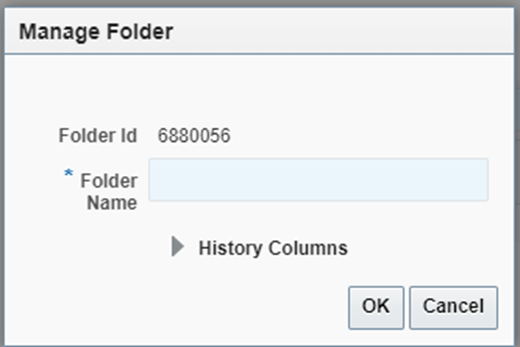
Update Folder - Select a parent folder and then the Add Subfolder option. The Manage Folder popup form will be displayed to allow entry of a new folder name.
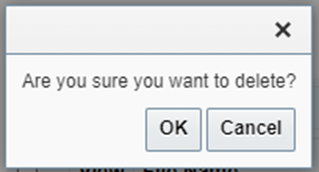
Delete Document – Select the checkbox adjacent to the document and click Delete Document to remove a document. A confirmation popup will be displayed.
Download Selected – Select the checkbox adjacent to one or more documents and the Download Selected. A zip file containing all selected documents will be saved to the designated destination.
Notify Selected – Generates email notifications to designated project contacts and system Users. An email message is added by the User.
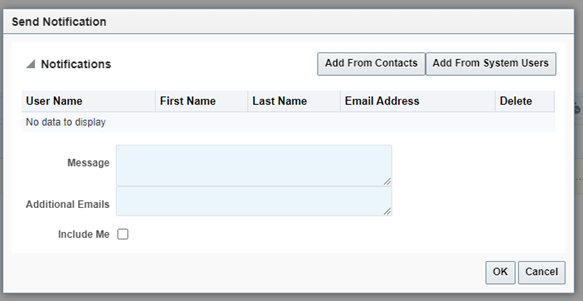
Check the Send Notification checkbox to display additional form options.
Select one or more recipients from the Project Contacts or from the TANGO System Users list.
Add a message in that field to instruct recipients as to the desired action.
Add additional emails for recipients not in TANGO (Note: non-TANGO Users will receive the email notification but will not be able to access the document without TANGO access.)
Check the Include Me checkbox to be copied on the email notification.
Select the OK button. A confirmation message will be displayed.
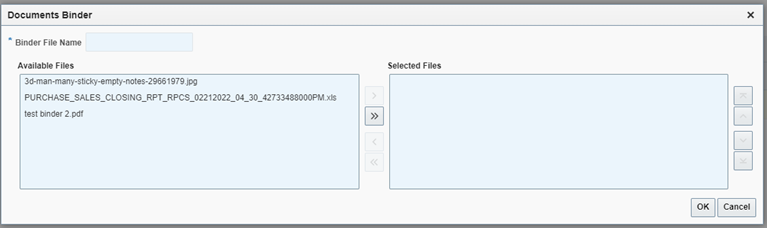
Binder – Permits the selection of multiple documents stored in the project and combines them into a new pdf file. The sequence of documents is determined by the User.
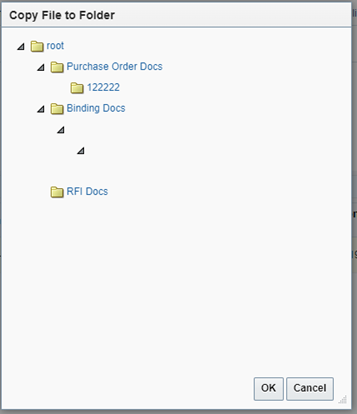
Move To Folder – Selecting the document checkbox and the Move To Folder will display the folder hierarchy in a popup form. Select the target folder and the OK button to relocate a document to a new folder.
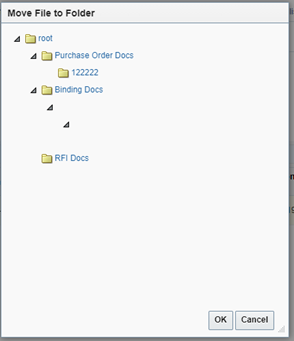
Copy to Folder - Selecting the document checkbox and the Copy To Folder will display the folder hierarchy in a popup form. Select the target folder and the OK button to relocate a document to a new folder.
Document Management
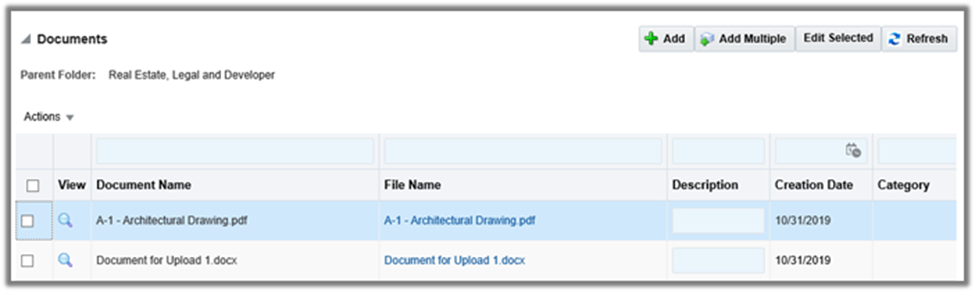
Uploading new project documents can be accomplished using either the Add or Add Multiple options. Although either option will upload the document, there are differences on how metadata is added to the document record and the processing options available.
Single Document Upload
Clicking the Add button will display the metadata form shown below. Selecting the Browse button will open a browser window to allow the User to select the file to be uploaded. The remaining fields are optional but can be used to facilitate organization and document searches. Checking the Is External checkbox will display a URL field for adding documents stored external to TANGO.
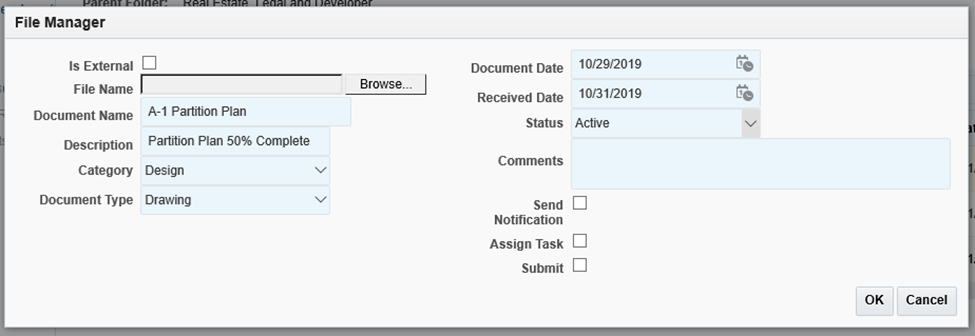
In addition to the storage of the document, TANGO includes functionality to generate User notifications or assign ad hoc tasks for formal reviews.
Assign Task
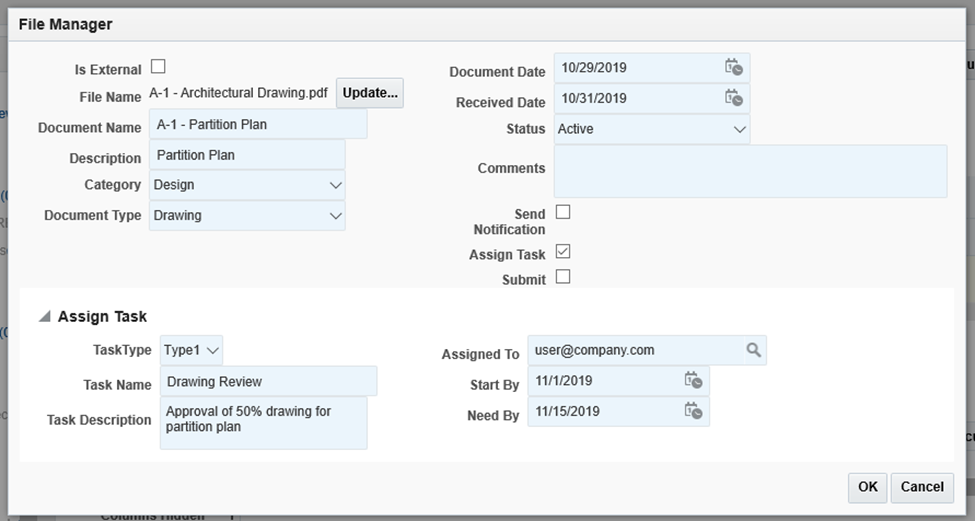
The Assign Task option will create an Ad Hoc Task notifying a User of the document and requiring the User to complete the task. This feature is useful for archiving document review and approval.
Check the Assign Task option to display the Task Assignment section.
Complete the form as required. The Assigned to designation will be the Task assignee.
Select the OK button to upload the document and issue the Ad Hoc Task.
Task Assignees may action the Ad Hoc Task from the My Tasks module found in the Functional Dashboard Workflow section.
Submit
This option will initiate a formal approval workflow if configured in TANGO. Separate workflows may be configured for each Document Type. (Note: If Submit is checked but no workflows are pre-configured, a workflow error message will be displayed but the document will still be uploaded.)
Was this article helpful?
That’s Great!
Thank you for your feedback
Sorry! We couldn't be helpful
Thank you for your feedback
Feedback sent
We appreciate your effort and will try to fix the article