Table of Contents
Vendor Document Collaboration is a process that can be enabled for vendors to view, upload, and download files related to a Tango Project.
Vendor Document Collaboration Menu
If the vendor user has the Document Collaboration Role, they will be taken to this landing page/menu upon login. 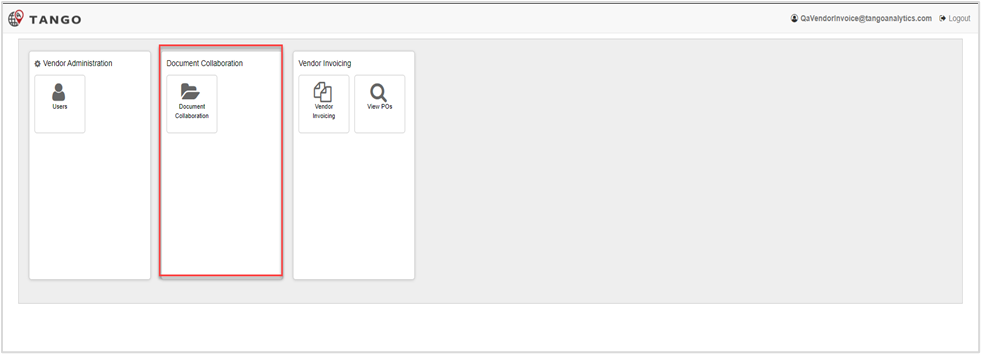
If the vendor user has other roles, they may see multiple options in their initial portal view. Document Collaboration option is highlighted below 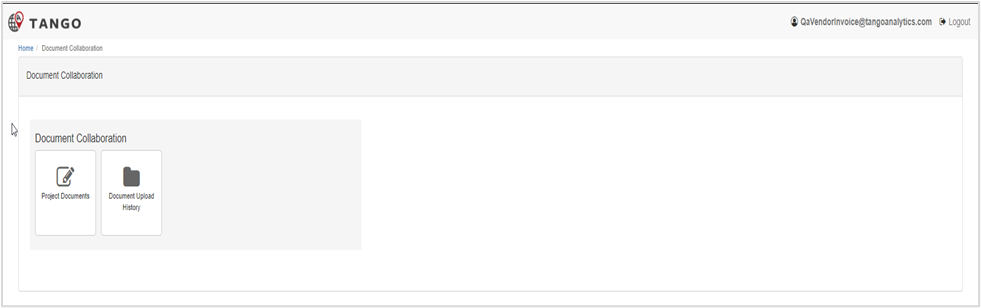
Project Documents
Opens a new record for the vendor to upload project documents and/or download project documents from Core.
Document Upload History
The document upload history section provides an overview of all Project Document records that have been submitted to Core.
Information for the Submitted On date, Created By, Project Name, Client, Brand, Country, and Status are available through this list.
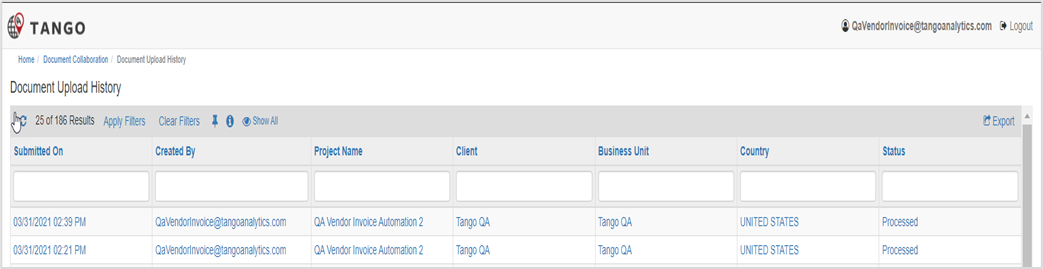
From this section the vendor can:
Review and open the historical project document records
The records will contain any files as they were uploaded or downloaded, for audit purposes
Apply and clear sorting filters
Export and download processed project document record data into .xls format. (standard report export functionality)
Project Document Record
The Project Document record allows the vendor to select their Project to Upload Project Documents to Core and/or Download Project Documents from Core.
This record has a small life cycle where once it is Submitted, the record is locked down and is available to the vendor for any audit or historical purposes via the Document Upload History tile.
Project Document Record Life Cycle
The vendor creates a new Project Documents record by clicking the Project Documents tile in the Document Collaboration menu. This tile will navigate to the Project Documents Draft view (opens a new record). 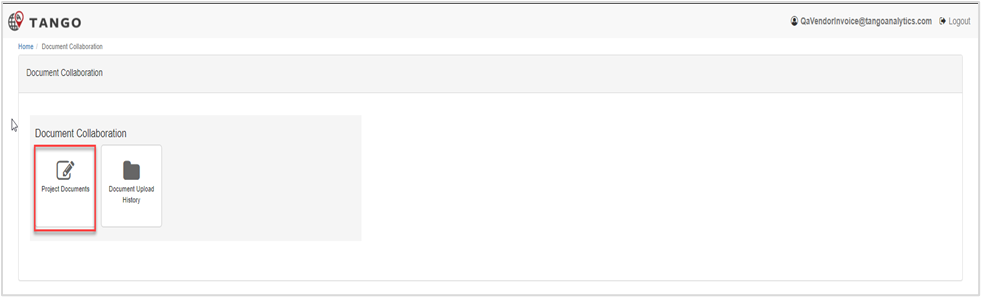
Project Document Draft view 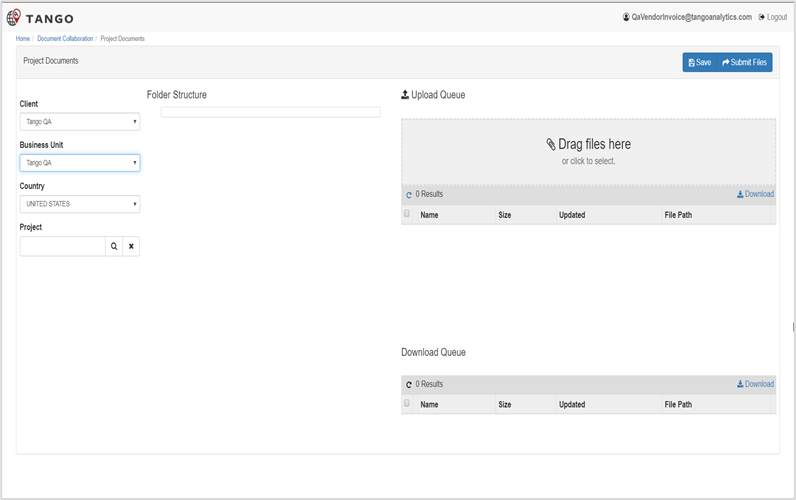
Enter the following information
Client: Select the appropriate client's name from the dropdown.
If the vendor only has one option for selecting Client, this field will be automatically populated.
Business Unit: Select the business unit associated with the selected client from the dropdown.
If the vendor only has one option for selecting Business Unit, this field will be automatically populated and hidden.
Country: Select the appropriate that associated with the business unit from the dropdown.
If the vendor only has one option for selecting country this field will be automatically populated.
Project: Select the Project (which will be filtered by the selected Client/Business Unit/Country) you wish to upload files to/download files from using the lookup.
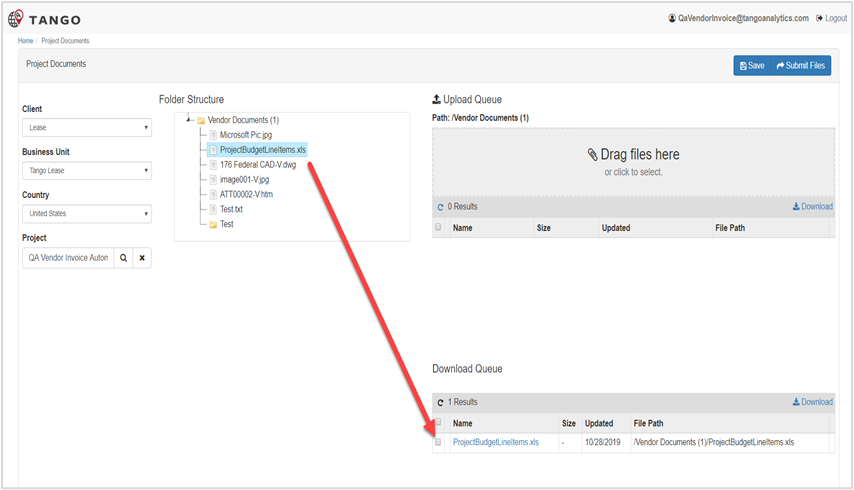
Folder Structure: This section will show the Vendor Documents folder and any sub folders/documents for the selected Project.
Upload Queue: The vendor can upload new documents/attachments in this section that will be sent to the Project folder structure in Core.
Download Queue: The vendor can download the documents and attachments from the Project folder structure in Core.
Set up Draft Record Data
| Step | Action |
|---|---|
| 1. | Choose a client in the drop down, Business Unit, and Country, as applicable. |
| 2. |
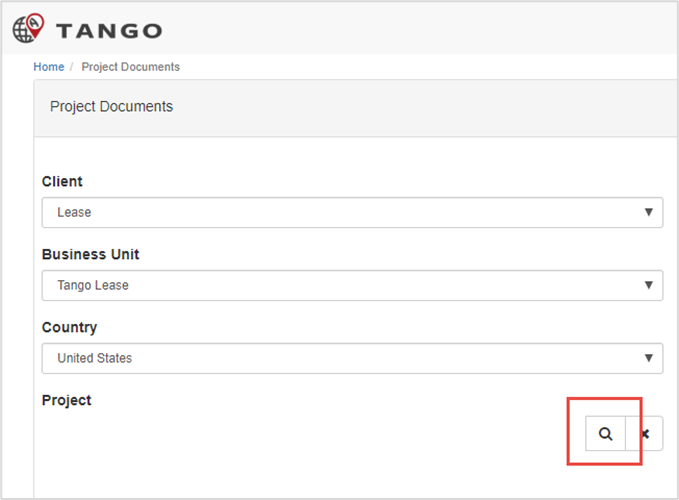
Click the magnifying glass for Projects. |
| 3. |
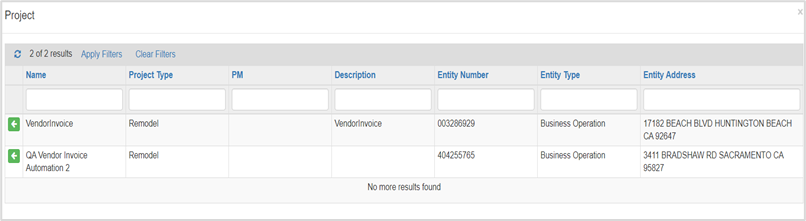
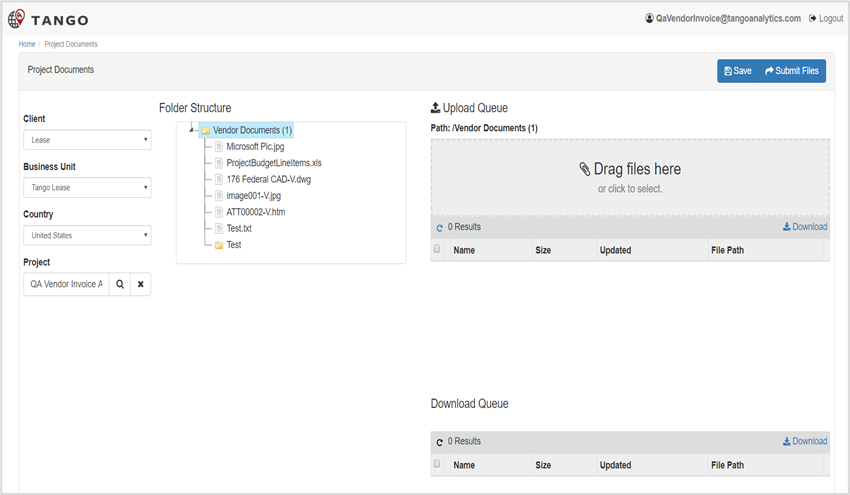
Click the green arrow on the project row. After selecting the Project, the Folder Structure pane displays the Project’s Vendor Documents parent folder and any folders and documents within it. |
Download Queue
Clicking on any file in the Folder Structure activates the document in the Download Queue pane where it can be downloaded.
Upload Queue
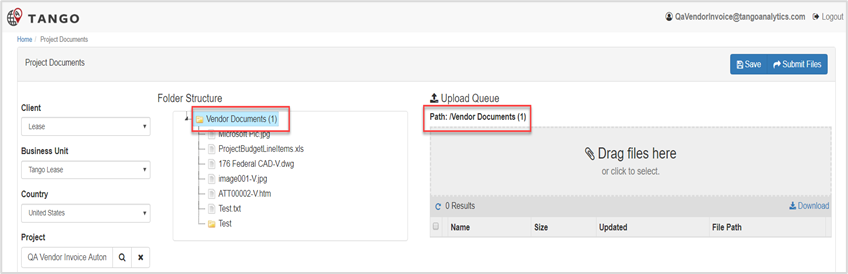
The Path will default to the Vendor Documents Parent folder.
| Step | Action |
|---|---|
| 1. |
Click a folder in the Folder Structure pane. The folder path displays in the Upload Queue pane. |
| 2. |
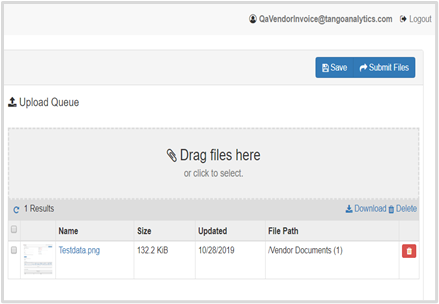
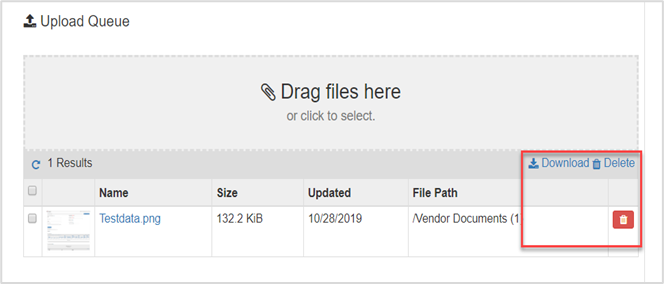
Drag and drop, else click to select a file to add. The document and thumbnail image displays. Click Delete if document or image is unclear/other and repeat this step. |
| 3. | Click Save, then Submit Files. |
| 4. |
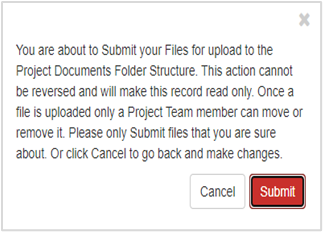
Click Submit on the confirmation pop-up. |
Processed Project Document Records
Processed Records are available from the Document Upload History menu report.
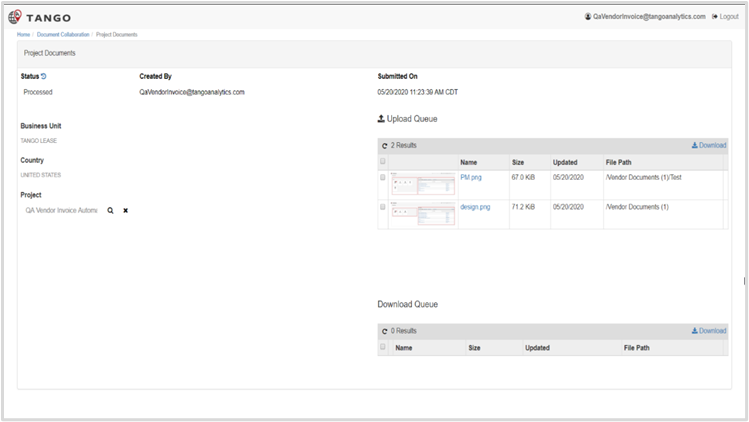
After the submission, the Status is set to Processed. The Submitted Date and Created by user will also show. The Folder Structure section is hidden, and the record will be read only.
Any files in the Upload Queue or Download Queue will be available for the vendor to download, for audit purposes.
Was this article helpful?
That’s Great!
Thank you for your feedback
Sorry! We couldn't be helpful
Thank you for your feedback
Feedback sent
We appreciate your effort and will try to fix the article