Introduction
Tango Maintenance now supports the ability to export Work Order details to a formatted PDF directly from the Work Order record.
This feature allows users to generate an easily printable Work Order form from the data already captured in Tango Maintenance. The PDF output is generated from a configured template that maps Work Order record data into a formatted report layout.
This is useful for clients who need a formal Work Order document to share, print, archive, or send outside of the normal Tango Maintenance workflow.
Availability
The PDF Export feature is currently available for External Vendor Work Orders and Internal Maintenance Work Orders:
- Demand Maintenance / Reactive Work Orders
- Scheduled Maintenance Work Orders
At this time, the feature is not available for Retroactive Work Orders or "Related Work Orders" when viewed from the Related Work Orders section on the parent record. Related Work Orders viewed from a standard Work Order report will open to a different screen that does have the PDF Export function.
How It Works
When a supported Work Order screen has the PDF export configuration enabled, an Export button displays in the gray header row near the other Work Order action buttons.
External Demand Maintenance Work Order (viewed as a Facility Manager in FM Override mode): External Scheduled Maintenance Work Order (viewed as a Facility Manager in this example):
Internal Maintenance Work Order: (Viewed as a Maintenance Lead in this example)

The Export button is displayed on all tabs/steps of the Work Order screen, and the generated PDF will be the same regardless of which tab/step the export is initiated from .
When a user clicks Export, the system generates a PDF using the configured Work Order PDF template and downloads the file through the user’s browser.
Example Demand Maintenance Work Order PDF Export :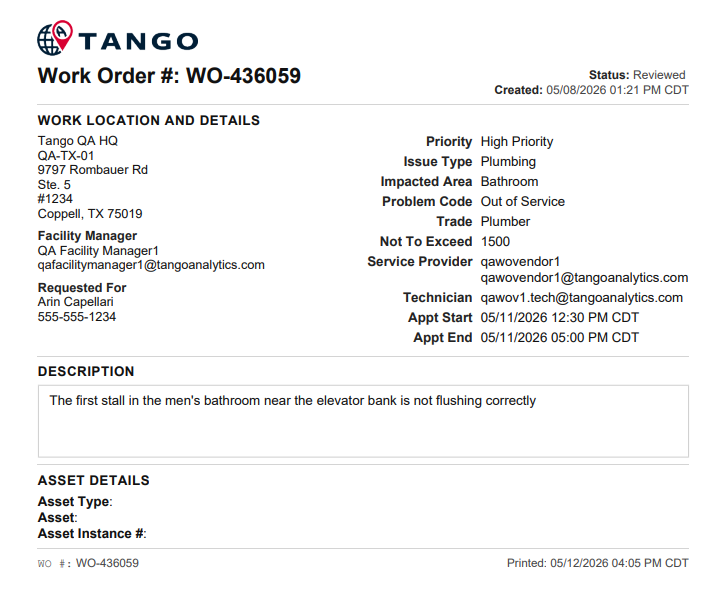
Example ScheduledMaintenance Work Order PDF Export:
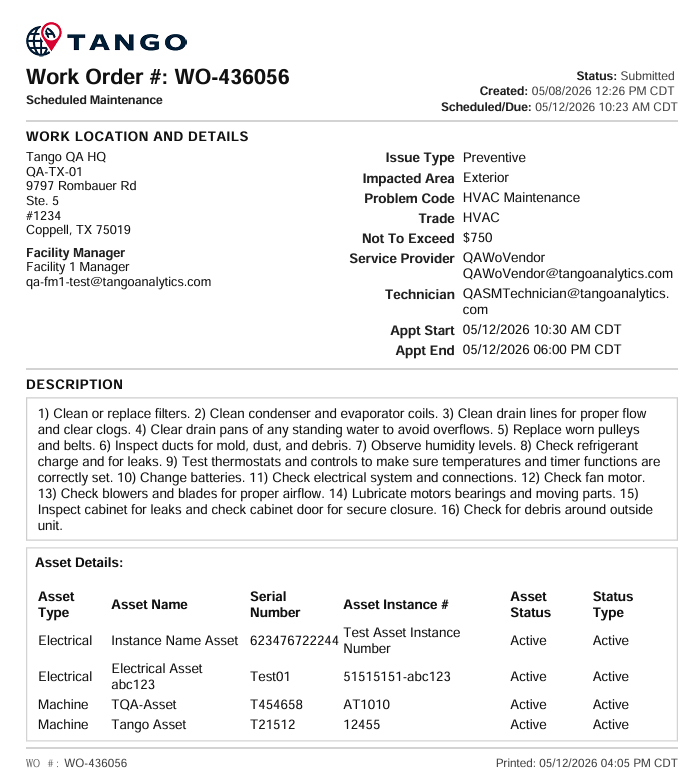
The exact PDF layout and fields displayed are slightly different for Demand/Reactive Work Orders and Scheduled Maintenance Work Orders (for example, SM Work Orders do not have Requested For data, but Demand Maintenance Work Orders do) and may also vary slightly by client configuration.
The PDF includes Work Order details such as:
- Work Order number / ID
- Vendor (Service Provider) and contact information
- Work location details including Building/location name and address
- Requested for information (Demand Maintenance only)
- Appointment dates and times
- Priority
- Work Order Status
- Scheduled date (Scheduled Maintenance only)
- Issue and description information
- Asset Information\
- Demand Maintenance: single Asset association
- Scheduled Maintenance: multiple Asset associations supported
User Access
Any user who can access and view a supported Work Order screen can use the Export button when the feature is enabled for that Work Order view. The Export button remains available regardless of Work Order Status or whether the Work Order is in a read only state.
This may include users such as:
- Facility Managers
- Work Order Vendors and Vendor Technicians
- Call Center/Distributed Call Center users, if applicable
- Internal Maintenance Team users (Maintenance Lead and Maintenance Technician)
Steps to Export a Work Order PDF
- Open a supported Work Order.
- Confirm the Work Order screen displays the Export button in the gray header row.
- Click Export.
- The PDF file is generated and downloaded by the browser.
- Open, save, print, or share the downloaded PDF as needed.
Notes
- The PDF is generated using the current Work Order data at the time the Export button is clicked.
- The PDF output may vary slightly depending on client-specific template configuration.
- Browser download behavior may vary depending on local browser settings.
Was this article helpful?
That’s Great!
Thank you for your feedback
Sorry! We couldn't be helpful
Thank you for your feedback
Feedback sent
We appreciate your effort and will try to fix the article