Introduction
Facilities and Maintenance teams depend on feedback from their service requestor end users to really understand how they are performing. Tango Maintenance now supports a simple but effective way to have your general user/requestors provide this information so you can really understand how well your vendors and maintenance teams are doing.
This new feature is different from the previous Closeout survey that required Edge user access (typically the Facility Manager users do the Closeout Survey), and will allow any general user/employee who has access to submit a Service Request from Core or Mobile app to fill out a brief survey after the Request is completed.
This article will provide an overview of this new functionality, how it works and what it includes, and how to set it up.
Set Up Steps
Setup for the Survey is straightforward, but it is not enabled by default at this time. As a Facilities Administrator user, open the Work Order Configuration record and check the box for "General User Request Survey"
Help Text: When checked, if a Service Request initiated from Core, the requestor will receive a link to fill out a satisfaction survey when the Service Request is Completed.
How it Works
As a reminder, in the context of Tango Maintenance, General Users are set up in Tango Core and typically have access to a number of high level actions, including the ability to Submit a Service Request. General Users are your most basic employee access to the system and don't have more specialized access or Roles to deeper functionality.
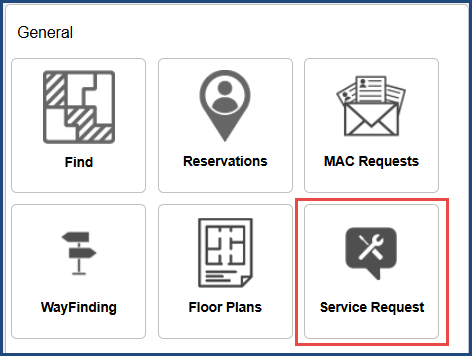
When a General user submits a Service Request from Core or the Tango Workplace Mobile Application, the data (which technically initiates from Core in both cases) is sent to Edge where the Facility Manager might review it or it might auto-dispatch to a vendor or internal maintenance lead/technician.
Throughout the Service Request process, the "Requested For Email" receives email notifications when the Request Status changes. By default, the user entering the Service Request is also set as the Requested For, but depending on client configuration options, the user can override this to populate another email or choose a different HR Person record to set as the Requested For.
Nothing is changing in this process relative to the survey functionality, but it is important to understand the process.
Where the survey functionality kicks in now is once the Work is done in Edge, and the Status of the Request gets updated to Work Complete.
When the Work Order is completed, the Service Request Status is also automatically updated to Work Complete and the Core Requestor (Requested For) receives an email notification that the request is completed. Now, if General User Request Survey is enabled, that notification will include a hyperlink to the survey:
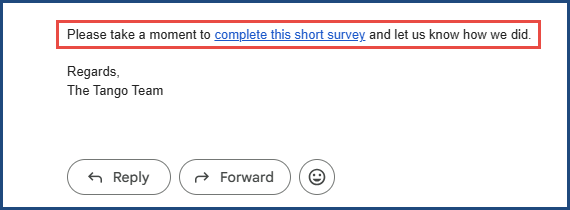
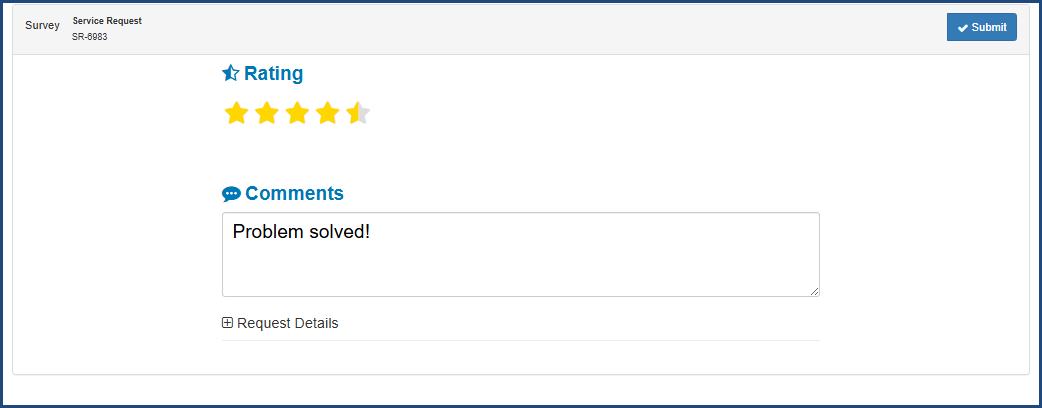
Clicking on this link will bring them directly to a screen where they can provide their feedback in 2 ways.
First is an overall rating out of 5 stars, which also supports 1/2 star values. The rating field data is stored as a number between 0 and 5. The second feedback option is the Comments text field which allows them to provide more details.
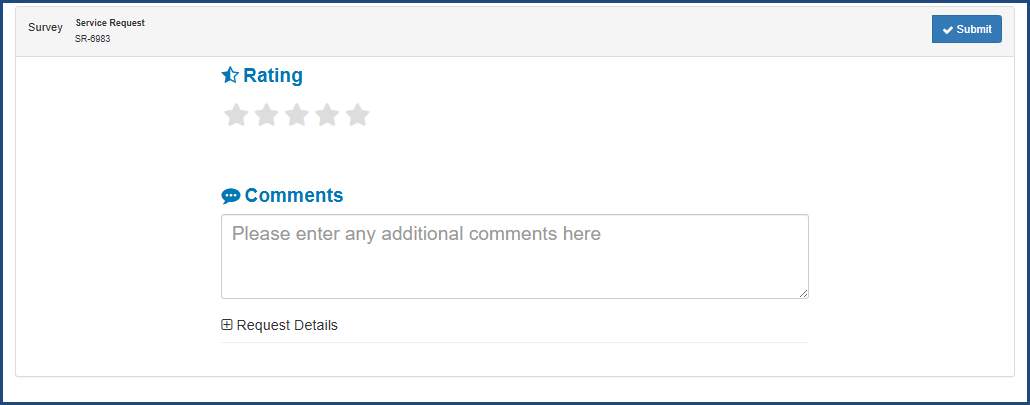
Note: The Survey screen does not require any kind of login or user session for the Requestors to submit their feedback.
The user can expand the Request Details section if they need clarification or a reminder about the request itself:
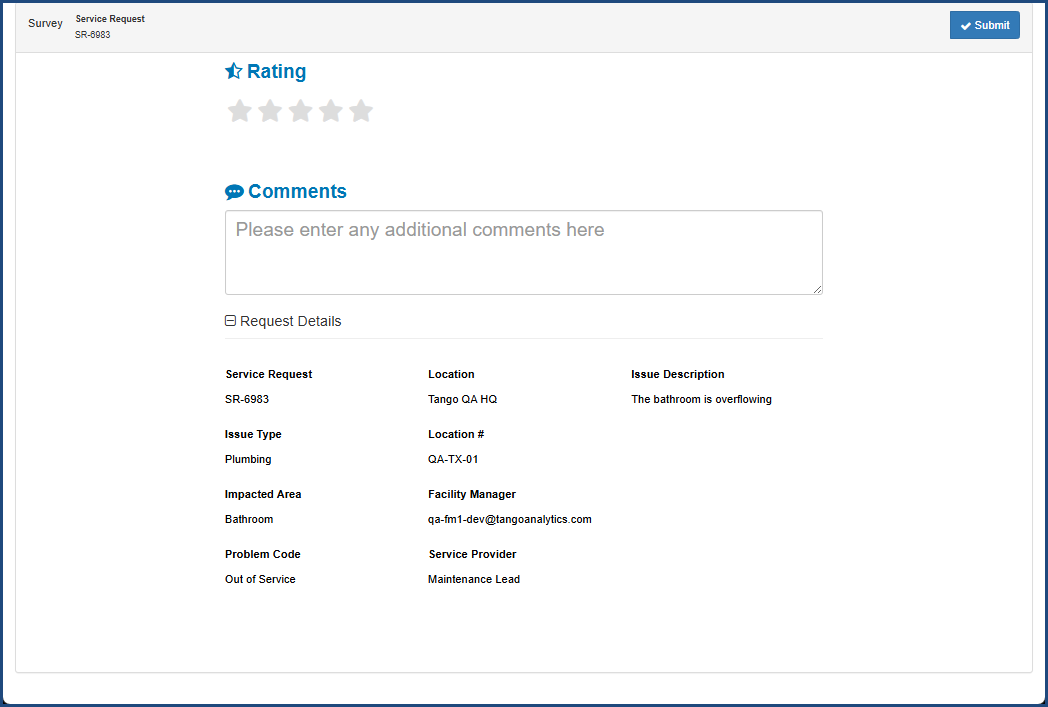
The user will pick a star level to set their Rating choice, and optionally enter some Comments.
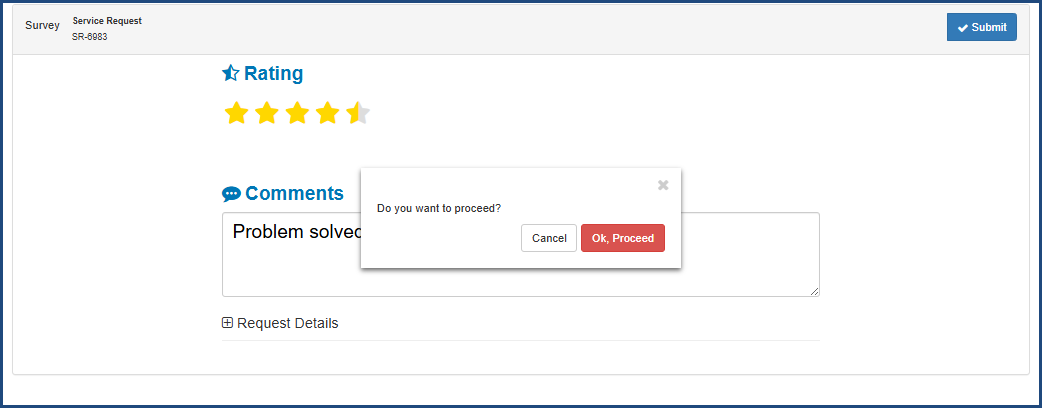
Clicking Submit will pop up a confirmation just to make sure the user meant to Submit the Survey, and gives them a chance to go back and make changes or continue filling out the Survey.
After Submitting the Survey, the screen will become read only and a Thank you message is displayed across the top:
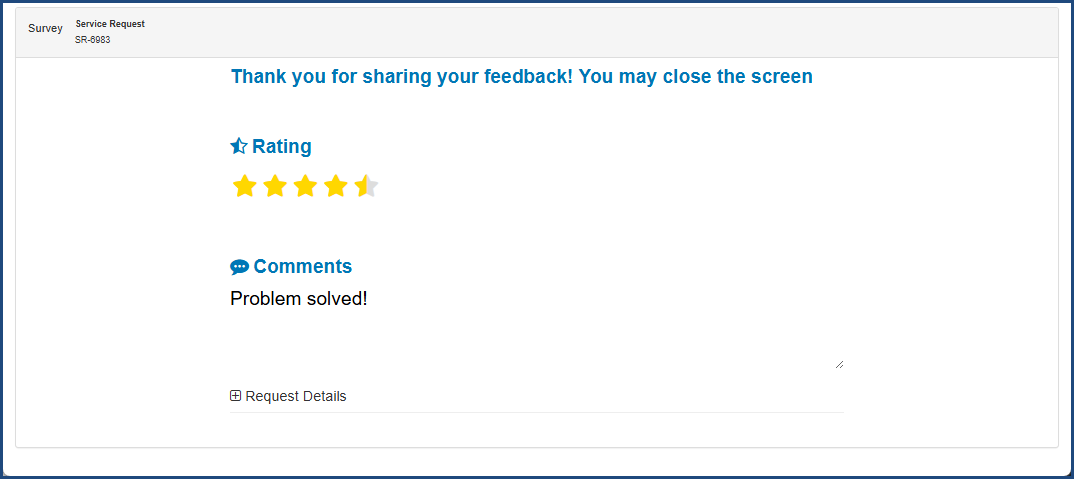
At this point the Survey is done, the user will close out the screen and go on with their day.
OK! Now What?
All right, hopefully you actually have requestors that have taken the time to provide feedback, which is easier said than done. Now what do you do with that data?
Tango has added a few ways for you to monitor, track and act on these survey results.
The most obvious update is the addition of a new "Request Surveys" Tile within the Facility Manager Queries:
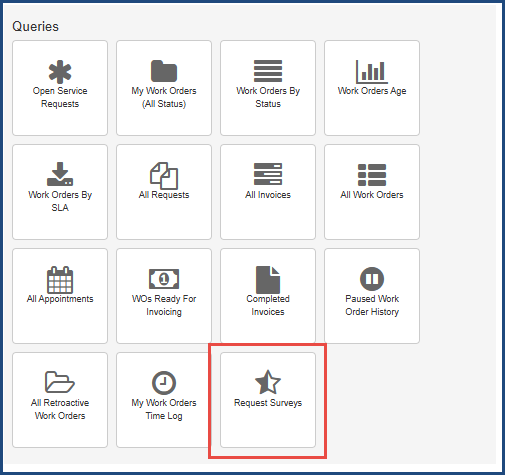
This report will allow you to filter, sort and export lists of Requests with data about the Survey results such as the SR Survey Date (the date is stamped when the Survey is Submitted), the Requestor (email), the Rating, and the Comments they added.
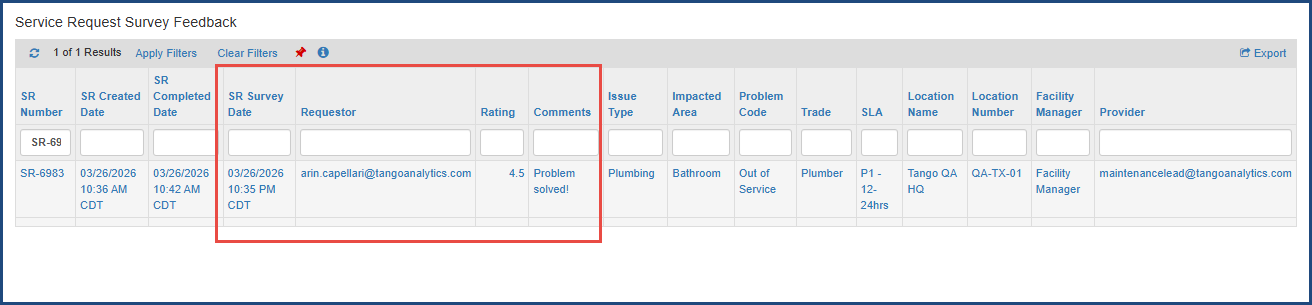
Note: This report is filtered to only show you Requests that have a Survey Date populated which cuts down on clutter so you won't see any "non-rated" Requests.
Survey Rating and Survey Comments fields were also added to the existing FM reports for "All Service Requests" and "All Work Orders."

In addition, the Survey fields were added to the data warehouse DM_REQUEST table:
SRSURVEYRATING
SRSURVEYCOMMENT
SRSURVEYDATE
Was this article helpful?
That’s Great!
Thank you for your feedback
Sorry! We couldn't be helpful
Thank you for your feedback
Feedback sent
We appreciate your effort and will try to fix the article