To be able to use this feature, you have to be an admin.
To increase user permissions, you will need to contact our Support Team.
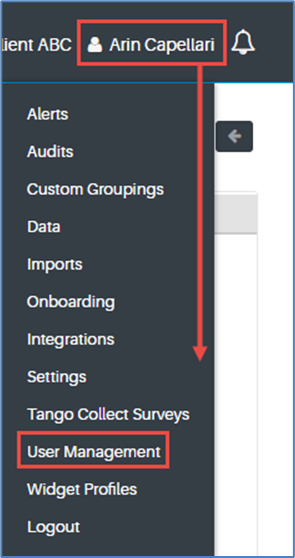
How to get to the User Management page:
- Hover over your username.
- From the dropdown menu, click on User Management.
How to create a new user:
- Click on the blue button written “Add New User”.

- User Details Page will pop up.
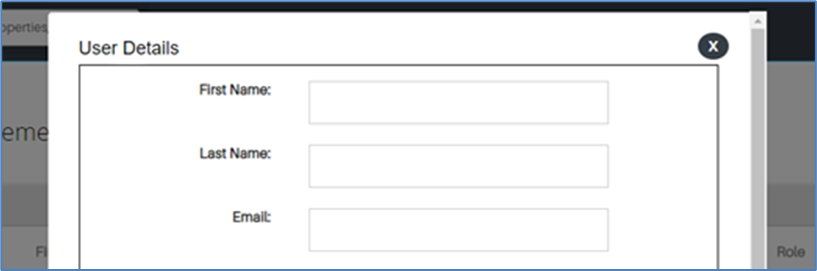
- Type in the user details
- (Optional) You can enable SSO for the user, so they do not have to use a password every time they sign in.

- Add a default password, the first time the user logs in they will be prompted to create a new password.

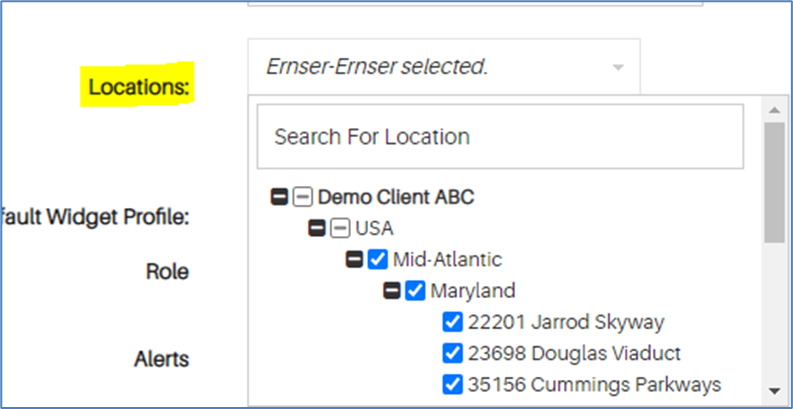
- Select the location/Node you want the user to have access to.
- Select the default Home Dashboard view the user will get when they log in
- The new user will show up on the User Management Page.
From the User Management Page, the admin can view and edit the following:
- Last Name
- First Name
- Topmost Locations
- Default Widget Profile
- Role
- Alerts
- Activated
- Deactivated by
The video below will demonstrate the User Management feature.
Resource URL: https://youtu.be/BZ1pXlR6kek
Was this article helpful?
That’s Great!
Thank you for your feedback
Sorry! We couldn't be helpful
Thank you for your feedback
Feedback sent
We appreciate your effort and will try to fix the article