Table of Contents
Milestones for multiple Projects can be managed under the Milestones module of the system.
| Step | Action |
|---|---|
| 1. |
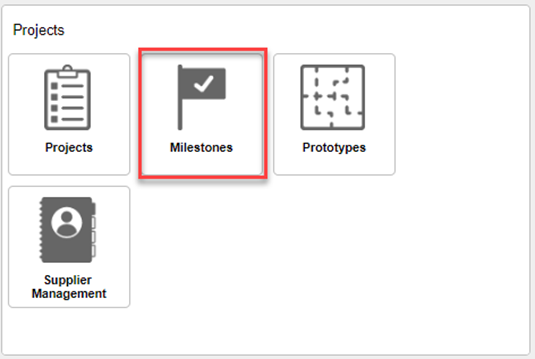
Navigate to the Functional Dashboard and click Milestones.
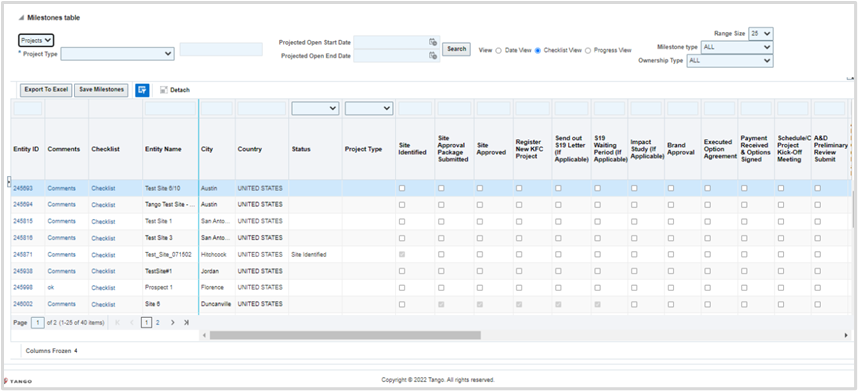
The Milestone page displays the current projects and schedules.
|
Milestone Filters
Milestones have the capability to be filtered and view by several different views: 
Projects and Project Types
Projected Open (Start and End Dates)
Milestone Type: Real Estate or Construction
Ownership Type: Franchise, Company or License
Updating Milestone Dates
Milestone Forecast Dates will come over from the Project based on the generation of the Schedule.
Actual Dates can be updated on the Milestones page through either a Date View or a Checklist View.
Updating Milestones from a Date View
| Step | Action |
|---|---|
| 1. |
Click the Date View radio button.
|
| 2. |
Click the calendar icon and edit dates on applicable rows
|
| 3. |
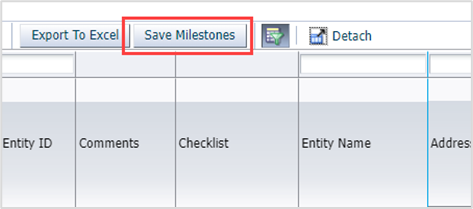
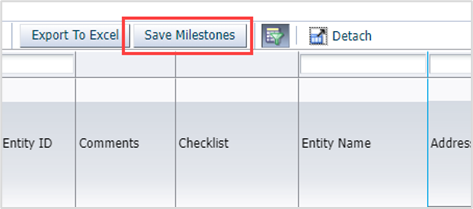
Click Save Milestones.
|


Updating Milestones from a Checklist View
| Step | Action |
|---|---|
| 1. |
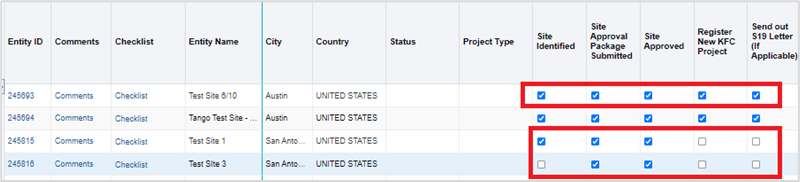
Click the Checklist View radio button.
|
| 2. |
Check the box(es) on the row to be marked complete. NOTE: The current day’s date will be used to set the Task to complete. If a date other than the current date is needed, refer to Updating Milestones from a Date View procedure. TIP: Scroll right and down to view all columns and rows.
|
| 3. |
Click Save Milestones.
|

View Milestone Progress
| Step | Action |
|---|---|
| 1. |
Click the Progress View radio button.
|
| 2. |
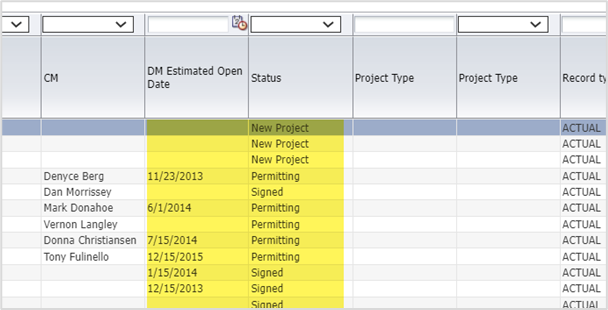
View the progress and tracking of dates.
|

Was this article helpful?
That’s Great!
Thank you for your feedback
Sorry! We couldn't be helpful
Thank you for your feedback
Feedback sent
We appreciate your effort and will try to fix the article