Visual Query

Modified on Mon, 9 Mar at 10:43 AM

Table of Contents

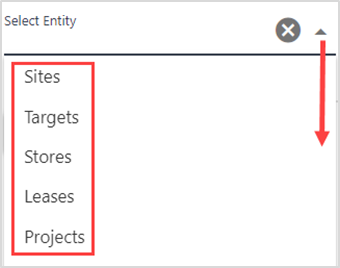
Visual Query creates reports from the database by entity (Targets, Sites, Locations, and Leases). This procedure describes the steps to build a query using the entity Site.

Note: Refer to Visual Query User Guide for complete procedures.

The table below lists the operator values and a brief description. Operators will assist in building the query specific to requirements.

Operator Name

Description

Equal

When one specific value is needed. For example, country equals USA will return results whose country is the only USA and no other countries.

Not equal

When the result should not be the value entered in the text box.

In

Used to have multiple values in the text box, to enter the multiple values separated by a comma. For example, State 'in' MN, TX, FL will return values that belongs to the states MN, TX, and FL).

Not in

The results displayed will have the values entered in the text box.

Contains

Will display the results that have the values entered in the text box. For example, when you enter city contains 't', then the result will return all the cities with the value in it, like St. Paul, Brooklyn Center.

Doesn't contain

The result displayed will not have the value entered in the text box.

Ends with

The result displayed will end with the value entered in the text box. For example, when you enter city end with 'ta', then the result will return all the cities with the value 'ata' in it, like Wayzata.

Doesn't end with

Differs from 'doesn't contain', where doesn't contain will not have the value entered in the text box but doesn't end with will have values anything but the text entered in the textbox.

Is empty

Will return results that have no values entered in it.

Is not empty

Returns results whose field value is not empty and has some information in it.

Is null

These are values that are specifically mentioned as 'NULL' values in the database.

Is not null

Returns all the field values that are not NULL.

CREATE NEW QUERY

Step

Action

1.

Navigate to the Function Dashboard, then click Visual Query Builder.

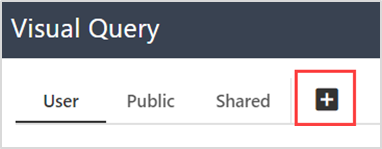
The Visual Query start page displays.

2.

Click +.

3.

Select an entity in the Select Entity drop-down.

The Query Builder displays.

Step

Action

4.

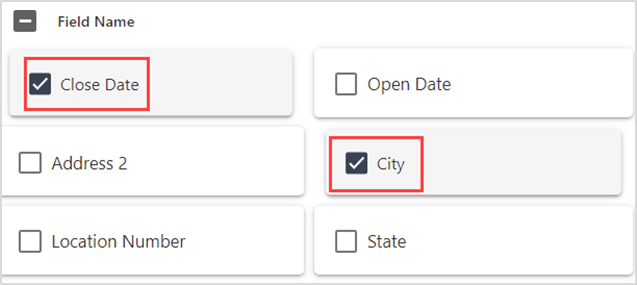
Select the entities as follows:

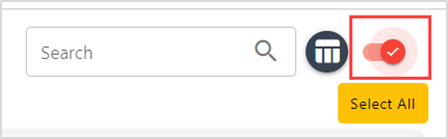
  1. Click the tab(s) to view all entities, the click to select the entity(ies).

TIP: Toggle between the Grid and Table view.

  1. Slide the Select All slide bar on each tab, as applicable.

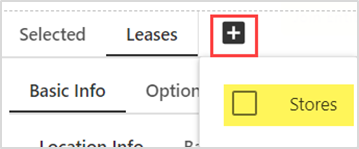
  1. Click the + to join another entity (i.e., Stores), as applicable.

Note: The Join Entity choices vary depending on the Entity chosen.

Step

Action

5.

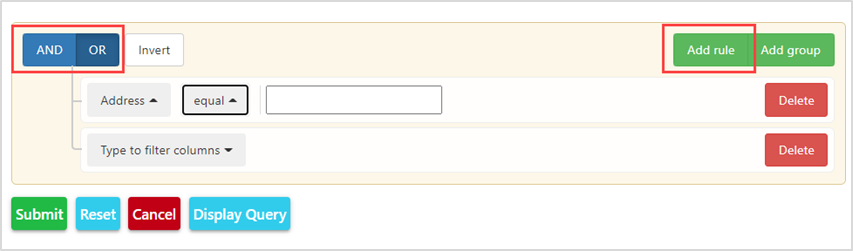
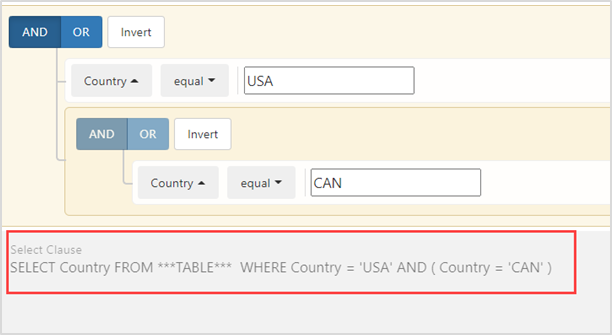
Click Add Rule, then choose either AND/OR. Note:

AND - Execute one or more conditions where the records displayed satisfies all the conditions.

OR - Execute one or more conditions where the records displayed satisfies any one of the conditions. Not all the conditions need to be true.

6.

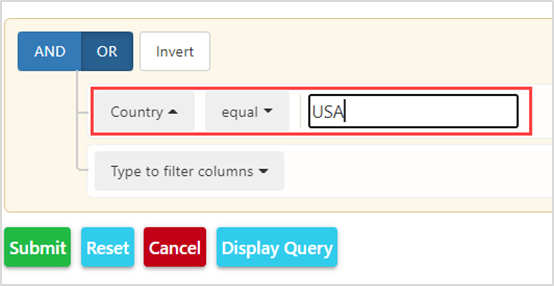
Choose a filter, an operator, then enter text (i.e., Country>Equal>USA).

Step

Action

7.

Add additional filters and operators, as applicable, then click Display Query.

The built query displays.


8.

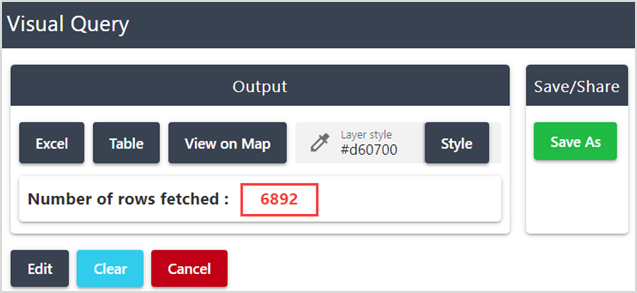
Click Submit.

The number of rows fetched display in a new page.

9.

Click Edit to narrow the search (i.e., too many or not enough rows fetched), as applicable.

Step

Action

10.

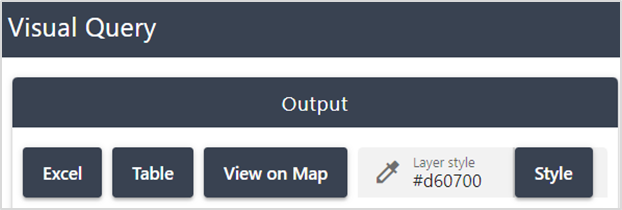
Choose one of the following:

  1. Excel- downloads the file to local drive.

  2. Table – displays a table view in the same window.

  3. View on Map – Displays results on the map.

  4. Optional: Style - Change the appearance of the results.

11.

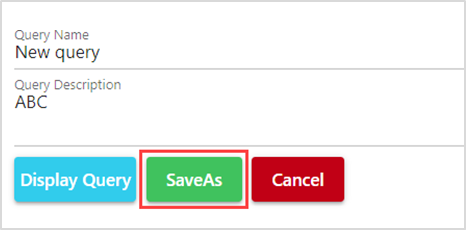
Click Save As, type a name and description, then click Save As.

TIP: Choose clear, easy to recognize query names that others can locate.

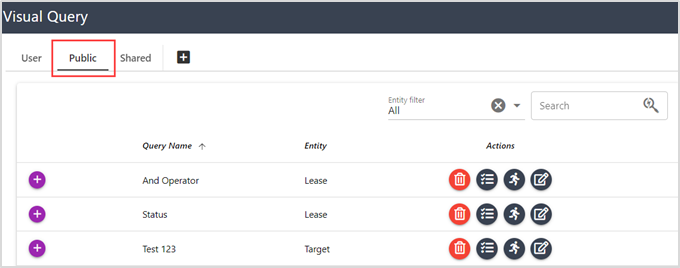
The query saves to the Public tab on the builder main page.

Was this article helpful?

That’s Great!

Thank you for your feedback

Sorry! We couldn't be helpful

Thank you for your feedback

Let us know how can we improve this article!

Select at least one of the reasons
CAPTCHA verification is required.

Feedback sent

We appreciate your effort and will try to fix the article