The purpose of this document is to provide a step-by-step walkthrough of the Targets and Site features in the Tango Platform. This document is designed to be used by members of the Real Estate, Construction, Finance, and Tango support teams as a reference.
Access to both information and various modules is configured on a user level. Therefore, the system is designed to allow User access based on their role within the organization. The modules and actions expressed in the following sections might not be available to all Users.
Intended Audience
The main audience of this document is the executive sponsor and internal associates in the Real Estate, Retail Finance, and Construction groups as well as groups outside of real estate with access the system
Functional Dashboard
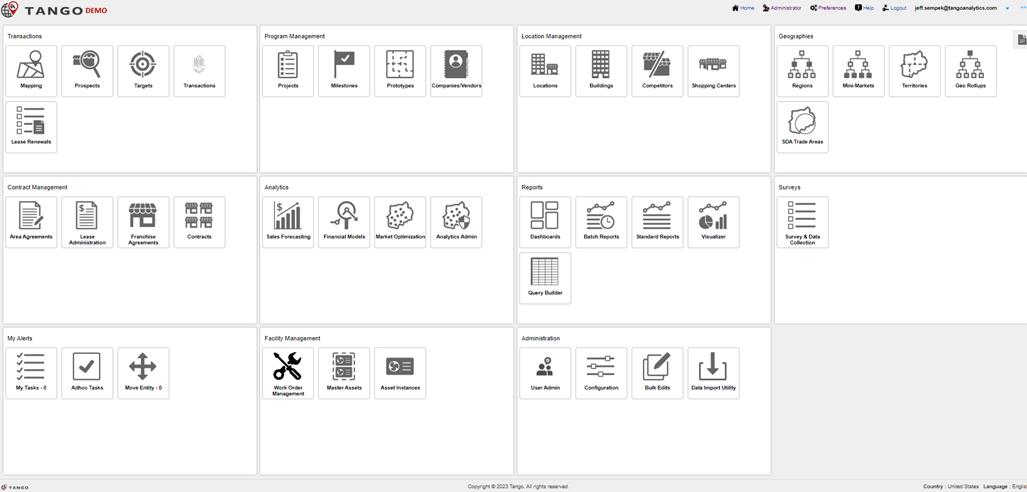
Upon login, the landing page for Tango is the Functional Dashboard. The User will be able to navigate to the various modules in Tango by selecting one of the Icons. (Note: Security access configuration will determine what modules are available to the User. Not all modules will be visible to all Users.)
| Building Development | |
|---|---|
 |
The Maps function provides a graphical representation of all entities. Various controls allow Users to customize the Map display with multiple layers and symbology. |
 |
The Targets entity is the focal point of the Site Selection process. It represents an area of interest and is associated to candidate Sites within a pre-defined ring or drive time zone. A Target may be associated to multiple Sites. |
 |
The Sites entity represents a single candidate location being considered as a permanent location. The site record can manage data and documents assembled during the Site selection process. A site can only be associated to a single Target. |
Targets - Overview
Targets, or areas of interest, are the first step in the Site Selection process for a new Building Location. A broad area is designated as the Target. Candidate Sites are then associated with the Target for tracking purposes. Targets are not a part of the process for remodeling of existing Buildings.
The standard work process is described below:
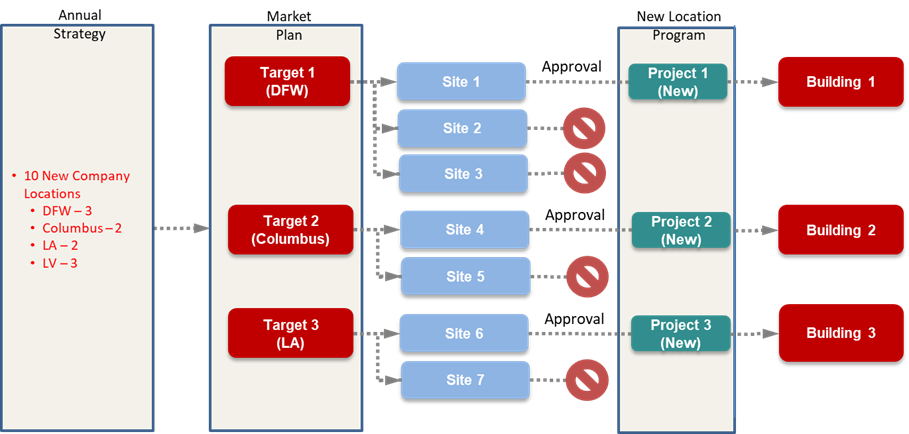
Once a Target is created on the Map, additional details can be added and reviewed from the Target’s detail pages.
Targets – Records and Searches
From the Main Menu, select the Targets icon under the Building Development section.
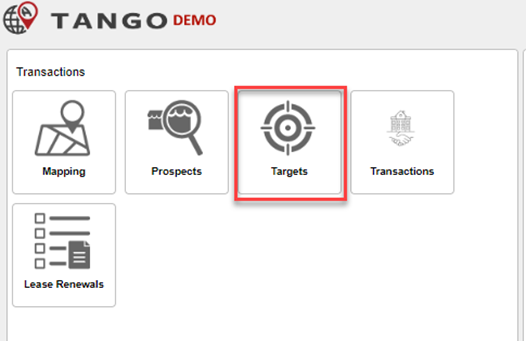
The Target Search page will be displayed. Use the Standard Search and Advanced Search methods described in the Building Section to locate the desired Target record.

Use the Details Icons to open the Target record.
Targets - General Tab
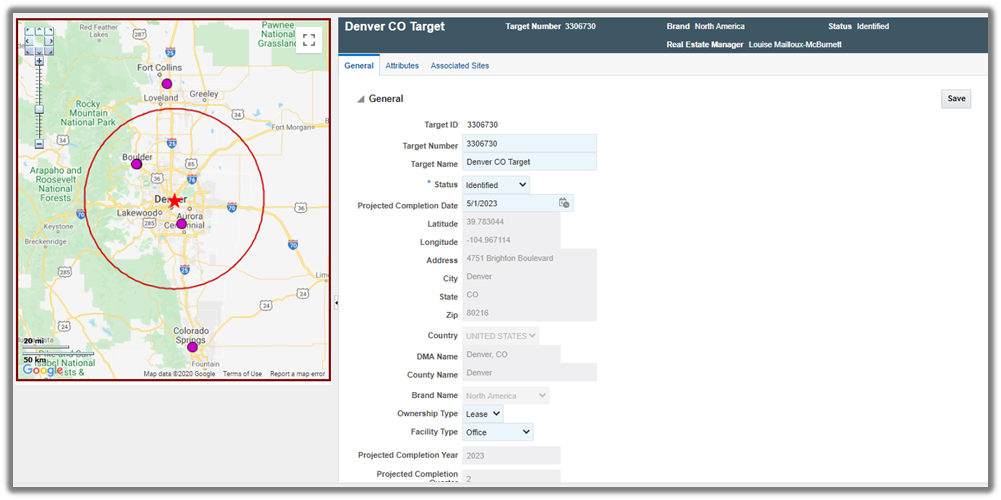
The General Tab includes Target Address information as well as some Category fields such as Ownership Type. Some fields will not be editable by Users since they are derived from the Target’s selected geographic location as determined by its symbol placement on the Map.
Targets - Attributes Tab
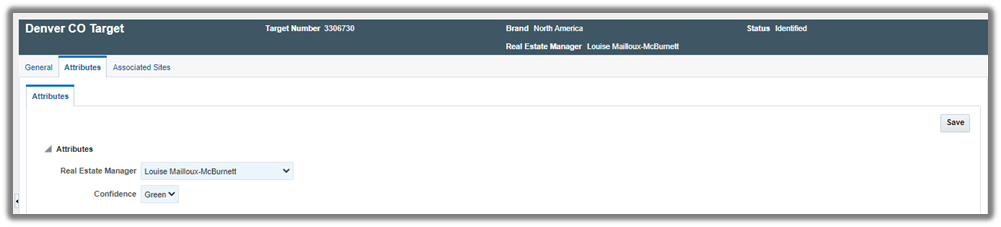
The Attributes Tab includes custom Customer data fields that support and describe the Real Estate Transaction. Data may be populated manually by authorized Users or via integrations with Customer systems.
Targets - Associated Sites Tab
In the business process described above in Targets - Overview, the purpose of the site record was defined as a record to represent Candidate Location(s) being considered for a new building. The Associated Sites Tab will display all candidate Sites associated to the current Target record. The Site Name is a hyperlink to the site record.

If no Sites are created, this Tab will not show any results.
To set a Site as primary, highlight the Site record in the associated Sites list. You can only see Sites that are linked to the currently opened Target record on this list. Click on the Set primary button. The checkbox for primary Site will now appear checked. Hit “Save” in the Top right corner.
NOTE: Without setting a primary Site, Targets will not be selected as part of the forecast. Because only one of these Sites can become a store, once one of the Sites is Approved (status change), the other Sites are set to Status=Inactive and that Site becomes Primary.
For more information on Sites in Tango, see Error! Reference source not found..
Sites
Sites – Overview
Site records in Tango are a critical component of the Real Estate Transaction process. Each Site record represents a candidate location, providing a method to capture and manage the information developed during the Transaction process. If configured, Approval Workflows for Sites can also formalize the final selection of a candidate for the Real Estate Transaction.
Sites – Records and Searches
From the Main Menu, select the Sites icon under the Building Development section.
The Sites Search page will be displayed. Use the Standard Search and Advanced Search methods described in the Building Section to locate the desired site record.
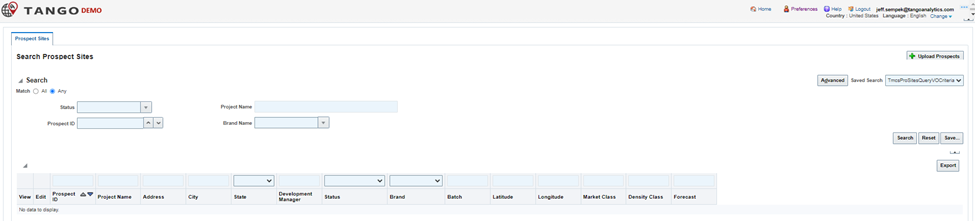
Use the Details Icons to open the site record.
Sites – Map
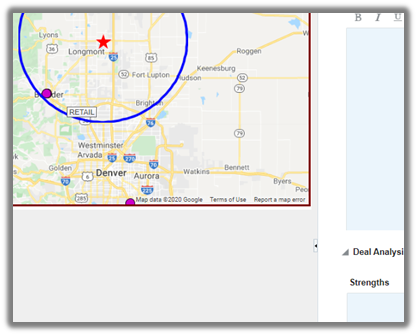
The map may be resized or hidden by resizing the panes or with the collapse button as highlighted here.
Sites – General Tab
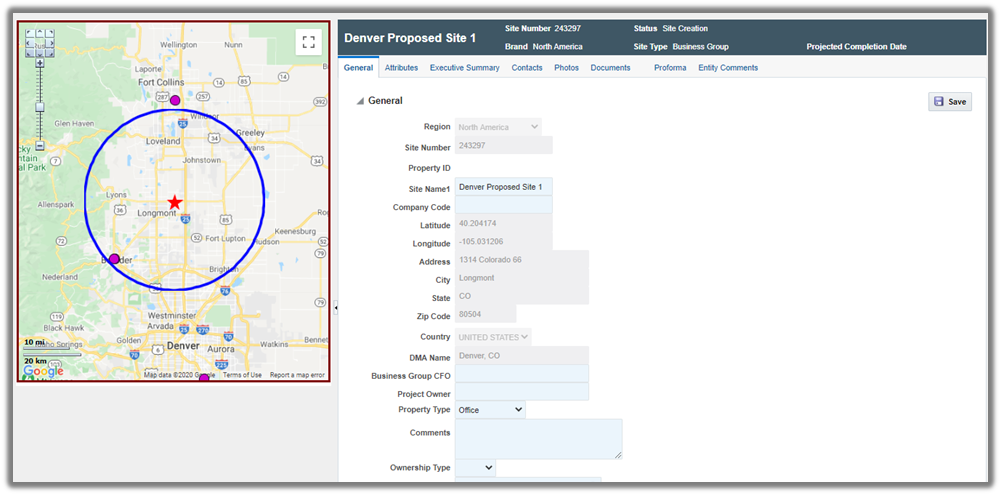
The General Tab includes Site Address information as well as some category fields such as Ownership Type. Some fields will not be editable by Users since they are derived from the Site’s geographic location as determined by its placement on the Map. Access to some fields will be determined by a User’s security configuration.
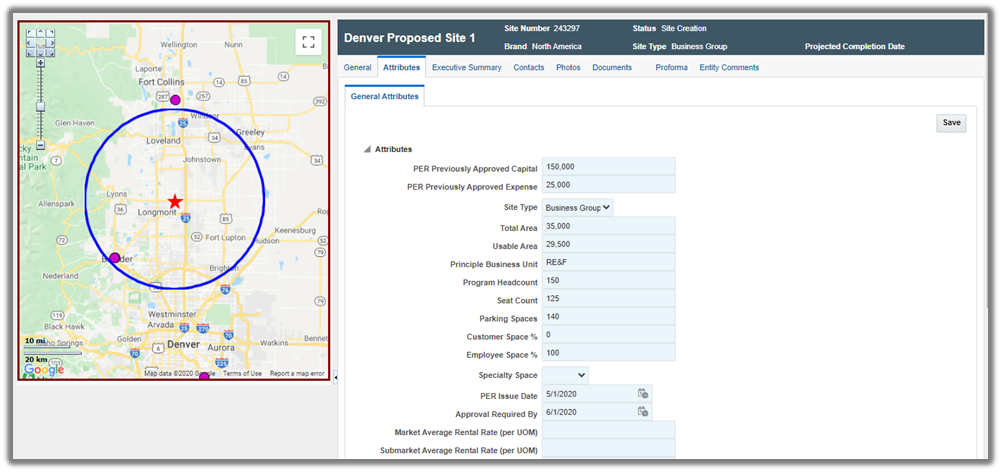
Sites – Attributes Tab
The Attributes Tab includes custom data fields that support and describe the Real Estate Transaction.
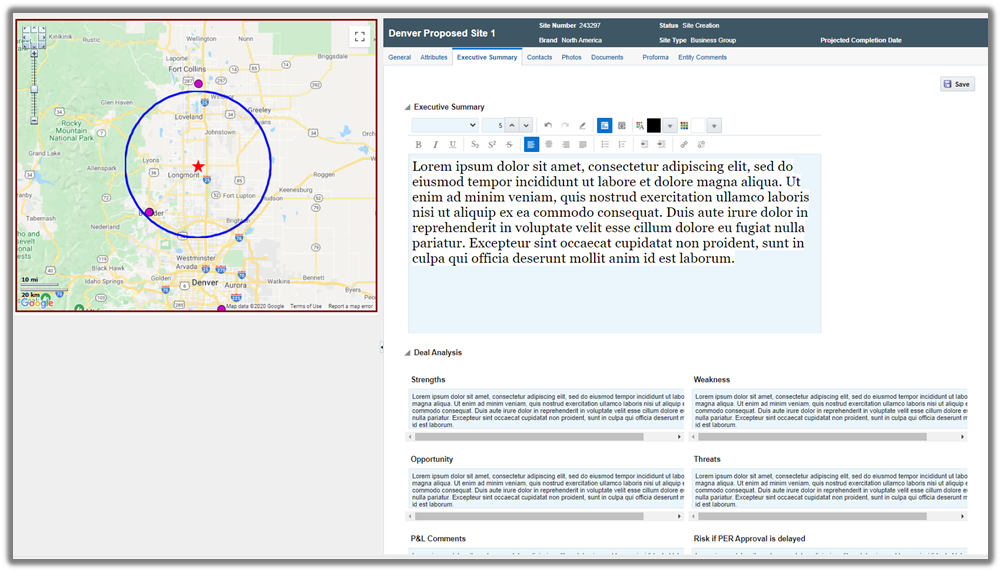
Sites – Executive Summary Tab
The Executive Summary Tab provide the following text fields to capture Site information
Executive Summary
-
Deal Analysis
Strengths
Weakness
Opportunity
Threats
P&L Comments
Risk if PER Approval is delayed
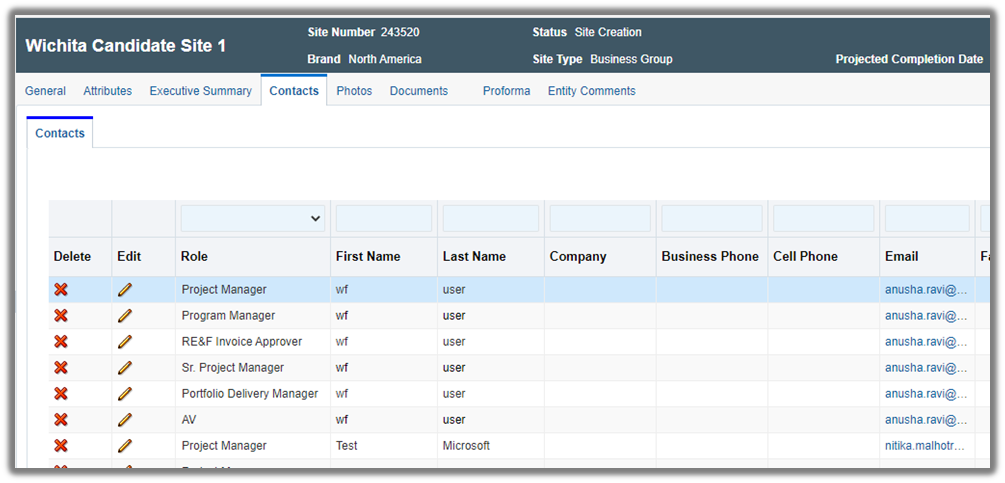
Sites – Contacts Tab
The Contacts Tab provides a list of Site related roles and their assignments. The role assignments can be updated by authorized Users by selecting from the Tango User List. In addition to a Contact list, the Role is often used by Approval Workflows to acquire the individual contact information for the approval of a Site.
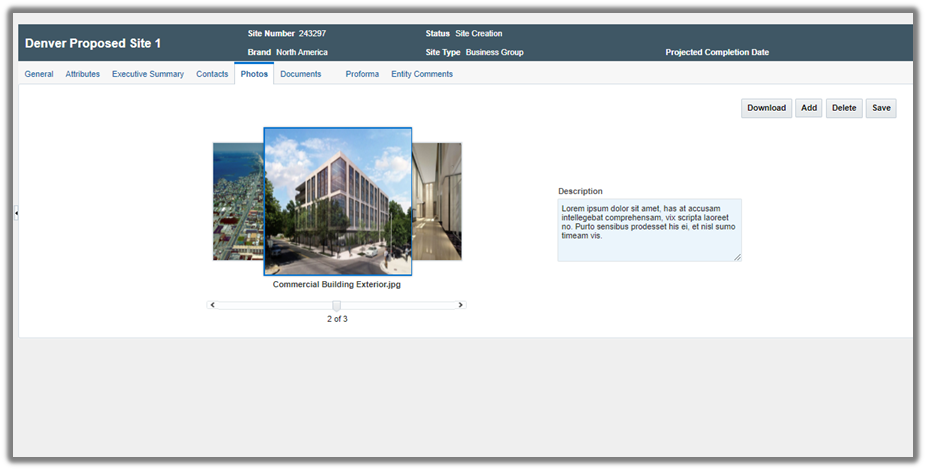
Sites – Photos Tab
The Photos Tab provides a method for authorized Users to upload or download photos of the Site. Users can scroll through the photos with either the scroll bar or by selecting the Advance icons.
Sites – Documents Tab
Tango Site records include a Documents Tab to provide storage of documents related to the Site. Documents related to the transaction can be stored in each separate Site. The documents can be stored for historical purposes or as supporting documentation for the Site Approval Workflow process.
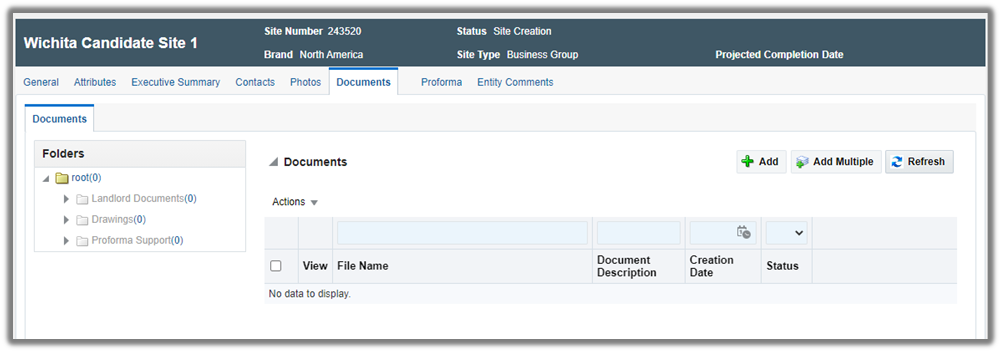
For additional details on working with Documents, see Error! Reference source not found..
Sites – Entity Comments
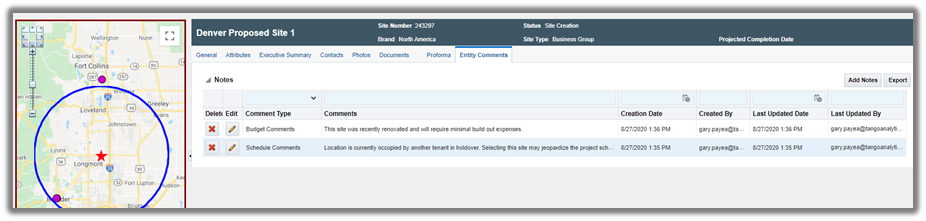
The Entity Comments Tab provides the capability to record text-based comments from the project team. In addition to the Comment Type and Comment description field, Tango will record the Creation Date, Created By and Last Updates automatically.
Select the Add Notes button to create and store a new comment.
Was this article helpful?
That’s Great!
Thank you for your feedback
Sorry! We couldn't be helpful
Thank you for your feedback
Feedback sent
We appreciate your effort and will try to fix the article