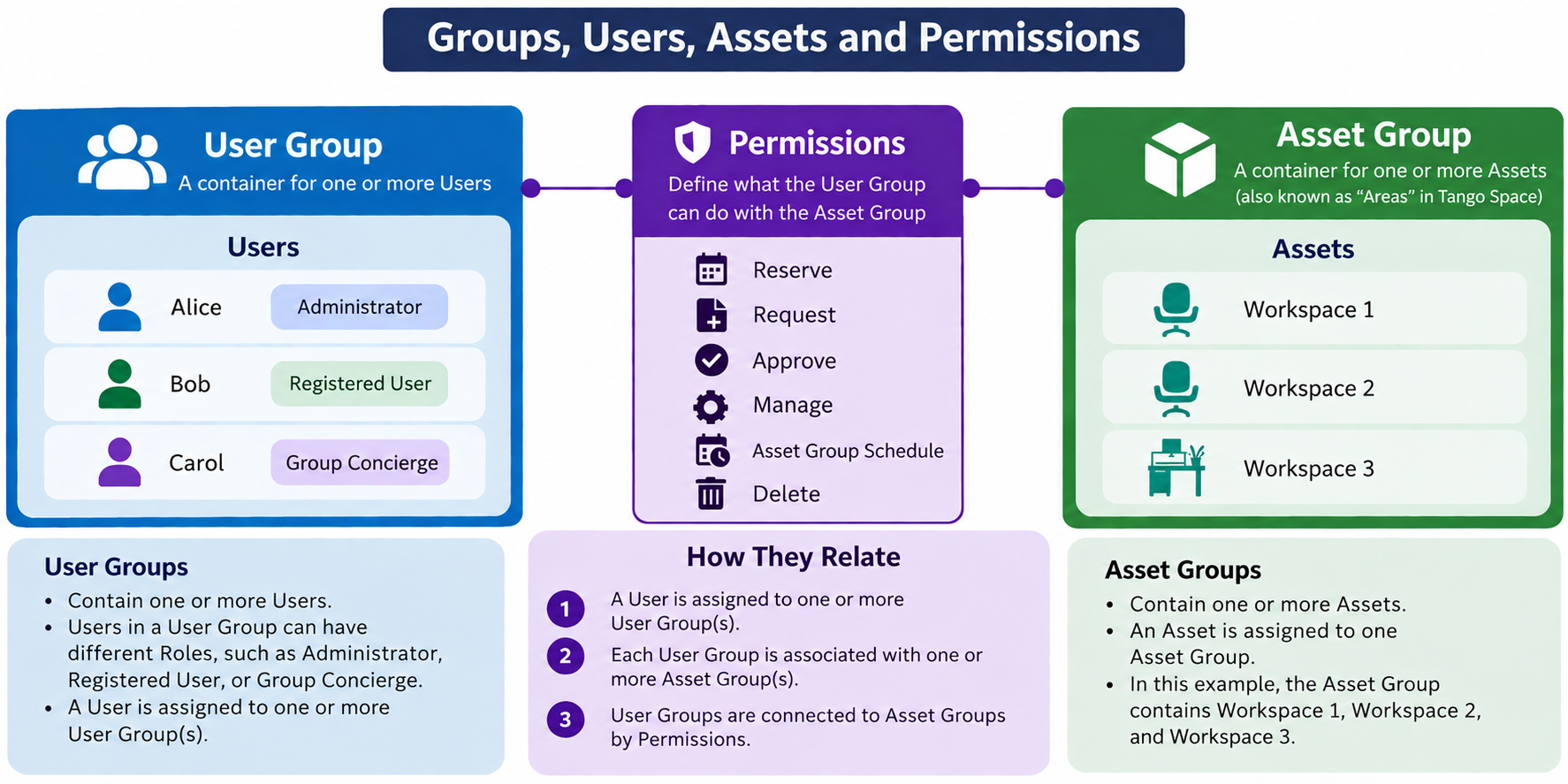
Asset Groups and User Groups work together to control which users can reserve specific spaces and when those spaces are available to them.
Asset Groups organize spaces that share the same access rules, such as a group of desks, offices, or rooms assigned to a particular department.
User Groups organize users who should have access to those spaces, such as employees within the same department.
Permissions connect the User Group to the Asset Group and determine what those users are allowed to do, such as reserve, request, approve, or manage reservations.
Group Schedules can also be managed through User Groups to control when spaces become available for booking by different groups of users.
Example: Department-Based Access
If 10 workspaces are allocated specifically to HR, those spaces can be placed in an HR Asset Group. HR employees are assigned to an HR User Group, which is then given permission to reserve those spaces.
This ensures that only users in the HR User Group can reserve the 10 designated HR spaces.
Example: Priority Booking
Group Schedules can be used when certain users should receive priority access to spaces. For example, one User Group could be allowed to begin reserving spaces earlier than other users. The spaces can then be opened to additional User Groups at a later time.
Together, Asset Groups define which spaces are controlled, User Groups define who receives access, Permissions define what they can do, and Group Schedules can define when they can book them.
Consideration: Microsoft 365 and Google Calendar Integrations
When using the Microsoft 365 or Google Calendar integration, consider how Reserve User Group and Asset Group permissions align with access to room calendars in Outlook or Google Calendar.
If a room is visible and bookable by users in Outlook or Google Calendar, but those same users do not have permission to reserve the corresponding asset in Reserve, their booking may be accepted initially by the calendar system but will not be permitted in Reserve. When the integration attempts to synchronize the reservation, the meeting request will be canceled because the user does not have the required Reserve permission for that asset.
Example: If a group of rooms is restricted to the HR User Group in Reserve, only HR users should also be permitted to book those rooms through Outlook or Google Calendar.
Best Practice: When implementing restricted Asset Groups in Reserve, coordinate with your Microsoft 365 or Google Workspace administrators to apply corresponding calendar access restrictions. This helps maintain consistent booking permissions across systems and prevents reservations from being canceled during synchronization.
Was this article helpful?
That’s Great!
Thank you for your feedback
Sorry! We couldn't be helpful
Thank you for your feedback
Feedback sent
We appreciate your effort and will try to fix the article