The purpose of this document is to detail the design configuration, logic, and use for facilitating lease renewals in Tango. It contains both functional (user) and technical information to help understand capabilities and limitations. It will also detail the calculation logic.
The configuration and design elements detailed in this document focus on the Tango Analytics Transactions Module. These requirements are critical for clients to efficiently and accurately execute and track Lease Renewals and savings from those efforts.
This document does not contain future state processes, report or integration specifications. These will be documented separately.
Intended Audience and Document Organization
The intended audience of this document is Portfolio Managers, Executive Sponsors, Lease and Legal teams, and Tango consultants.
Glossary & list of Abbreviations
| TERM | DEFINITION |
|---|---|
| LRE | Lease Renewal Transaction |
| LOV | List of Values |
| UOM | Unit of Measure (square feet or square meters) |
| LTM | Last 12 Months |
| ROI | Return on Investment |
| TA | Tango Analytics |
| LCD | Lease Critical Date – if an option, the final notice date; if no option, the lease end date |
| FMV | Fair Market Value – rent amount that is negotiated and based on prevailing rents |
| CPI | Consumer Price Index – used to refer generically to any Index-based rent |
| Step Payments | A recurring payment of a consistent amount. If either the amount or option change, a new step will commence. |
| Trigger Date | That date that the Transaction will be automatically created. Set as the Final Notice Date less a configured number of days. |
| EOL | End of Lease Record – a placeholder “option” to house key dates and triggers for renewals |
| Rents Option Type | An option type that refers to control for payments |
| Rights Option Type | An option type that refers to ability to modify the lease (ex: termination option) |
Overview
Data exists within the Tango application to sufficiently identify, analyze, and manage upcoming lease renewals and strategies, negotiations status and savings from those efforts. Tango Lease and Stores Modules contribute data to the Tango Lease Transactions module to make that task easier. Each Transaction will originate from a lease option record and will gather data from the Store/location associated with the lease.
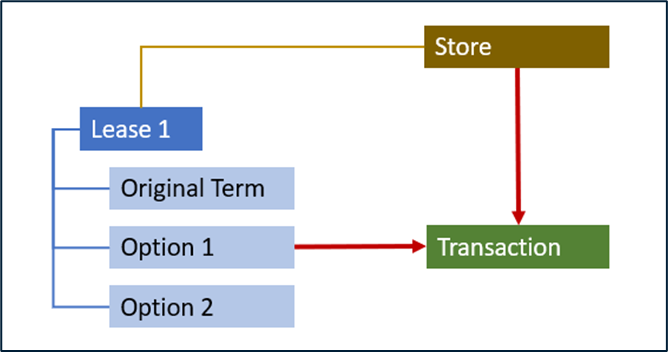
Key design elements include:
Transactions will be automatically generated (nightly) for each coming option based on a configurable number of days ahead of Final Notice Date (the “Trigger Date”).
An LRE Transaction will be for only one option of one lease. If a location has more than one lease (or multiple options), each will be separate Transactions.
While there are option types or transaction other than Renewal, the focus of this guide is limited to renewal options and not items such as terminations, expansion, contraction or other rights.
The system can be configured to specify which Payment Types to consider for analysis. Different rent types (i.e., Base Rent, Parking Rent, etc.) are frequently included, but it is recommended to NOT include reconcilable/pass-through items. Percentage Rent cannot be included directly in this analysis.
Work will focus on future option periods and recurring payments; no analysis of past payments or reconciliations will be included.
A Transaction will facilitate decision-making, but NOT update the Lease itself.
Entity Data
This section describes the entity data within the Transactions framework.
Lease Data - Options
Lease data in Tango is stored in defined tables with logical relationships that contribute to analysis and urgency of renewals. The key tables to this operation include:
Basic Information – Key fields include: Lease Number/Name, Overall Lease Status, Lease Type (Payable, Receivable), owning Location, Landlord. Note if more than one active lease is associated to a property, each will be considered separately.
Options & Terms – Defines the “rents” options (ex: renewal) and “rights” options (ex: termination). Key fields include:
Option Type (ex: Renewal)
Option Status (ex: Available)
Begin/End dates
Final Notice Date
Rent Escalation type (Fixed amount, CPI, FMV, etc.)
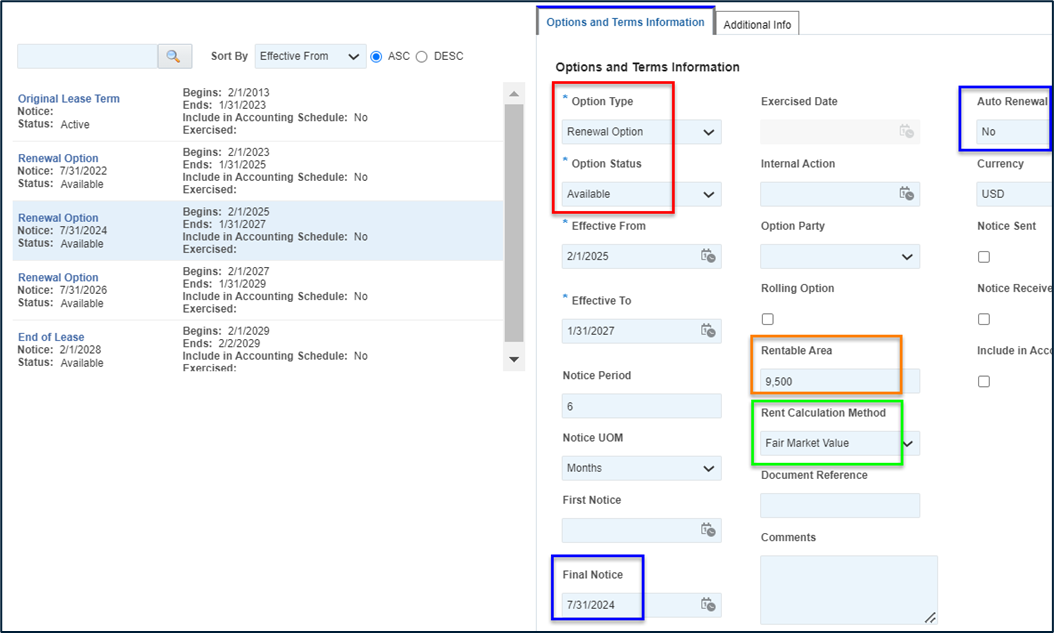
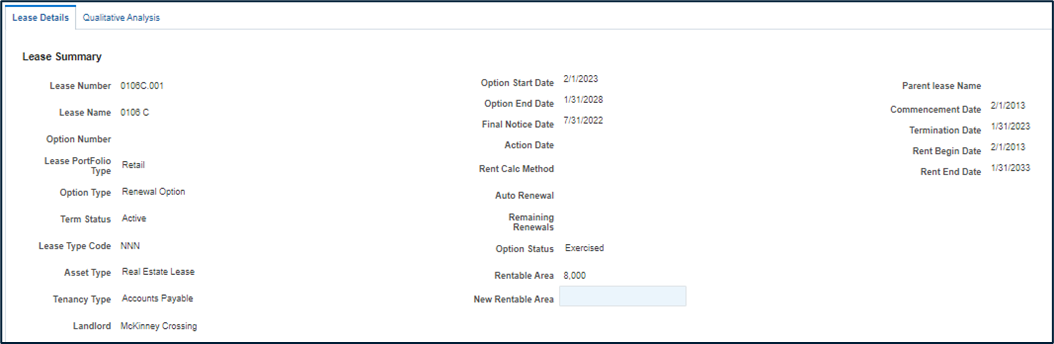
In the example below, the upcoming option is:
For additional term (Renewal Option) and has not yet been exercised or declined (Option Status) [red box]
Notice must be given months before the option starts (Final Notice Date) or the lease is either declined or Auto-Renewed. [blue boxes] Notice that the Final Notice Date occurs during the current term but is for the next option.
The rents in this option must be negotiated (Rent Calculation Method: Fair Market Value “FMV”) [green box].
Note: The rentable area is 9,500 sf (this becomes important in many calculations. [orange box]
Options have the following standard status’:
Expired – options that are beyond their end dates
Cancelled – options that are no longer valid and were cancelled prior to their end date
Active – the current date is between the beginning and end dates
Exercised – the beginning date is in the future, but the option has been committed to
Available - the beginning date is in the future, and the option has NOT been committed to
Lease Data – Recurring Costs (RC)
Option data shows the data over which use is permitted; the Recurring Costs (RC) tab shows what will be paid during that time. Within the option periods, there may be multiple periods of consistent payment amounts (Recurring costs or “Step” payments). There will be some instances where the amount may not be known, but the period that this payment will apply will be defined.
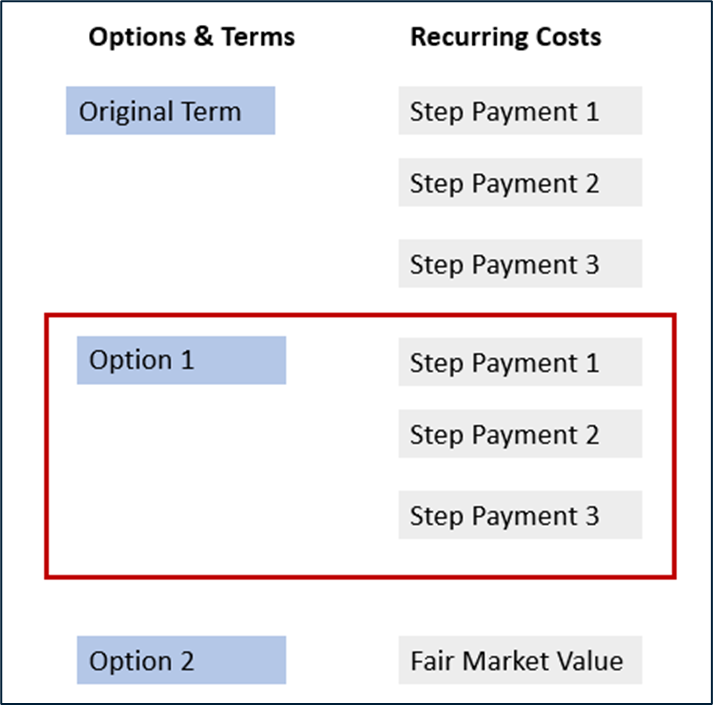
Key design requirements include:
The dates of the Recurring Costs must align within Options (the beginning of the first step period and end of the last period must match its Option). If the payment does not change when the new option begins, there must still be 2 separate RC records.
Recurring costs must reflect the anticipated rent pattern. For example: if the coming option for 5 years is Fair Market Value (FMV) and will increase 2% each year thereafter, the expectation is for five records with structure to calculate steps 2-5 once period 1 is defined. If only one record exists within the Lease, the additional steps must be manually created in the Transaction.
If a payment type has an undefined amount (ex: CPI or FMV) no actual payment amount is expected. These can be estimated in the Transaction.
Percentage Rent is not calculated or retrieved; Users must estimate the amounts in the Transaction, over-riding the payment amount. Ex: if paying $5,000 per month and $1,000 of Pct Rent, override with $6,000 in the payment amount.
Note that there can be several types of payments within each option (Rent, CAM, Property Taxes, etc.). If users include more than one payment type, each type will be listed separately and in sequence by date.
The number of months for each recurring cost is calculated. The total payment months of the RC steps should equal the total payment months on the Option Record (i.e., a 60-month option should have 60 months of payments).
Note: If more than one payment type is included, total payment months for each payment type must equal the total option months.
Key fields include: Payment Category/Type, Begin/End dates, Payment Amount, Payment Frequency (Monthly, Annually, etc.), Escalation Method (ex: Fixed, FMV, CPI, Percentage Increase), payment periods.
Key Design Element: Lease Payment Types must be configured to import into Renewals. It is recommended to use Rent only and leave taxes, CAM and other pass-through items off this analysis.
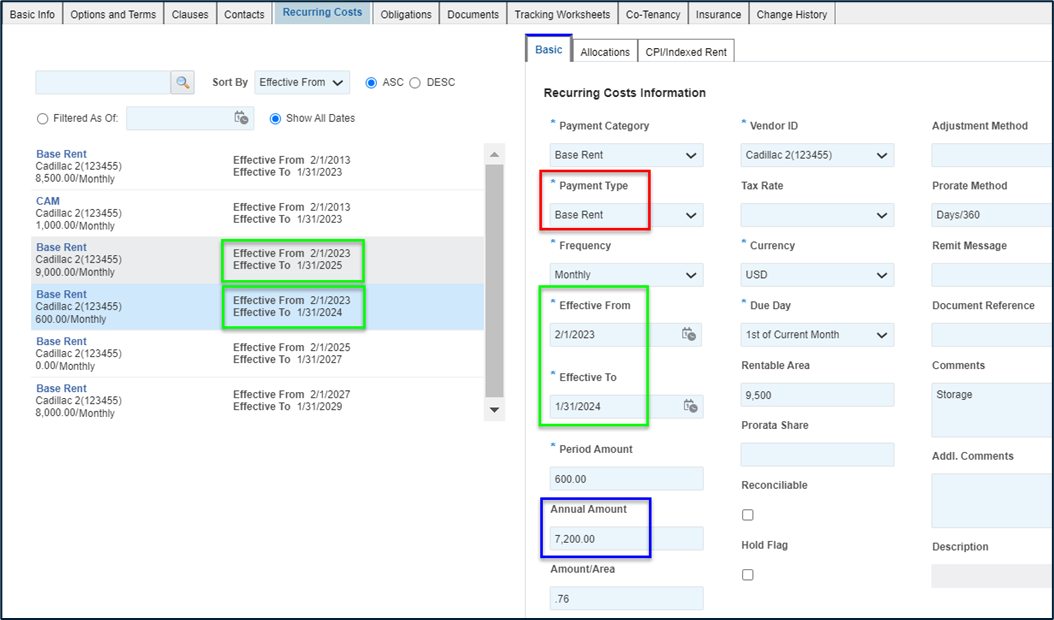
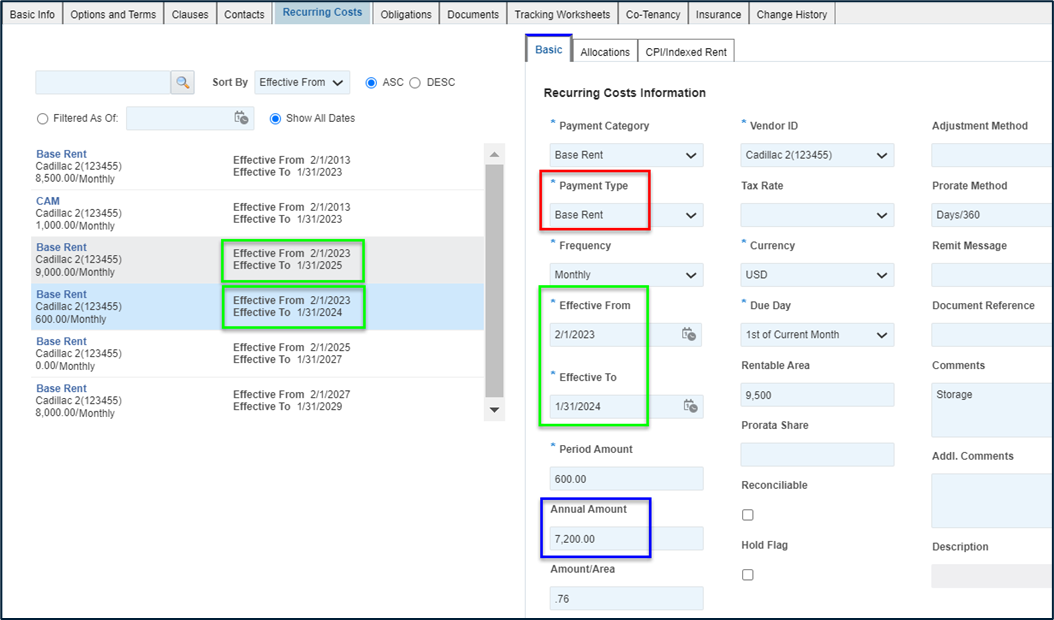
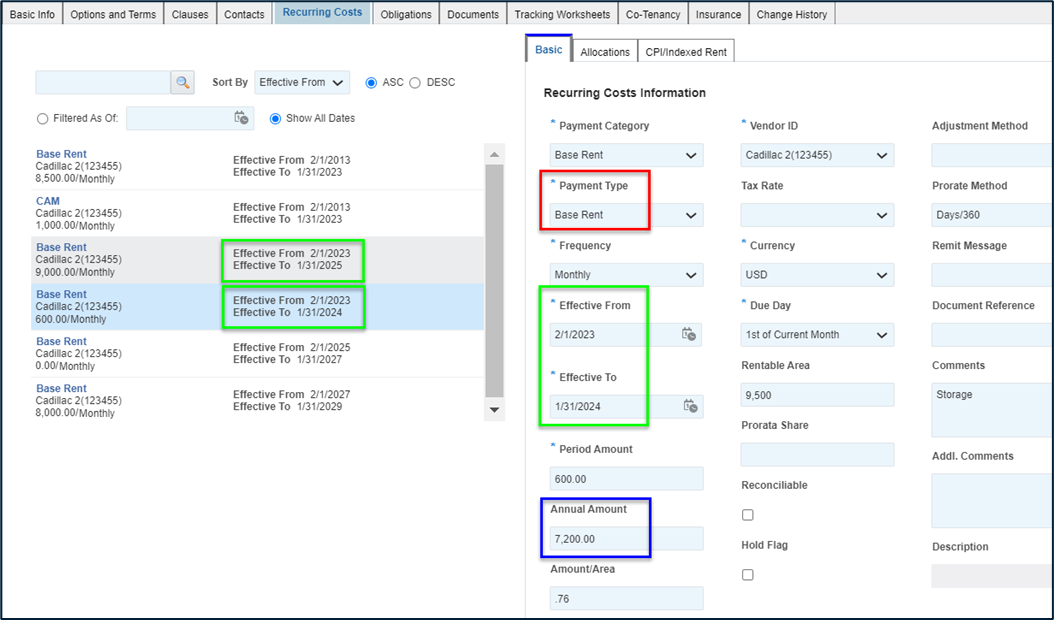
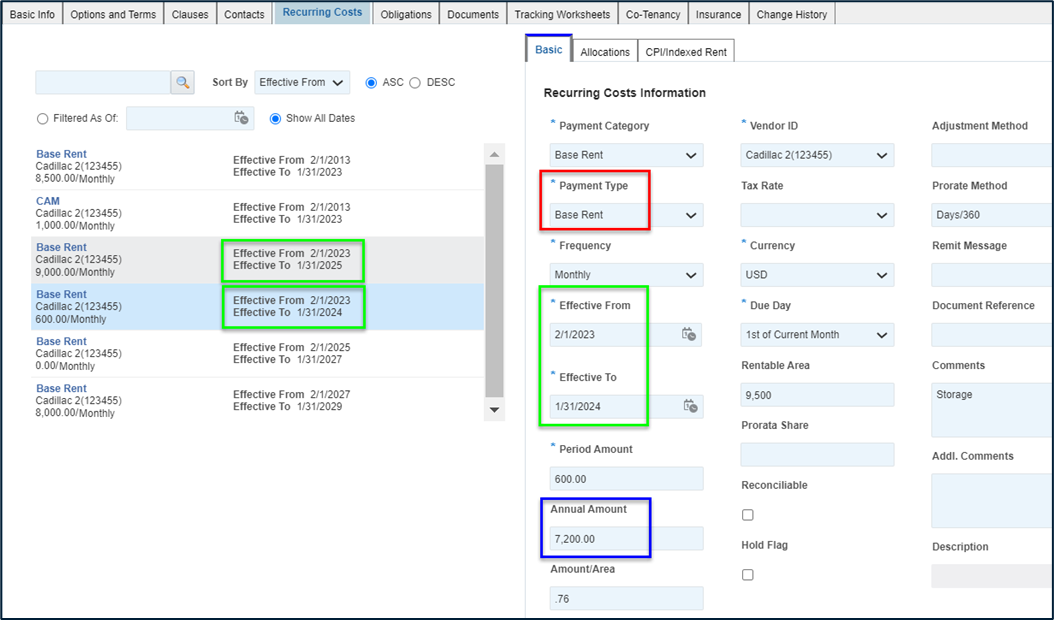
The example below is for an option from 2/1/23-1/31/25. Note that there are 2 payment streams coded as “Base Rent” (in this example: the second is for temporary storage). There can be many different payment types so users must choose which to bring in for analysis. It is recommended to NOT bring in pass-through items such as CAM or Property Tax. Because they are calculated elsewhere in the system, percentage rent payments cannot be brought in for analysis.
End of Lease (EOL) Option
Each existing future option has a record with notice dates and other data to manage the contractual relationship; however, if the lease is in the final option there will not be the standard cues to initiate action. To solve this, each lease will have an “End of Lease” option that will function to house the triggers and deadlines for the renewal process. Key elements of this “option” include:
It will be created for existing leases via conversion
It will be created automatically for new leases via the lease wizard
Option Type will be “End of Lease” and Status will always be “Available” (red box below)
-
Effective From Date will be one day after the last rent option (blue boxes below)
Note: When leases are amended or dates of options or the lease term is changed, the Accounting team will need to manually adjust the Effective From date for the End of Lease record.
Similar to the Renewal options, each night the End of Lease options will be checked to see if the Final Notice period falls before the Trigger Date; if it does, an End of Lease Transaction will be created. Note that the lead time for the trigger date for these options can be different than standard Renewals. This Transaction Type is a form of renewal but will be distinct from standard option “Renewals” so they can be monitored separately.
Parent Landlord
REITs and large landowners are often landlords on more than one of property. Individual properties are usually separately incorporated, but they are effectively owned by the central person/entity. It is helpful to understand the scope of your relationship with these people so LRE can identify the central entity using through functionality of Suppliers.
The lease will have a Contact that is the Landlord; this Landlord is actually a “Supplier Site” of a Supplier. A lease’s Landlord can be configured such that they are a Supplier Site of a common Supplier. If the data is structured this way, Tango can know the other stores that are controlled by the same Landlord (other stores with the same Landlord Supplier).
Current lease data is rarely formatted this way but through data maintenance, this approach can be adopted. Leases can be organized under the Master landlord quite easily by performing the following:
| Step | Action |
|---|---|
| 1. | In Lease/Contacts, select the contact that is the Landlords (ensure that they have the Role: Landlord). |
| 2. |
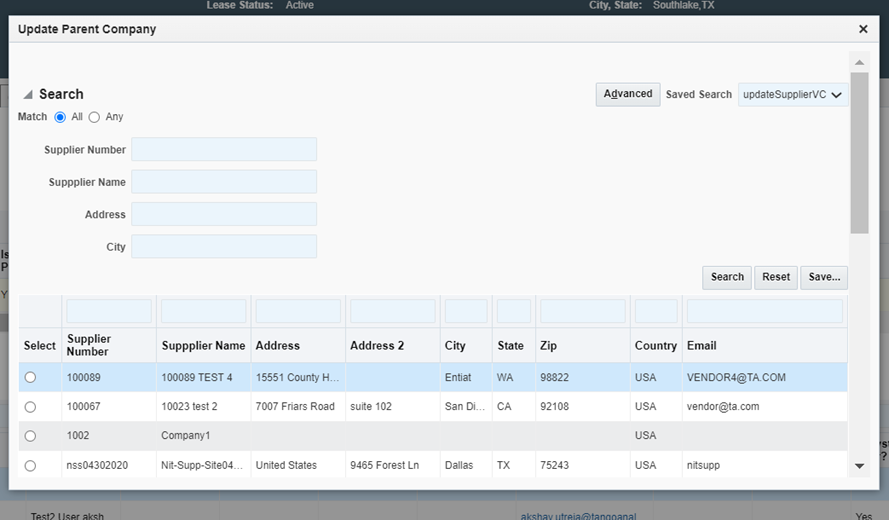
Click “Update Parent Company” and a list of Suppliers will appear.
|
| 3. |
Select the Parent Landlord (Supplier)
|
| 4. |
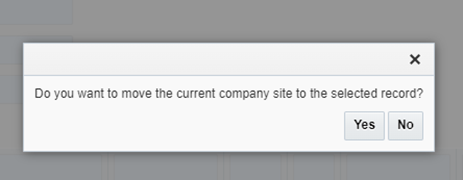
The system will validate your selection. Choose Yes to move the Supplier Site (Landlord) to the new Parent
|
Lease Transactions
Auto-generation of Transactions
Users need time to gather data and argue for their logic of market value, so the system generates a Renewal Transaction X days before the Notice Date based on configuration (the “Trigger Date”).
Note: This “lead time” can be configured based on Option Type. Example: If users want to start standard Renewals 6 months out, but End of Lease items a full year before, that can be configured.
Search/Home Page
The Home page has two sections: Transactions and My Tasks
Transactions list (red box) – a list of key transaction attributes to assist in selecting the desired entity.
Transactions filtering (blue box) the list of Transactions can be filtered 5 ways:
Search Text – list key words (or parts of words) to display a list of transactions that have this string in any key field.
-
My/All Transactions – the default is “My” Transactions (Transactions where I am a contact). Items will be sorted by Notice Date (soonest at the top). Items in the summary list include:
Transaction Name – default is Store Number – Transaction Type
Store Name
City, ST
Lease Number
Notice Date
Transaction Type
Status
Transaction Type – Renewals, End of Lease, etc.
-
Status
Status Type – Active, Complete or All. This setting forms “families” of status’. Default setting is Active Chart
-
My Actions (green box) – these widgets execute tasks or perform common queries. Actions include:
Lease Renewals – a list of all active Renewal or End of Lease Transactions with key data for filtering to manage outstanding work. Once the Transaction is complete, it will drop from this list. The number in the red circle shows the number of transactions outstanding.
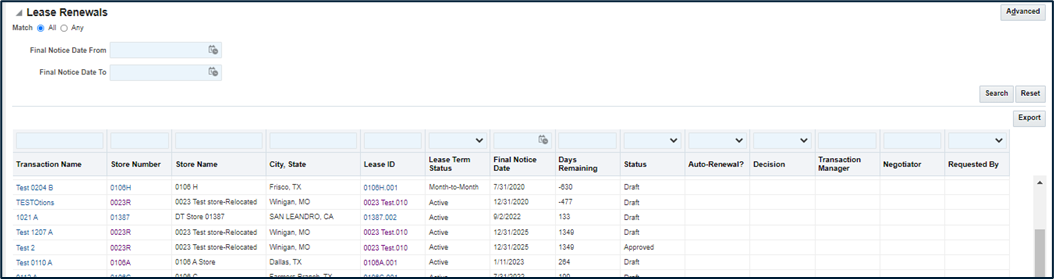
Note: Each column can be filtered and 3 columns are links to associated entities:
Transaction Name – links to the Transaction
Store Number – Key Store data is brought into the Transaction, but if further information is needed, it is one click away
Lease ID – similarly, if further lease data is needed, it can be accessed simply by clicking the link
Create Transaction – Transactions are created automatically, but if a transaction is needed before this time, it can be created manually, and work can begin.
Reports – Any Transaction specific reports can be organized here
Milestones – The milestones module can show Transactions and that module can be accessed directly with this widget.
Transaction Entity
The data to support the analysis, approval, tracking and reporting is done within the Transaction entity. The sections below outline the function and key fields on each tab.
Header
The header displays data that is useful when users are on any tab. It is designed to assist both the people managing and reviewing the transactions. The fields, logic and alignment will be:

Main Display – The TRANSACTION_NAME. This field will be configurable such that on auto-creation, it will be populated with
Store Name-Transaction Type: Concatenated fields. If manually created, the name must be entered in the dialog box.-
Column 1:
Store Number: Display Store Number and make a link to that Store
Store Name
Store City, State
Banner (Brand_ID)
-
Column 2:
Status
Transaction Type – Primary field for Transaction grouping
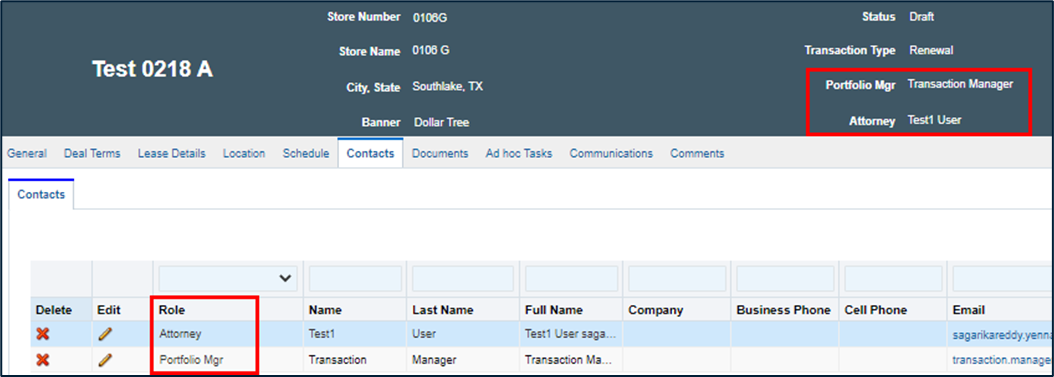
Portfolio Manager – Internal person managing the deal approval and execution
Negotiator – Usually the outside agency assigned to negotiate the deal. Note: these 2 fields are populated by assigning these roles on the Contacts tab.
-
Column 3:
Lease Number: Display Lease Number and make a link to the Option that is being acted upon
Lease Name
Rentable Area from the Lease
Notice Date from the lease
General tab
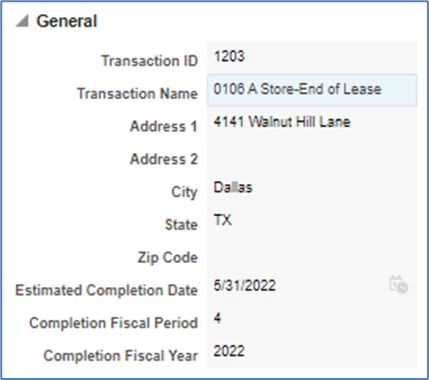
The General tab has 3 sections of data:
Transaction ID and Name
Store address (note that store name/number are in the header)
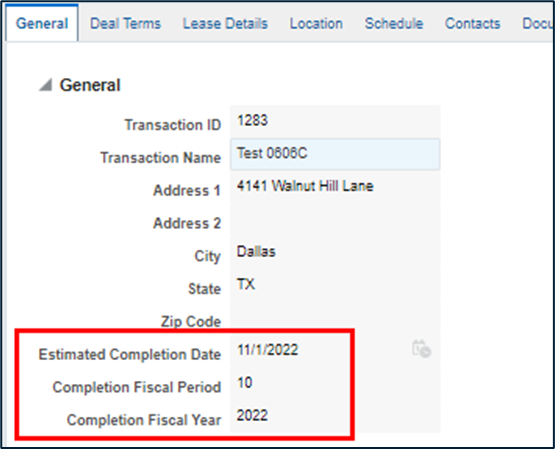
Estimated completion date and that Fiscal Year and Period. The fiscal year is an important part of savings tracking.
Attributes tab
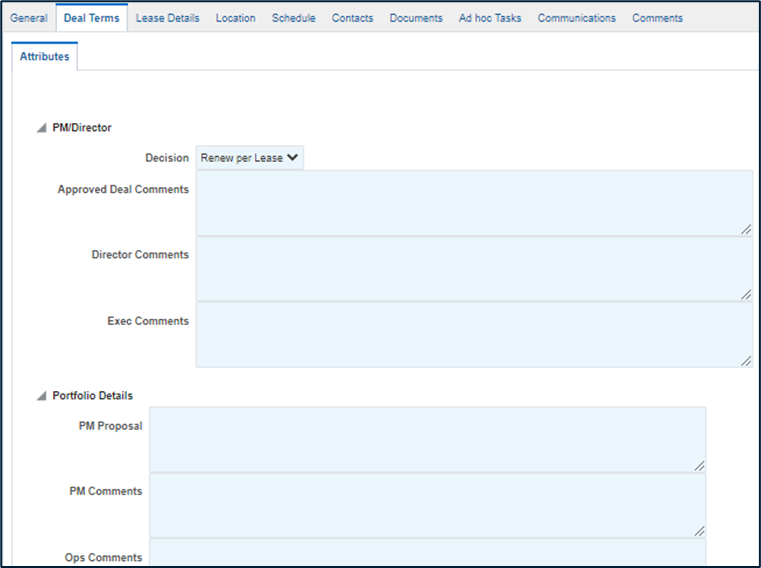
This tab captures User narratives/inputs and displays attributes pulled from the store (brought in via internal integration). It is configurable with sub sections and advanced attribute placement.
Included in this example tab will be a section to capture the Portfolio Director’s final approval. This section will have a separate role to secure approval.
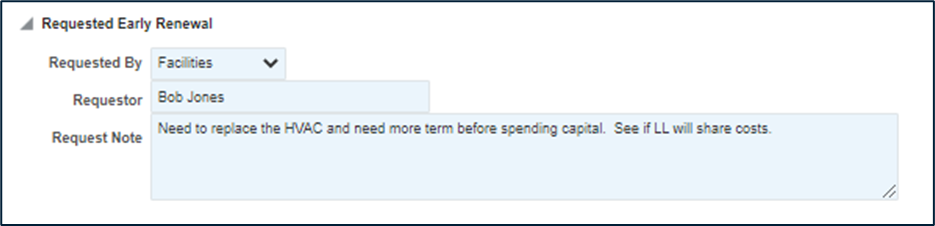
Requested By:
There may be reasons that the company needs to engage Landlords well before a “normal” renewals cycle:
If the location needs material capital spent
Perhaps there is not enough time to all franchising the location
The system allows Portfolio Managers to capture these notes to “move these to the front.” Note that if a renewal is within the dashboard tracking, making it “requested” will put it in a different section for tracking. The group requesting the renewal is captured so they can be notified once complete.
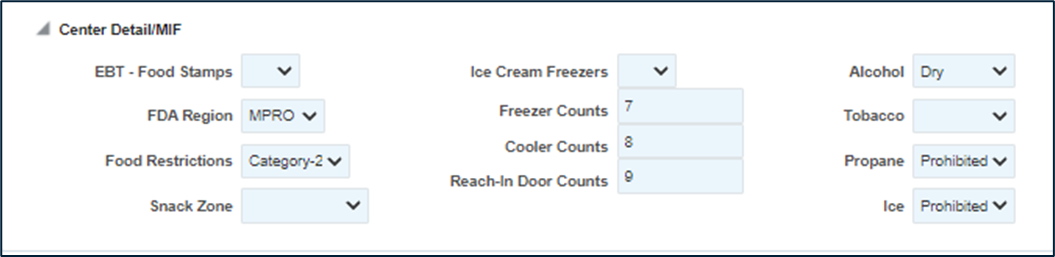
Store Data:
This page will have the ability to display key fields from the Store to provide context to the decision.
Lease details tab
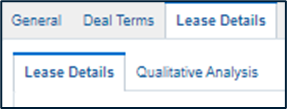
Key Lease data is brought in and summarized in two sub-tabs that assist preparation for and tracking of negotiations:
Lease Details – the primary work area containing lease and market data
Qualitative Analysis – for lease negotiations goals beyond the immediate monetary savings (ex: get additional term, remove percentage rent, etc.)
Lease Details
The Lease Details tab is broken into several specific functional sub-tabs:
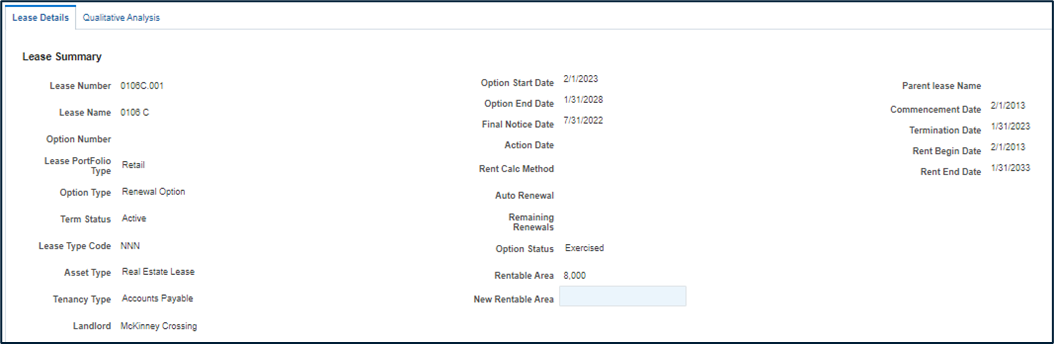
Lease Summary
Displays key lease dates and “option -level” attributes (lease type, Option Type). This is a view of the Option data and corrections must be updated there. Note the New Rentable Area field: if the amount of space is to change, key the revised size and all PSF amounts will use this as the basis.
Year One Savings
Savings from negotiations efforts can be summarized simply as what is the savings (on an annual basis) achieved):
Annual Savings from negotiated rents (note: can be broken by payment type). The total of these types is shown in the first formula.
Landlord Contributions (entered below)
Free Rent – Savings are presented on a 12 months of payments; if there are any months of free rent, the value of those savings are presented. Note: this is not needed in the full option savings as the periods of free rent would be entered.
All Year 1 savings: Rent Savings + LL Contributions + Free Rent
Savings Analysis
Savings from negotiations efforts can be calculated in multiple parts:
Savings from the Next Option being negotiated
Savings from Future options if they too are reduced
Landlord Contribution
Next Option Savings
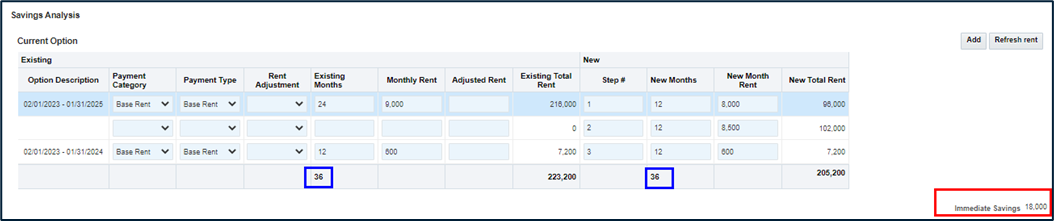
The first way is to calculate savings from the Coming Option (option being negotiated). On creation, the existing step payments that correspond to the Option period will be copied from Recurring Costs. Key components of this action include:
Amount will be converted to a monthly basis, regardless of payment cycle
The Start and End dates will be used to calculate the number of months in each step. Step count will be rounded to an integer.
Payments will NOT include Percentage Rent.
Amounts will be copied to both the Existing and New area (if no change results on a step, no input is needed)
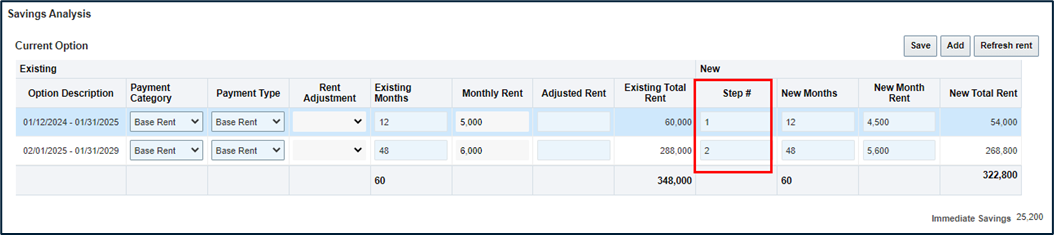
The system includes a column “Adjusted Rent” to allow users to include an estimate of Percentage Rent or if the payments are not defined (ex: if FMV option).
Note: This amount replaces the Monthly Rent for calculation.
Key logic includes:
Total payments for a step will be: (# Periods) x (Estimate if entered, else the monthly amount from the lease).
The new payment periods for the steps need not match the existing pattern, but the total payment periods must match. Note in this example that the 24-month step was broken into two 12-month steps, but the option is still 36 months.
The Option Description is the date range for that existing recurring payment
The Step number will be populated on creation, but new steps must be numbered. The Step number determines the sequence of payments for calculation of savings over time.
The total of all Existing Lease payments in this option less the New Lease payments is the total savings.
A similar process will happen for future options (available renewal options after the Next Option); if any savings are achieved there they can be entered there. In this way, direct and future savings can be reported separately. In the example below, the next payment is Fair Market Value (FMV) so the rent is not known. It is estimated at 9,500 and the negotiated amount is 9,000. Savings are generated on the next payment string as well for a total future savings of 36,000.

Any landlord contribution is entered and added for a total savings.
Closest Leased Stores
This section has 3 parts:
A listing and average of the 10 closest leased stores (100 mile limit) and key data. The list has the option to exclude a store from the average (example: if one was an office or otherwise not comparable). It puts the rent on a per UOM basis and averages this as a consideration of “market rent.” These amounts are pulled from the Store Financials so amounts must be planned to integrate amounts to be used for this purpose.
Broker Opinion of Value (BOV) – the simple opinion of someone that has knowledge of the site and similar ones in the area.
Final Market Estimate – The amount (or range) PSF of “market value.” (considering the above and other factors).
Landlord’s Other Stores
The Lease Contact “Landlord” (Supplier Site) will be associated to a Supplier. All of this “Parent” landlord’s other properties will also be configured as Supplier Sites. The table contains all other leases (and stores associated to them) where the Supplier Site with the Role of Landlord have the same Parent Supplier. Key data will include:
Store Number (link)
Lease Number (link)
Notice Date
Store financial data configured for standard integration

Note: Lease data must be organized such that their Landlord contacts are Supplier Sites of the Landlord Supplier for this functionality to be of use.
Qualitative Analysis
In addition to numeric savings, renewal efforts can include “deal elements such as:
Removing percentage rent (if any)
Gaining additional term
Fixing future options if FMV

These metrics are reported in conjunction with the numeric savings (what gets measured get done!)
Location Data
Location data will display key tabs from the associated location.
Location Financials
This tab is a copy of the Financials tab on the location. Note that it is dynamic and updates as time goes so that the analysts always have current data; however, this also means it will reflect the current financials if reopened years later.
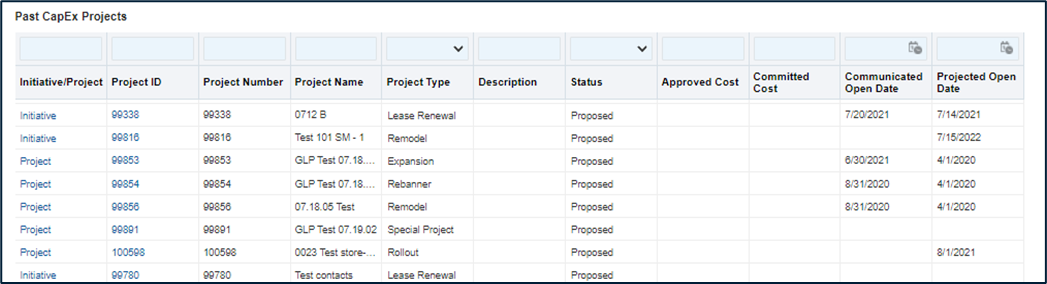
Past CapX Projects
Pulls in all projects and initiatives for the store associated with this lease. This is the same data as the Associated Projects tab on that store.
Associated Stores
Pulls in all “child” locations for this Store. For example: if a store has 2 associated rental units, they will display here
Strategy
Pulls in all Strategies for this Store. If a store were to be flagged for relocation or closure, that would be revealed here.
Milestones
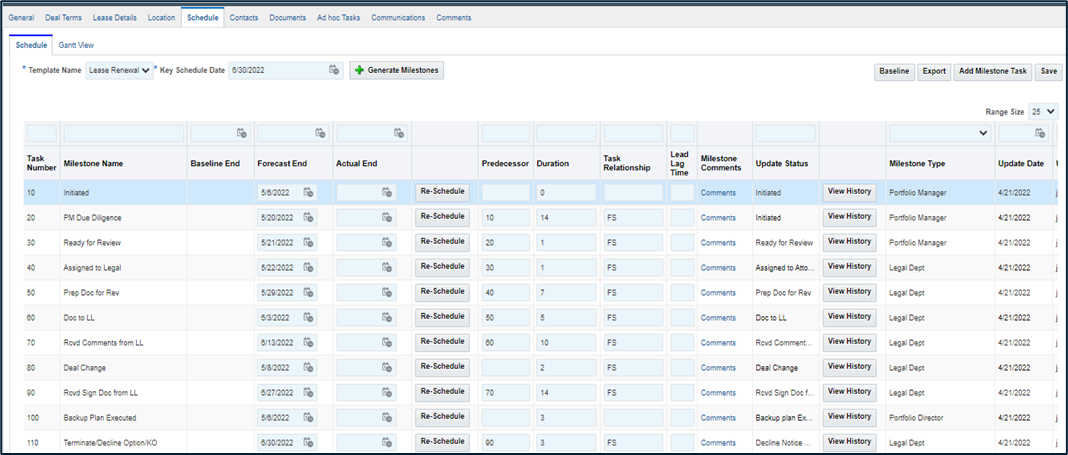
Milestones templates will be configured to manage the steps, timing and resulting statuses. Full milestones functionality will be available to support the workflow. Approval will be accomplished in the Lease tab, but all other milestones will be updated here. Below is the current milestones configuration (note: approval happens separately)
Contacts
The contacts tab includes roles created from Tango Resource Boundaries for Lease Transactions. Names for roles can be set according that configuration (currently by State). Any notifications and access will be granted to those named by their roles.
Other tabs
Other tabs with available functionality include:
Documents – a folder structure can be configured, and documents uploaded
Ad hoc tasks – like other modules, ad hoc tasks can be created to assign specific requests.
Communications – emails can be copied to this tab to support negotiations evidence
Comments – Comments can be entered with the following metadata: Comment Type, Date and Creator stamp. Comments can be edited and deleted.
Dashboards
Outstanding Renewals
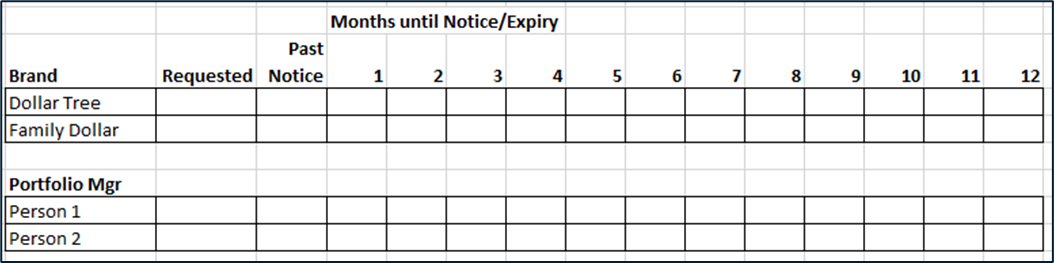
Management and users need to see the current status of coming renewals. Basic design elements include:
Periods will be by month for the rolling next 12 months
A column “requested” will be for any that have been requested outside of the next 12 months
Items will be by Banner (Brand)
Items will also be by Portfolio Manager and Portfolio Director
Savings Dashboards
Each Renewal Transaction has two key components:
In what Fiscal Year was it completed?
When will the savings be realized?
Answers to these questions are found in the Savings Dashboard as follows:
Fiscal Year Complete
Efforts by fiscal year are tallied and defined by the date on which the Transaction is complete. This is controlled in the Schedule tab by managing the date on the Project Complete milestone. 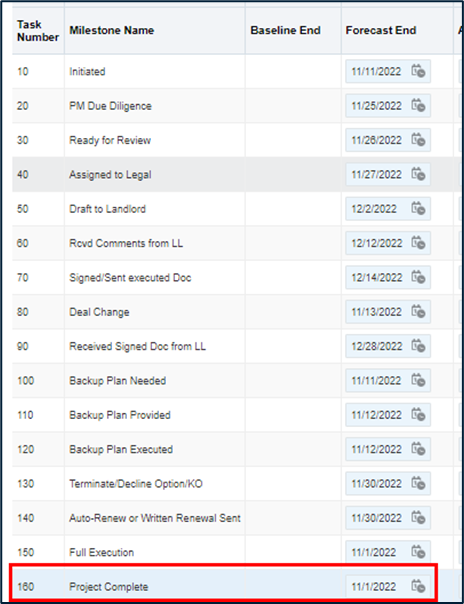
This field is sent to the General tab and the Fiscal Period and Year are derived from the Client fiscal calendar. Any change to the date will trigger an update to the fiscal attributes.
Savings over Time
The system knows the Option Start Date and the sequence of payments from the Step # in the Savings Analysis table. The system sequences the payments in this order and calculates the difference on a monthly basis to then allocate these savings to future fiscal years. Note that the Existing Months and New Months MUST be the same or the calculations will be accurate.
The system spreads the savings by year for the first 5 years (the first year is always the Fiscal Year completed. If there are savings beyond this, the difference between the total savings and the sum of the first 5 years is entered in the “Year 6+” column. Landlord Contributions are noted, and Total Savings presented. Key callouts are:
As in the example below, if the option doesn’t start in the current year, savings in this year will be $0
Periods of Free Rent must be entered as steps of $0 payments so timing of these amounts will be accurate
Only Current Option Savings are shown

Technical Notes
Lead Days for Auto generation
Nightly, the system filters all options as follows:
Is the LEASE_STATUS=Active
Is the OPTION_STATUS= Available
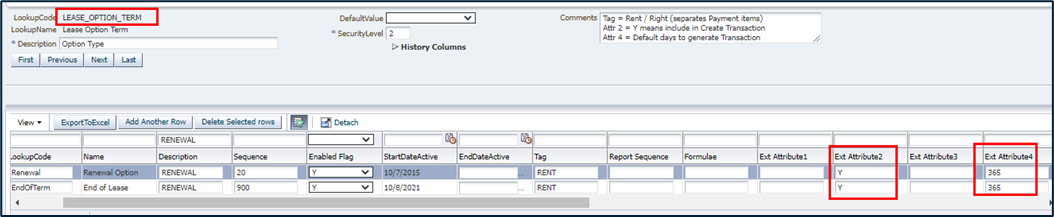
It then looks to the LOV LEASE_OPTION_TERM to see if this Option Type is:
to be included for generation LOV attr2=Y
How many days before the Final Notice Date to create the transaction LOV attr4=# of days
The LRE will be generated if the (Final Notice Date – that number of days) <= Today
Choose Payment Types for Inclusion
Payment Categories and Types are imported into the Savings Analysis section. 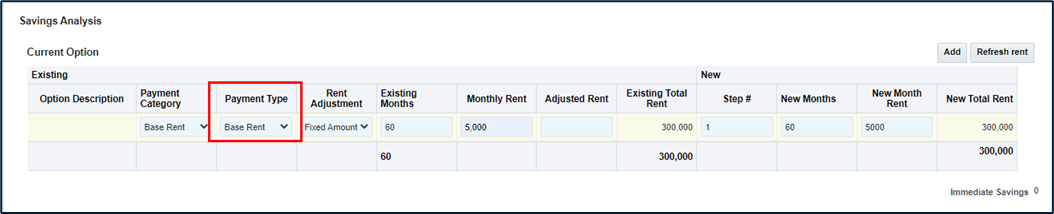
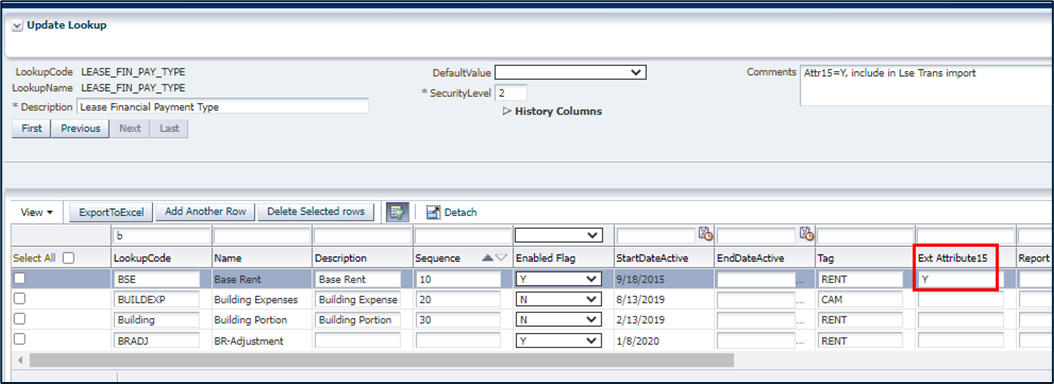
Selection of the Types to import is done in the LEASE_FIN_PAY_TYPE LOV; key a “Y” in Attribute15 to include that Type.
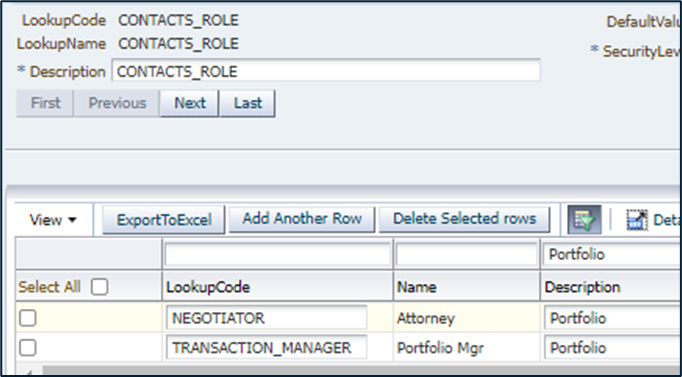
Configure Portfolio Manager and Negotiator in Contact Roles
The CONTACTS_ROLE code for these Roles must be the same as the attribute column name for these fields to populate.
Configure Store Fields for Closest Lease Integration data
Amounts are pulled from TMCS_ALL_STORES and Open stores are pulled based on proximity to the subject store.
| Source | Column Name | Lookup Code | Label Value | Display Seq |
|---|---|---|---|---|
| INCLUDE_IN_ANALYSIS | Include In Market Analysis | 10 | ||
| STORE_NUMBER | STORE_NUMBER | Location Number | 20 | |
| STORE_NAME | STORE_NAME | Location Name | 30 | |
| BRAND_ID | BRAND_ID | Banner / Concept | 40 | |
| LOCATION_TYPE_CODE | LOCATION_TYPE_CODE | LEASE_LOC_TYPE | Location Type | 50 |
| PROPERTY_TYPE | PROPERTY_TYPE | Site Type | Property Type | 60 |
| labelize on LOCEDITPG_STORE_OLDSALES_DD | TOTAL_ANNUAL_RENT | Annual Rent | 70 | |
| labelize on LOCEDITPG_STORE_OLDSALES_DD | STORE_SIZE | Location Area | 80 | |
| calculated: TOTAL_ANNUAL_RENT / STORE_SIZE | BASE_RENT_PER_SIZE | Rent / Area | 90 | |
| labelize on LOCEDITPG_STORE_OLDSALES_DD | CY_ANNUAL_SALES | Sales | 100 | |
| Calculated | DISTANCE | Miles from Location | 110 | |
| EXCLUSION_COMMENTS | Comments | 120 | ||
| CITY | CITY | City | ||
| SIS_TYPE_CODE | SIS_TYPE_CODE | Development Type | Development Type | |
| STATUS | STATUS | STORE | Status |
Configure Store Fields for Landlord’s Other Stores Integration data
The same financial fields are used for LL Other stores.
Was this article helpful?
That’s Great!
Thank you for your feedback
Sorry! We couldn't be helpful
Thank you for your feedback
Feedback sent
We appreciate your effort and will try to fix the article